Method 1: Use Quick Share
Samsung’s Quick Share, inspired by AirDrop on Apple devices, provides a fast way to share media files between nearby Android and Windows devices. Here’s how to use it.
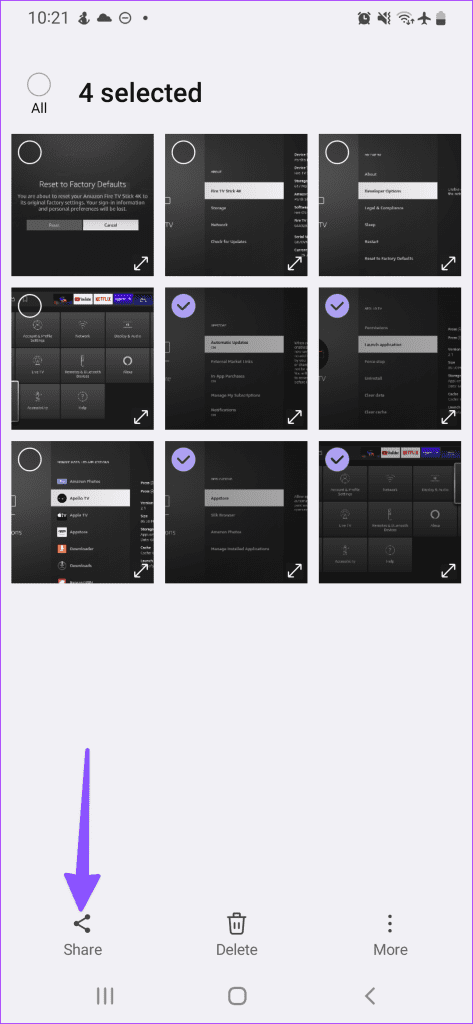
Step 1: Open the Gallery app and select the photos you want to send.
Step 2: Tap the share icon at the bottom.
Step 3: Select Quick Share and choose the nearby device once it appears.


If you have trouble sending files via this feature, check our guide on how to use Quick Share on Samsung Galaxy phones.
Method 2: Use the Default Messages App
If the receiving device isn’t nearby, you can use the default Messages app on your Samsung phone to share photos. Here’s how:
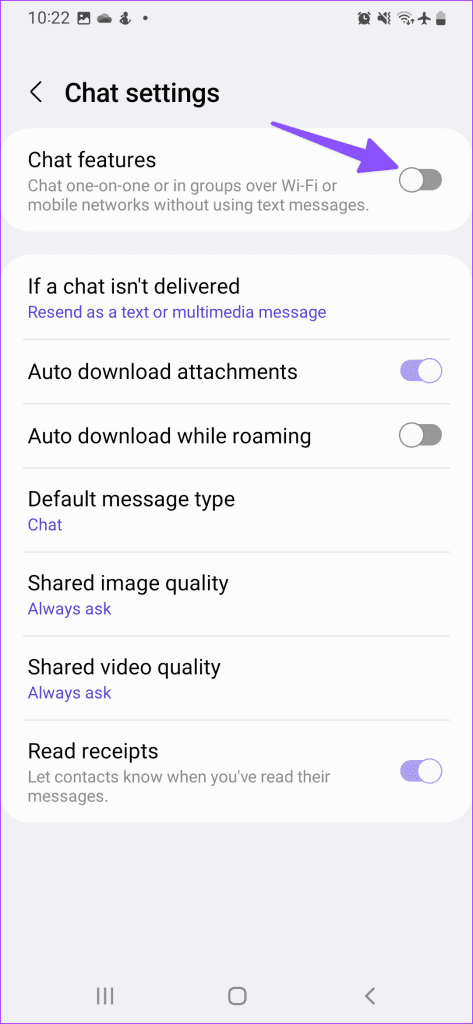
Step 1: Launch the Messages app on your Samsung phone. Tap the three-dot menu and open Settings.
Step 2: Select Chat settings and enable the Chat features. It switches on RCS on your Samsung phone. Expand Shared image quality and select Original or High.


Step 4: Return to the Messages app and open a conversation.
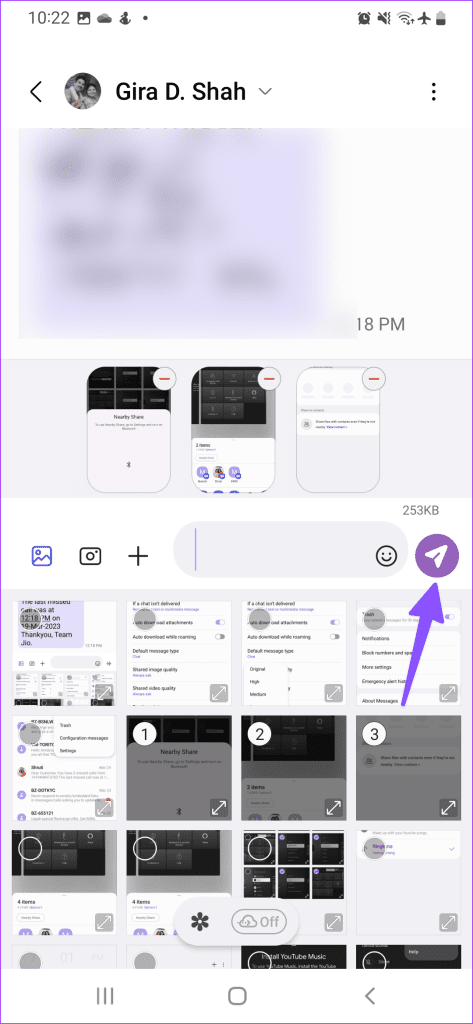
Step 5: Tap the image icon beside a message box and select the photos you want to share. Then, hit send.

Method 3: Use WhatsApp or Telegram to Send Multiple Photos
If you want to send multiple photos from a Samsung phone to an iPhone, none of the tricks above will work here. For that, you need to use a third-party messaging app like WhatsApp and Telegram.
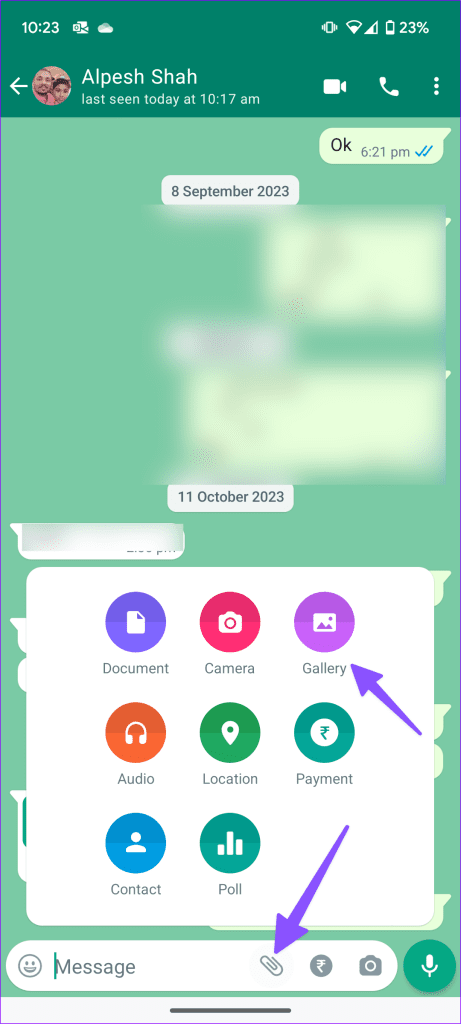
Step 1: Launch WhatsApp on your Samsung phone and go to the relevant conversation.
Step 2: Tap the pin icon in the message box and select Gallery.
Step 3: Select the photos you want to share and hit the send icon.


Telegram is the second most popular instant messaging app after WhatsApp. If your friends use that, you can also share multiple photos on Telegram using these steps:
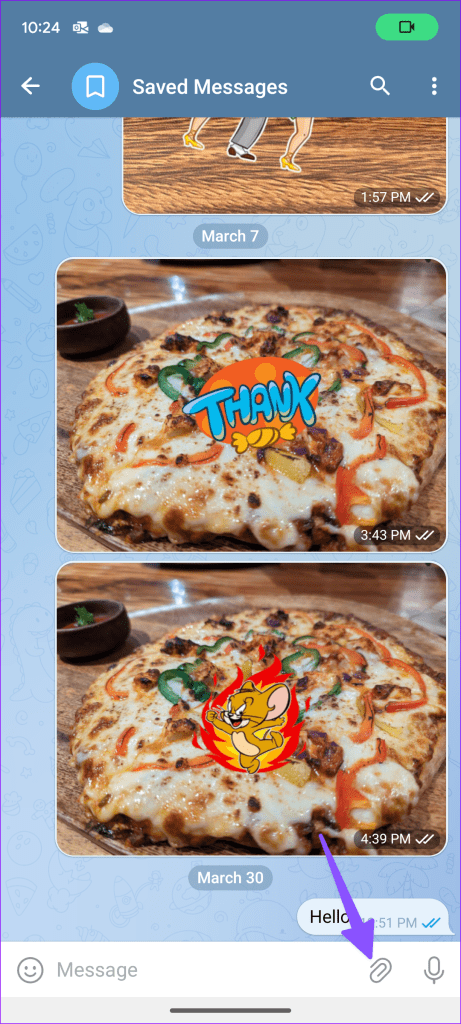
Step 1: Launch Telegram on your phone and open a chat thread.
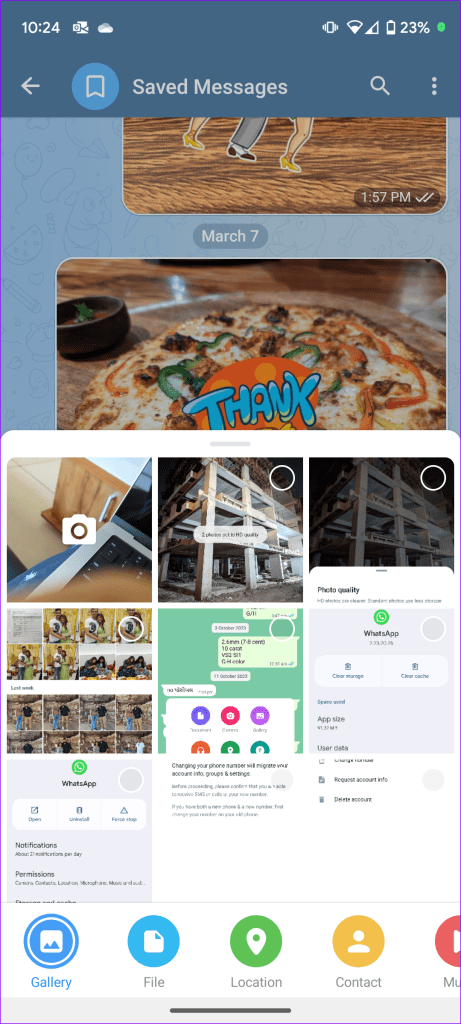
Step 2: Tap the pin icon and select the photos you want to share.
Step 3: Tap the three vertical dots menu at the top and select Send as files.

Was this helpful?
Last updated on 04 September, 2024
Read Next
 3 Ways to Hide Photos and Videos on Samsung Galaxy Phones
Method 1: Use Secure Folder With Samsung’s Secure Folder, you can hide apps, documents, media, and more.
3 Ways to Hide Photos and Videos on Samsung Galaxy Phones
Method 1: Use Secure Folder With Samsung’s Secure Folder, you can hide apps, documents, media, and more.
 4 Ways to Send Multiple Photos From iPhone to Android
Method 1: Use Instant Messaging Apps There are several ways to send multiple photos from iPhone and Android.
4 Ways to Send Multiple Photos From iPhone to Android
Method 1: Use Instant Messaging Apps There are several ways to send multiple photos from iPhone and Android.
 5 Ways to Send Multiple Photos From iPhone
1.
5 Ways to Send Multiple Photos From iPhone
1.
 How to Send Multiple Photos on WhatsApp for iPhone and Android
It’s sufficient to say that IM (instant messaging) platforms like WhatsApp and Messenger have become the preferred way to send or receive media files.
How to Send Multiple Photos on WhatsApp for iPhone and Android
It’s sufficient to say that IM (instant messaging) platforms like WhatsApp and Messenger have become the preferred way to send or receive media files.
 3 Ways to Fix Unable to Send Multiple Documents on WhatsApp on Android
Basic Fixes: Check document size: WhatsApp allows you to send documents only up to 2GB.
3 Ways to Fix Unable to Send Multiple Documents on WhatsApp on Android
Basic Fixes: Check document size: WhatsApp allows you to send documents only up to 2GB.
 4 Ways to Create a GIF on Samsung Galaxy Phones
Method 1: Create a GIF Using Photos Creating a GIF on your Samsung Galaxy phone is easiest if you use a bunch of images.
4 Ways to Create a GIF on Samsung Galaxy Phones
Method 1: Create a GIF Using Photos Creating a GIF on your Samsung Galaxy phone is easiest if you use a bunch of images.
 4 Ways to Blur Background or Part of a Picture on Samsung Galaxy Phones
https://youtu.be/ibIZ2QeeIgk Method 1: How to Blur Certain Parts of a Picture on Samsung Step 1: Launch the Samsung Gallery app on your phone.
4 Ways to Blur Background or Part of a Picture on Samsung Galaxy Phones
https://youtu.be/ibIZ2QeeIgk Method 1: How to Blur Certain Parts of a Picture on Samsung Step 1: Launch the Samsung Gallery app on your phone.
 4 Best Ways to Fix Smart View Not Working on Samsung Galaxy Phones
Basic Fixes: Restart devices: If the Smart View feature isn’t working on your Samsung Galaxy phone, the first thing you must do is restart it.
4 Best Ways to Fix Smart View Not Working on Samsung Galaxy Phones
Basic Fixes: Restart devices: If the Smart View feature isn’t working on your Samsung Galaxy phone, the first thing you must do is restart it.
The article above may contain affiliate links which help support Guiding Tech. The content remains unbiased and authentic and will never affect our editorial integrity.