1. Messages App
Apple’s iMessage service is seamlessly integrated into the iPhone Messages app. To send multiple photos via iMessage, first disable low-quality image mode in your settings.
Step 1: Open Settings on your iPhone and navigate to Messages.
Step 2: Scroll down and turn off Low-Quality Image Mode.


Step 3: Launch the Messages app, and start a new conversation or open an existing one.
Step 4: Tap the Plus (+) icon next to the text field and choose Photos.


Step 5: Select the images you wish to share, then tap the green arrow icon.
2. Create Shared Albums
If you want to share multiple photos with a group of people, then create a shared album and send it to others using their Apple ID or phone number. The invited members can join the album, download existing pictures, and even add new ones. This method works in the Photos app, and it’s limited to iPhone users only.
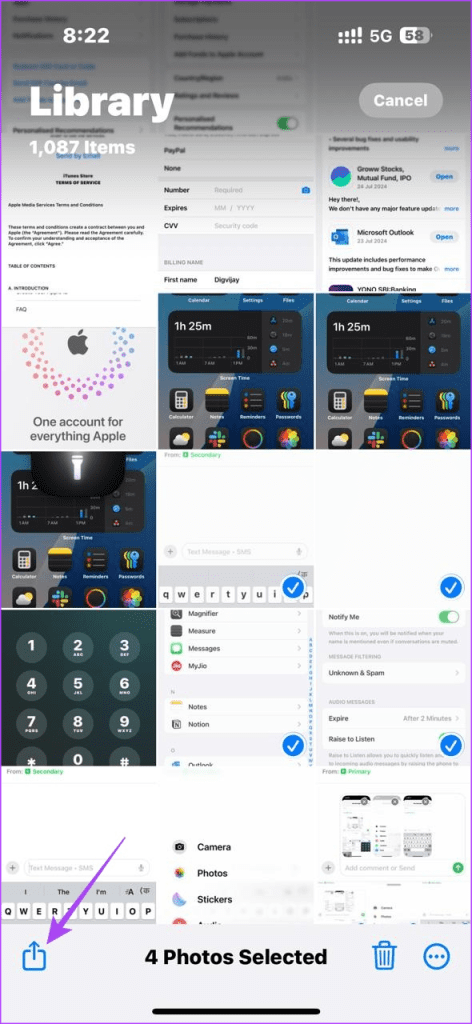
Step 1: Select the photos you want to share and tap the Share icon.
Step 2: Choose Add to Shared Album > Shared Album > New Shared Album.

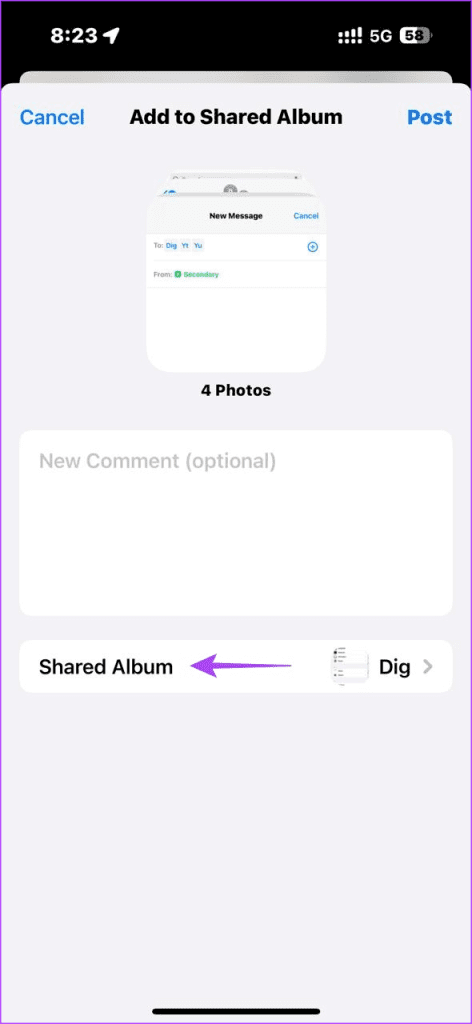
Step 3: Name the album and tap Invite.
Step 4: Type the name, phone number, or email of the recipient, and hit Done.



The recipient receives an email and a notification to accept the invitation.
3. Use WhatsApp
WhatsApp allows you to send up to 100 photos in HD quality. Here’s how to do it:
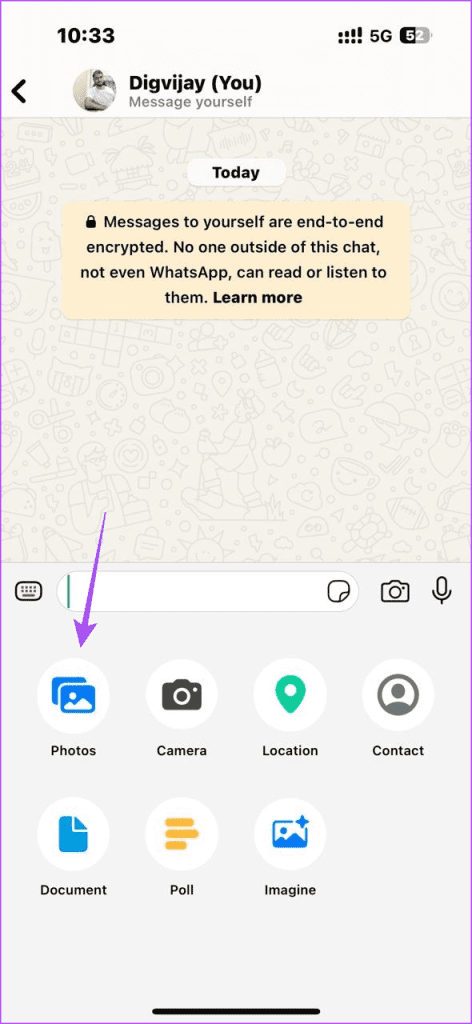
Step 1: Open a WhatsApp conversation and tap the Plus (+) icon
Step 2: Tap on the Photos option.

Step 3: Select the photos, then tap Next.
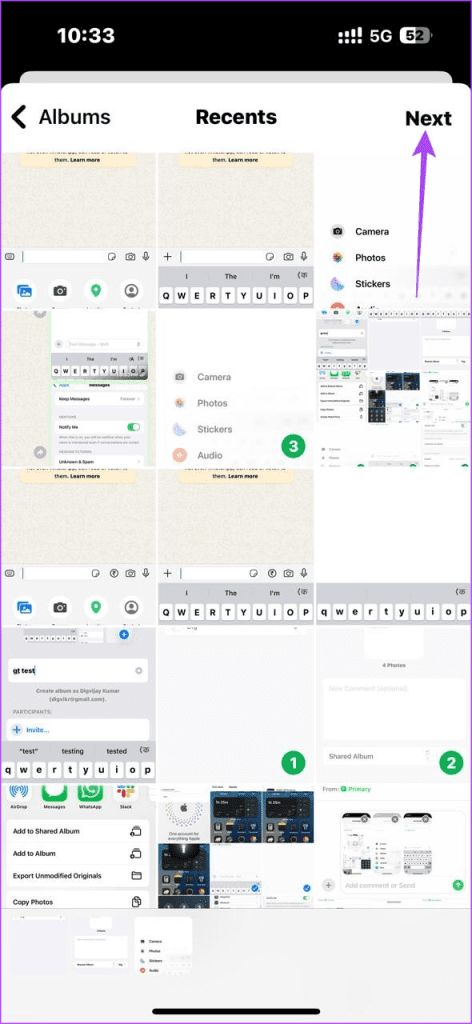


Step 4: Tap Send (the arrow icon) to share all images.
4. Use Telegram
Telegram is another popular messaging app that allows you to send high-quality images without compressing them.
Step 1: Launch Telegram and start a new chat or open an existing one.
Step 2: Tap the attachment icon (paperclip) and select Gallery.
Step 3: Select the photos you want to send, then tap Send.


When you send photos as files, Telegram shares them without losing quality.
5. Use Mail
If you’re looking to share photos with someone who doesn’t use a messaging app, you can always send them via email. Here’s how:
Step 1: Open Photos and choose the images you want to send.
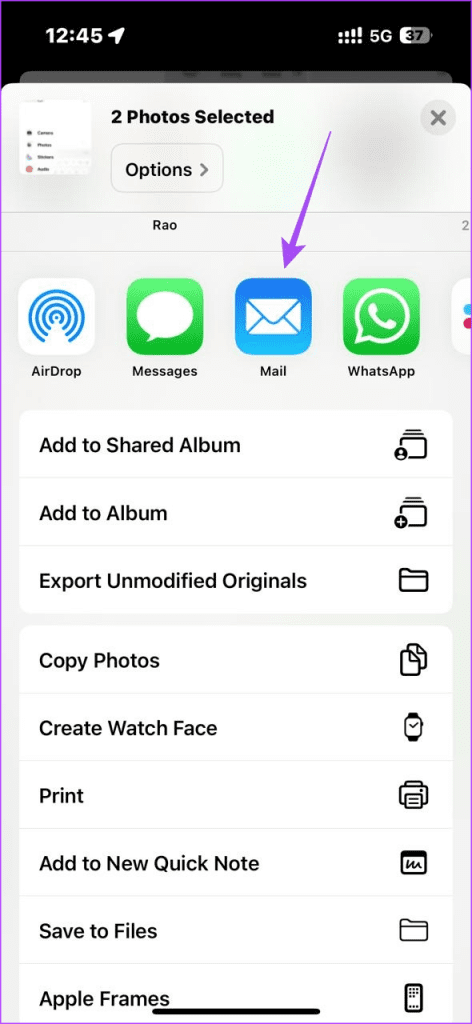
Step 2: Tap the Share icon and choose Mail.

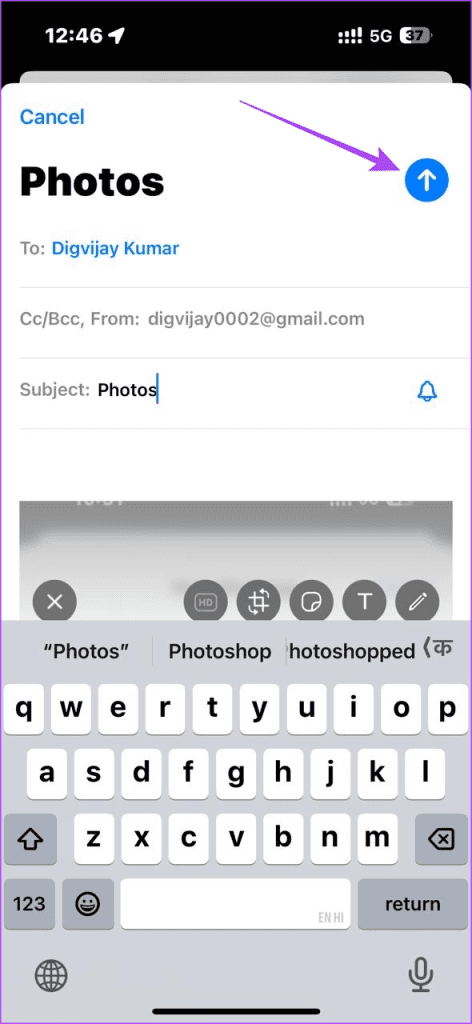
Step 3: Enter the recipient’s email address, add a subject and message (optional), then tap Send.
The Mail app will attach and send all the images in actual size.
Was this helpful?
Last updated on 01 August, 2024
Read Next
 4 Ways to Send Multiple Photos From iPhone to Android
Method 1: Use Instant Messaging Apps There are several ways to send multiple photos from iPhone and Android.
4 Ways to Send Multiple Photos From iPhone to Android
Method 1: Use Instant Messaging Apps There are several ways to send multiple photos from iPhone and Android.
 3 Ways to Send Multiple Photos From Samsung Galaxy Phones
Method 1: Use Quick Share Samsung’s Quick Share, inspired by AirDrop on Apple devices, provides a fast way to share media files between nearby Android and Windows devices.
3 Ways to Send Multiple Photos From Samsung Galaxy Phones
Method 1: Use Quick Share Samsung’s Quick Share, inspired by AirDrop on Apple devices, provides a fast way to share media files between nearby Android and Windows devices.
 How to Send Multiple Photos on WhatsApp for iPhone and Android
It’s sufficient to say that IM (instant messaging) platforms like WhatsApp and Messenger have become the preferred way to send or receive media files.
How to Send Multiple Photos on WhatsApp for iPhone and Android
It’s sufficient to say that IM (instant messaging) platforms like WhatsApp and Messenger have become the preferred way to send or receive media files.
 3 Ways to Fix Unable to Send Multiple Documents on WhatsApp on Android
Basic Fixes: Check document size: WhatsApp allows you to send documents only up to 2GB.
3 Ways to Fix Unable to Send Multiple Documents on WhatsApp on Android
Basic Fixes: Check document size: WhatsApp allows you to send documents only up to 2GB.
 4 Ways to Send WhatsApp Messages to Multiple Contacts
Method 1: Forward a Message on WhatsApp Step 1: Open a conversation on WhatsApp.
4 Ways to Send WhatsApp Messages to Multiple Contacts
Method 1: Forward a Message on WhatsApp Step 1: Open a conversation on WhatsApp.
 4 Ways to Send Photos as Documents on WhatsApp Using iPhone
If you have recently started using WhatsApp on your iPhone, sending photos as documents can seem slightly more challenging than on Android, but worry not.
4 Ways to Send Photos as Documents on WhatsApp Using iPhone
If you have recently started using WhatsApp on your iPhone, sending photos as documents can seem slightly more challenging than on Android, but worry not.
 How to Send Live Photos as GIFs on WhatsApp
Method 1.
How to Send Live Photos as GIFs on WhatsApp
Method 1.
 How to Add Camera Roll Photos (Multiple) to Snapchat Story
How to Add Photos to Your Snapchat Story Before we get started on adding multiple pictures from your camera roll, let us quickly look at how to add a single
How to Add Camera Roll Photos (Multiple) to Snapchat Story
How to Add Photos to Your Snapchat Story Before we get started on adding multiple pictures from your camera roll, let us quickly look at how to add a single
The article above may contain affiliate links which help support Guiding Tech. The content remains unbiased and authentic and will never affect our editorial integrity.