How to Save Voice Message From WhatsApp on Android
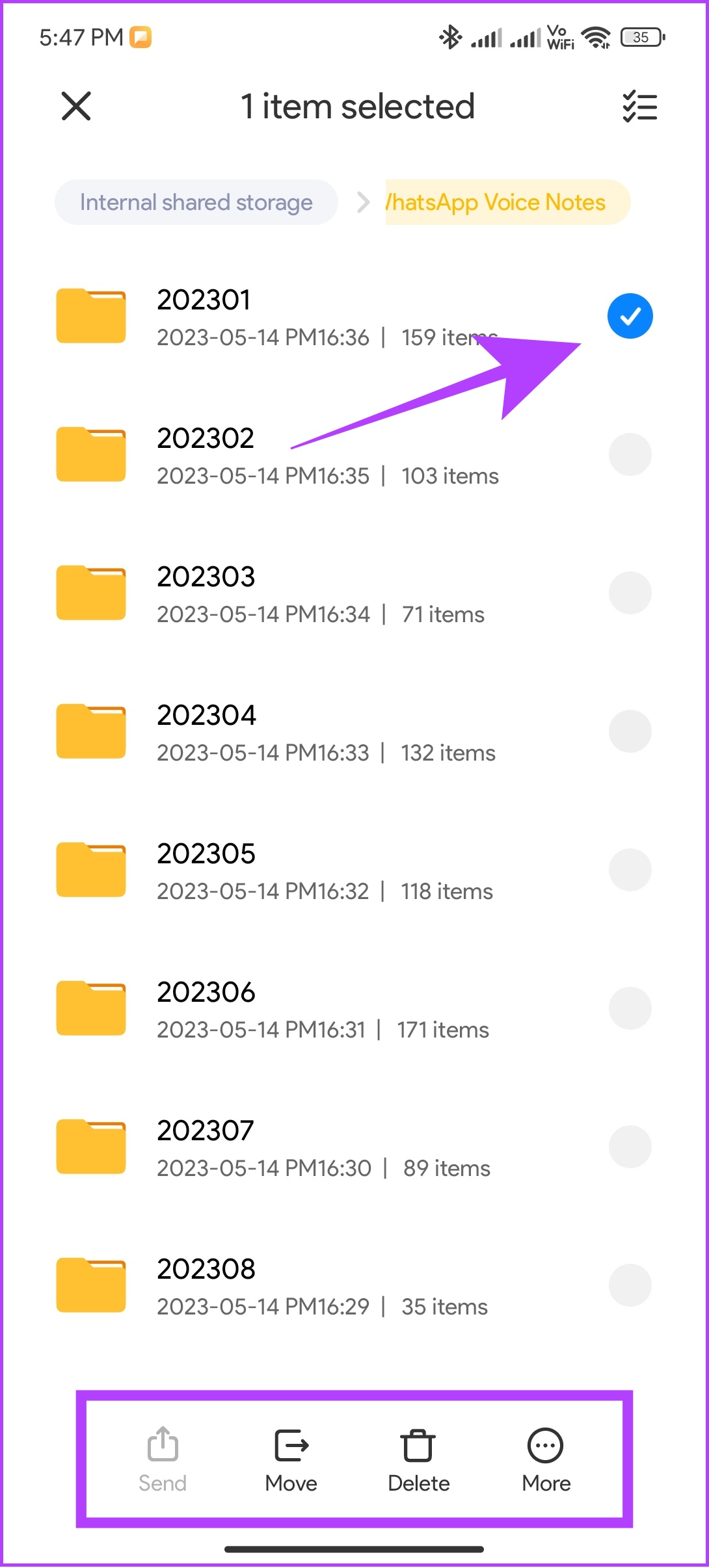
All the WhatsApp data is stored in your device’s internal storage, which can be accessed using the File Manager.
Step 1: Open File Manager on your Android smartphone.
Step 2: Search WhatsApp Voice Notes in the search bar and tap on the result.
The voice notes will be sorted based on the dates you received.
Step 3: Open the folder of your choice and choose the voice notes you want to access.
Step 4: Choose Move. Place the folder where you can easily access it. Here, we are moving the folder to downloads.

Save WhatsApp Voice Note on iPhone
While not as easy as Android, you can still save WhatsApp audio on your iPhone easily.
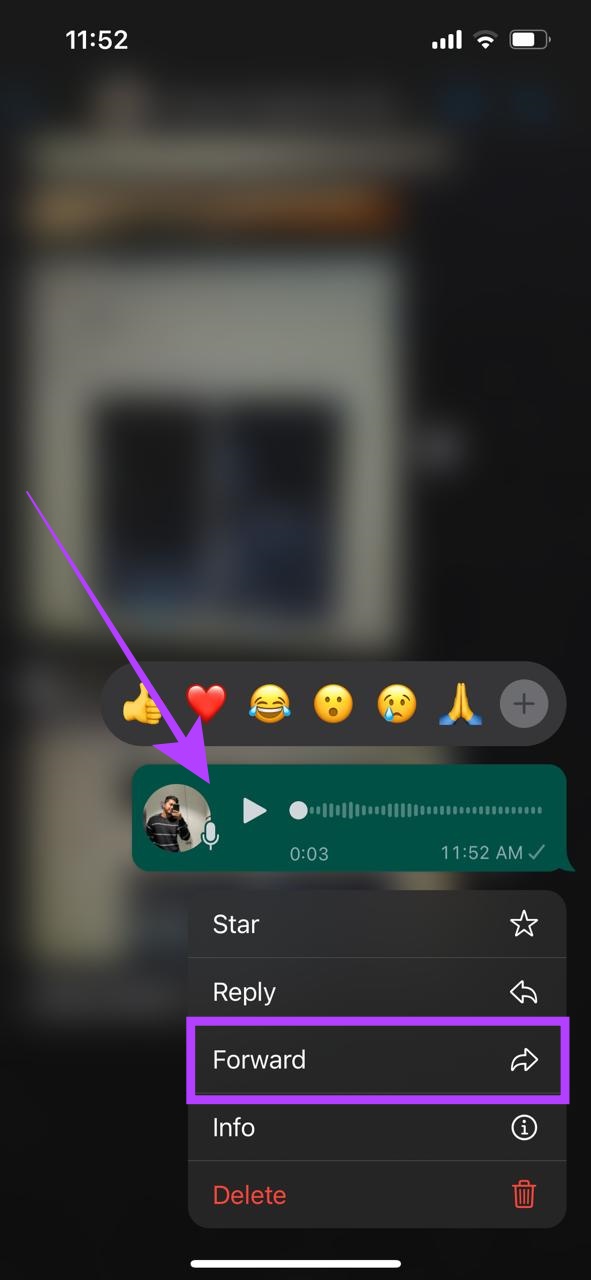
Step 1: Open WhatsApp and go to the conversation with the voice note you want to download.
Step 2: Tap and hold the voice message and choose Forward.
Step 3: Select Save to Files.
Tip: You can also save WhatsApp voice messages on email or any cloud storage.
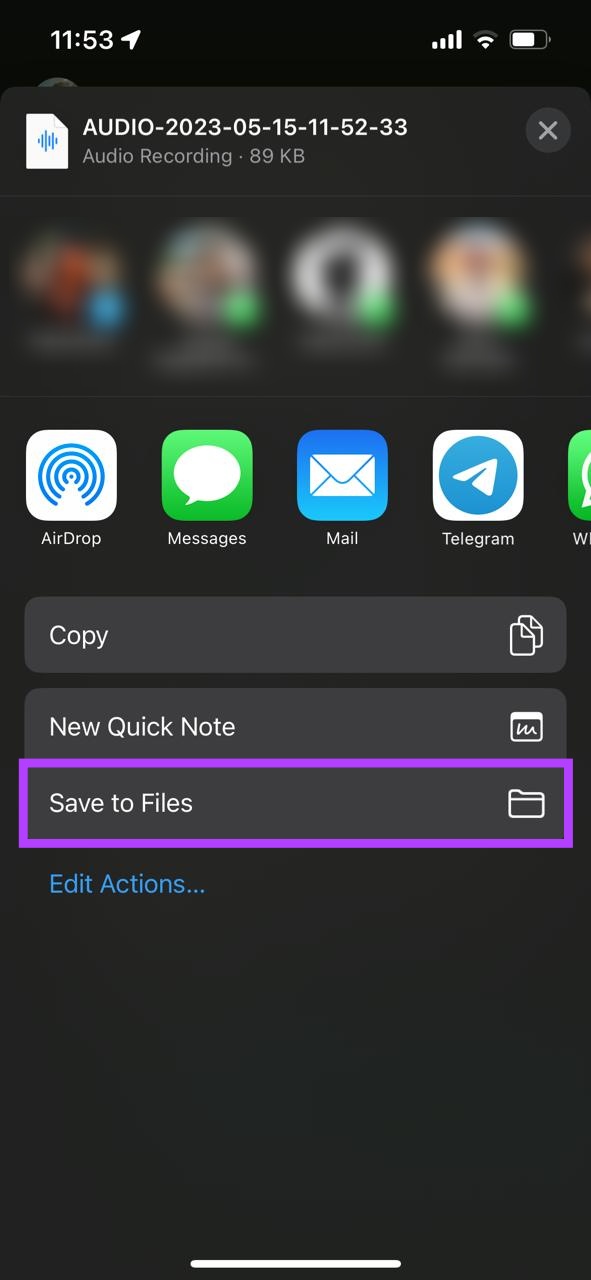
Step 4: Name the file if needed, select the location, and tap Save.
How to Save WhatsApp Audio From Web and Desktop App
Regardless of whether you are using WhatsApp web or desktop app on a PC, you can follow the same steps to download and save audio from WhatsApp. Here’s how:
Step 1: Open WhatsApp web on your browser or app.
Step 2: Now, open the conversation from which you want to share the voice note.
Step 3: Move the cursor over the voice note and click the chevron icon when it becomes visible.

Step 4: Click Download.

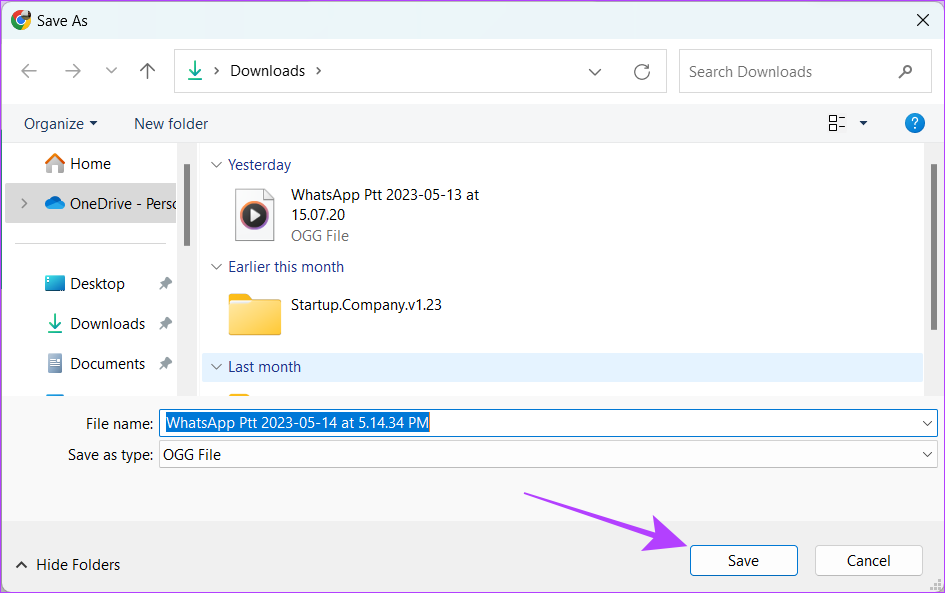
Step 4: Choose the location and hit Save.
Now you can access the downloaded WhatsApp voice message file and use it as any audio file.
FAQs on Saving WhatsApp Audio
No. There is no option to convert audio files to MP3 in WhatsApp. However, if the file is in the MP3 format by default, it will be saved as MP3.
WhatsApp uses the Opus audio format (OGG) to save the audio files on the platform unless it is sent in any other format by the user by default.
With WhatsApp voice messages, it is easier to express your thoughts compared to voice notes. And with this guide, you can now preserve or use these audio files outside WhatsApp as well.
Was this helpful?
Last updated on 22 July, 2024
Read Next
 5 Ways to Fix No Audio on WhatsApp Web
Preliminary Checks Check the video or try playing another/older video: Is the video a GIF?
5 Ways to Fix No Audio on WhatsApp Web
Preliminary Checks Check the video or try playing another/older video: Is the video a GIF?
 How to Save Web Pages as PDF in Chrome (iPhone and Android)
Save Web Pages on Chrome for iOS Chrome for iOS doesn’t have Save as PDF or Print to PDF options anywhere within its Printer Options screen.
How to Save Web Pages as PDF in Chrome (iPhone and Android)
Save Web Pages on Chrome for iOS Chrome for iOS doesn’t have Save as PDF or Print to PDF options anywhere within its Printer Options screen.
 How to Add New Contacts via WhatsApp Web
Use InTouch App to Add New Contacts Using WhatsApp Web InTouchApp is a contacts manager app that lets you add contacts directly via WhatsApp Web.
How to Add New Contacts via WhatsApp Web
Use InTouch App to Add New Contacts Using WhatsApp Web InTouchApp is a contacts manager app that lets you add contacts directly via WhatsApp Web.
 How to Save Shared Files on Google Drive for Web and Mobile
Method 1: Use Shared With Me in Google Drive for Web Step 1: Open the browser, go to Google Drive, and click on the Shared with me link in the sidebar.
How to Save Shared Files on Google Drive for Web and Mobile
Method 1: Use Shared With Me in Google Drive for Web Step 1: Open the browser, go to Google Drive, and click on the Shared with me link in the sidebar.
 WhatsApp Web vs WhatsApp Desktop App: Which Should You Use
Currently ranked as the world's most popular instant messaging app, WhatsApp needs no introduction.
WhatsApp Web vs WhatsApp Desktop App: Which Should You Use
Currently ranked as the world's most popular instant messaging app, WhatsApp needs no introduction.
 How to Change WhatsApp Audio Speed on Mobile and Desktop
Change Playback Speed for Audio Messages on WhatsApp WhatsApp allows you to change the playback speed of audio messages in three levels : 1x – 1x means WhatsApp will play
How to Change WhatsApp Audio Speed on Mobile and Desktop
Change Playback Speed for Audio Messages on WhatsApp WhatsApp allows you to change the playback speed of audio messages in three levels : 1x – 1x means WhatsApp will play
 4 Ways to Fix Whatsapp Web Not Syncing
https://www.youtube.com/watch?v=CRFmSi-xAEw Fix 1: Remove the Linked Device and Add It Again Step 1: Open WhatsApp on your smartphone and go to the Settings page.
4 Ways to Fix Whatsapp Web Not Syncing
https://www.youtube.com/watch?v=CRFmSi-xAEw Fix 1: Remove the Linked Device and Add It Again Step 1: Open WhatsApp on your smartphone and go to the Settings page.
 2 Ways to Fix if You Cannot Send Files on WhatsApp Web
Basic Fixes Check internet speeds: We suggest connecting to a 5GHz Wi-Fi network.
2 Ways to Fix if You Cannot Send Files on WhatsApp Web
Basic Fixes Check internet speeds: We suggest connecting to a 5GHz Wi-Fi network.
The article above may contain affiliate links which help support Guiding Tech. The content remains unbiased and authentic and will never affect our editorial integrity.