


Remove Remembered Info in Facebook Login on Desktop
You can remove the login info from the Facebook webpage or by removing the autofill password for your Facebook account using browser settings.
Step 1: Open the web browser and log in to your Facebook account.
Step 2: For signing in the first time from a browser, the app will ask you to remember the password. That way, you can click on the profile picture and log in to your Facebook account.
Step 3: The practice makes sense on your personal computer, but you should click on the Not Now button if you are using Facebook on some other computer or laptop.
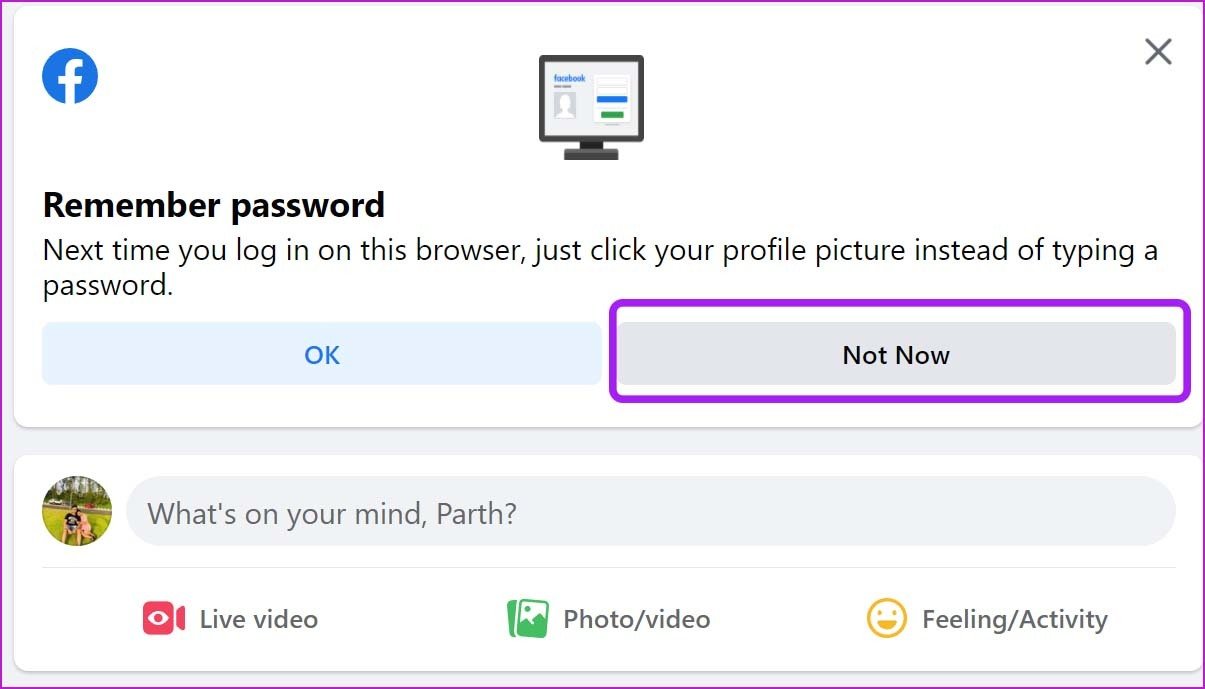
Here’s what the Facebook home looks like when you log out from social media.
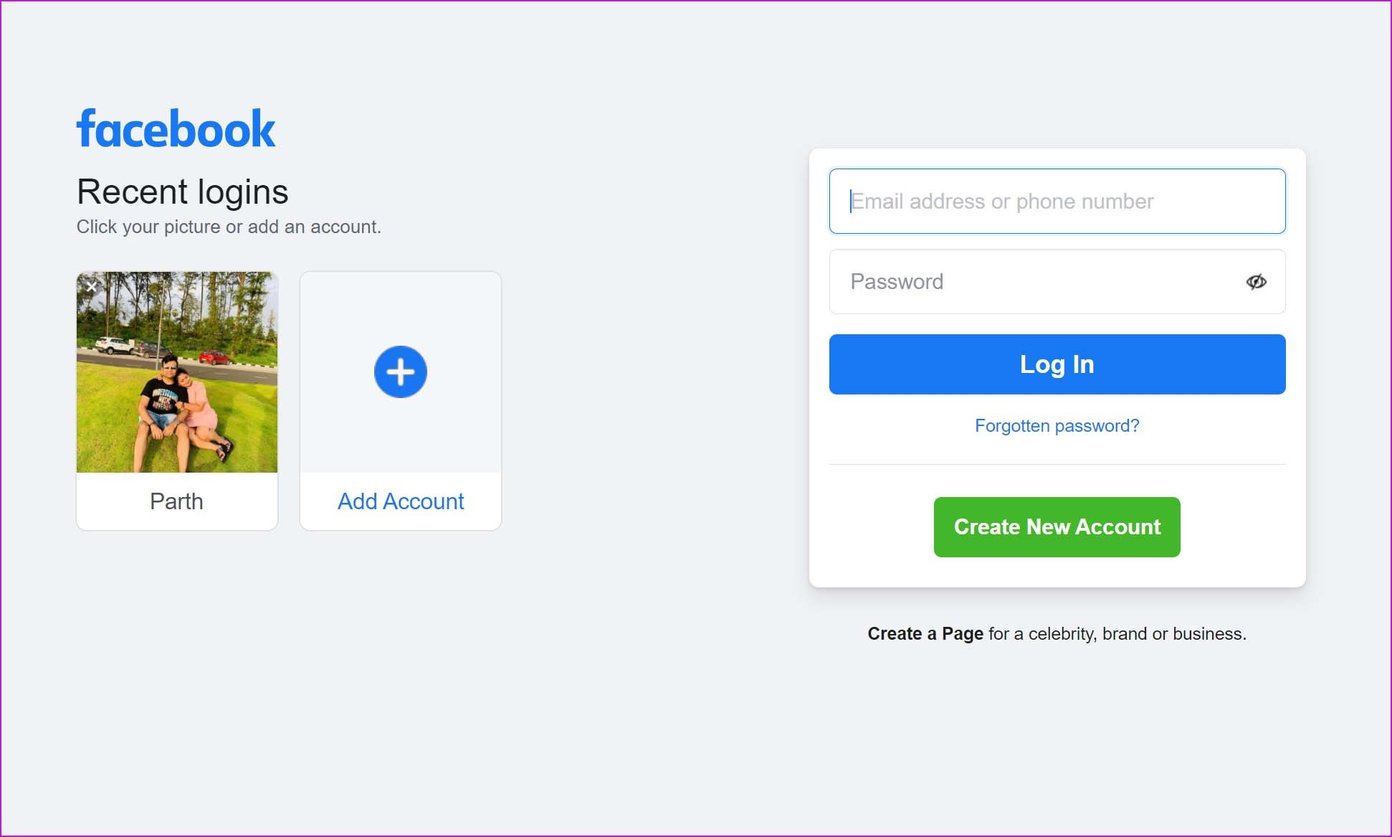
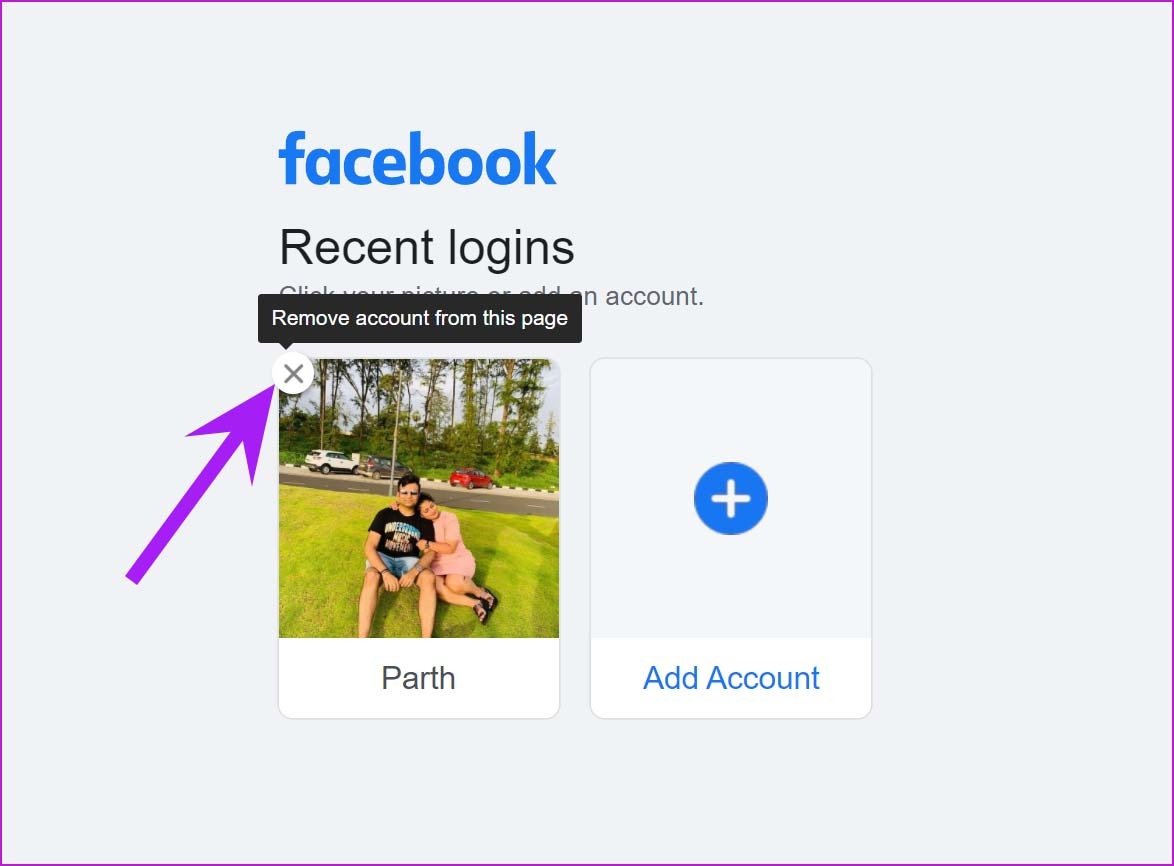
Step 4: If you are done using Facebook on the computer, hover the cursor over the saved account and click on the X mark to remove the account.
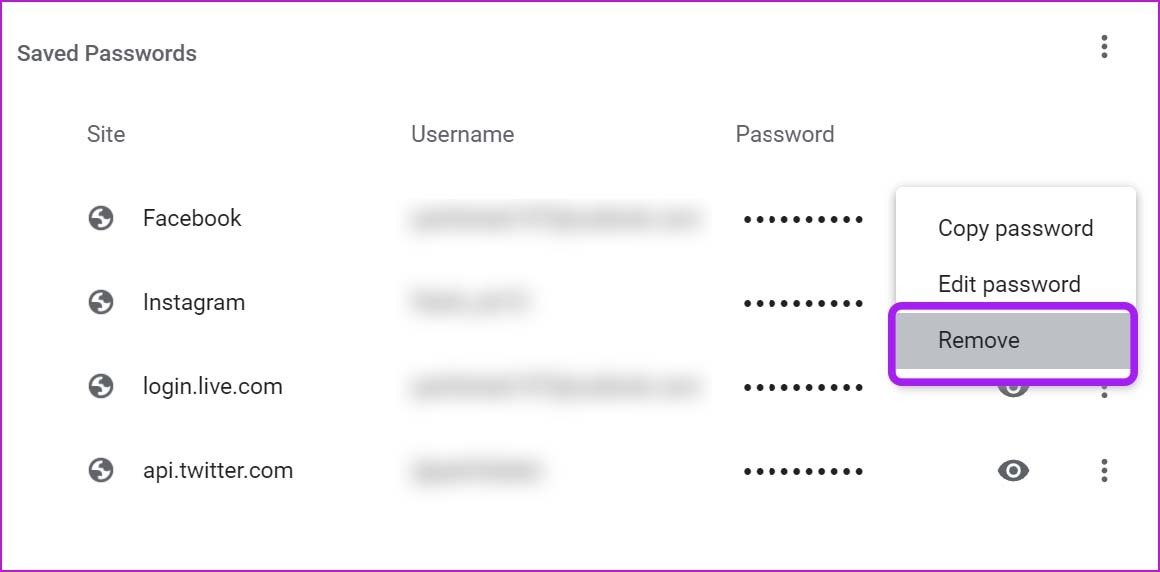
Step 5: To remove saved Facebook information from your browser, go to your browser settings.
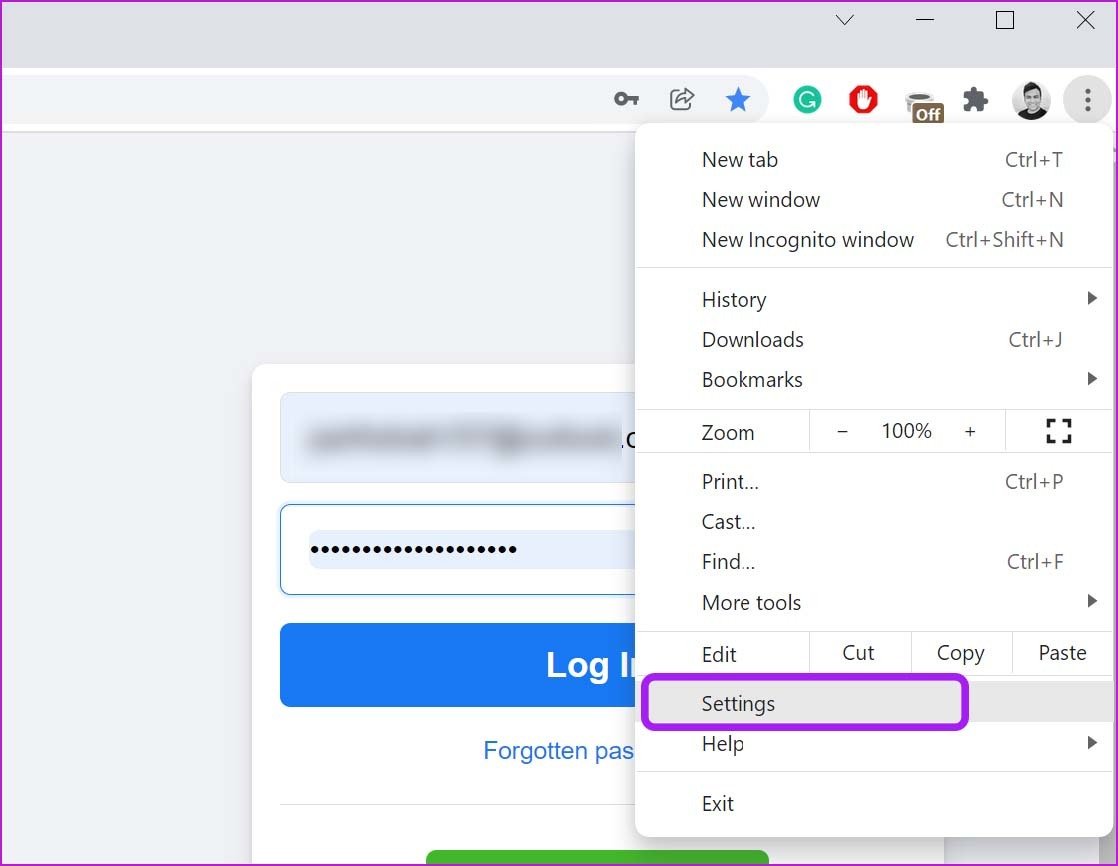
Step 6: Select Autofill and click on Passwords.
Step 7: From the Saved Passwords menu, find Facebook.com.
Step 8: Click on the three-dot menu beside it and select Remove.
Alternatively, you can visit Facebook and click on the little key icon in the address bar. Click on the Delete icon and remove the saved email address in the Facebook login.

Click on the email address box and Chrome will no longer offer your email address to autofill.
Tip: Learn about how to delete Facebook history on Mobile and Desktop.
Remove Remembered Login Info on Facebook Using Mobile
The steps to remove the remembered info in Facebook app are slightly different for iPhone and Android users.
On iPhone
Step 1: Open Facebook on iPhone and go to the Menu tab. Then, scroll down and select Log Out.
You aren’t completely logged out there. Anyone can tap on your profile picture and log back in. Let’s remove your Facebook account completely.
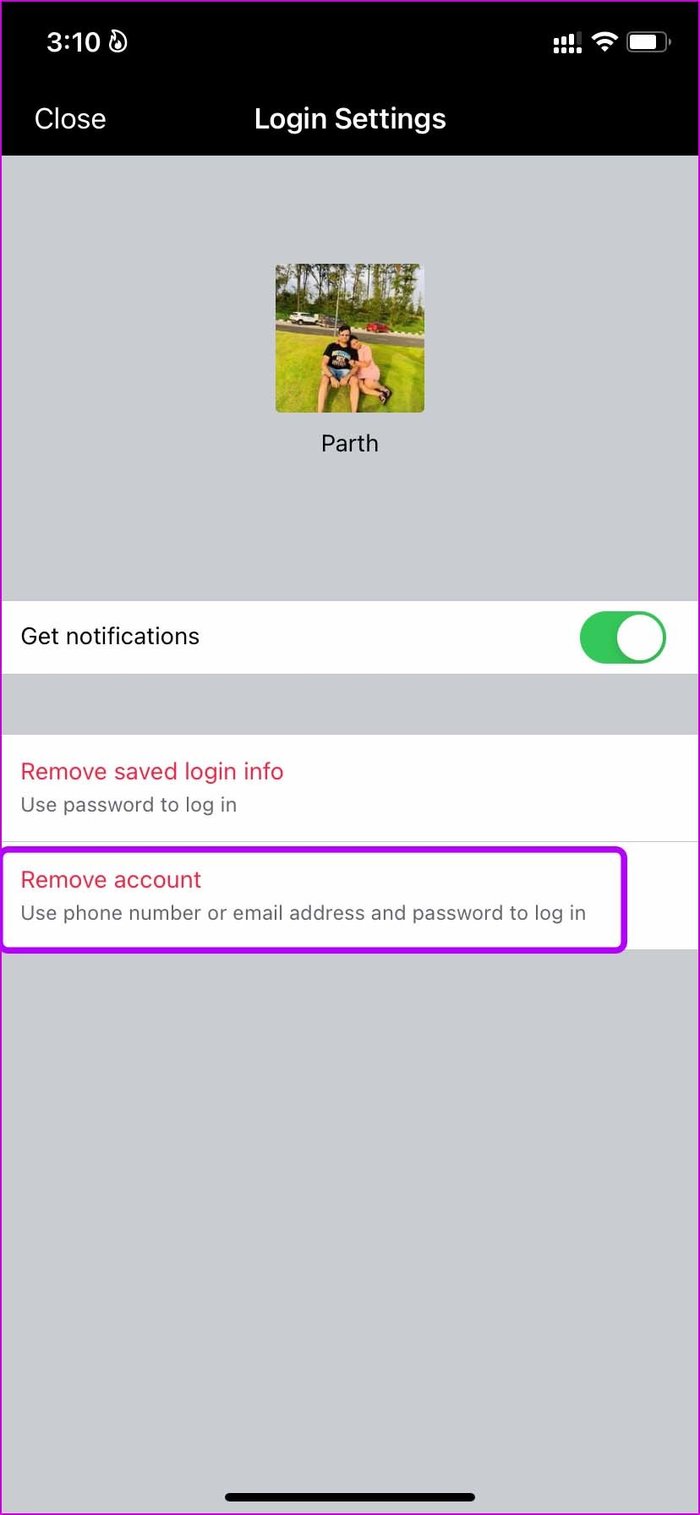
Step 2: Tap on the Settings gear and select an account you want to remove.
- Remove saved login info – This option will remove your email address or mobile number and ask you to use a password the next time you want to browse Facebook.
- Remove account – It will completely remove your account, and you must use a combination of your Facebook email address and password to log in again.

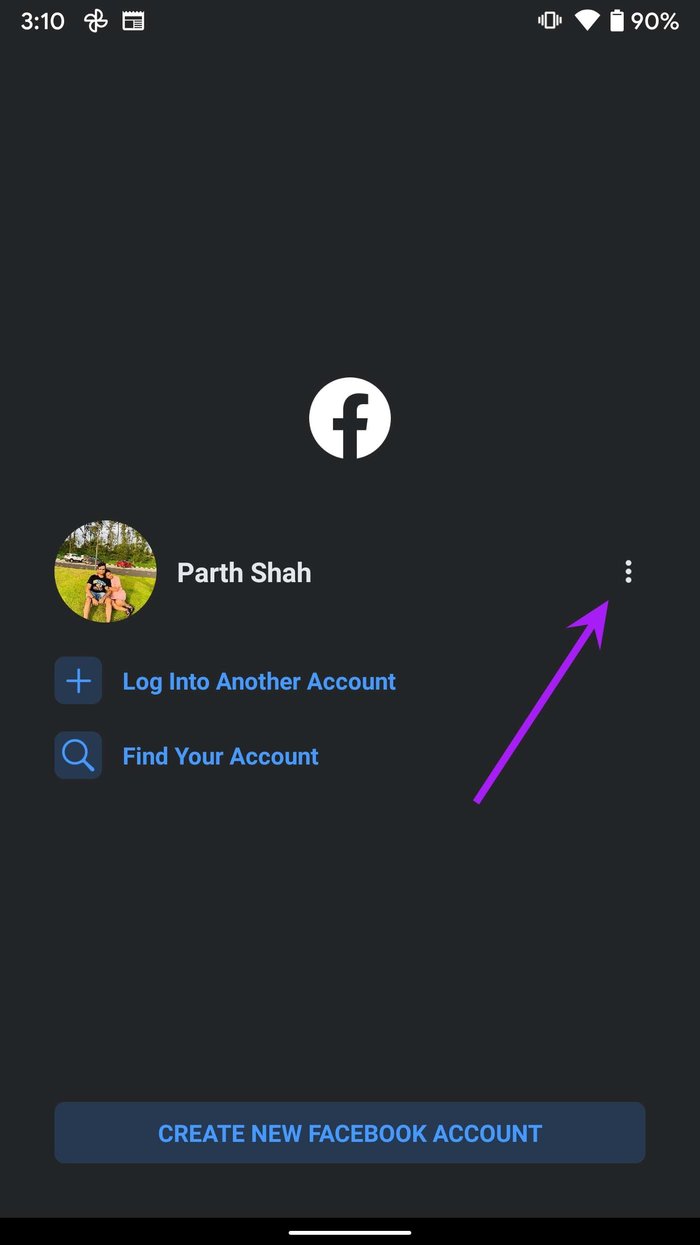
On Android
Open Facebook > three-dot menu > Remove account from device.

Tip: Read our post on how to create multiple profiles on Facebook
Remove Saved Login Information From Other Devices
Facebook offers an option to remove saved login information from any previous device. Here’s what you need to do.
Step 1: Visit Facebook on the web and sign in to your account.
Step 2: Click on the down arrow > open Settings and privacy.
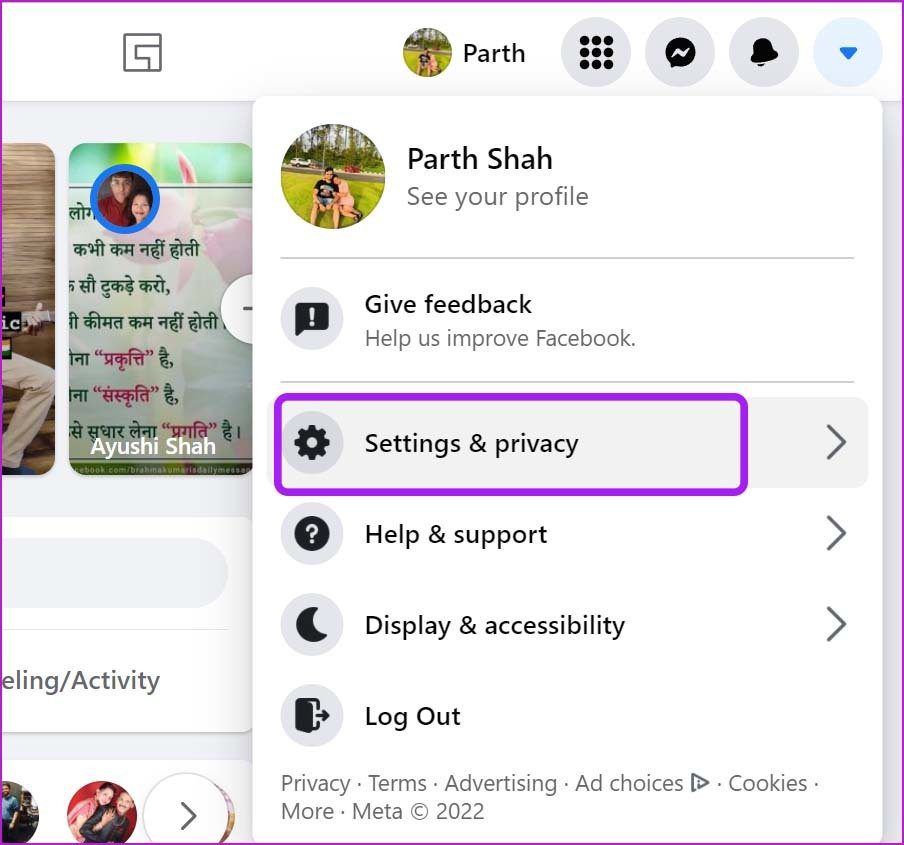
Step 3: Go to Settings and select Security and login from the left menu.
Step 4: From the right-side menu, go to log in and click on Edit beside the Save your login information menu.
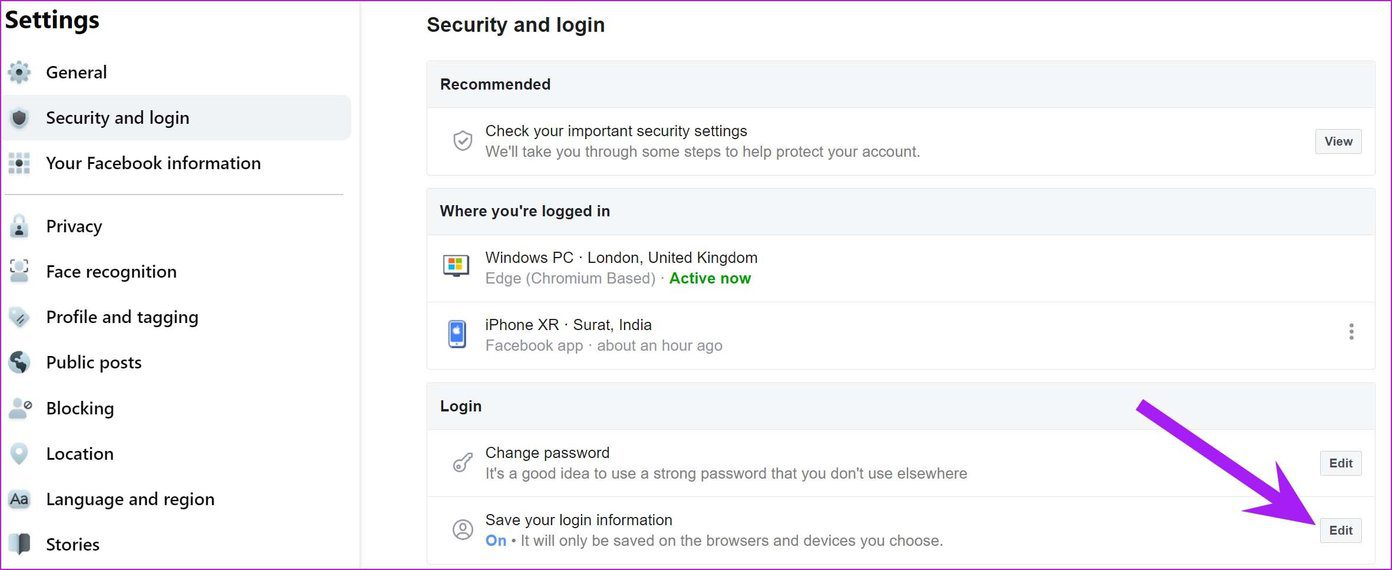
Step 5: From Other devices and browsers, select Remove saved login information, and you are good to go.

Was this helpful?
Last updated on 06 June, 2024
2 Comments
Leave a Reply
Read Next
 How to Remove Linked Accounts From Google Home
How to Remove Linked Accounts From Your Google Home Method 1: Remove Additional Linked Accounts Step 1: Open the Google Home app > tap on the profile picture icon at
How to Remove Linked Accounts From Google Home
How to Remove Linked Accounts From Your Google Home Method 1: Remove Additional Linked Accounts Step 1: Open the Google Home app > tap on the profile picture icon at
 How to Remove Remembered Instagram Accounts
How to Remove a Remembered Instagram Account on Mobile Once you log out of the app, Instagram saves your accounts and remembers them for easy login.
How to Remove Remembered Instagram Accounts
How to Remove a Remembered Instagram Account on Mobile Once you log out of the app, Instagram saves your accounts and remembers them for easy login.
 How To Login Into Facebook With Instagram
Login Into Facebook Using Instagram on Mobile After Meta took charge of running Instagram, linking and accessing your Facebook account has become easy.
How To Login Into Facebook With Instagram
Login Into Facebook Using Instagram on Mobile After Meta took charge of running Instagram, linking and accessing your Facebook account has become easy.
 4 Ways to Remove Login Password From Windows 11
Method 1.
4 Ways to Remove Login Password From Windows 11
Method 1.
 How to Remove PIN at Login in Windows 11
How to Remove PIN Login on Windows 11 Using a PIN to log into Windows is a quick and easy way to get a basic level of security for your
How to Remove PIN at Login in Windows 11
How to Remove PIN Login on Windows 11 Using a PIN to log into Windows is a quick and easy way to get a basic level of security for your
 4 Ways to Disable Login Screen After Sleep on Windows 11
Method 1: Disable Login After Sleep From Settings The easiest way to skip the login screen after sleep mode is by modifying the sign-in options in the Settings app.
4 Ways to Disable Login Screen After Sleep on Windows 11
Method 1: Disable Login After Sleep From Settings The easiest way to skip the login screen after sleep mode is by modifying the sign-in options in the Settings app.
 6 Ways to Fix Login Screen Not Showing in Windows 11
Common Fixes Press Ctrl + Alt + Delete - This shortcut refreshes the login interface to bring up the login screen.
6 Ways to Fix Login Screen Not Showing in Windows 11
Common Fixes Press Ctrl + Alt + Delete - This shortcut refreshes the login interface to bring up the login screen.
 How to Fix “Switch User” Missing From Windows Login Screen
Fix 1: Enable Inactive Accounts If the other user accounts on your system are disabled, they won’t appear on the login screen.
How to Fix “Switch User” Missing From Windows Login Screen
Fix 1: Enable Inactive Accounts If the other user accounts on your system are disabled, they won’t appear on the login screen.
The article above may contain affiliate links which help support Guiding Tech. The content remains unbiased and authentic and will never affect our editorial integrity.

I wish i could do that totally understand all info to actually try that with password for fb acct but my mind dont worklike everyone elses ive had seizures simce i was 2yrs old im 45yrs old now i got new phone n my phine comp didnt do a complete switch over like they said they did n so now fb dont reconize my device so i cant get into my fb ik i enyered xorrect password at 1st by now to many passwords have been entered so its diff wrong now there is so many other dawn turners with my email my phone # onky way u find me n i have my grandbabies as my pic others have no pic i cant get no1 to help me out n it suxs but if i do ill ket u kniw if i got in or not ty fir the info
want to cancel my account