How to Remove Message Notifications
Removing the message notifications from Apple CarPlay is pretty straightforward. Here’s how.
Step 1: On your iPhone, navigate to Settings > Notifications. Now, under Notification Style, find and tap on Messages. Then, disable the toggle next to Show in CarPlay.
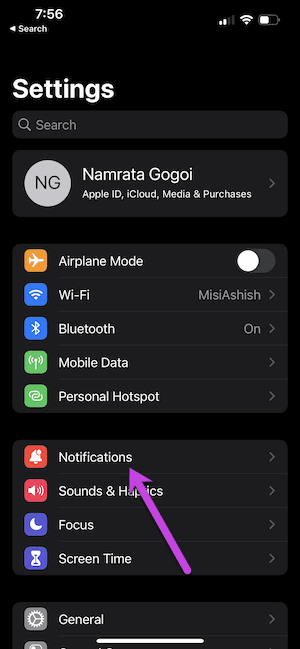
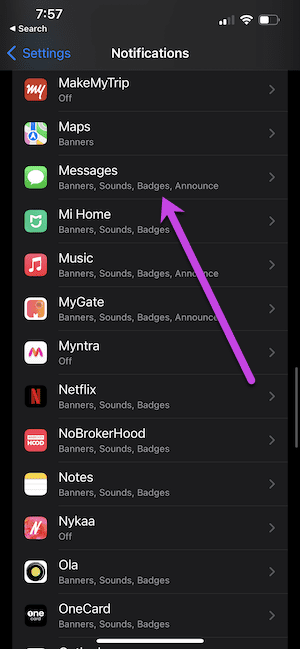

Step 2: Repeat the same steps for other messaging apps like WhatsApp, Reminders, or FaceTime. All you need to do is visit that app’s notification settings and make the necessary changes.
How to Customize Notifications
When you remove notifications of messages or a particular app on CarPlay, there are a couple of limitations. While your car’s infotainment system will no longer be hijacked by message popups, you may miss out on certain important notifications on groups. The good thing is that you can easily customize the notifications.
Enable Driving Focus Mode
The Driving Focus Mode lets you tailor the notification settings as per your preference. You can pick the contacts who can call and send you messages while you’re driving. That means you only see the important messages on your car’s infotainment system. And as for the others, you can always choose to send them an automatic reply. The best part is that this mode gets enabled when your phone connects to CarPlay.
Thankfully, enabling Driving Mode is straightforward.
Step 1: On your iPhone, navigate to Settings > Focus. Now, tap on the Plus icon at the top-right corner and select Driving > Add.
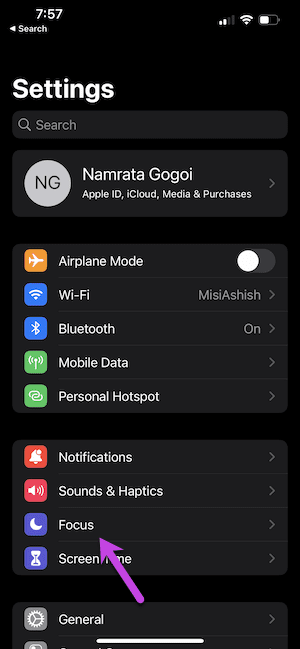

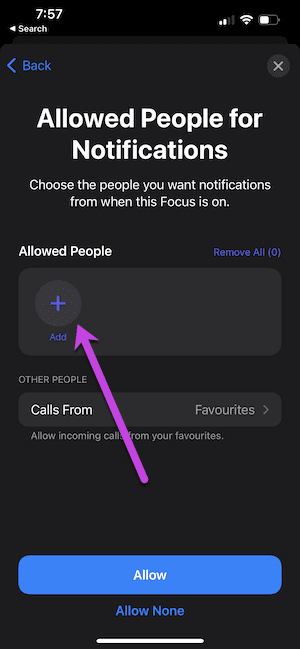
Step 2: Select the important contacts on your list and hit the Allow button. Next, scroll down and tap on the Turn on Automatically option. Finally, toggle the switch for Activate with CarPlay and save the settings
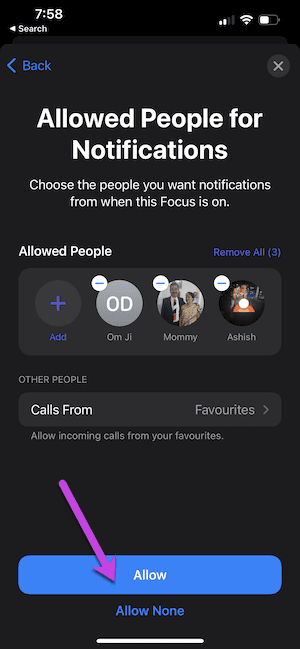


Note: If you fear missing important calls, select Favorites under Calls From. This way, your Favorite contacts can always reach you when they call or text again.
Use Announce Message Feature
At present, CarPlay doesn’t give you many options to customize the notifications on CarPlay. However, there’s a nifty option called Announce Message, and Siri will read out all the new messages
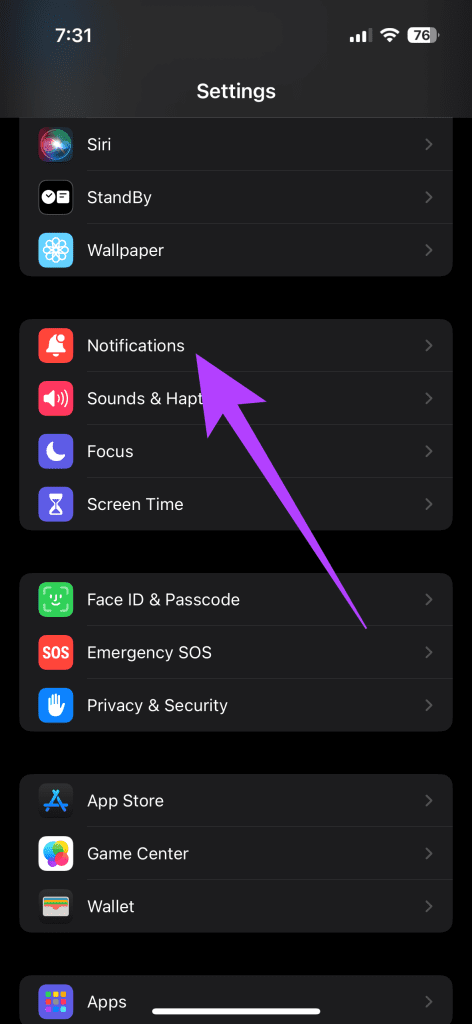
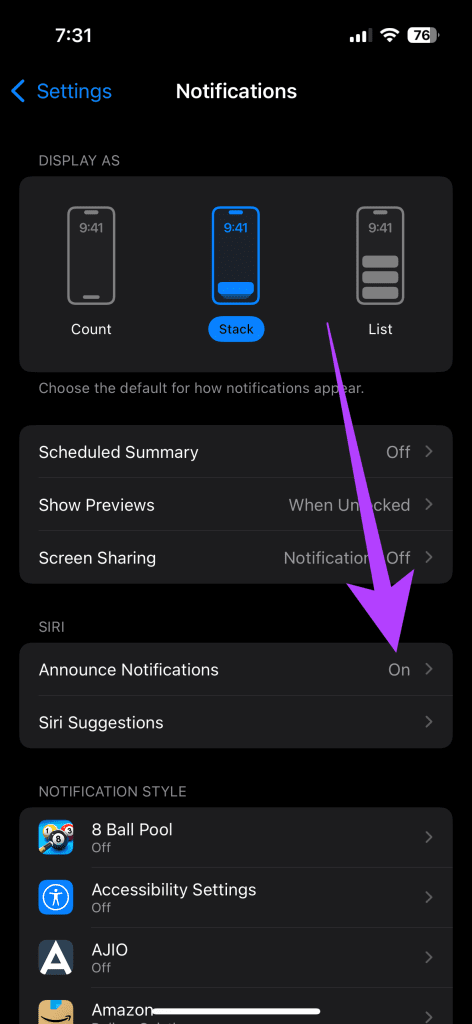
Step 1: On your iPhone, head over to Settings > Notifications > Announce Notification. Here, enable the toggle next to Announce Notifications.
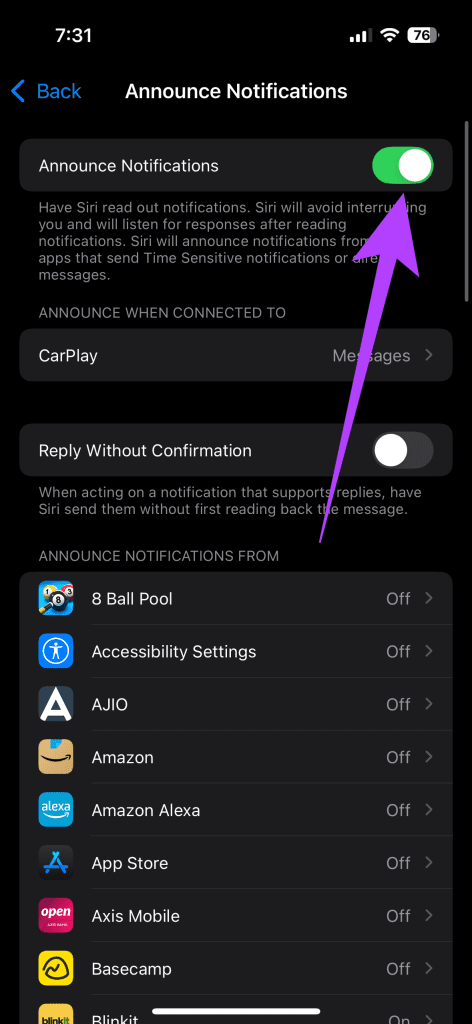
Step 2: Next, tap on CarPlay, and then select the Announce New Messages option.
Note: CarPlay only supports the in-house Messages app and doesn’t yet support apps like WhatsApp or Signal.
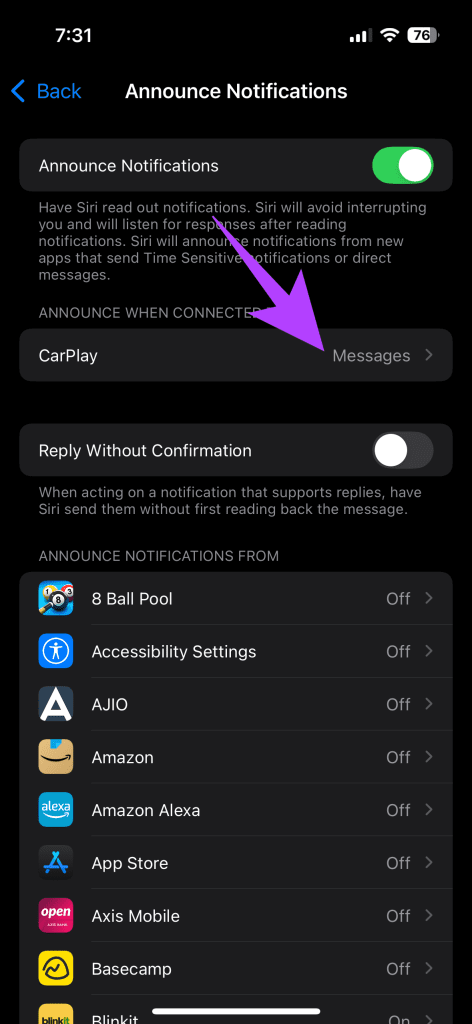

And that’s it. Whenever you start CarPlay, it will announce the incoming messages aloud, thereby letting you drive with minimal distractions. That said, do remember to turn off this setting when you have company.
Was this helpful?
Last updated on 27 August, 2024
Read Next
 6 Best Apple CarPlay Shortcuts and Automations You Must Try
Apple CarPlay is not simply an interface that lets you play songs or dial one of your contacts from your contact list.
6 Best Apple CarPlay Shortcuts and Automations You Must Try
Apple CarPlay is not simply an interface that lets you play songs or dial one of your contacts from your contact list.
 Top 14 Ways to Fix Apple CarPlay Keeps Disconnecting
Apple CarPlay is quite helpful while driving.
Top 14 Ways to Fix Apple CarPlay Keeps Disconnecting
Apple CarPlay is quite helpful while driving.
 Top 10 Ways to Fix Apple CarPlay Not Reading Text Messages
Apple CarPlay is one of the most valuable features when you're driving.
Top 10 Ways to Fix Apple CarPlay Not Reading Text Messages
Apple CarPlay is one of the most valuable features when you're driving.
 How to Stop Music From Automatically Playing in Apple CarPlay and Android Auto
How to Stop Apple CarPlay From Automatically Playing Music Unfortunately, there’s no toggle or option by default to stop Apple Music auto-play on iPhone.
How to Stop Music From Automatically Playing in Apple CarPlay and Android Auto
How to Stop Apple CarPlay From Automatically Playing Music Unfortunately, there’s no toggle or option by default to stop Apple Music auto-play on iPhone.
 How to Turn Off Incoming Calls on Apple CarPlay
Apple CarPlay and Android Auto are extremely helpful in assisting with navigation and music when driving.
How to Turn Off Incoming Calls on Apple CarPlay
Apple CarPlay and Android Auto are extremely helpful in assisting with navigation and music when driving.
 7 Best Apple CarPlay Lightning Cables for Your iPhone
Short and durable lightning cables work best when connecting your iPhone to your car for CarPlay.
7 Best Apple CarPlay Lightning Cables for Your iPhone
Short and durable lightning cables work best when connecting your iPhone to your car for CarPlay.
 5 Best Portable Apple CarPlay Units For Your Vehicle
Apple CarPlay head units allow users to access their playlists and podcasts seamlessly.
5 Best Portable Apple CarPlay Units For Your Vehicle
Apple CarPlay head units allow users to access their playlists and podcasts seamlessly.
 6 Ways Fix YouTube Music Not Working on Apple CarPlay
Whether you're team Android Auto or Apple CarPlay, we're all in for a long drive with blasting music.
6 Ways Fix YouTube Music Not Working on Apple CarPlay
Whether you're team Android Auto or Apple CarPlay, we're all in for a long drive with blasting music.
The article above may contain affiliate links which help support Guiding Tech. The content remains unbiased and authentic and will never affect our editorial integrity.