


Method 1: Manage WhatsApp Storage on iPhone
WhatsApp lets you manage the storage it occupies on your iPhone, with the help of a detailed breakdown.
Step 1: Open WhatsApp, and go to the Settings menu. Then go to Storage > Manage Storage.
Step 2: You will see the total storage occupied by WhatsApp on your iPhone. Let’s first open the Larger Than 5MB section — and you can select individual files, or select them all and then use the Delete button.
Step 3: You’ll see two options when you are trying to delete them:
- Delete Item: The option deletes the selected items only. If you have forwarded the video or file to another chat, WhatsApp won’t delete such copies.
- Delete Item and Any Copies: It deletes the original media and all the forwarded copies from WhatsApp.


Step 4: Next, you can go back to the Manage Storage menu, and open up the Forwarded Many Times, and individual chats based on the storage they’ve occupied.
Step 5: In the next screen, use the Sort option at the bottom right corner. Tap on Largest, which shows the largest files first. Select and delete the ones you don’t want.


Also Read: How to save WhatsApp photos/videos to your device.
Method 2: Delete Downloaded Photos and Videos
The steps above only delete media files from WhatsApp. If you have downloaded photos and videos from WhatsApp on your iPhone, you need to delete the same using the steps below.
Step 1: Open the Photos app, go to Albums, and select WhatsApp. Select photos and videos and tap on the Delete icon.
Step 2: You will now see two options. If you simply want to delete them from the WhatsApp album, tap on Delete from Album – but they’ll remain in the photo library. If you tap on Delete, you will be removing the photo from your device itself. The latter is the option you’re mostly looking for.
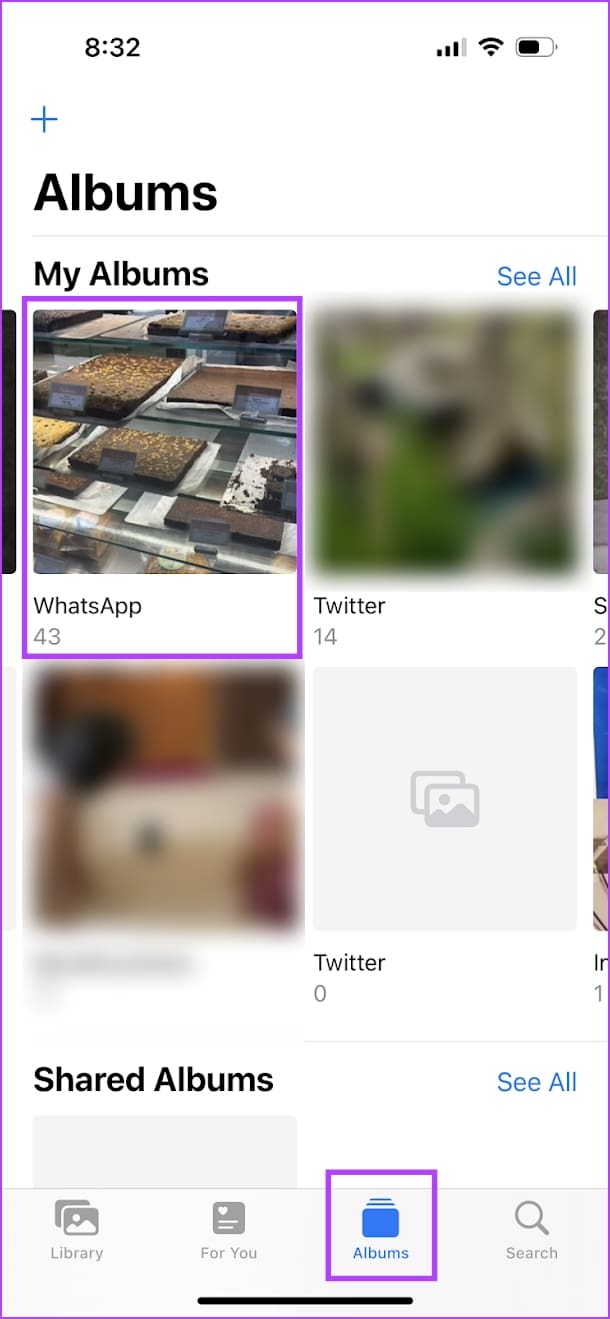

Once you delete the images, go to the Recently Deleted album to permanently delete them from your iPhone.
Note: When you enable media auto-download on a cellular network and Wi-Fi, WhatsApp downloads all the incoming media files and fills up your device storage in no time.
Was this helpful?
Last updated on 19 April, 2024
1 Comment
Leave a Reply
Read Next
 How Much Data Does Instagram Use and 3 Ways to Reduce It
https://youtu.be/dM091rbuEIk How Much Data Does Instagram Use We cleared the data usage history on our iPhone and started using Instagram on mobile data.
How Much Data Does Instagram Use and 3 Ways to Reduce It
https://youtu.be/dM091rbuEIk How Much Data Does Instagram Use We cleared the data usage history on our iPhone and started using Instagram on mobile data.
 How to Reduce Photo Size on iPhone, iPad, and Mac
How to Reduce Photo Size on iPhone and iPad, Method 1.
How to Reduce Photo Size on iPhone, iPad, and Mac
How to Reduce Photo Size on iPhone and iPad, Method 1.
 4 Ways to Reduce Video Size on iPhone
Method 1: Reduce Size Using iMovie You can reduce the size of a video on the iPhone's built-in video editor, iMovie.
4 Ways to Reduce Video Size on iPhone
Method 1: Reduce Size Using iMovie You can reduce the size of a video on the iPhone's built-in video editor, iMovie.
 How to Delete WhatsApp Backup From iCloud Storage on iPhone
Method 1: Delete WhatsApp Backup From iCloud iCloud allows you to delete individual app data from its backup.
How to Delete WhatsApp Backup From iCloud Storage on iPhone
Method 1: Delete WhatsApp Backup From iCloud iCloud allows you to delete individual app data from its backup.
 7 Ways to Reduce How Much Data Your Windows 10 PC Uses
https://youtu.be/RsUvBsjgi5k 1.
7 Ways to Reduce How Much Data Your Windows 10 PC Uses
https://youtu.be/RsUvBsjgi5k 1.
 2 Ways to Reduce PDF File Size on Windows 11
Method 1: Using Adobe Acrobat Pro Adobe Acrobat is part of the Adobe Creative Suite.
2 Ways to Reduce PDF File Size on Windows 11
Method 1: Using Adobe Acrobat Pro Adobe Acrobat is part of the Adobe Creative Suite.
 6 Ways to Reduce Microsoft Teams Memory Usage in Windows 10 or 11
Fix 1: Disable GPU Hardware Acceleration in Teams GPU hardware acceleration is enabled by default in Microsoft Teams for smooth performance.
6 Ways to Reduce Microsoft Teams Memory Usage in Windows 10 or 11
Fix 1: Disable GPU Hardware Acceleration in Teams GPU hardware acceleration is enabled by default in Microsoft Teams for smooth performance.
 How to Reduce CPU and RAM Usage in Microsoft Teams on Windows 11
Common Fixes Update or reinstall the Microsoft Teams app: Open the Microsoft Store, search Microsoft Teams, and click Update (if available).
How to Reduce CPU and RAM Usage in Microsoft Teams on Windows 11
Common Fixes Update or reinstall the Microsoft Teams app: Open the Microsoft Store, search Microsoft Teams, and click Update (if available).
The article above may contain affiliate links which help support Guiding Tech. The content remains unbiased and authentic and will never affect our editorial integrity.

Thank you for visualized tutorials , very clear and well managed step by step, I like this site, keep it up and well done