How to React to Discord Messages on Desktop
You can also react with custom emojis on Discord if you have Manage Emoji permission, are server owners, or have Discord Nitro.
Step 1: Launch Discord and navigate to the message you want to react to.
Note: This can be a direct message from your friends and family or in one of your participating servers.
Step 2: Once you find the message you want to react to, hover your cursor on the top-right corner of the message to find the Add reaction (emoji icon) option.
Note: Alternatively, right-click on the message and select Add Reaction from the menu.

Step 3: Select the preferred emoji.
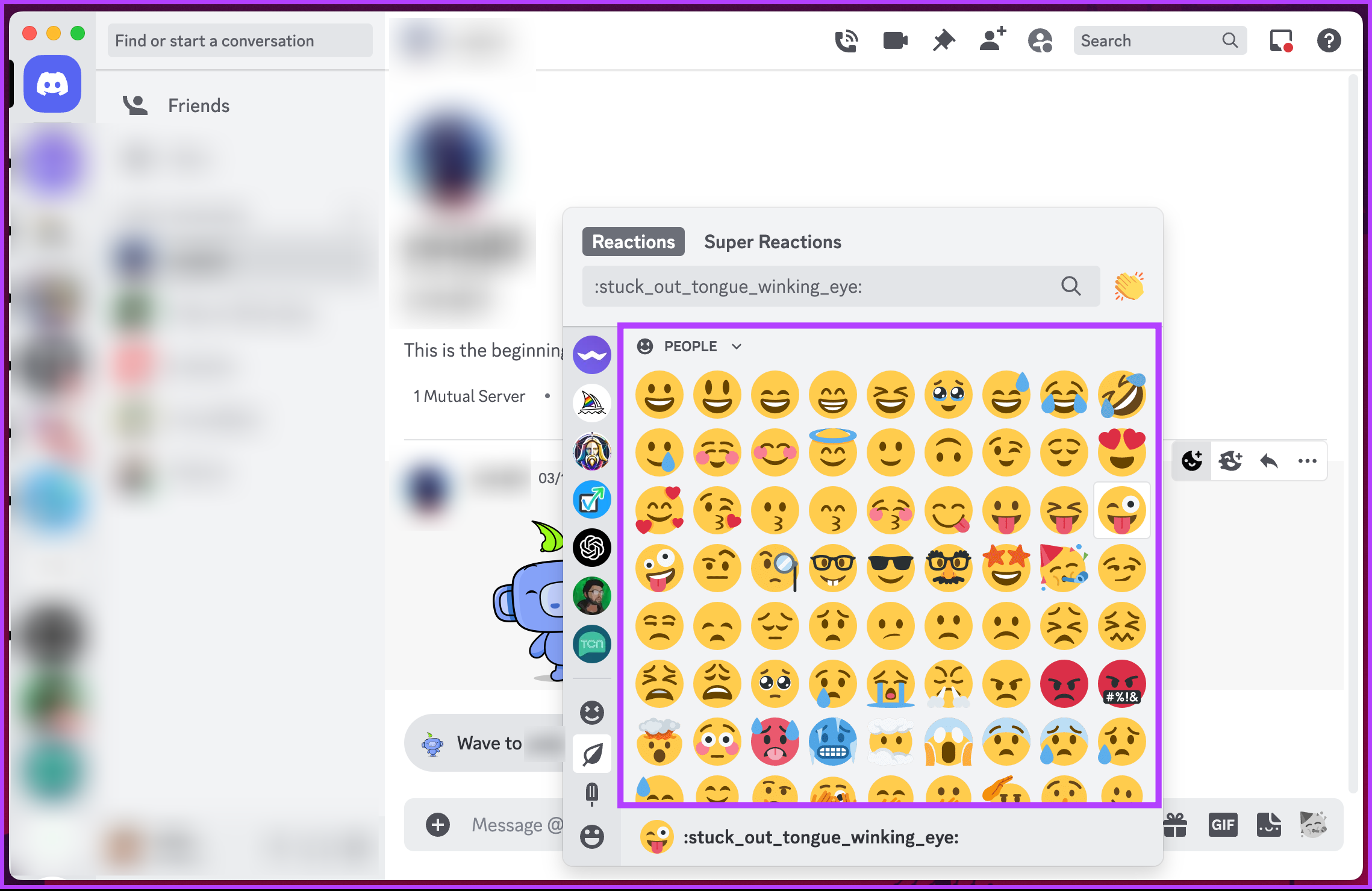
Moreover, if you change your mind and decide to delete an emoji reaction, click on the emoji reaction you added earlier. This will remove it.
Also Read: How to change Discord profile picture on any device
How to React to Discord Messages on Mobile
Step 1: Open the Discord app and navigate to the message you want to react to.
Step 2: Now, tap and hold the message to see a bottom sheet with message options. At the top of the sheet, you will see the most frequently used emojis.
To access the entire collection of emojis, tap on the (last colorless emoji with a plus sign) emoji picker icon. Now, you will see the entire collection of emojis, which you can use however you want.
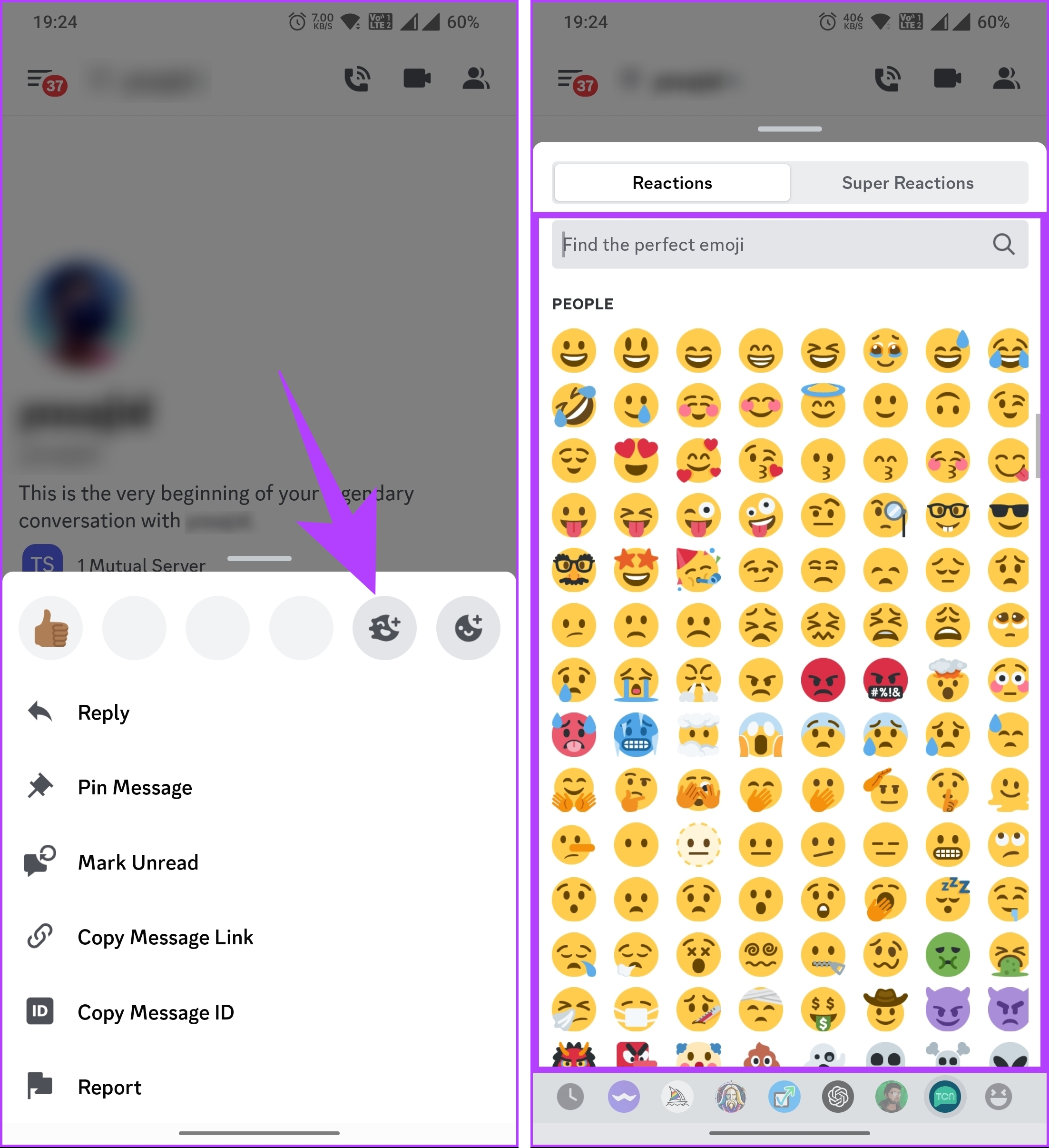
Much like Discord desktop, you can add more than one emoji reaction to the same message by following the abovementioned steps. If you change your mind and want to remove the reaction, tap on the emoji reaction you added.
How to See Who Reacted to a Discord Message
You can easily see who reacted to a Discord message and which emoji they used to react. Remember that you can only see reactions on messages you can access within the same Server or direct message conversation. If you don’t have the necessary permissions, you can’t view the user list or see reactions. With that said, let’s begin with the steps.
On Desktop
Step 1: Open Discord and navigate to the message you want to check reactions.
Note: Alternatively, you can use Discord web to see who reacted to your Discord messages.
Step 2: Now, right-click on any reaction.
Note: If you don’t want the details, hover over the reaction; Discord displays the names of the first three people.
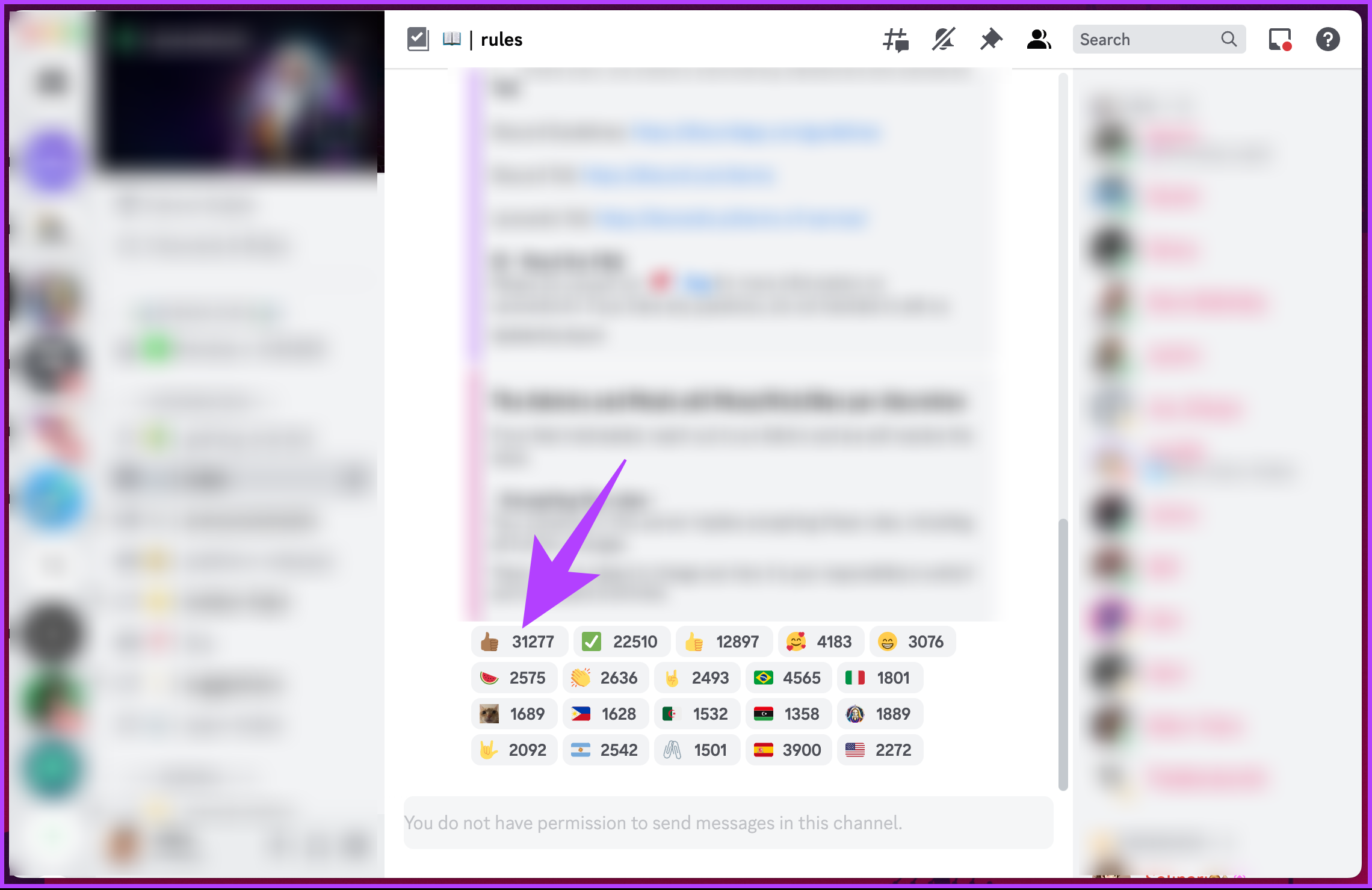
Step 3: From the drop-down menu, select View Reactions.

A modal window appears with a detailed reaction count and the name of the person who reacted with a specific emoji. Additionally, you can select different emoticons to see who used them to react to your message.
On Discord Mobile App
Step 1: Launch the Discord app and go to the message you want to check reactions of.
Step 2: Now, long-press on any reaction and wait for a second. A bottom sheet will appear containing the people who reacted to the message.

This lets you see who reacted to your or server’s message. However, sometimes, you can’t react to a Discord message. If you are stuck with this issue, continue reading.
Also Read: What happens when you remove a friend on Discord
Why Can’t I React to Discord Messages
- In some cases, the server or channel settings may have disabled reactions. The server owner or administrators can turn on or off reactions for specific channels or the entire server.
- If you cannot react to messages, your role may not have the necessary permissions to add reactions.
- If you are trying to react to a specific user’s message and find that you cannot, the user may have blocked you. When a user blocks another user, it restricts certain interactions, including reactions.
- Discord may experience temporary glitches or connectivity issues that can affect the functionality of reactions. If you cannot react to messages, refresh the Discord application or the web page you are using or restart Discord if you are on the mobile app.
If the issue persists, it’s better to reach out to the server administrators, channel moderators, or Discord support for further assistance.
FAQs
Multiple people can react to a message on Discord. There is no limit on the number of reactions a message can receive. As long as someone has permission to access the message, they can react to it.
Yes. Users can react multiple times to a message on Discord by using different emojis. While you can only add each emoji once, you can use different emojis.
Anyone who has access to a message on Discord can react to it by default. If you want to prevent people from reacting to a particular message, you can adjust the permissions provided you have an appropriate administrative or moderator role on the server.
Discord does not automatically send notifications when someone reacts to your message. However, if the message itself is part of a conversation in a server or direct message, you might receive notifications for new messages or mentions within that conversation. Reactions themselves do not generate separate notifications.
Also Read: How to find a Discord User ID
Was this helpful?
Last updated on 22 July, 2024
Read Next
 How to Lock a Discord Channel on Desktop and Mobile
Locking a Channel by Making it Private Making a Discord channel private means it becomes hidden from other members on a server.
How to Lock a Discord Channel on Desktop and Mobile
Locking a Channel by Making it Private Making a Discord channel private means it becomes hidden from other members on a server.
 2 Best Ways to Create a Poll on Discord for Desktop and Mobile
Want a quick and easy way to gain input from friends, family, or a community on Discord?
2 Best Ways to Create a Poll on Discord for Desktop and Mobile
Want a quick and easy way to gain input from friends, family, or a community on Discord?
 How to Create a Discord Channel on Desktop and Mobile
How to Create a Discord Channel on Desktop To improve Discord organization, you can categorize channels by topic.
How to Create a Discord Channel on Desktop and Mobile
How to Create a Discord Channel on Desktop To improve Discord organization, you can categorize channels by topic.
 How to Log Out of Discord on Desktop and Mobile
How to Log out of a Discord Account After using Discord for a while, you might want to log out.
How to Log Out of Discord on Desktop and Mobile
How to Log out of a Discord Account After using Discord for a while, you might want to log out.
 How to Share Screen in Discord on Desktop and Mobile
How to Share Your Screen in a Discord Voice Channel As a channel member, Discord lets you share your device’s screen with up to 50 people at once.
How to Share Screen in Discord on Desktop and Mobile
How to Share Your Screen in a Discord Voice Channel As a channel member, Discord lets you share your device’s screen with up to 50 people at once.
 How to Find a Discord User ID on Web, Desktop, and Mobile
Check Discord ID on the Web or Desktop App Step 1: Go to Discord from your preferred browser on your Windows or Mac and log in to your account.
How to Find a Discord User ID on Web, Desktop, and Mobile
Check Discord ID on the Web or Desktop App Step 1: Go to Discord from your preferred browser on your Windows or Mac and log in to your account.
 How to Hide Mutual Servers in Discord on Desktop and Mobile
Method 1: Hide Discord Mutual Servers Using Hidden Folders Categorizing mutual servers into folders on Discord is one of the easiest ways to hide them from mutual friends.
How to Hide Mutual Servers in Discord on Desktop and Mobile
Method 1: Hide Discord Mutual Servers Using Hidden Folders Categorizing mutual servers into folders on Discord is one of the easiest ways to hide them from mutual friends.
 How to Strikethrough on Discord on Desktop and Mobile
Method 1: Using Discord Options on Discord Web or Desktop Step 1: Launch the Discord desktop app on your Windows or Mac computer or open it on the web.
How to Strikethrough on Discord on Desktop and Mobile
Method 1: Using Discord Options on Discord Web or Desktop Step 1: Launch the Discord desktop app on your Windows or Mac computer or open it on the web.
The article above may contain affiliate links which help support Guiding Tech. The content remains unbiased and authentic and will never affect our editorial integrity.