

Privacy while browsing is a top concern for many people. So, a common question when browsing online is, “Can I stop my browser from asking my location?” In most cases, the answer is yes. This article outlines how to prevent browsers asking current location data, for the three most popular browsers out there at the moment.
Stop My Browser From Asking My Location: Google Chrome
Step 1. Open a Google Chrome browser window.
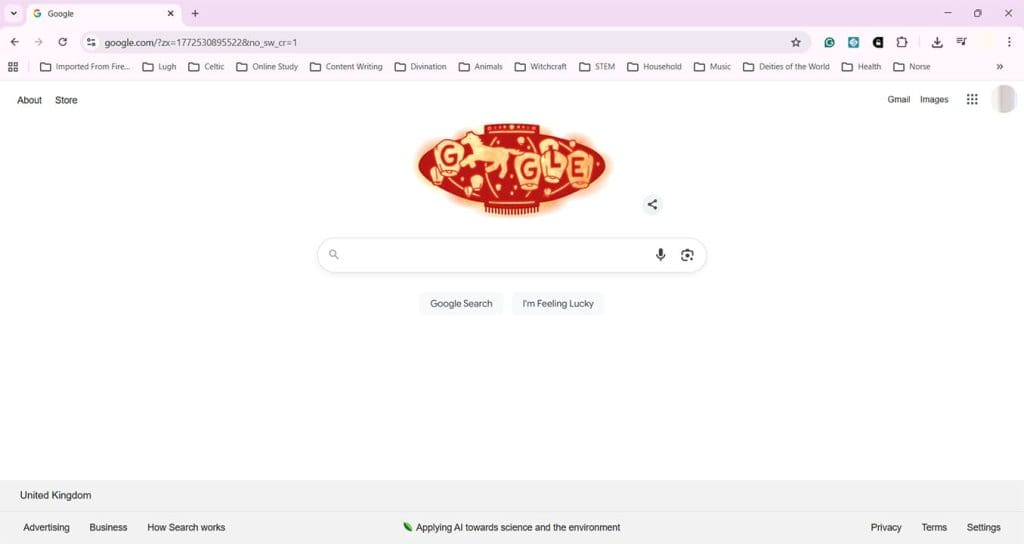
Step 2. Click the three dots to the right of the search bar

Step 3. Click Settings to open the Chrome settings menu.

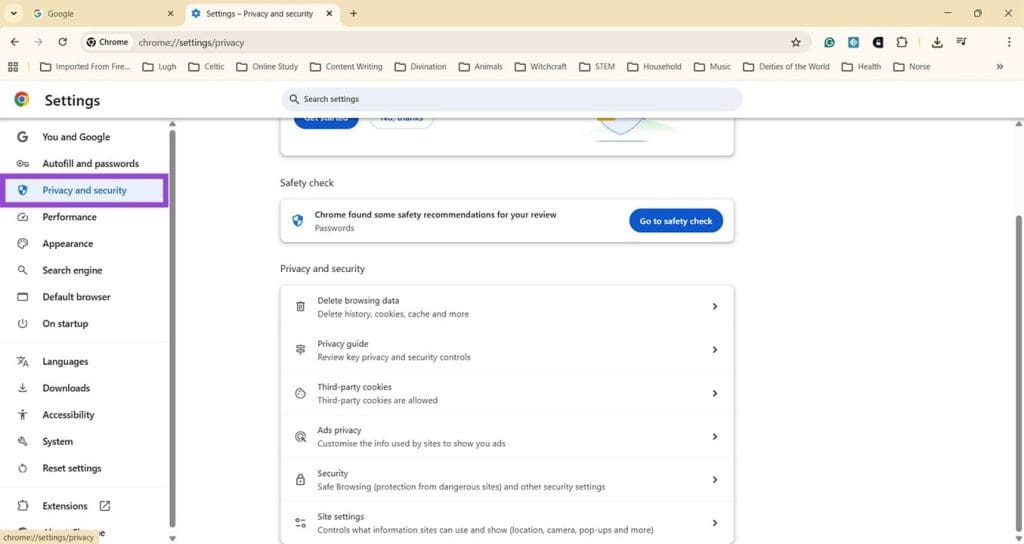
Step 4. Click on Privacy and security, found in the left-hand menu.
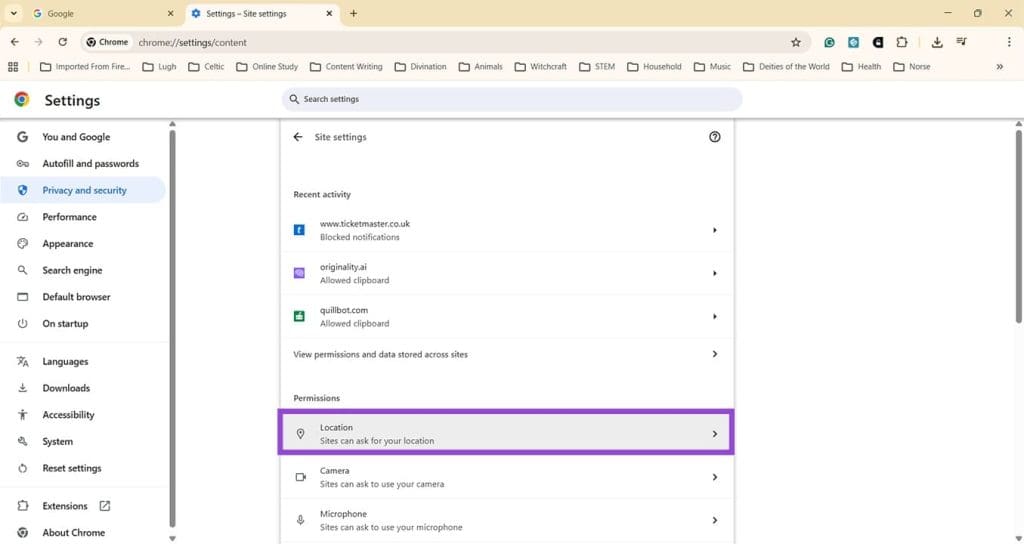
Step 5. Click on Site settings and look for the Location option, which controls when sites can ask for your location.
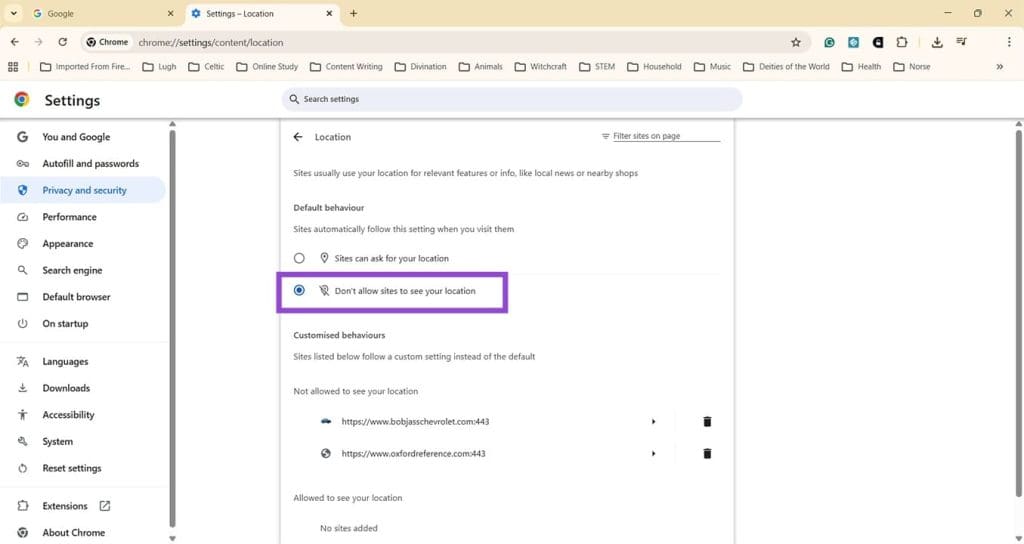
Step 6. Click Location, then choose the option for “Don’t allow sites to see your location.” This will stop Google Chrome from asking for permission to allow sites to access your location. You can also add customization to allow certain sites to ask for your location data.
How to stop Browser Asking for Location Data: Microsoft Edge
Step 1. Open a Microsoft Edge browser window.
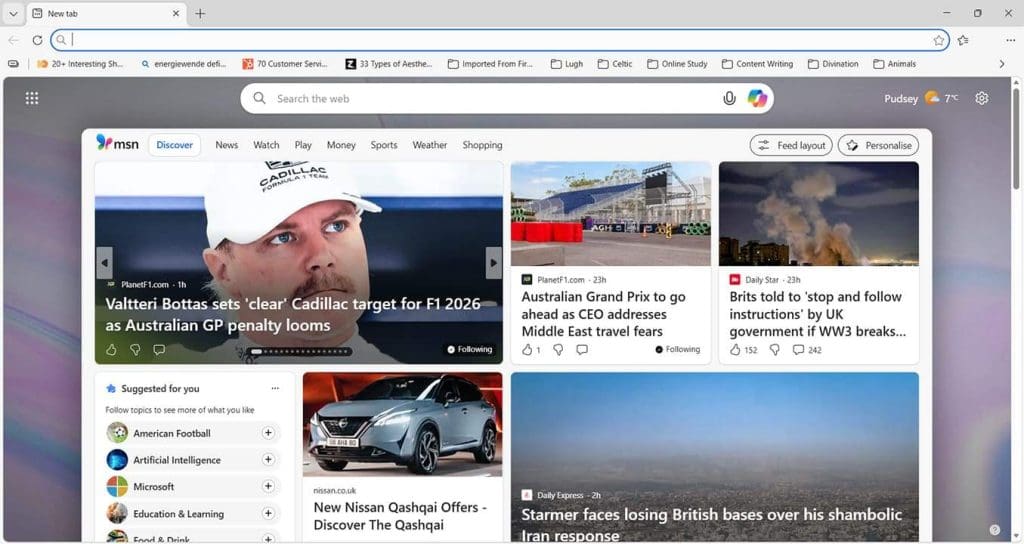
Step 2. Click on the three dots, again, found to the right of the search bar.

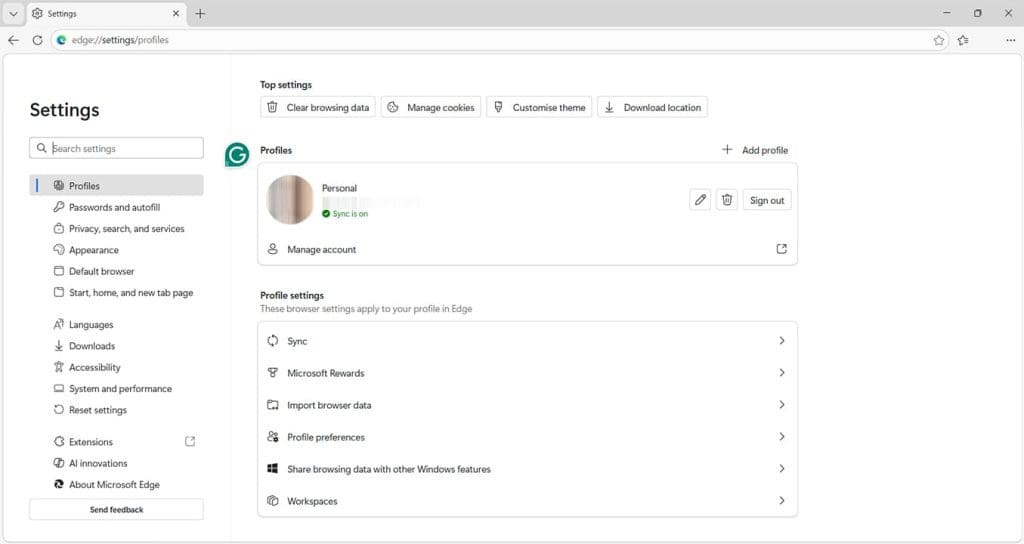
Step 3. Click on Settings.
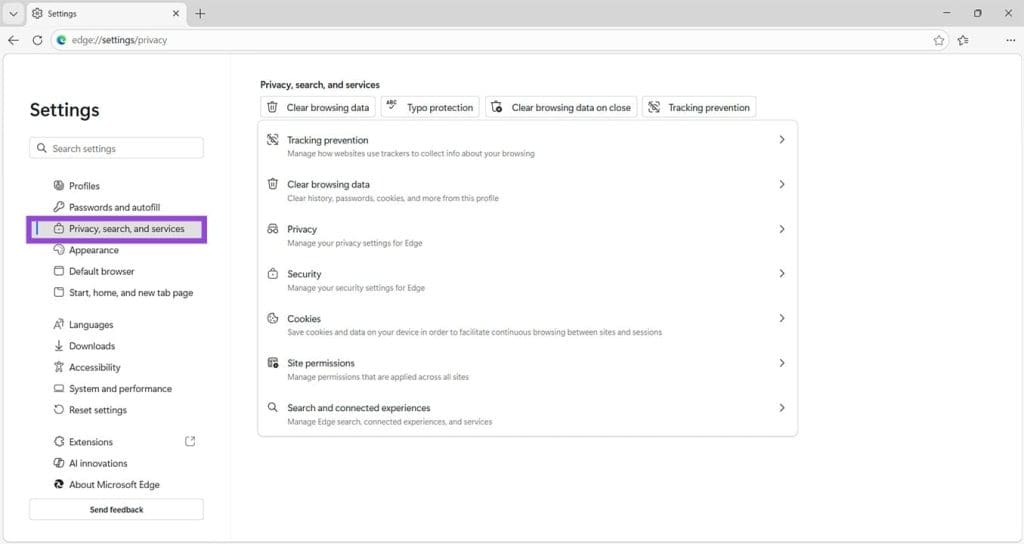
Step 4. Choose the option for Privacy, search, and services, from the menu on the left.
Step 5. Next, click on Site permissions.
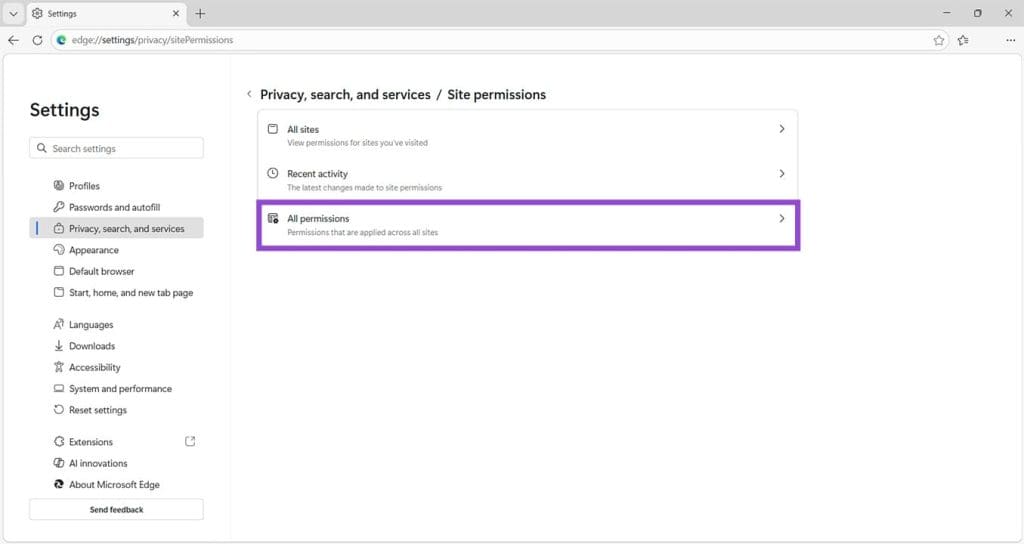
Step 6. From here, click All permissions.

Step 7. Click into Location and switch the “Ask before accessing…” option off. This blocks any site from asking for or accessing your location data, unless you’ve added an exception.

How to Stop Browser Asking for Location Data: Firefox
Step 1. Open the Firefox web browser.
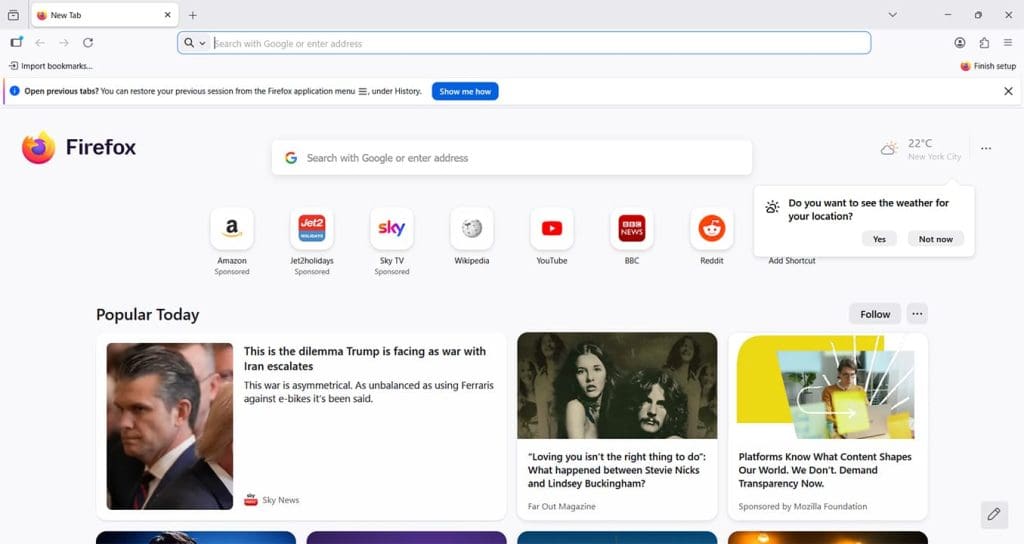
Step 2. Firefox has an Application Menu to the right of the search bar, accessible via an icon that looks like three stacked horizontal lines. Click here.
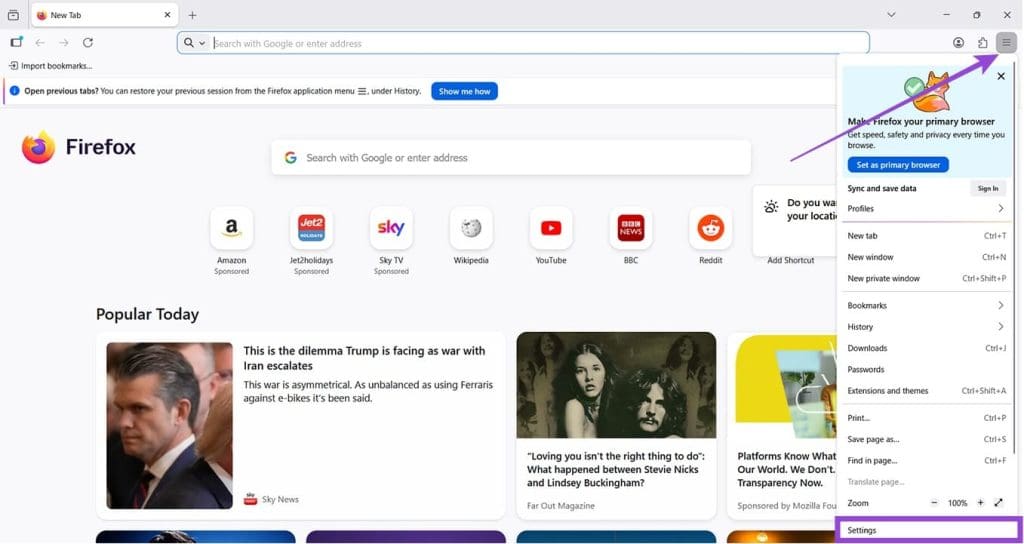
Step 3. Click Settings, which you’ll have found right at the bottom of the Application Menu.

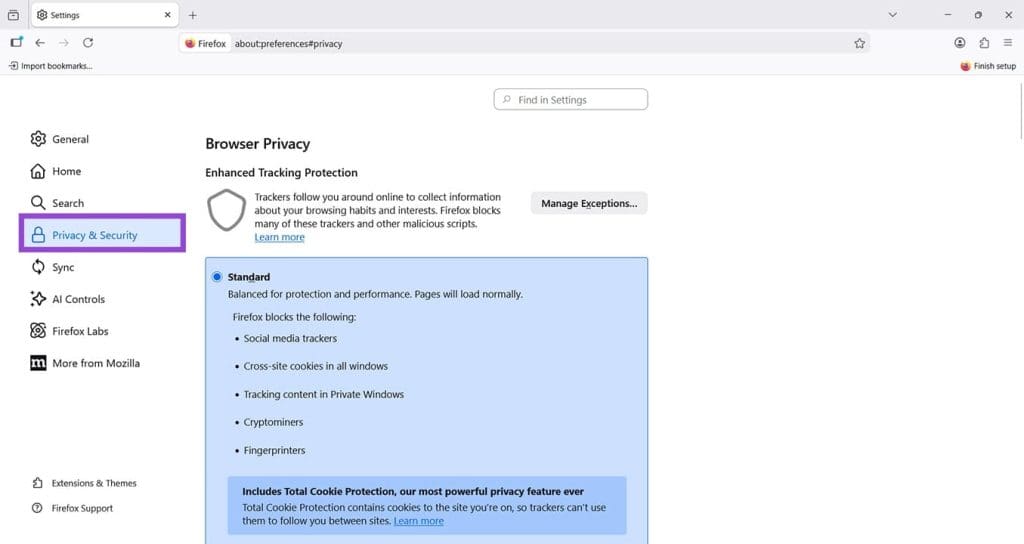
Step 4. Choose Privacy & Security from the left-hand menu.
Step 5. Scroll down to Permissions and look for Location.
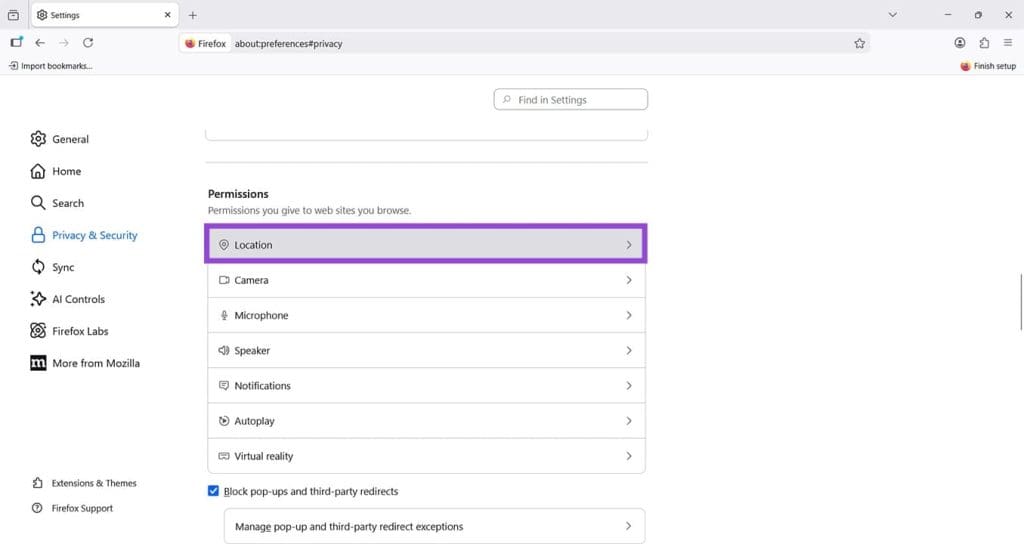
Step 6. Click Location, and you’ll see a new pop-up window asking you to specify websites that can have access to your location data. Ignore this and instead look for the tick box that says, “Block new requests asking to access your location. Tick here, and this stops any sites asking for your location data while you’re using the Firefox internet browser. Remember to click Save Changes once you’ve ticked the box or added any customization.

Note: Preventing browsers and sites from accessing location data will reduce the personalization of your browsing experience.
Was this helpful?
Last updated on 06 March, 2026
Read Next
 How to Send Fake Current and Live Locations on WhatsApp
WhatsApp allows sending multimedia and even locations apart from messages.
How to Send Fake Current and Live Locations on WhatsApp
WhatsApp allows sending multimedia and even locations apart from messages.
 Why Chrome is Asking for Sync Passphrase and How to Fix That
Chrome Sync arguably is the best feature in Google Chrome.
Why Chrome is Asking for Sync Passphrase and How to Fix That
Chrome Sync arguably is the best feature in Google Chrome.
 How to Stop Microsoft Edge From Asking to Save Passwords on Windows
Microsoft Edge comes with a lot of features, including a password manager.
How to Stop Microsoft Edge From Asking to Save Passwords on Windows
Microsoft Edge comes with a lot of features, including a password manager.
 4 Ways to Fix Google Keeps Asking to Fill Image Captcha
Fix 1: Disable Active VPN The Google search algorithm knows common VPN servers used by bots.
4 Ways to Fix Google Keeps Asking to Fill Image Captcha
Fix 1: Disable Active VPN The Google search algorithm knows common VPN servers used by bots.
 How to Stop YouTube From Pausing and Asking if You Want to “Continue Watching”
If you’re watching a YouTube playlist or listening to it in the background, you may occasionally find the video automatically paused.
How to Stop YouTube From Pausing and Asking if You Want to “Continue Watching”
If you’re watching a YouTube playlist or listening to it in the background, you may occasionally find the video automatically paused.
 6 Best Browsers With Built-in VPN for Android
Why Should You Need a Browser With VPN VPN (Virtual Private Network) serves multiple purposes apart from the fact that it unlocks content locked away in your geolocation.
6 Best Browsers With Built-in VPN for Android
Why Should You Need a Browser With VPN VPN (Virtual Private Network) serves multiple purposes apart from the fact that it unlocks content locked away in your geolocation.
 6 Ways to Fix YouTube Lagging on Chrome, Firefox, and Other Browsers
https://youtu.be/YyRuUvT3-ho Basic Fixes Use a reliable Wi-Fi network: It goes without saying that you need a fast and reliable network connection to play YouTube videos.
6 Ways to Fix YouTube Lagging on Chrome, Firefox, and Other Browsers
https://youtu.be/YyRuUvT3-ho Basic Fixes Use a reliable Wi-Fi network: It goes without saying that you need a fast and reliable network connection to play YouTube videos.
 How to Import Passwords Into Edge From Other Browsers
Switching browsers can be a pain, but it doesn’t have to be.
How to Import Passwords Into Edge From Other Browsers
Switching browsers can be a pain, but it doesn’t have to be.
The article above may contain affiliate links which help support Guiding Tech. The content remains unbiased and authentic and will never affect our editorial integrity.

