


Method 1: Open Ease of Access Center Using Settings
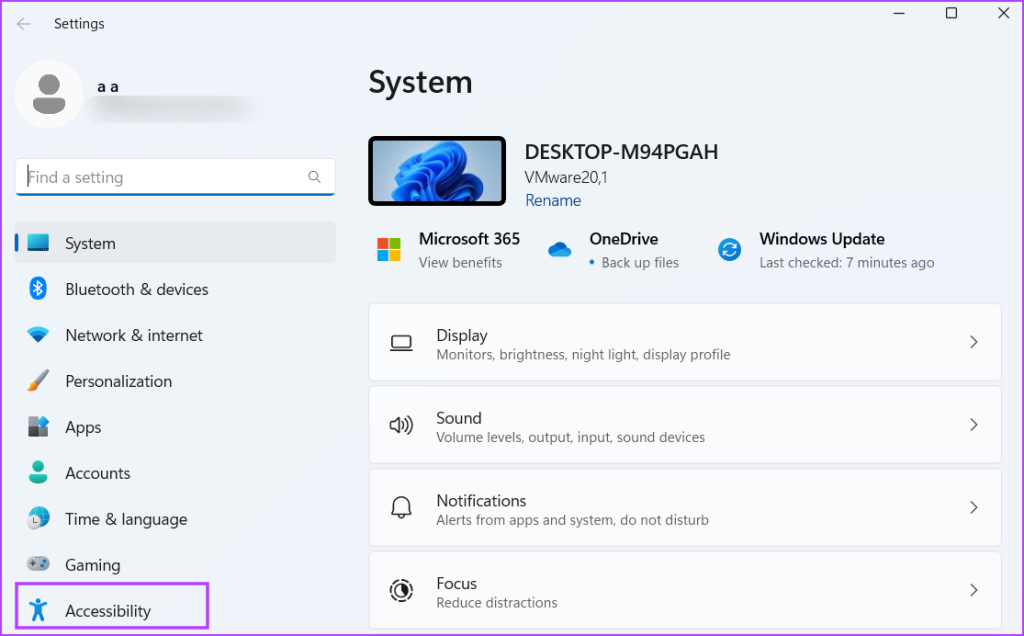
The Settings app incorporates the new Accessibility section, which neatly organizes all the features into categories. Here is how to access it.
Step 1: Press the Windows + I keyboard shortcut to launch the Settings app.
Step 2: Go to the left sidebar and click on Accessibility.
Also Read: How to unpause Windows updates and what to do if you can’t
Method 2: Use the Run Dialog Box
The Run dialog box supports shortcodes for various settings and Control Panel utilities in Windows. Here’s how to get into the Ease of Access Center using the same:
Step 1: Press the Windows + R keyboard shortcut to launch the Run dialog box.
Step 2: Type ms-settings: access in the text box. Press Enter to open the Accessibility section in the Settings app.

Alternatively, type control access.cpl in the text box and press Enter. This will open the tool’s legacy version.
Method 3: Use Control Panel to Open Ease of Access Center
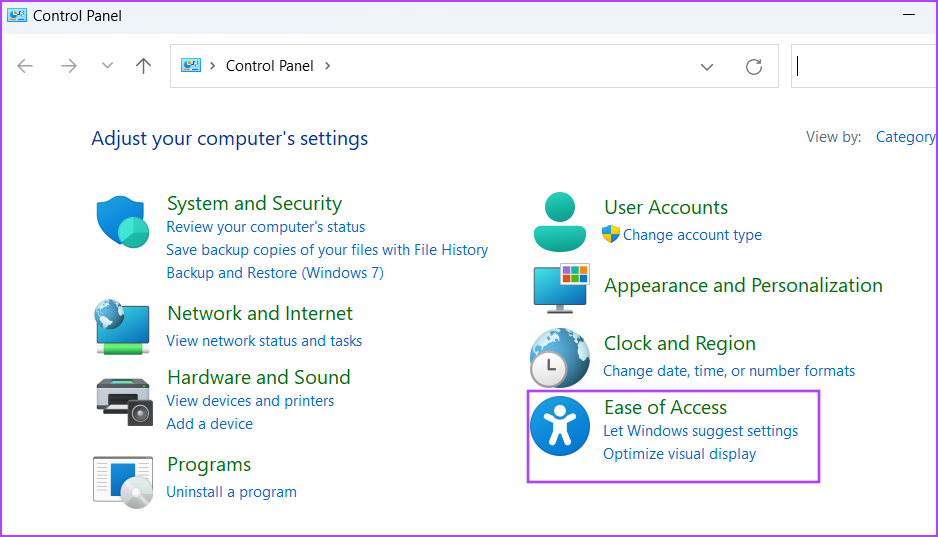
Step 1: Press the Windows key, type Control Panel, and press Enter.
Step 2: In the Control Panel window, click on Ease of Access.
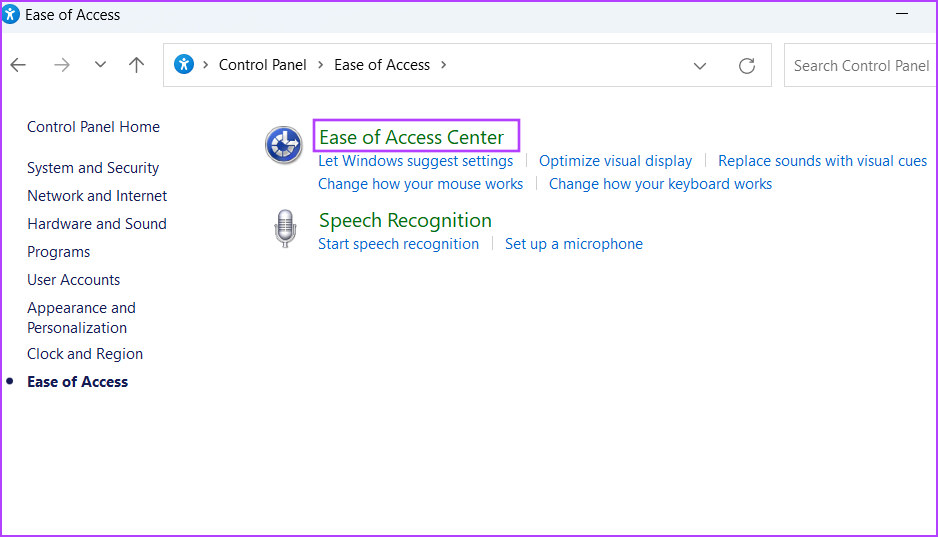
Step 3: Click on the Ease of Access Center option. Here, you will find all the accessibility settings available on your system.
Was this helpful?
Last updated on 03 June, 2024
Read Next
 10 Ways to Fix Action Center Not Visible or Showing on Taskbar in Windows 10
The Action Center is a notification center where you can view, interact with, and dismiss all Windows 10 notifications.
10 Ways to Fix Action Center Not Visible or Showing on Taskbar in Windows 10
The Action Center is a notification center where you can view, interact with, and dismiss all Windows 10 notifications.
 Top 7 Ways to Fix Bluetooth Missing From Action Center in Windows 10
In Windows 10, the Action Center offers a quick way to enable or disable Bluetooth.
Top 7 Ways to Fix Bluetooth Missing From Action Center in Windows 10
In Windows 10, the Action Center offers a quick way to enable or disable Bluetooth.
 How to Fix Windows Security Center Is Turned off Error
The Windows Security Center comes preinstalled with all versions of Windows 10 computers.
How to Fix Windows Security Center Is Turned off Error
The Windows Security Center comes preinstalled with all versions of Windows 10 computers.
 What Is Action Center in Windows 10 and How to Use It
Have you been told to open the Action Center on your Windows 10 PC while troubleshooting it?
What Is Action Center in Windows 10 and How to Use It
Have you been told to open the Action Center on your Windows 10 PC while troubleshooting it?
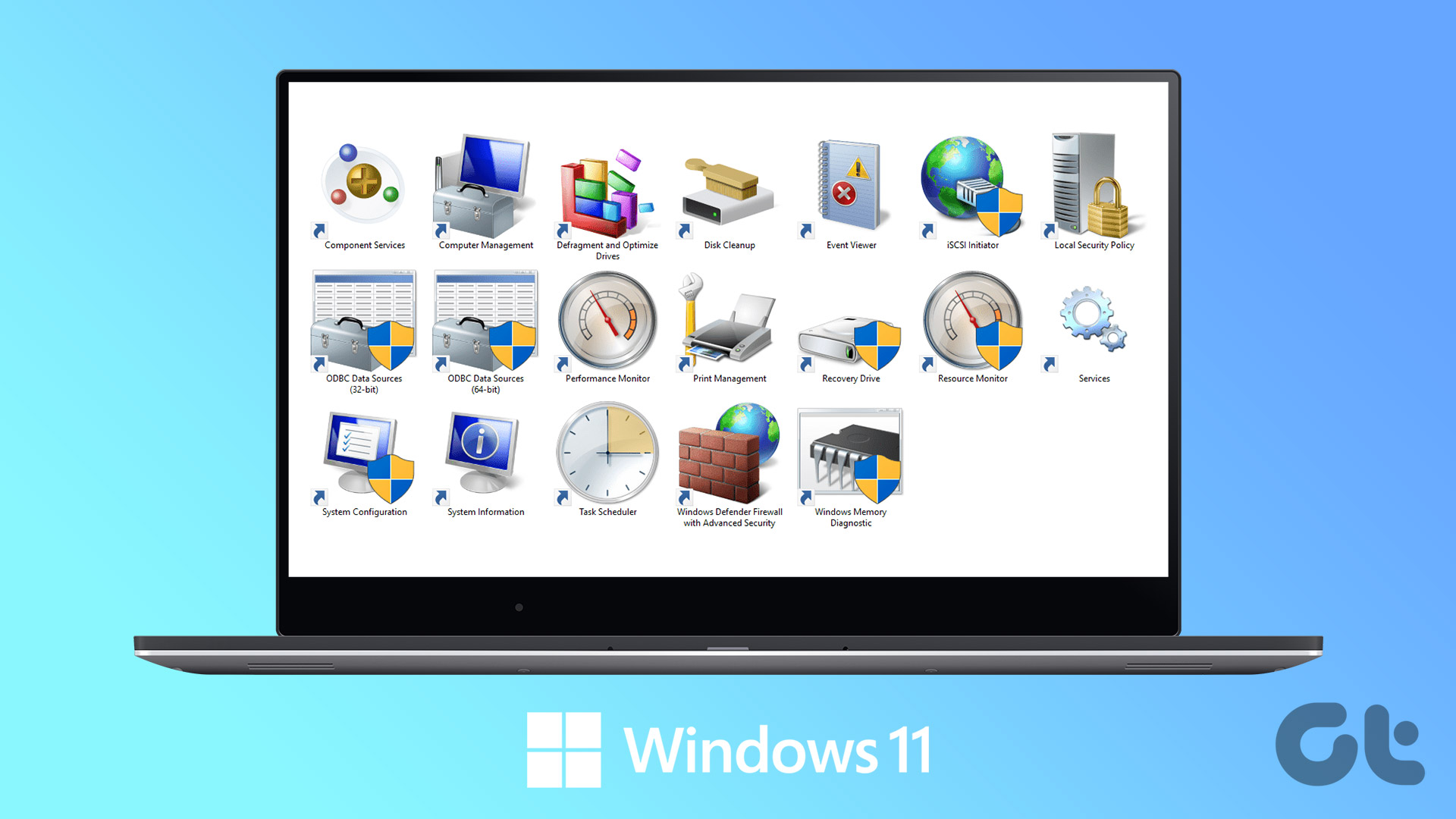 6 Best Ways to Access Windows Tools on Windows 11
Windows Tools carries useful utilities like Event Viewer, Task Scheduler, and System Configuration Tool, organized into a folder for easy access.
6 Best Ways to Access Windows Tools on Windows 11
Windows Tools carries useful utilities like Event Viewer, Task Scheduler, and System Configuration Tool, organized into a folder for easy access.
 4 Ways to Fix iPhone Control Center Not Working
Basic Fixes Force restart your iPhone: Press and quickly release the Volume Up button followed by Volume Down.
4 Ways to Fix iPhone Control Center Not Working
Basic Fixes Force restart your iPhone: Press and quickly release the Volume Up button followed by Volume Down.
 6 Ways to Fix “Folder Access Denied” Error on Windows
Basic Fixes Check if the folder is encrypted. The administrator could have password-locked or encrypted the folder, so contact them for assistance.
6 Ways to Fix “Folder Access Denied” Error on Windows
Basic Fixes Check if the folder is encrypted. The administrator could have password-locked or encrypted the folder, so contact them for assistance.
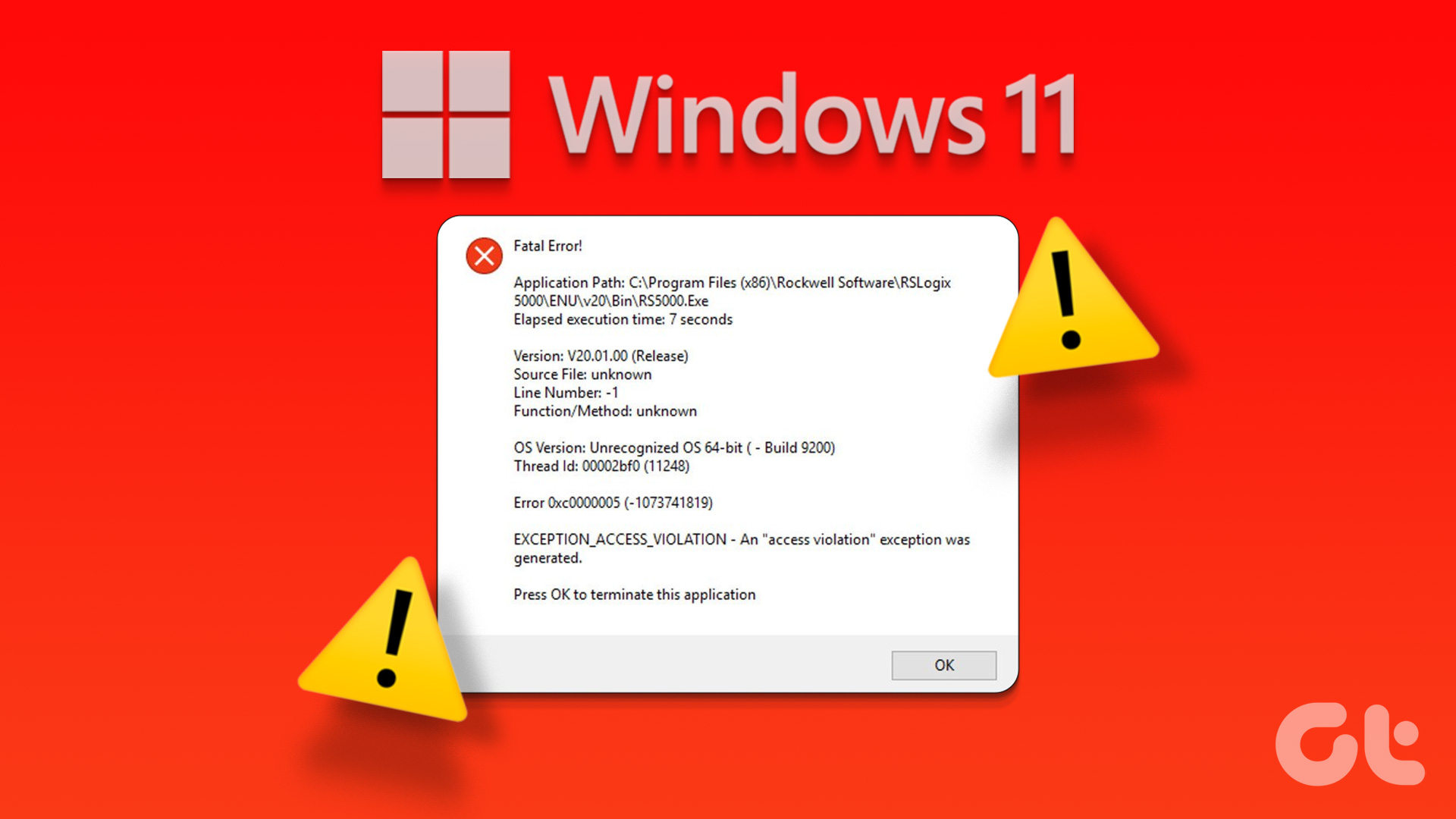 4 Ways to Fix Exception Access Violation Error on Windows 11
Fix 1: Use the Built-in Troubleshooter The Hardware and Device troubleshooter can help you resolve hardware-related issues that trigger the Exception Access Violation error.
4 Ways to Fix Exception Access Violation Error on Windows 11
Fix 1: Use the Built-in Troubleshooter The Hardware and Device troubleshooter can help you resolve hardware-related issues that trigger the Exception Access Violation error.
The article above may contain affiliate links which help support Guiding Tech. The content remains unbiased and authentic and will never affect our editorial integrity.

