Say you’ve got two solid-state drives (SSDs) on your PC and you’d like to combine their resources into one. Or maybe you partitioned your SSD into two sectors and want to combine them again? Both are perfectly valid and possible ways of merging, and this article will show you how to how to merge two SSD drives.
Before Getting Started
The hard drive is not only the location of valuable data but your entire operating system as well. In the unlikely event that things go wrong during the merging process, the results can be ruinous. It’s always best practice to back up important files before attempting to merge two SSDs.
Requirements for Merging
Combining two partitions or merging two SSDs comes with its own list of requirements and restrictions. Think of them as the asterisk to this whole article. Here are the major ones:
- Your drives will both be converted to Dynamic Drives and can’t run an operating system.
- The C Drive’s space cannot be increased.
- Merging drives will only work with internal SSDs and not portable, external ones.
- Some merging processes require the SSDs to be the same size to split the difference (except for spanned volumes in Windows).
- You’ll need some free space on both drives or partitions.
How to Collapse a Partition
If a drive on your PC has been partitioned, (e.g. one for system files and one for all other data), then you can easily collapse these into one. Before doing so, however, ensure that all data on your non-system file partition has been properly backed up, and then erased, as it’ll all be deleted upon merging.
Ensure that you have Admin privileges too. Once you’ve done this, here’s what to do:
Step 1. In the Search Bar, type “Create and format hard disk partitions.”

Step 2. Click the option that pops up and the “Disk Management” window should appear.
Step 3. You’ll see all current partitions and their size. Partitions labeled with “System” or “Recovery” under the “Status” column are integral to your machine and shouldn’t be merged.
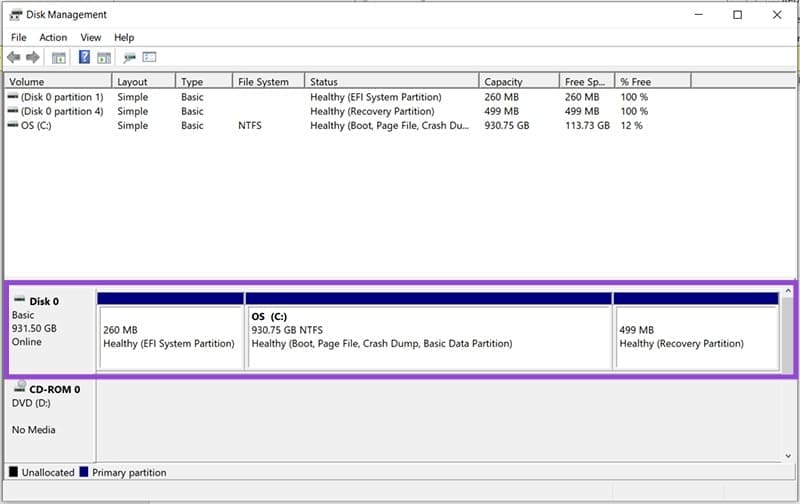
Step 4. Right-click on the drive you want to collapse and select “Delete Volume” from the popup menu. If this isn’t possible, the option will be greyed out.

Step 5. Confirm your choice and the partition be cleared.
Step 6. Right-click the drive you want to merge into and select “Extend Volume.”
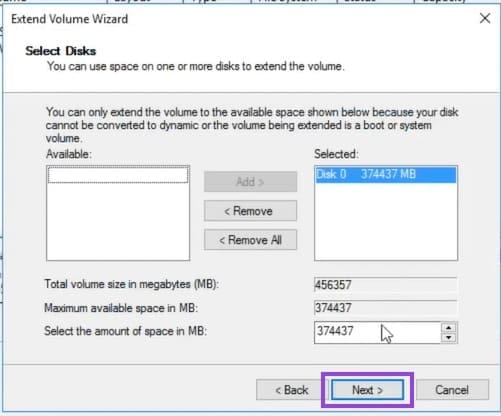
Step 7. The Extend Volume Wizard will pop up. Follow the steps, select the space you want to add to your existing partition, and confirm by clicking “Finish.”
How to Merge Two SSD Drives
Using two separate SSDs can often work out to be cheaper to use than one of equal size. If you have two installed and want to merge them, you can do this either through a third-party app or through Windows itself. For accessibility, we’re going to show the Windows method:
Step 1. Open up Disk Management by typing it into the Search Bar. Click the “Create and format hard disk partitions” when it shows up.
Step 2. In the Disk Management window, you’ll see all existing drives, external and internal. You’ll need to delete the files of one drive before merging. After backing up, right-click the volume and select “Delete Volume” from the popup menu. Confirm and the disk will become unallocated.
Step 3. Click the SSD drive you want the other to be merged into right-click the window. Choose “Extend Volume” from the popup menu.
Step 4. The Extend Volume Wizard will pop up. Select the blank disk and click the “Add” button to add its space to the drive.
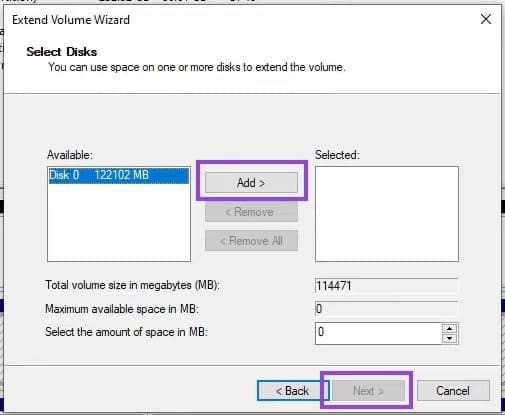
Step 5. Click “Next” and then “Finish.”
Both drives will now share the same letter and ostensibly act as the same drive. They are also both Dynamic, meaning that neither will be able to install or run operating systems from them.
Was this helpful?
Last updated on 16 June, 2025
Read Next
 How to Merge Two Images in Paint 3D on Windows 10
Paint 3D is a redefined and upgraded version of Microsoft Paint.
How to Merge Two Images in Paint 3D on Windows 10
Paint 3D is a redefined and upgraded version of Microsoft Paint.
 How to Create or Merge Disk Partitions in Windows 11
How to Create Hard Drive Partitions on Windows 11 Windows offers the Disk Management utility to undertake any storage-related tasks on your Windows PC.
How to Create or Merge Disk Partitions in Windows 11
How to Create Hard Drive Partitions on Windows 11 Windows offers the Disk Management utility to undertake any storage-related tasks on your Windows PC.
 6 Best External SSDs for iPad Pro You Should Buy
Apple's iPad Pros are exceptional tablets and are a joy to use.
6 Best External SSDs for iPad Pro You Should Buy
Apple's iPad Pros are exceptional tablets and are a joy to use.
 6 Best Heatsinks for M.2 SSDs in 2024
M.2 SSDs promise superb performance in a small form factor.
6 Best Heatsinks for M.2 SSDs in 2024
M.2 SSDs promise superb performance in a small form factor.
 4 Best SSDs for ASUS ROG Ally in 2024
The ASUS ROG Ally is a superb handheld gaming console.
4 Best SSDs for ASUS ROG Ally in 2024
The ASUS ROG Ally is a superb handheld gaming console.
 5 Best SSDs for NAS in 2024
SSDs are fast becoming the preferred medium for adding storage to a NAS.
5 Best SSDs for NAS in 2024
SSDs are fast becoming the preferred medium for adding storage to a NAS.
 6 Best External SSDs for iPhone 15 Pro Series
The USB-C port in the iPhone 15 series opens up a wide range of possibilities for users.
6 Best External SSDs for iPhone 15 Pro Series
The USB-C port in the iPhone 15 series opens up a wide range of possibilities for users.
 How to Merge and Remove Duplicate Contacts on iPhone
How to Merge Duplicate Contacts Automatically With iOS 16, Apple introduced a feature that automatically merges duplicate contacts on your iPhone.
How to Merge and Remove Duplicate Contacts on iPhone
How to Merge Duplicate Contacts Automatically With iOS 16, Apple introduced a feature that automatically merges duplicate contacts on your iPhone.
The article above may contain affiliate links which help support Guiding Tech. The content remains unbiased and authentic and will never affect our editorial integrity.