If you’re wondering how to maximize laptop battery life, you’re hardly alone, as the problem has plagued laptop users since the first models came out decades ago. Thankfully, modern laptops already have a solid battery to start with, and all it takes are some setting changes and lifestyle modifications to make sure you have as much juice for the road.
Option 1: Use the Built-In System Tools for Power Management
Both Windows and macOS have a few settings that allow them to automatically prioritize the battery’s charge over laptop performance. For Windows, this is the Power Management screen. For Mac, it’s the Battery Settings. Here’s how to access the settings on a Windows laptop.
Step 1. Click on the battery icon in the bottom-right corner, then click on the battery icon in the pop-out menu. You’ll go to Battery Settings.
Step 2. Use the “Energy recommendations” to automatically set up your system to use less power by reducing the time it spends idle with the screen on.
Step 3. Go to “Power Mode” and put it to “Best Power Efficiency.”

Option 2: Remove Background Processes
While it might not seem obvious, operating systems will have a lot of background apps and processes, some of which are just full-fledged apps being minimized or launchers waiting for the app proper to run.
For Windows, you can even find which apps consumed the most power by going to the Battery & Power section of Settings (see Option 1) and then to “Battery usage.” The apps that used the most battery will be listed below.
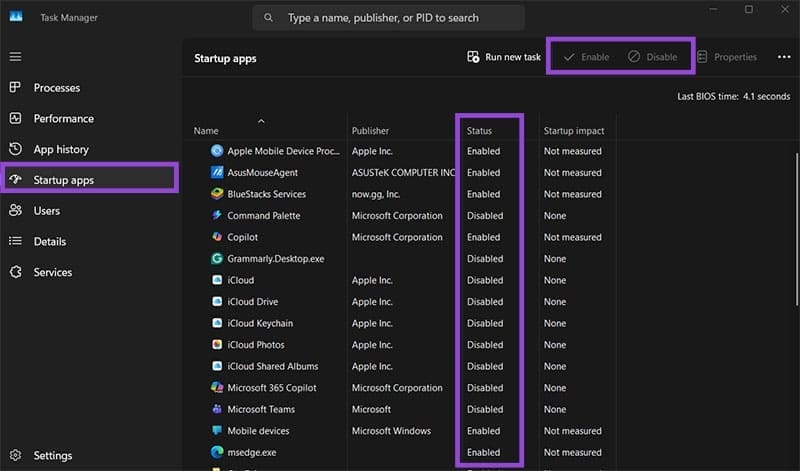
You can then use Task Manager to close unnecessary programs. Notably, you may also want to disable startup apps (in the tab named “Startup apps”), such as launchers, which automatically turn on some apps.
Option 3: Turn Off Bluetooth and Other Services
Bluetooth is a huge power draw on the system when turned on, since it repeatedly scans for nearby devices to pair with. If you want to keep things simple and don’t need internet access, you can turn on “Airplane mode” from the toolbar to disable every connection service at once (click on the battery icon to access the menu).

Option 4: Improve Airflow around Your Laptop
Laptops don’t handle heat well, and constricting their airflow means they have to work overtime to cool down, which drains battery.
While they were originally designed for laps, you shouldn’t actually use them on your lap since your legs don’t conduct heat very well and if you sweat you may make things worse. Instead, lay the laptop on a flat surface or, even better, use a dedicated stand to lift it and create more airflow.
Option 5: Use the Built-In Battery Report to Learn How to Maximize Battery Lifespan
The battery health report provides information on the battery’s current and remaining maximum charge, indicating how degraded it got from repeated charging.
For Windows, you can use the console command: powercfg /batteryreport /output “C:\battery-report.html.”
This will generate a file that displays all the information Windows can find on the battery.
Was this helpful?
Last updated on 22 February, 2026
Read Next
 How to Estimate Laptop Battery Life Before Buying
We all know how much manufacturers lie about battery life.
How to Estimate Laptop Battery Life Before Buying
We all know how much manufacturers lie about battery life.
 6 Best Cordless Vacuum Cleaners With Long Battery Life
Cordless vacuum cleaners are more convenient and have many advantages.
6 Best Cordless Vacuum Cleaners With Long Battery Life
Cordless vacuum cleaners are more convenient and have many advantages.
 Top 5 Wireless Earbuds With Long Battery Life
Not many years ago, truly wireless earbuds were a rarity.
Top 5 Wireless Earbuds With Long Battery Life
Not many years ago, truly wireless earbuds were a rarity.
 5 Best Smartwatches With Long Battery Life in 2024
A smartwatch can help you avoid phone addiction and stay on top of your fitness game.
5 Best Smartwatches With Long Battery Life in 2024
A smartwatch can help you avoid phone addiction and stay on top of your fitness game.
 5 Ways to Check Battery Life on Apple Watch
Method 1: Check Apple Watch Battery Life Using Control Center Step 1: Open the Control Center on your Apple Watch.
5 Ways to Check Battery Life on Apple Watch
Method 1: Check Apple Watch Battery Life Using Control Center Step 1: Open the Control Center on your Apple Watch.
 5 Best Gaming Laptops with Good Battery Life in 2024
As a gamer constantly on the go, you would seek good battery backup from your device.
5 Best Gaming Laptops with Good Battery Life in 2024
As a gamer constantly on the go, you would seek good battery backup from your device.
 4 Ways to Fix No Battery Is Detected on Windows 11 Laptop
Fix 1: Reconnect the Battery and Perform a Power Cycle You can start by removing your laptop’s battery if possible and installing it again.
4 Ways to Fix No Battery Is Detected on Windows 11 Laptop
Fix 1: Reconnect the Battery and Perform a Power Cycle You can start by removing your laptop’s battery if possible and installing it again.
 3 Ways to Fix Windows 11 Laptop Showing Wrong Battery Percentage
https://youtu.be/5XEdrPhBF9s Try Basic Fixes Install Windows updates: If you have disabled automatic updates on your device, you might need to look for newer updates manually.
3 Ways to Fix Windows 11 Laptop Showing Wrong Battery Percentage
https://youtu.be/5XEdrPhBF9s Try Basic Fixes Install Windows updates: If you have disabled automatic updates on your device, you might need to look for newer updates manually.
The article above may contain affiliate links which help support Guiding Tech. The content remains unbiased and authentic and will never affect our editorial integrity.