


Setup OneDrive on Your Samsung Phone
To start syncing, sign in with your OneDrive account in the Gallery app. If you are a Windows user, you likely already have a Microsoft account.
Sign in with your account details and explore the OneDrive app. As we mentioned earlier, it comes with 5GB of free storage. You can always enable camera upload from the app settings. But since we are using the service on a Galaxy phone, it’s backed right into the Gallery app. Let’s check it in action.
Using OneDrive With the Samsung Gallery App
Step 1: Open the Gallery app on your phone > tap on the hamburger menu > select Settings.
Step 2: Select Sync with OneDrive.

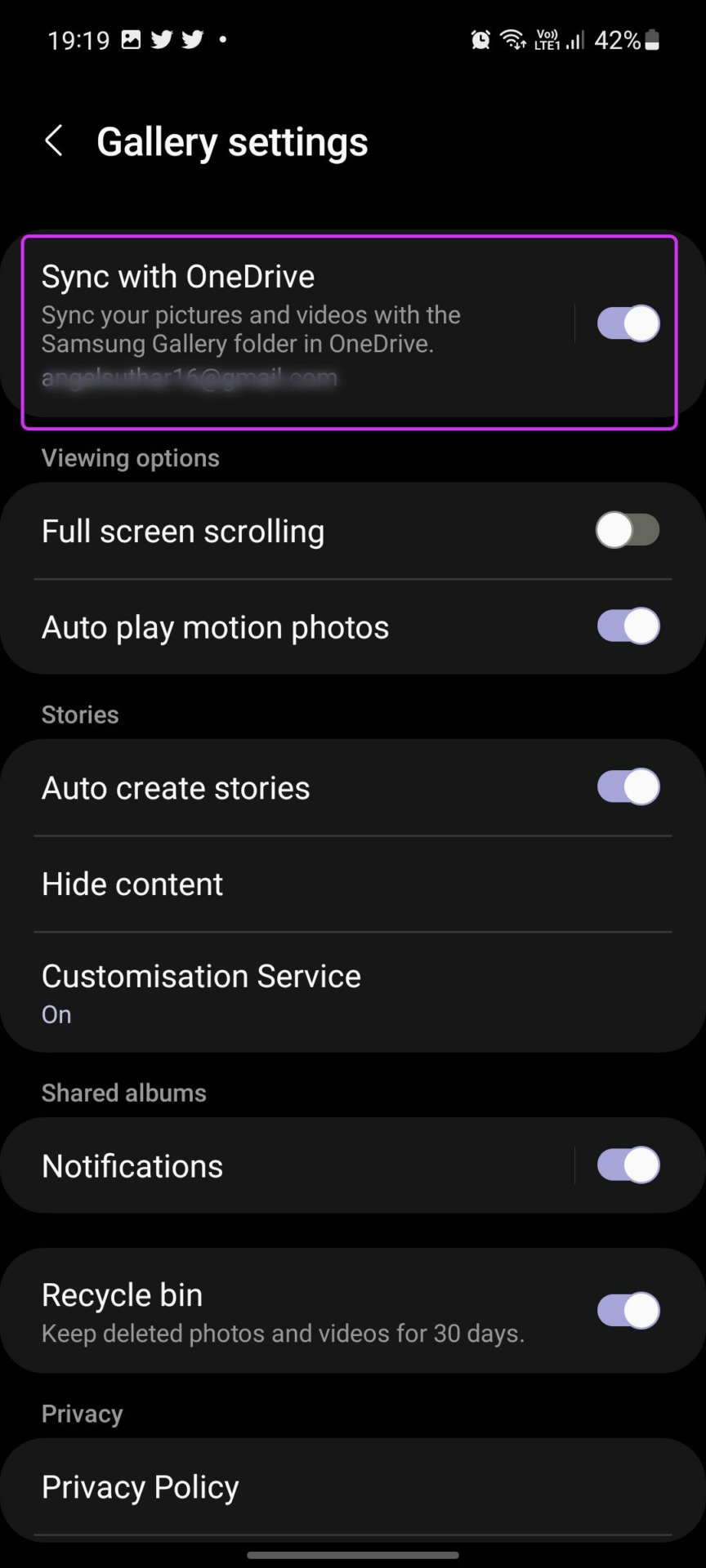
Step 3: It will ask you to connect your Samsung and Microsoft accounts.
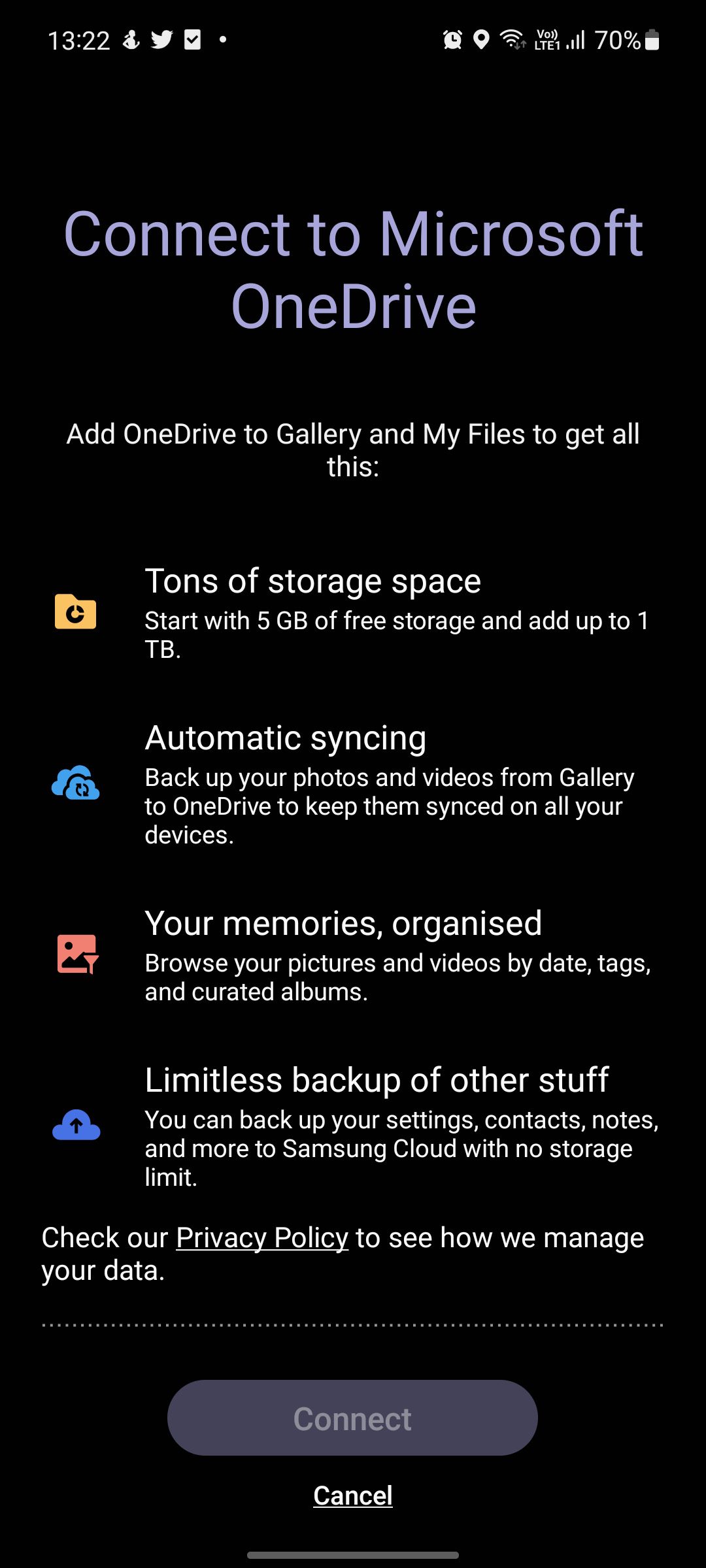
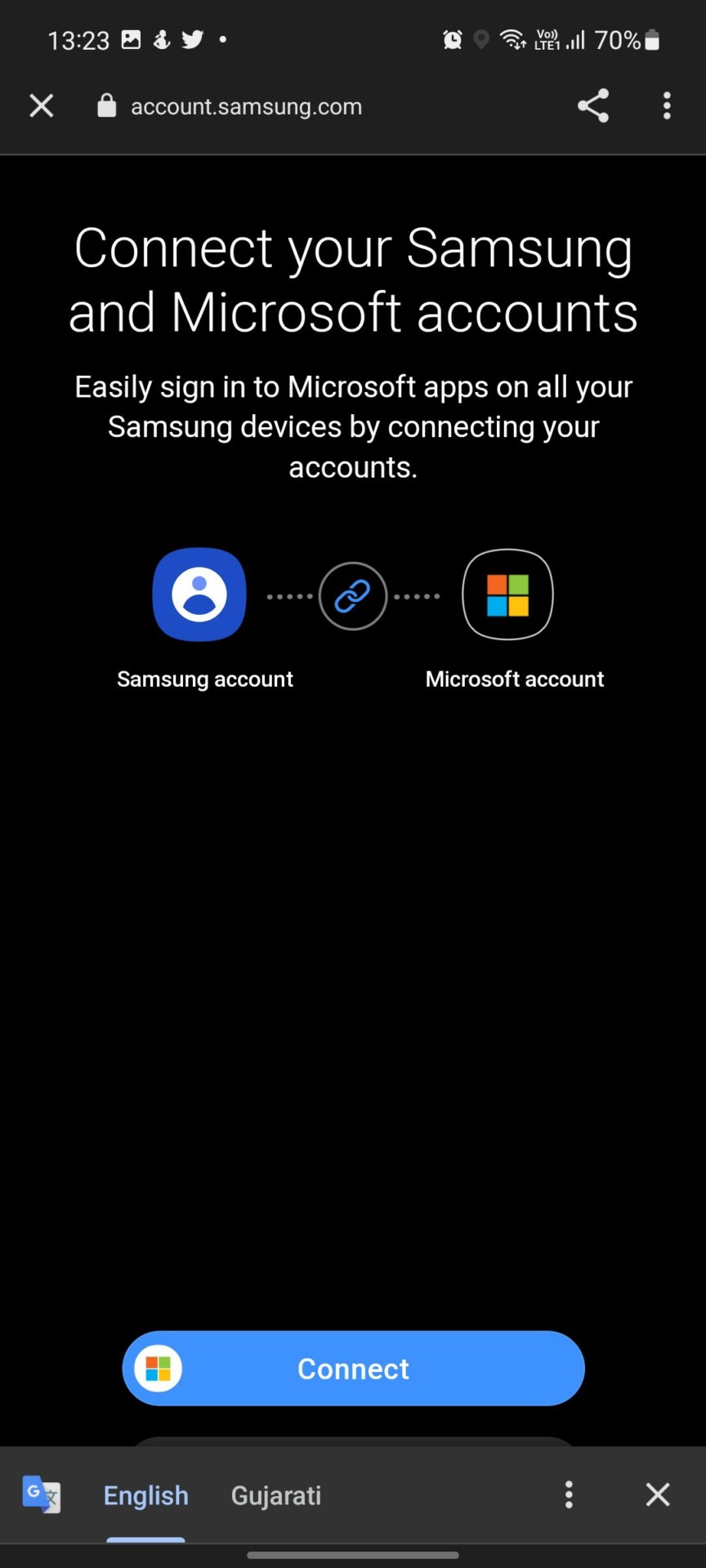
Once you sync your Samsung account with your Microsoft account, you can back up your photos and videos from Gallery to OneDrive. That way, you can access all your backed-up media files on your computer, iPad, and web.
Edit Sync Settings in the Samsung Gallery
When you connect the Samsung Gallery app with OneDrive, you will see syncing options in the settings. Let’s use it to set up the perfect sync experience.
Step 1: Open the Gallery app on your phone. Tap on the hamburger menu at the bottom and select Settings.
Step 2: Select Albums to sync and choose which device albums to back up to OneDrive.
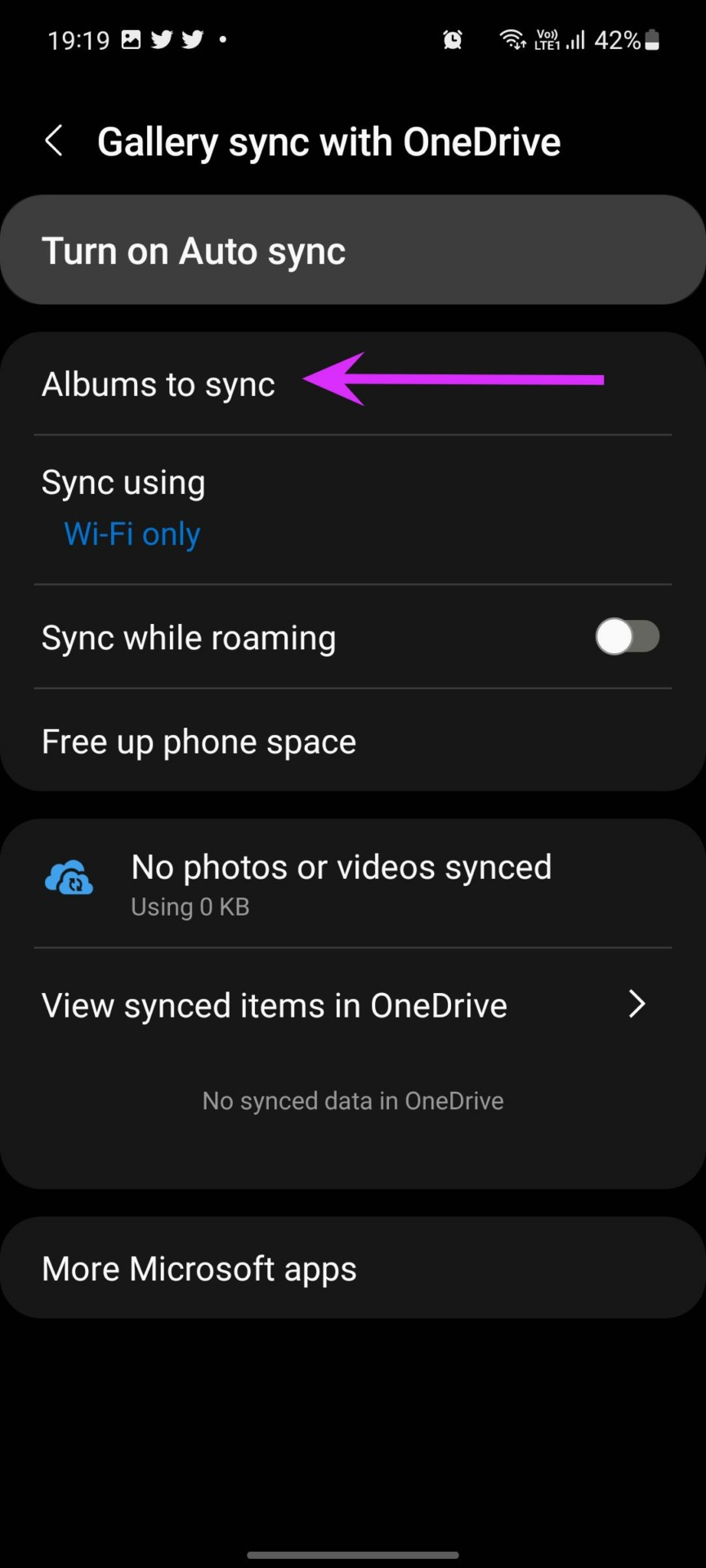
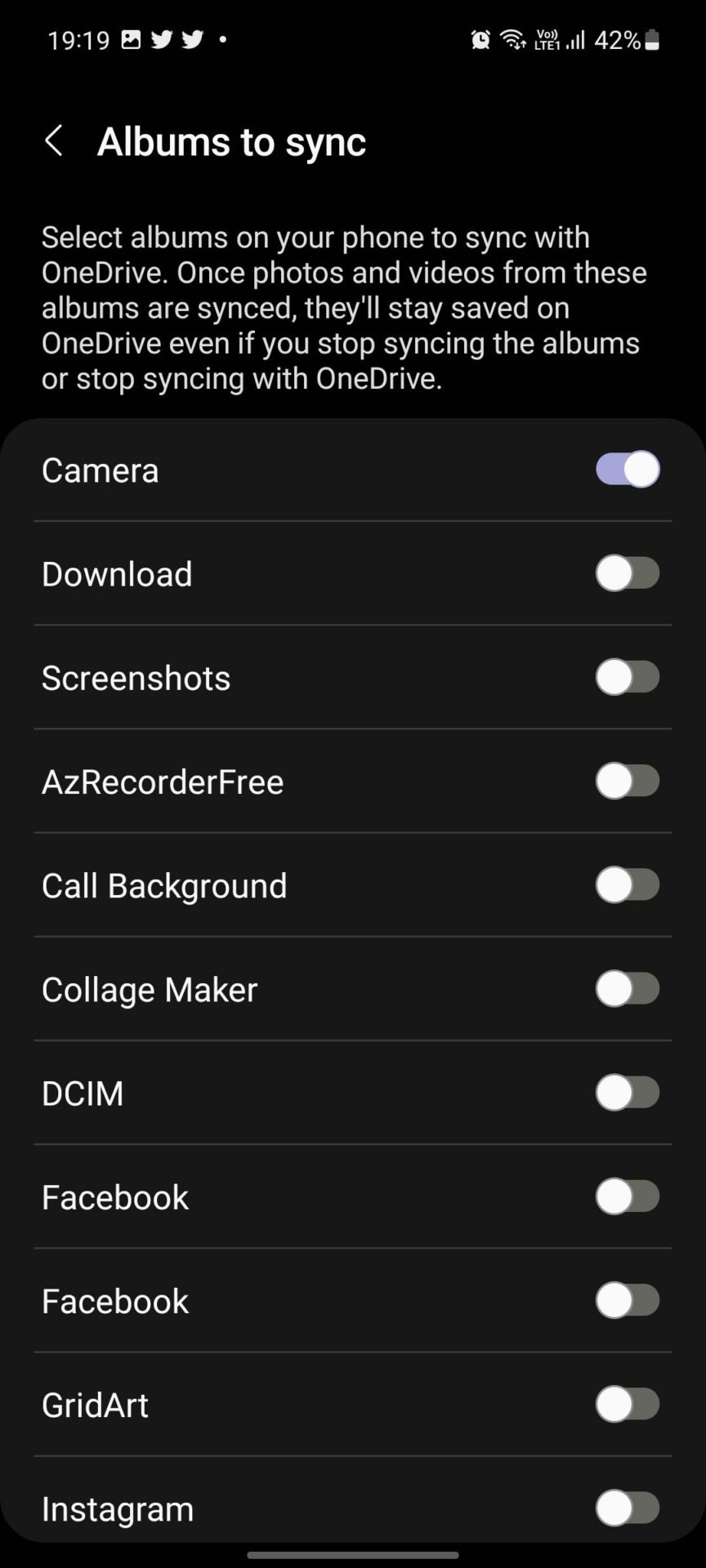
You have the option to sync media on Wi-Fi or mobile data. We recommend using Wi-Fi only, as some videos from your Gallery can reach up to a couple of GBs in size, draining your cellular data quickly.
Similar to Google Photos, OneDrive offers an option to free up phone space. If you are running low on local storage, select Free up phone space in the Gallery settings. The action will delete the local versions of images and videos you have synced with OneDrive.
Get Samsung Gallery Media on Windows
Understandably, the Photos app on Windows is powered by OneDrive. If you have enabled the sync function for OneDrive in the Samsung Gallery app, you will see and access all the captured photos and videos in the Photos app on the desktop.
Open the Photos app on Windows. Give the syncing process some time, and all your Gallery app folders will appear in the app.

This makes accessing your photos and videos seamless between both your devices.
Was this helpful?
Last updated on 23 July, 2024
4 Comments
Leave a Reply
Read Next
 5 Fixes for Samsung Health App Not Tracking Steps
Basic Fixes Ensure that step counter is enabled: Open the Health app > Tap on Steps > Three dots in the top-right corner > Check and ensure that the step
5 Fixes for Samsung Health App Not Tracking Steps
Basic Fixes Ensure that step counter is enabled: Open the Health app > Tap on Steps > Three dots in the top-right corner > Check and ensure that the step
 Top 9 Ways to Fix Mobile Hotspot Not Working on Samsung Galaxy Phones
Mobile hotspot comes in handy when your office or home Wi-Fi is facing an outage.
Top 9 Ways to Fix Mobile Hotspot Not Working on Samsung Galaxy Phones
Mobile hotspot comes in handy when your office or home Wi-Fi is facing an outage.
 8 Ways to Fix Battery Drain on Samsung Galaxy Phones
Basic Fixes: Disable 5G: While 5G provides faster data transfer speeds, it can increase the device's battery drain.
8 Ways to Fix Battery Drain on Samsung Galaxy Phones
Basic Fixes: Disable 5G: While 5G provides faster data transfer speeds, it can increase the device's battery drain.
 How to Use Quick Settings Panel on Samsung Galaxy Phones
How to Access the Quick Settings Panel You can access the Quick Settings panel by swiping down from the top of the screen.
How to Use Quick Settings Panel on Samsung Galaxy Phones
How to Access the Quick Settings Panel You can access the Quick Settings panel by swiping down from the top of the screen.
 How to Use Clipboard on Samsung Galaxy Phones
Use Clipboard in Samsung Keyboard You can use One UI's native clipboard if Samsung Keyboard is your default keyboard app.
How to Use Clipboard on Samsung Galaxy Phones
Use Clipboard in Samsung Keyboard You can use One UI's native clipboard if Samsung Keyboard is your default keyboard app.
 5 Ways to Fix Bixby Not Working on Samsung Galaxy Phones
Fix 1: Enable App Permissions for Bixby Bixby requires a few permissions to access your phone's microphone, location, sensors, and other features.
5 Ways to Fix Bixby Not Working on Samsung Galaxy Phones
Fix 1: Enable App Permissions for Bixby Bixby requires a few permissions to access your phone's microphone, location, sensors, and other features.
 6 Ways to Turn off Do Not Disturb on Samsung Galaxy Phones
Basic Ways: Using Quick Settings: Swipe down twice from the top of the screen to open the Quick Settings panel.
6 Ways to Turn off Do Not Disturb on Samsung Galaxy Phones
Basic Ways: Using Quick Settings: Swipe down twice from the top of the screen to open the Quick Settings panel.
 How to Fix Call Recording Not Working on Samsung Galaxy Phones
Basic Fixes: Restart Samsung Galaxy phone: Rebooting your Samsung Galaxy phone is one of the effective ways to troubleshoot common problems.
How to Fix Call Recording Not Working on Samsung Galaxy Phones
Basic Fixes: Restart Samsung Galaxy phone: Rebooting your Samsung Galaxy phone is one of the effective ways to troubleshoot common problems.
The article above may contain affiliate links which help support Guiding Tech. The content remains unbiased and authentic and will never affect our editorial integrity.
Hello Parth. Thanks for the article. Do you know how I can disable Samsung gallery sync with One Drive and sync Google Photos with One Drive instead please?
Best wishes, Rachel
I think I will return my Samsung phone.
I do not want any Microsoft products. I think they are an American criminal organization.
I think it’s criminal how Microsoft reaches its grubby fingers into your windows computer and steals (syncs) all your private information to their Cloud Service (Major Data thievery center) and images, so you can have a backup (and they can do whatever they want) without the concent of the owner of said extremely personal data. And trying to shut it off is virtually impossible. Hope there’s a special spot in hell for everyone that created this monster!
The Samsung gallery app used to sync to the Camera Roll folder. About a month ago it suddenly started syncing to Samsung Gallery instead. As a result I have ended up clogging my OneDrive with a large number of duplicate photos.
The folder used for OneDrive synchronisation is not user configurable so I can’t merge and manage my photo library.
This seems to be a serious design flaw with Gallery. I would have expected the programmers to make sure all “upgrades” to the app were backwards compatible.
A bad fail on the part of Samsung.