Make Your X Account Private Using Android and iPhone
Step 1: Open the Twitter app on your mobile phone.
Step 2: Tap on the profile picture icon at the top-left corner.
Step 3: Tap on Settings & Support > Settings and privacy.
Step 4: Select Privacy and safety > Audience and tagging.
Step 5: Enable the toggle for Protect your Tweets to make tweets private.


Tip: Learn how to fix Twitter not working on iPhone and Android.
How to Lock Your Twitter Account on PC
Step 1: Open Twitter in a browser on your computer.
Step 2: Click on More from the left sidebar.
Step 3: Select Settings and Support > Settings and privacy.
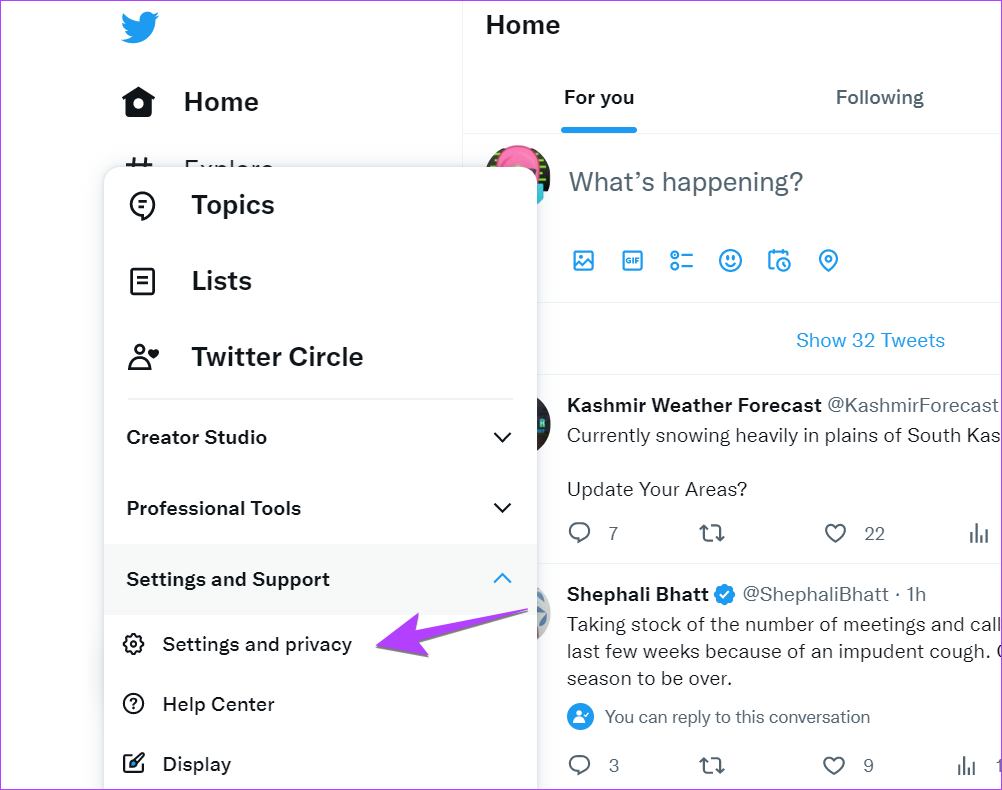
Step 4: Go to Privacy and safety. From the next menu, select Audience and tagging.
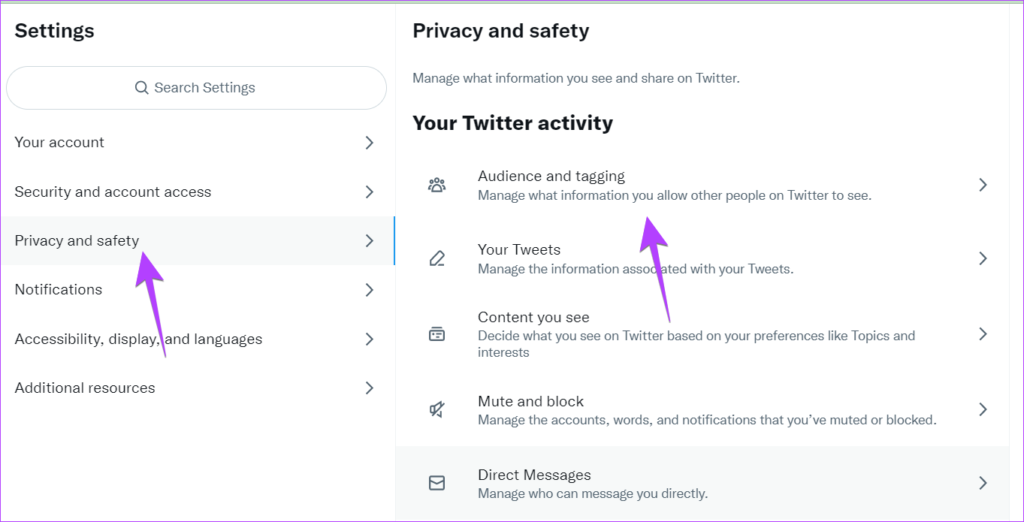
Step 5: Check the box for Protect your Tweets to lock your Twitter account.
FAQs
You will see a padlock icon next to the username of the private accounts, whether your own or someone else’s.
No. Twitter will not inform you if someone takes a screenshot of your tweets, whether protected or unprotected.
For public profiles, anyone can see liked tweets. However, in private profiles, only your followers can see your liked tweets.
Was this helpful?
Last updated on 26 July, 2024
Read Next
 How to Message a Private Account on Instagram (Without Following)
Message a Private Account on Instagram There are three ways to message a private account on Instagram, whether you follow them or not.
How to Message a Private Account on Instagram (Without Following)
Message a Private Account on Instagram There are three ways to message a private account on Instagram, whether you follow them or not.
 How to Know if an Instagram Account Is Private or Public
Method 1: By Trying to Share the User’s Post This method will help you determine whether someone’s account is private or public on Instagram if you follow them.
How to Know if an Instagram Account Is Private or Public
Method 1: By Trying to Share the User’s Post This method will help you determine whether someone’s account is private or public on Instagram if you follow them.
 What Happens When You Delete WhatsApp Account
What Happens to Existing Message History and Backup Deleting WhatsApp will clear all the chat records on your phone.
What Happens When You Delete WhatsApp Account
What Happens to Existing Message History and Backup Deleting WhatsApp will clear all the chat records on your phone.
 What Happens When You Remove a Google Account from Your Phone
1.
What Happens When You Remove a Google Account from Your Phone
1.
 What Happens When Your Google Account Is Disabled and How to Recover It
Why Does Google Disable an Account There are multiple reasons Google disables the account of a user, and we shall cover everything below.
What Happens When Your Google Account Is Disabled and How to Recover It
Why Does Google Disable an Account There are multiple reasons Google disables the account of a user, and we shall cover everything below.
 How to Make Sure Google Photos Are Private
Google Photos is a well-known photo-storage service.
How to Make Sure Google Photos Are Private
Google Photos is a well-known photo-storage service.
 Can You Remove Yourself From a Private Story on Snapchat
In order to ensure your snaps remain private, users can create private stories on Snapchat.
Can You Remove Yourself From a Private Story on Snapchat
In order to ensure your snaps remain private, users can create private stories on Snapchat.
 What Is Spotify Private Session and How to Enable or Disable It
What Is a Private Session on Spotify?
What Is Spotify Private Session and How to Enable or Disable It
What Is a Private Session on Spotify?
The article above may contain affiliate links which help support Guiding Tech. The content remains unbiased and authentic and will never affect our editorial integrity.