

How Many Pictures Can You Put in an Instagram Reel?
When we talk about how to make a Reel on Instagram with photos, the first question is the number of photos that can be selected for creating a Reel. You can upload an Instagram Reel of up to 90 seconds on your profile. And Instagram allows you to use up to 50 photos from your gallery. The same goes for creating a slideshow with videos in your Instagram Reel.
However, you should be mindful of the duration of your video clips and ensure that the total duration of your selected clips should not exceed 90 seconds.
How to Create a Reel With Multiple Photos
Let us check the steps to make a photo reel with and without music using the Instagram app on your iPhone or Android phone. The steps remain the same for both platforms. Ensure that you have a strong internet connection.
Step 1: Open the Instagram app on your iPhone or Android phone.
Step 2: Swipe right from the home screen to open the viewfinder.
Step 3: Tap on Reel at the bottom > select Add Media at the bottom-left corner.
Step 4: Tap on Select to choose multiple photos for your Reel.
Step 5: Choose your photos that you want to include in your Reel.
Step 6: After you select the photos, long-press the icons below to change the order of your photos. You can also choose to delete a picture from the ones you selected.

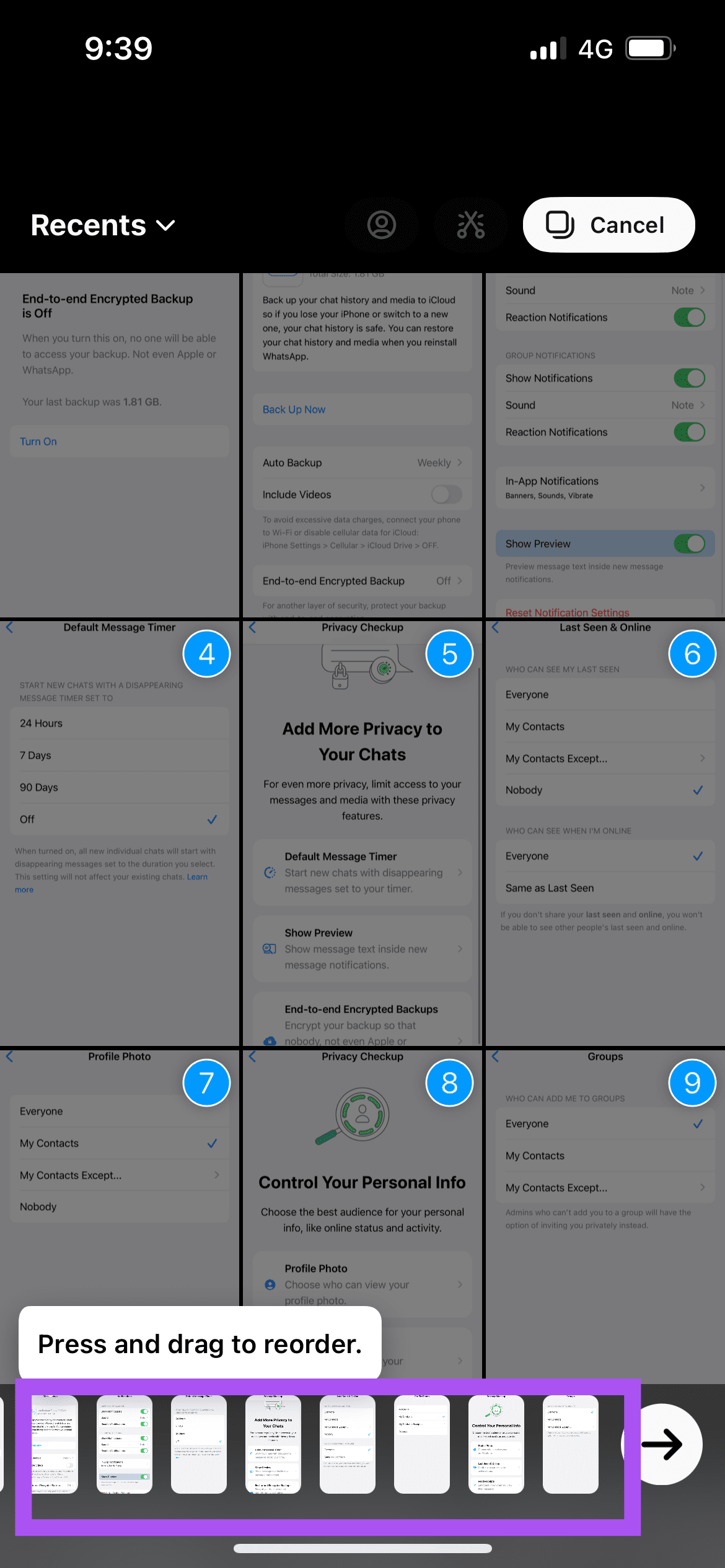

Step 7: Tap the arrow icon at the bottom-right corner to proceed.
Step 8: Select a music track to which you want to sync your photos. Instagram will do it automatically.
Step 9: Tap the arrow icon at the bottom right. You can also choose to skip adding music.
Step 10: Tap on Edit Video at the bottom left.
Step 11: Select a photo to change the duration, and it will appear in your Reel.

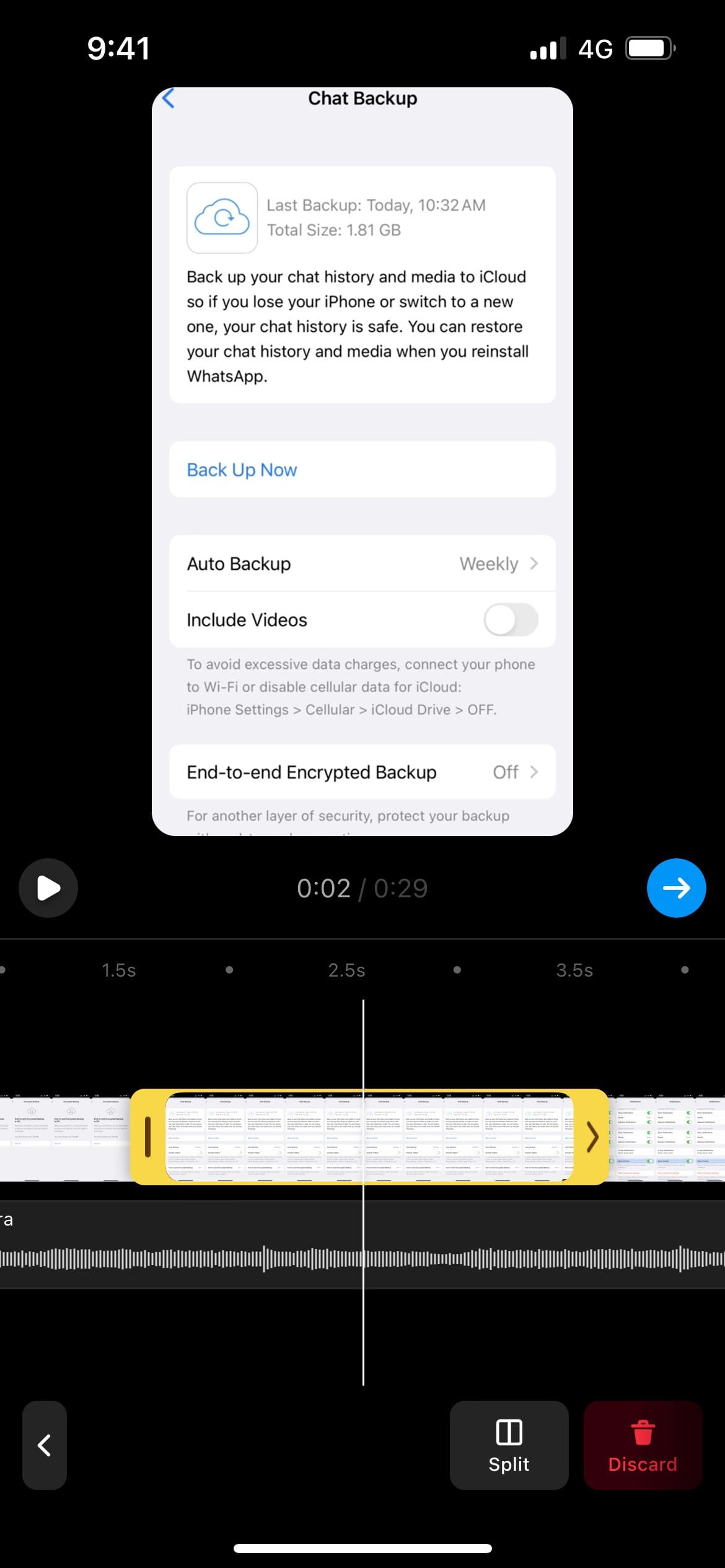
Step 12: After that, tap on the blue arrow icon after selecting the duration of your photos.
Step 13: Tap on Share at the bottom right to post your Reel.
Tip: Learn how to print from Canva for free
How to Create a Reel With Multiple Photos on Canva
Another free tool to make an Instagram Reel with multiple photos is Canva. We suggest using Canva on your computer to get better editing control for your photos in the Reel. Here’s how to use it.
Step 1: Log in to Canva on your web browser.
Step 2: Sign in with your account and click on Create A Design at the top right.
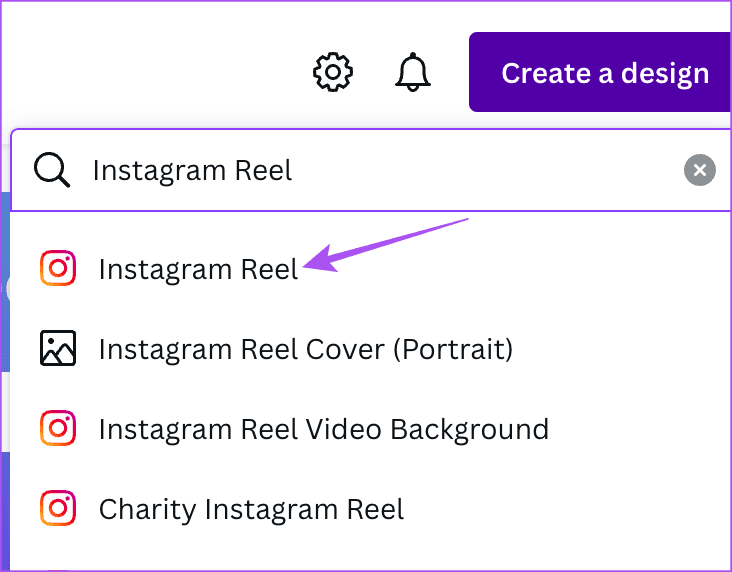
Step 3: Search for Instagram Reel > select the layout.
Step 4: After the editing window opens, click the Plus icon at the bottom to add the number of slides to match the number of photos you want to add to your Reel.

Step 5: Click on Uploads from the left menu > Upload Files to add your photos or videos.
Step 6: Select a slide at the bottom and click on the image to add it to that slide.

Step 7: Keep repeating the process to add your images to different slides.
Step 8: Select a slide from the bottom to drag and change its duration.
Note: Keep a check on the total duration of your Reel. It should not exceed 90 seconds.

Step 9: After that, click on Share at the top right > choose Download.

Step 10: Click on Download again to confirm.
Tip: Learn how to create a presentation in Canva
Was this helpful?
Last updated on 28 August, 2024
Read Next
 How To Post Multiple Landscape and Portrait Photos on Instagram
Instagram Size Guide for Images Adhering to Instagram's recommended image sizes is paramount to ensure that your photos are displayed in the best possible quality.
How To Post Multiple Landscape and Portrait Photos on Instagram
Instagram Size Guide for Images Adhering to Instagram's recommended image sizes is paramount to ensure that your photos are displayed in the best possible quality.
 How to Find Instagram Reels That You Saved or Liked
How to Find Saved Instagram Reels On iPhone and Android Step 1: Tap on your Profile tab at the bottom and select the three-bar menu icon at the top right.
How to Find Instagram Reels That You Saved or Liked
How to Find Saved Instagram Reels On iPhone and Android Step 1: Tap on your Profile tab at the bottom and select the three-bar menu icon at the top right.
 Instagram Reels vs Story: What Are the Differences
Instagram’s journey has been predictable.
Instagram Reels vs Story: What Are the Differences
Instagram’s journey has been predictable.
 How to Fix Reels Not Showing on Instagram
Basic Fixes Check your Internet connection: You need a stable internet connection to view Instagram reels.
How to Fix Reels Not Showing on Instagram
Basic Fixes Check your Internet connection: You need a stable internet connection to view Instagram reels.
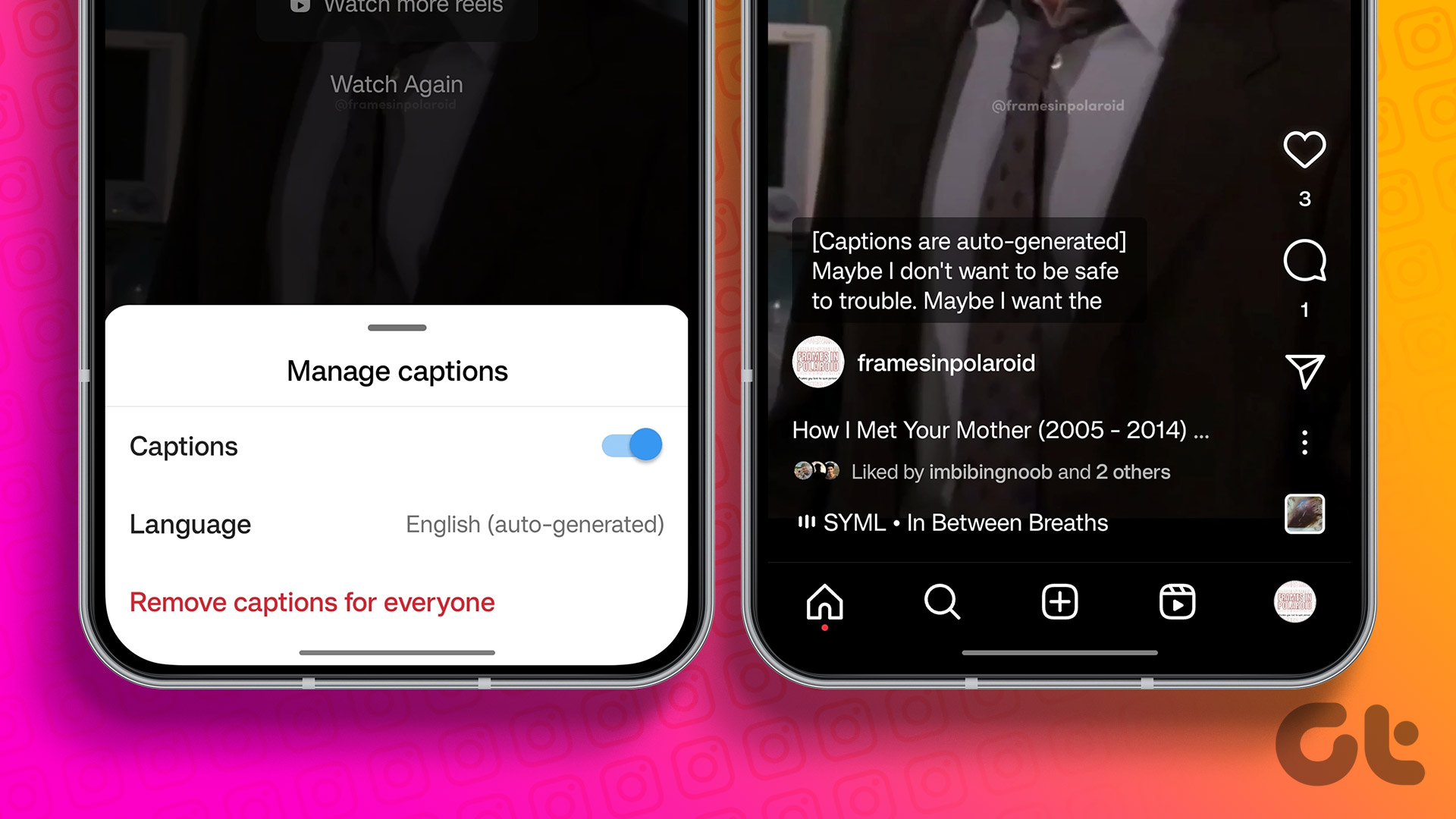 How to Add Captions (Subtitles) to Instagram Reels and Stories
Enable Auto-Generated Captions to any Reels This is similar to YouTube subtitles.
How to Add Captions (Subtitles) to Instagram Reels and Stories
Enable Auto-Generated Captions to any Reels This is similar to YouTube subtitles.
 How to Identify (Shazam) Songs Playing in Instagram Reels
Method 1: By Tapping the Song's Name Your first bet is to check if the maker of the Reel has added the name of the song to the Reel.
How to Identify (Shazam) Songs Playing in Instagram Reels
Method 1: By Tapping the Song's Name Your first bet is to check if the maker of the Reel has added the name of the song to the Reel.
 4 Ways to Fix if You Can’t Pause Instagram Videos or Reels
Fix 1: Tap to Open Videos From Feed The videos on the feed or timeline cannot be paused like reels.
4 Ways to Fix if You Can’t Pause Instagram Videos or Reels
Fix 1: Tap to Open Videos From Feed The videos on the feed or timeline cannot be paused like reels.
 Why Are My Instagram Reels Blurry and How to Fix It
Why Do My Instagram Reels Look Blurry?
Why Are My Instagram Reels Blurry and How to Fix It
Why Do My Instagram Reels Look Blurry?
The article above may contain affiliate links which help support Guiding Tech. The content remains unbiased and authentic and will never affect our editorial integrity.

