

Have you ever wanted your static Word documents to be a little more, well, interactive? Why not make it fillable? Yes, in this article, we’re going to be looking at the basics of adding interactive elements to your document, transforming them into PDFs rather than having them ready solely for printing. Join us as we show you how to make a Word Document fillable.
The Magic of Fillable Forms
Creating a fillable form means turning your Word document from something static into something dynamic and interactive. With a fillable form, you can include checkboxes, dropdown lists, input boxes, and more. It can be used to create multiple-choice quizzes for the classroom or feedback forms for events. HR can use it to streamline hiring applications, while healthcare can make consent forms a breeze.
How to Make a Word Document Fillable – It’s All in Developer Tools
So, how do you make a form fillable? Developer Tools is the magic toolbox that allows unlimited expression. That said, the tab isn’t included by Default in Word, so it must be enabled manually. Here’s how to do that:
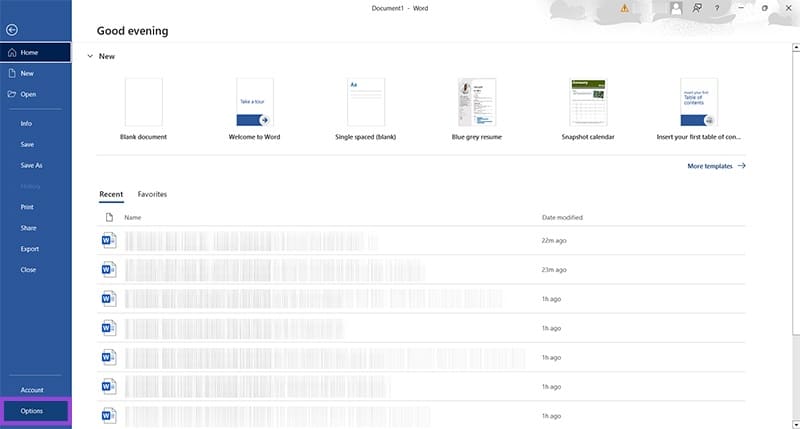
Step 1. Click the “File” tab in the Command ribbon.
Step 2. Near the bottom of the window, click “Options.”
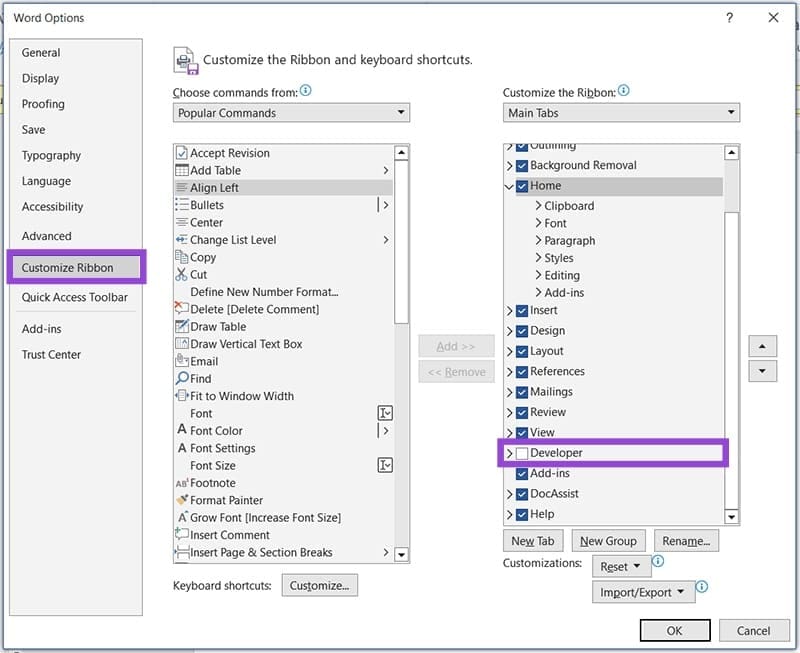
Step 3. In Word Options, choose “Customize Ribbon” from the sidebar and then navigate the right-most window down until you reach “Developer.” Check the box next to it.
Step 4. The “Developer tab should now be visible in your Command Ribbon.

Fillable Fields Galore

With Developer Tools now enabled, you can set about making fillable forms in Word. The fillable features you can include are all found in the “Controls subgroup.” Here’s a quick rundown:
- Plain and Rich Text – Choose between text that has no formatting and text that allows for adjustments such as italics and underlining.
- Check Boxes – Create a list with multiple boxes that can be checked.
- Drop-down Boxes or Combo Boxes – Create lists to choose from with set options, or allow users to input their own.
- Date Picker – Need to input a calendar with freedom to choose dates? This is your option.
- Legacy Tools – Need fillable fields that come from older versions of Word and Windows? Legacy Tools contains a lot of the classics.
Customize Your Forms

Within this vast freedom of choice comes the chance to blow things even wider. “Design Mode” enables access to “Properties.” With these two enabled, you’ll be able to click “Properties” for any inserted form and customize it even further.
The Power of Add-Ins
You don’t have to reinvent the wheel if others have done it first. This goes for online users as well as Microsoft Word through the “Add-ins” subgroup. You can use third-party, user-generated, or local templates to help speed up your form generation process.
Code Your Way

If the GUI is too slow or clumsy for you, then the “Code” subgroup might be right for you. If you know your way around Visual Basic, you’ll be able to create a fillable form the way you want to. You can also use “Macros” to record and then automate repetitive tasks, making form creation that much easier.
Control Access
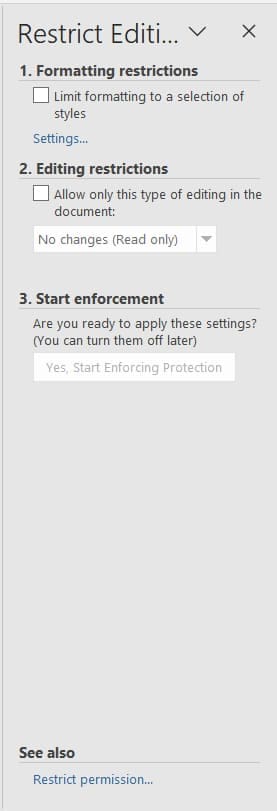
Don’t want users tinkering too much? You can easily put formatting and editing restrictions in place by using the “Restrict Editing” option in “Protect.”
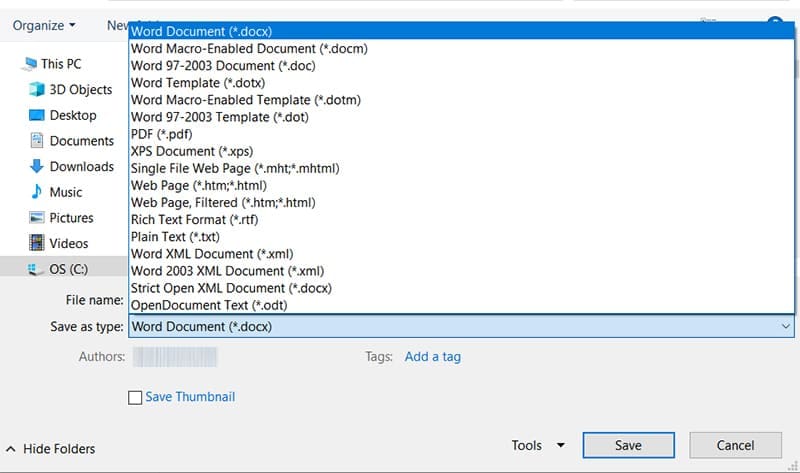
In addition, if you’re wondering how to make a fillable PDF from a Word document, then you can keep your interactivity and protections in place by saving the document as a PDF in “Save As.” It’s as easy as that.
Was this helpful?
Last updated on 29 November, 2025
Read Next
 How to Make a Fillable Form in Microsoft Word
1.
How to Make a Fillable Form in Microsoft Word
1.
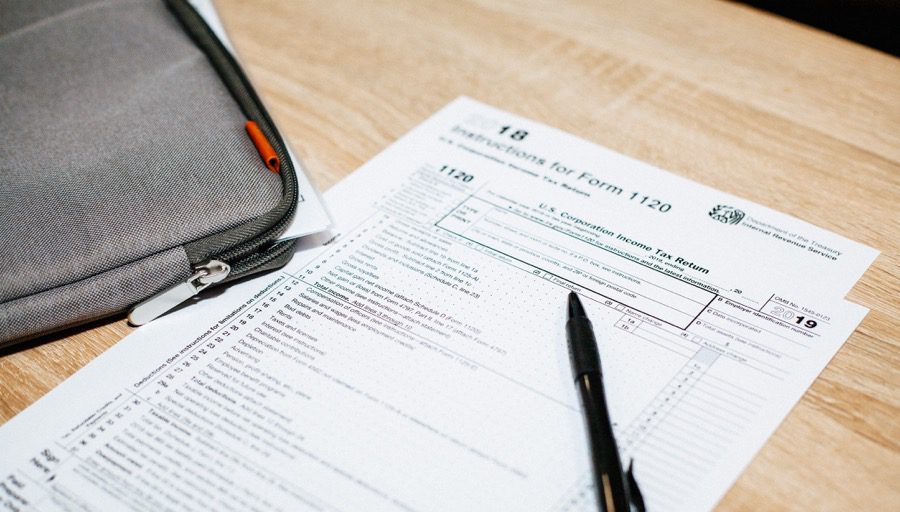 How to Create a Fillable Form in Google Docs
Method 1: Using Tables and Other Form Elements One of the best methods to create a form in Google Docs is to use Tables.
How to Create a Fillable Form in Google Docs
Method 1: Using Tables and Other Form Elements One of the best methods to create a form in Google Docs is to use Tables.
 How to Lock Parts of a Microsoft Word Document
Method 1: Using Restrict Editing Feature As the name suggests, this feature lets you set up editing restrictions for your Word document.
How to Lock Parts of a Microsoft Word Document
Method 1: Using Restrict Editing Feature As the name suggests, this feature lets you set up editing restrictions for your Word document.
 5 Ways to Change Background in a Word Document
Method 1: Using a New Background Color Changing the background color of your Word document is a little similar to the process you would take when changing the font color.
5 Ways to Change Background in a Word Document
Method 1: Using a New Background Color Changing the background color of your Word document is a little similar to the process you would take when changing the font color.
 How to Convert WordPad Document to Microsoft Word
Method 1: Using WordPad Step 1: Open the WordPad document you want to convert to Docx.
How to Convert WordPad Document to Microsoft Word
Method 1: Using WordPad Step 1: Open the WordPad document you want to convert to Docx.
 4 Ways to Insert an Arrow in Word Document
Method 1: How to Add Arrows in Word Using Shapes On PC or Mac Step 1: Open the Word document where you want to add an arrow.
4 Ways to Insert an Arrow in Word Document
Method 1: How to Add Arrows in Word Using Shapes On PC or Mac Step 1: Open the Word document where you want to add an arrow.
 6 Steps to Extract All Images From a Word Document At Once
Imagine your boss sends you a huge Word document with numerous graphs, tables, and charts that you need to complete your report.
6 Steps to Extract All Images From a Word Document At Once
Imagine your boss sends you a huge Word document with numerous graphs, tables, and charts that you need to complete your report.
 How to Use Copilot to Find References in a Word Document
Copilot in Word brings many great features, like how it can rewrite parts of your text to improve clarity and flow or even draft content for you.
How to Use Copilot to Find References in a Word Document
Copilot in Word brings many great features, like how it can rewrite parts of your text to improve clarity and flow or even draft content for you.
The article above may contain affiliate links which help support Guiding Tech. The content remains unbiased and authentic and will never affect our editorial integrity.

