Log Out Device From Telegram on Mobile
Telegram is available for a wide variety of device platforms. Plus, there is no limit to adding your linked devices. So let’s begin the steps for removing linked devices from your Telegram account on mobile. The steps remain the same for iPhone and Android phone users.
Open the app > Settings > Devices > tap the device name > Terminate Session.


Tip: Learn how to lock the Telegram app using a passcode.
Log Out Device in Telegram on Mac
Telegram offers a dedicated Desktop app for Mac users. If you want to avoid using your phone, download the app from Mac App Store. The Desktop apps also allow you to accept audio and video calls which is a big bonus.
Follow these steps.
Step 1: Open Telegram > Settings > Active Sessions.

Step 2: Click on Terminate Session at the bottom to log out the device.

Log Out Device in Telegram on Windows
Windows users can also download the dedicated Telegram Messenger app from the Microsoft Store. Before moving ahead, please ensure that you are using the latest version of the app.
Step 1: Open Telegram > Settings > Privacy and Security.
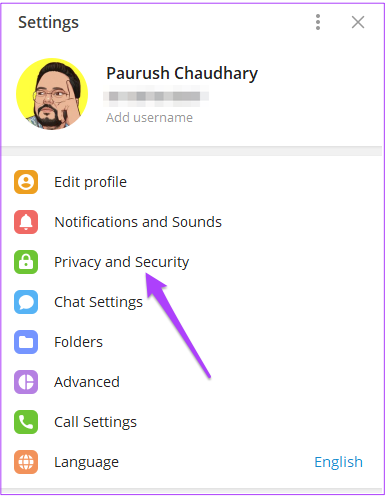
Step 2: Select Show All Sessions > Terminate Session.

Tip: Learn how to share screen in Telegram.
Was this helpful?
Last updated on 05 September, 2024
Read Next
 How to Log Out Linked Devices From WhatsApp Account
https://youtu.be/Ij8bVFcMnbE Log Out Linked Devices From WhatsApp on Mobile Before moving on with the steps, we suggest updating WhatsApp version on your iPhone or Android.
How to Log Out Linked Devices From WhatsApp Account
https://youtu.be/Ij8bVFcMnbE Log Out Linked Devices From WhatsApp on Mobile Before moving on with the steps, we suggest updating WhatsApp version on your iPhone or Android.
 How to Log Out of Facebook and Messenger on All Devices
How to Log Out of Messenger From All Devices at Once You can use the Messenger mobile app to open Meta's Accounts Center.
How to Log Out of Facebook and Messenger on All Devices
How to Log Out of Messenger From All Devices at Once You can use the Messenger mobile app to open Meta's Accounts Center.
 2 Ways to Fix Can’t Log in to Telegram on Android and iPhone
Try Basic Fixes Authenticate login via phone call: Occasionally, Telegram may be unable to deliver an authentication code to your phone for various reasons.
2 Ways to Fix Can’t Log in to Telegram on Android and iPhone
Try Basic Fixes Authenticate login via phone call: Occasionally, Telegram may be unable to deliver an authentication code to your phone for various reasons.
 How to Fix Cannot Log in to Facebook Account Problem
Basic Fixes Check if Facebook is down - Sometimes, Facebook experiences outages or technical issues that can stop you from logging in.
How to Fix Cannot Log in to Facebook Account Problem
Basic Fixes Check if Facebook is down - Sometimes, Facebook experiences outages or technical issues that can stop you from logging in.
 How to Remove Your Instagram Account From Other Devices
d to your Instagram account and remotely log out of Instagram on all devices.
How to Remove Your Instagram Account From Other Devices
d to your Instagram account and remotely log out of Instagram on all devices.
 2 Ways to Delete Your Telegram Account
How to Export Data Before Deleting the Telegram Account Before proceeding with this step, you must know that you can only do this from Telegram's desktop app.
2 Ways to Delete Your Telegram Account
How to Export Data Before Deleting the Telegram Account Before proceeding with this step, you must know that you can only do this from Telegram's desktop app.
 How to Log Out of Discord on Desktop and Mobile
How to Log out of a Discord Account After using Discord for a while, you might want to log out.
How to Log Out of Discord on Desktop and Mobile
How to Log out of a Discord Account After using Discord for a while, you might want to log out.
 How to Log Out of Amazon App or Website
While Amazon is one of the most successful companies, the user application can often take time to navigate.
How to Log Out of Amazon App or Website
While Amazon is one of the most successful companies, the user application can often take time to navigate.
The article above may contain affiliate links which help support Guiding Tech. The content remains unbiased and authentic and will never affect our editorial integrity.