Locking a Channel by Making it Private
Making a Discord channel private means it becomes hidden from other members on a server. Access to these channels will depend on server roles or admin invites. Let’s begin with the method for desktop.
Note: To make a Discord channel private, you must be a server administrator or have the right permissions.
On Desktop/Web
Step 1: Launch the Discord app.
Step 2: From the list of servers you have access to, click on the server hosting the channel that you need to hide.
Step 3: To hide the channel name, click on the Edit Channel represented by a gear icon.
Note: To find the gear icon for a channel, you must hover your cursor over the channel name.

Step 4: In the new window, go to Permissions.
Step 5: Click on the toggle beside Private Channel.

Once you enable the Private Channel toggle, only previously added channel users can see it. Also, every user that has a Server Owner or Administrator role on the server can see and use the channel.
Step 6: To grant certain individuals access to the private channel, click on the Add members or roles button.
Step 7: After adding members or roles, click on Done.

Step 8: Click on Advanced permissions.
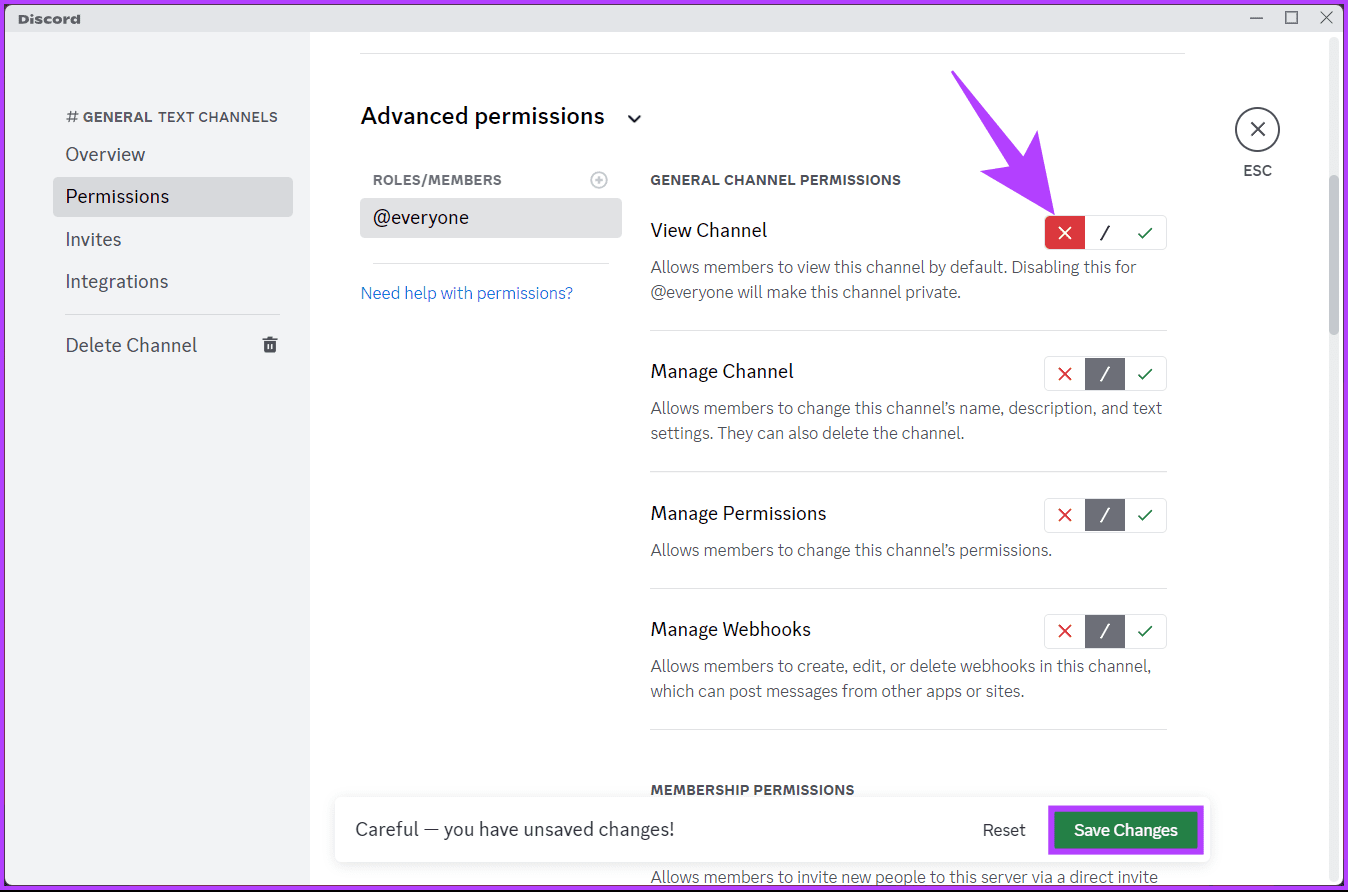
Step 9: Under Roles/Members, you will see the roles or members. Click on a role or member, and under General Channel Permissions, click the x button beside View Channel to remove their access.
Step 10: Once you choose permissions, click on Save Changes, which shows up as a pop-up on the page.
That’s it. You have set the channel private and assigned roles to the select members.
On Discord Mobile App
Step 1: Launch the Discord app. Navigate to the server where the channel you want to lock is located.
Step 2: Press the channel you want to lock and make it private. From the bottom sheet, tap Edit Channel.

Step 3: Select Channel Permissions from the Channel Settings menu. Click the Private Channel toggle under the Basic view.

Step 4: In the confirmation pop-up, choose Yes.
Now that the channel is private, only pre-existing users can see and access it. However, if you want to give access to individuals, continue with the below steps.
Step 5: Tap Add members or roles in the Permissions screen. Choose from the list of users you want to add to the private or locked Discord channel, and tap App.
You have successfully added new individuals to your private or locked Discord channel.

Step 6: To remove the locked channel from other member’s view, navigate to the Advanced View from the Permissions screen. Now, tap on @everyone.

Step 7: Under the General Channel Permissions section, tap on the X button beside the View Channel.
There you go. The channel is locked and can only be accessed by specific members and administrators.
Locking a Channel by Disabling Comments
You can also disable comments instead of completely blocking the view for a particular channel. This option might be preferred if you need to create a channel for sending out announcements or rules. By disabling comments, you make the channel a read-only channel.
On Desktop/Web
Step 1: At the top of the window, click on the drop-down arrow beside the server’s name.
Step 2: Click on Server Settings.

Step 3: Click on Roles > Create Role to assign roles to server members.

Step 4: Give a Role name (ex: admin), Role color, or Role Icon, and click Save Changes. Once saved, click on Esc.

Step 5: Return to the server’s main page and click on the gear icon beside the channel name.
Step 6: Click on Permissions.

Step 7: Under Advanced Permissions, add the Role (ex: admin).
Step 8: Under Roles/Members, you should see the roles or members you created. Click on a role or member.

Step 9: Scroll down to Text Channel Permissions. Next to the Send Messages field, click the x button to prevent members from sending messages to the channel.
Note: To grant a particular member access, click their name and click the checkmark to ensure they can send messages.
Step 10: Finally, click Save Changes to apply your changes.

That’s about it. You have blocked access to members from messaging or commenting on the channel, apparently locking the channel.
On Mobile
Step 1: Launch the Discord app. Navigate to the server where the channel you want to lock is located.
Step 2: Tap on the Server name. From the bottom sheet, select Settings.

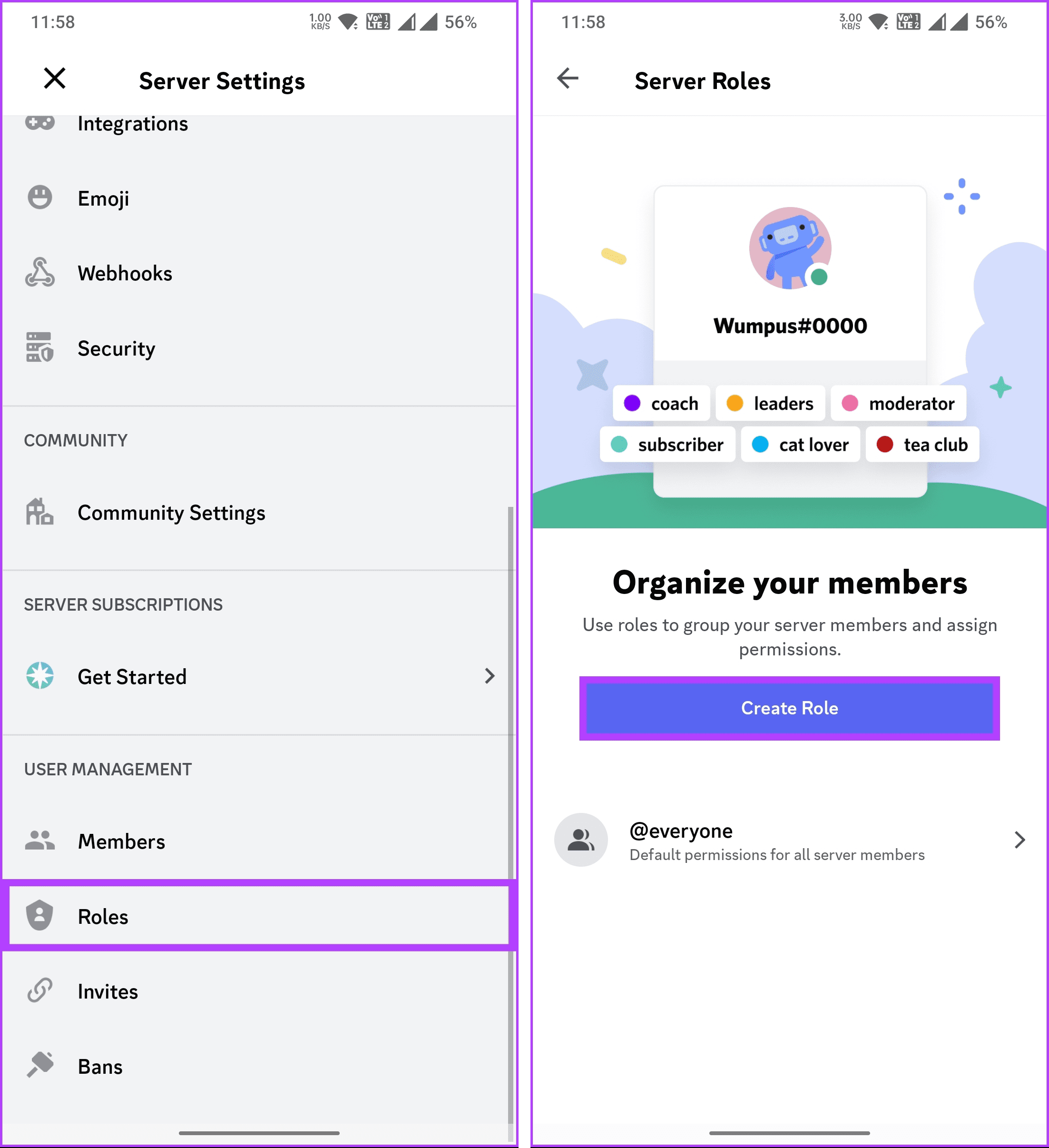
Step 3: In the Server Settings screen, under the User Management section, tap on Roles. On the next screen, tap on the Create Role button.
Step 4: Under the Create a new role screen, enter the Role Name > select Role Color > tap Create at the bottom.
Step 5: You can make cosmetic changes to the (Role) label. For now, we will tap on Skip this step. You can assign members to this role, and once done, tap Finish.

Step 6: Now that the label has been created, return to the channel you want to lock and long-press on it. From the bottom sheet, tap Edit Channel.
Step 7: Select Channel Permissions > go to the Advanced View tab.

Step 8: Tap on Add role and choose the created role label. Ex: admin.

Step 9: Under Text Channel Permissions, besides Send Messages, tap the X button to prevent members from sending messages to the channel.
Step 10: Finally, tap Done at the top right.
There you have it. The channel is now locked, and nobody other than the permitted members can message, technically locking it away from general users.
FAQs
Yes, pinned messages remain visible in a locked Discord channel. Locking a channel primarily affects the ability to send new messages but doesn’t impact the visibility of existing content, including pinned messages.
Server owners have the highest level of access and can generally access any channel, even if it’s locked. However, it’s essential to ensure that their roles have the necessary permissions.
Discord doesn’t have a built-in feature for scheduling channel locks. However, you can manually adjust permissions based on your schedule or use bots with scheduling capabilities.
Was this helpful?
Last updated on 23 August, 2024
Read Next
 How to Create a Discord Channel on Desktop and Mobile
How to Create a Discord Channel on Desktop To improve Discord organization, you can categorize channels by topic.
How to Create a Discord Channel on Desktop and Mobile
How to Create a Discord Channel on Desktop To improve Discord organization, you can categorize channels by topic.
 How to Put Emojis in Discord Channel Names
Do you want to spice up your Discord community or bring a touch of creativity and visual appeal to your Discord server?
How to Put Emojis in Discord Channel Names
Do you want to spice up your Discord community or bring a touch of creativity and visual appeal to your Discord server?
 How to Lock Telegram Using Passcode on Desktop and Mobile
Lock Telegram Using Passcode on Desktop You can choose to lock Telegram's desktop app using a passcode as well.
How to Lock Telegram Using Passcode on Desktop and Mobile
Lock Telegram Using Passcode on Desktop You can choose to lock Telegram's desktop app using a passcode as well.
 2 Best Ways to Create a Poll on Discord for Desktop and Mobile
Want a quick and easy way to gain input from friends, family, or a community on Discord?
2 Best Ways to Create a Poll on Discord for Desktop and Mobile
Want a quick and easy way to gain input from friends, family, or a community on Discord?
 How to Share Screen in Discord on Desktop and Mobile
How to Share Your Screen in a Discord Voice Channel As a channel member, Discord lets you share your device’s screen with up to 50 people at once.
How to Share Screen in Discord on Desktop and Mobile
How to Share Your Screen in a Discord Voice Channel As a channel member, Discord lets you share your device’s screen with up to 50 people at once.
 How to Find a Discord User ID on Web, Desktop, and Mobile
Check Discord ID on the Web or Desktop App Step 1: Go to Discord from your preferred browser on your Windows or Mac and log in to your account.
How to Find a Discord User ID on Web, Desktop, and Mobile
Check Discord ID on the Web or Desktop App Step 1: Go to Discord from your preferred browser on your Windows or Mac and log in to your account.
 How to React to Messages on Discord (Mobile and Desktop)
How to React to Discord Messages on Desktop You can also react with custom emojis on Discord if you have Manage Emoji permission, are server owners, or have Discord Nitro.
How to React to Messages on Discord (Mobile and Desktop)
How to React to Discord Messages on Desktop You can also react with custom emojis on Discord if you have Manage Emoji permission, are server owners, or have Discord Nitro.
 How to Strikethrough on Discord on Desktop and Mobile
Method 1: Using Discord Options on Discord Web or Desktop Step 1: Launch the Discord desktop app on your Windows or Mac computer or open it on the web.
How to Strikethrough on Discord on Desktop and Mobile
Method 1: Using Discord Options on Discord Web or Desktop Step 1: Launch the Discord desktop app on your Windows or Mac computer or open it on the web.
The article above may contain affiliate links which help support Guiding Tech. The content remains unbiased and authentic and will never affect our editorial integrity.