How to Link Sections in Your Google Docs Document
Step 1: Head over to the section or chapter of the document that you wish to link.
Step 2: Move the cursor to the title, click the Style menu at the top, and pick any heading styles. To apply Heading 1, for instance, go to Heading 1 and select the Apply ‘Heading 1’ option. If you want to apply the heading without affecting the text formatting, choose the Update ‘Heading 1’ to match option.

Step 3: Once you’ve created headings, highlight the text you want to hyperlink. Press Ctrl + K to open the link dialog, then select the relevant heading from the list.

This method allows you to easily create “Back to Top” or “Jump to Conclusion” links within your document. To remove a hyperlink, simply click on the blue underlined text and select Remove link.
How to Link a Paragraph in Google Docs
Just like sections, Google Docs also makes it easy to link a paragraph, line, or word. Here’s how to do it.
Step 1: Open the document in Google Docs. Move the cursor to the particular paragraph or line that you would like to hyperlink.
Step 2: Click the Insert menu at the top and choose the Bookmark option from the list. A bookmark symbol will appear where the cursor was placed.

Step 3: Head over to the text that you wish to link to this bookmark.
Step 4: Highlight the text and use the Ctrl + K shortcut to open the link menu. In there, expand the Headings and bookmark option to select the bookmark created in Step 2.

The linked text will appear as blue underlined text and you’ll be able to jump to that particular bookmark by clicking on the linked text. To remove the created bookmark, simply click the bookmark icon next to the text and choose Remove.
How to Create a Table of Contents in Google Docs
Google Docs can also create a Table of Contents automatically in your document. Here’s how to use it.
Step 1: Style each chapter title you’d like to include in the table as headings.
Step 2: Move your cursor where you’d like to add the table. After that, click the Insert menu at the top, go to Table of contents, and choose your preferred table style.

Similar to linking headings or bookmarks, you can also add external links to web pages in Google Docs. Simply copy the URL of the web page you want to link, right-click on the desired text in your document, and select the Link option. Paste the copied URL into the link box and hit Enter. You can then click the blue underlined text to quickly open the linked page.

Was this helpful?
Last updated on 07 August, 2024
Read Next
 How to Use Indents for Paragraphs in Google Docs
Make Normal Indents on Google Docs Use Ruler in Google Docs The first and probably the easiest way to indent a paragraph is via the Ruler in Google Docs.
How to Use Indents for Paragraphs in Google Docs
Make Normal Indents on Google Docs Use Ruler in Google Docs The first and probably the easiest way to indent a paragraph is via the Ruler in Google Docs.
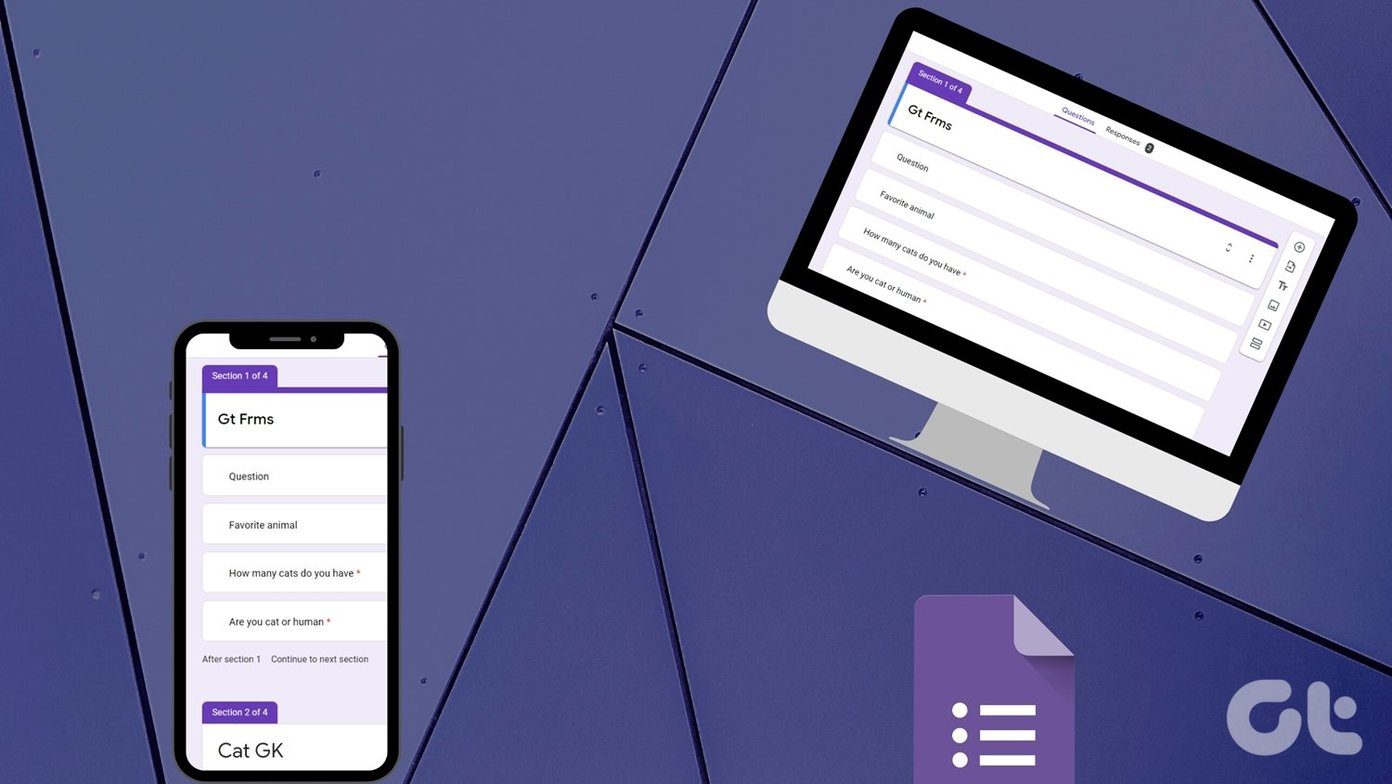 A Complete Guide to Using Sections in Google Forms
If you work a lot with Google Forms, you probably have to create, edit, move, or perform other manipulations on form sections.
A Complete Guide to Using Sections in Google Forms
If you work a lot with Google Forms, you probably have to create, edit, move, or perform other manipulations on form sections.
 How to Convert Google Forms to PDF, Google Docs, or Word
How to Convert Google Forms to PDF Google Forms doesn’t have a native option to convert it into PDF.
How to Convert Google Forms to PDF, Google Docs, or Word
How to Convert Google Forms to PDF Google Forms doesn’t have a native option to convert it into PDF.
 How to Insert a Date Picker in Google Sheets and Google Docs
Google Sheets and Google Docs provide a free, online alternative to Microsoft Office, along with unique features.
How to Insert a Date Picker in Google Sheets and Google Docs
Google Sheets and Google Docs provide a free, online alternative to Microsoft Office, along with unique features.
 Google Photos Link Sharing Permissions and Settings Explained: A Detailed Guide
Recently, a controversial post appeared on the internet that said ‘photos in Google Photos are semi-public,’ which is both true and false.
Google Photos Link Sharing Permissions and Settings Explained: A Detailed Guide
Recently, a controversial post appeared on the internet that said ‘photos in Google Photos are semi-public,’ which is both true and false.
 What Happens When You Send a Google Drive Link: A Complete Guide
Understanding Google Drive File Sharing Settings Sharing a Google Drive link allows users to access the file or a folder.
What Happens When You Send a Google Drive Link: A Complete Guide
Understanding Google Drive File Sharing Settings Sharing a Google Drive link allows users to access the file or a folder.
 4 Fixes for Link Previews Not Working in Google Messages App
Basic Fixes Check internet connection speeds: Switch to 5G or a 5GHz frequency band if you have a dual-band router.
4 Fixes for Link Previews Not Working in Google Messages App
Basic Fixes Check internet connection speeds: Switch to 5G or a 5GHz frequency band if you have a dual-band router.
 How to Share Google Drive File or Its Link on WhatsApp
Method 1: Share the Google Drive Link on WhatsApp Step 1: In the Drive app on your Android or iPhone, tap on the three-dot icon next to the file or
How to Share Google Drive File or Its Link on WhatsApp
Method 1: Share the Google Drive Link on WhatsApp Step 1: In the Drive app on your Android or iPhone, tap on the three-dot icon next to the file or
The article above may contain affiliate links which help support Guiding Tech. The content remains unbiased and authentic and will never affect our editorial integrity.