Method 1: Using Classic Invert
If everything on your iPhone is showing different colors, follow these steps to turn off inverted colors on your iPhone:
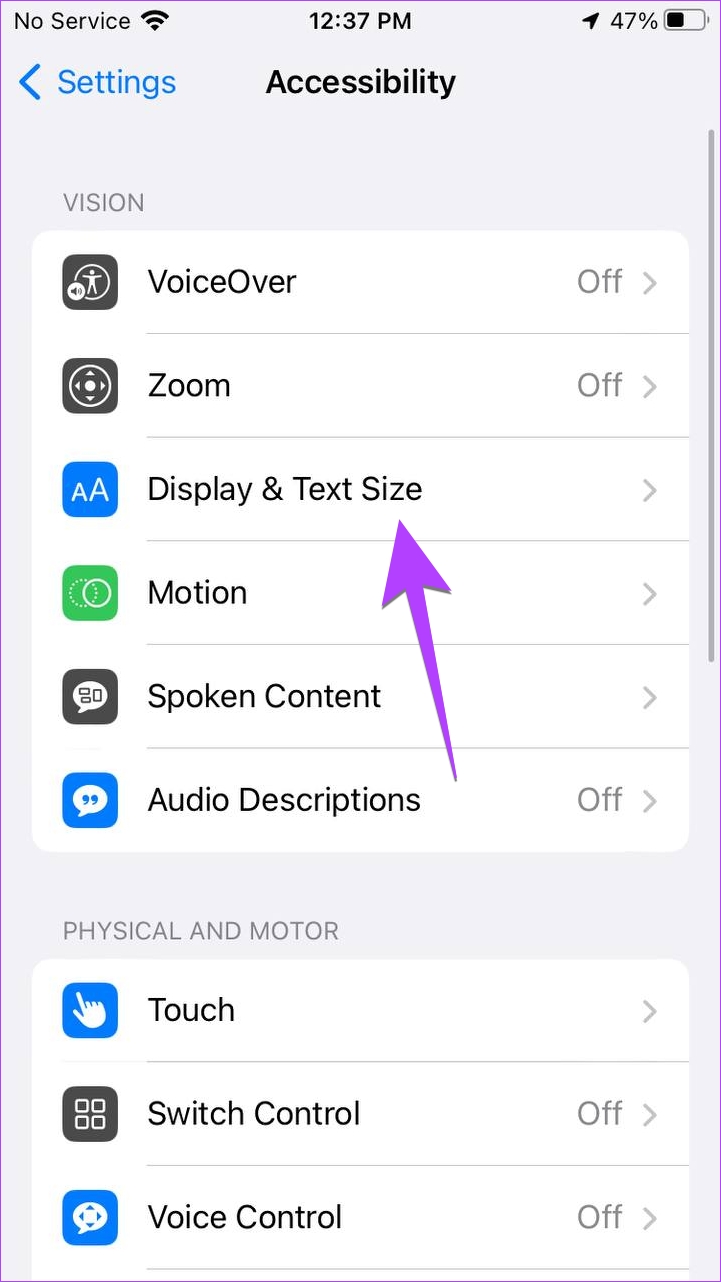
Step 1: Open Settings > Accessibility > Display and Text Size.
Step 2: Scroll down and you will find the Classic Invert option. Turn it off to disable inverted colors on your iPhone.


Method 2: Using Smart Invert
Just like classic invert, you will find another accessibility setting that can reverse the colors of your screen. If you find the colors reversed on your iPhone’s screen except for images, media, and some apps, the Smart Invert setting could be the culprit.
To turn off Smart Invert, go to Settings > Display & Text Size. Turn off the toggle next to the Smart Invert.
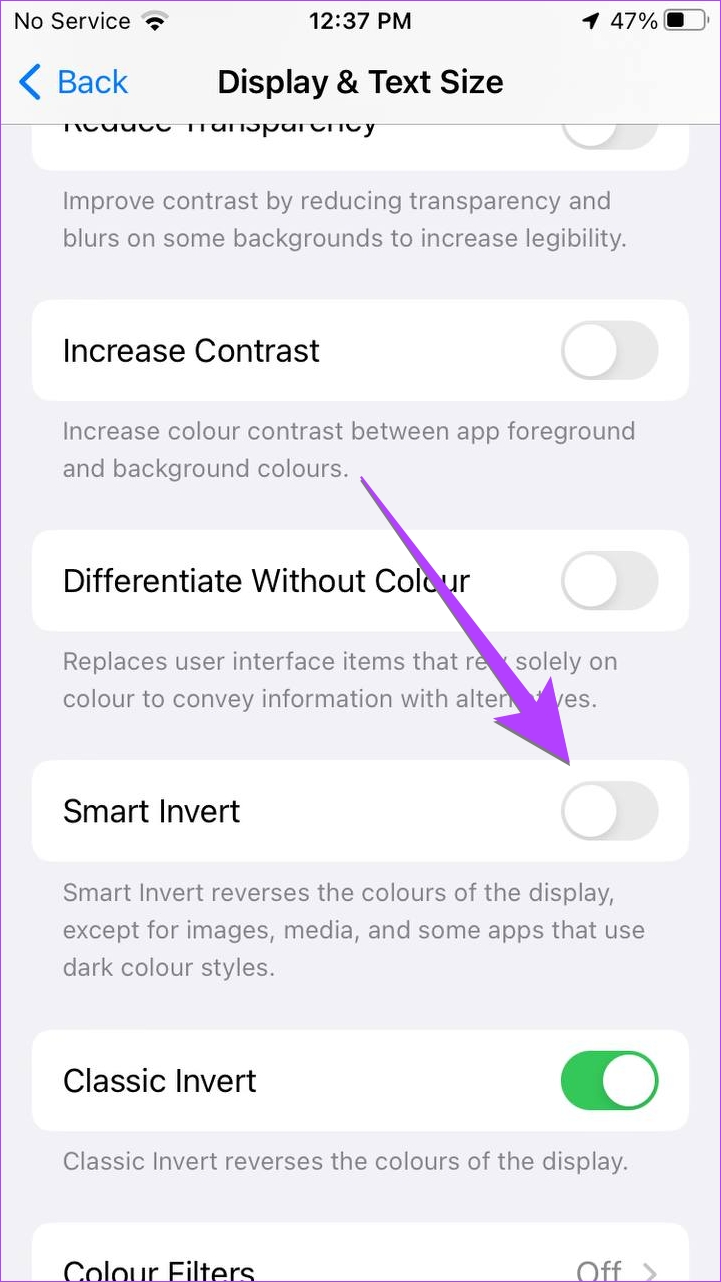
Note: On iOS 12 or earlier, you will find Smart Invert and Classic Invert options in Settings > General > Accessibility > Display Accommodations > Invert Color.
Method 3: Using Color Filter
The color filter is a useful accessibility feature for people who are color blind. However, if your iPhone is appearing greyish, has a color tint, or looks weird, this setting might be inverting colors on your iPhone.
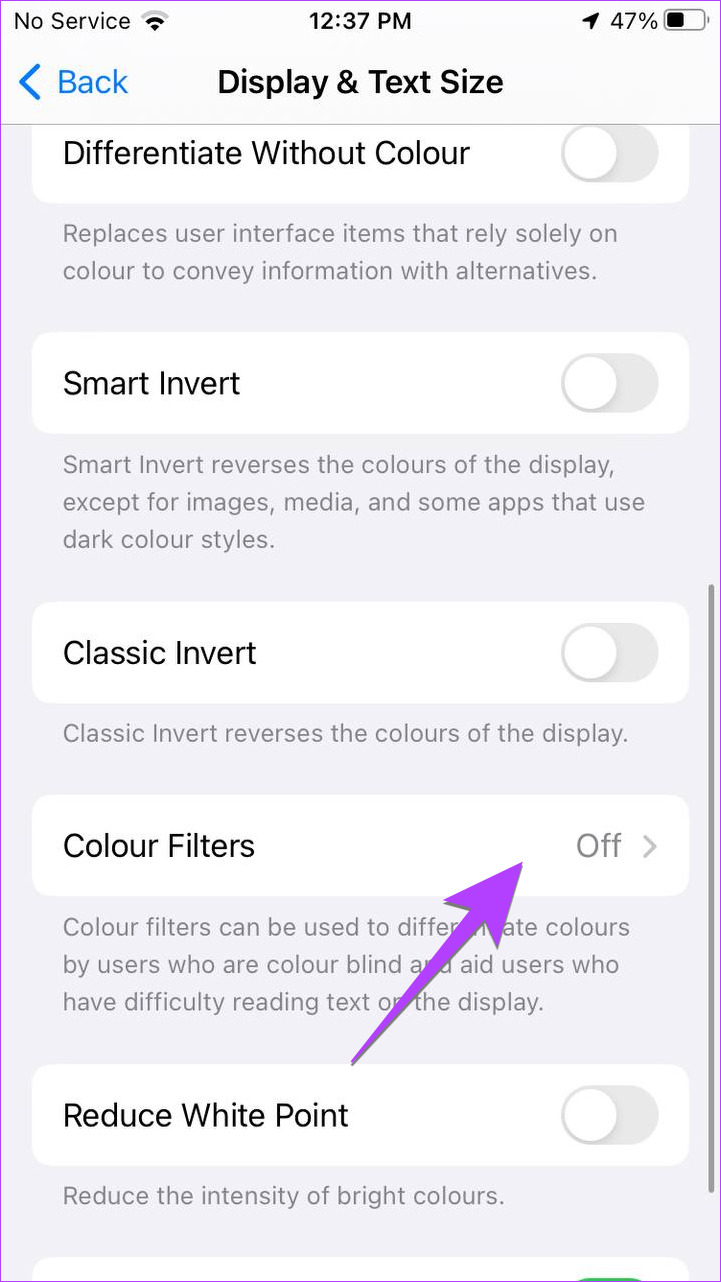
Step 1: Open Settings > Accessibility > Display and Text Size > Color Filters.
Step 2: Turn off the toggle next to Color Filters.
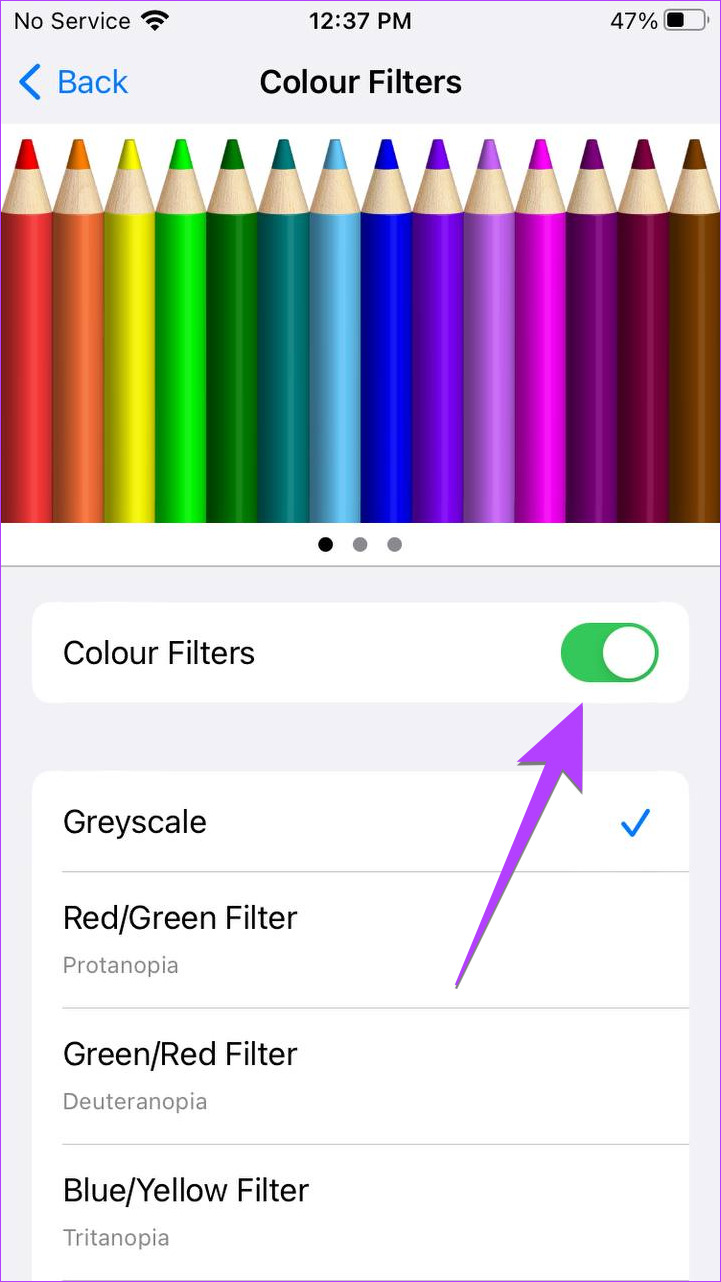
Pro Tip: If you want to use a color filter, select the best one from the available color filter options. You may also swipe right or left on the examples at the top to find the best filter.
Method 4: Using the Accessibility Shortcut
If your iPhone keeps inverting colors randomly, you might have enabled the accessibility shortcut feature. Basically, this feature lets you enable or disable accessibility settings by triple-pressing the Home button (or the side button on newer iPhones).
You must turn off accessibility shortcuts as shown below:
Step 1: Open Settings > Accessibility > Accessibility Shortcut.
Step 2: You will see a checkmark icon next to the shortcuts that are enabled. Tap on the shortcuts that you want to disable, especially smart or classic invert and color filter.


Method 5: Use Dark Mode
If your iPhone’s background appears black, Dark mode must be enabled on your iPhone. Please note that this feature is available in iOS 13 and above.
To turn off dark mode, follow these steps:
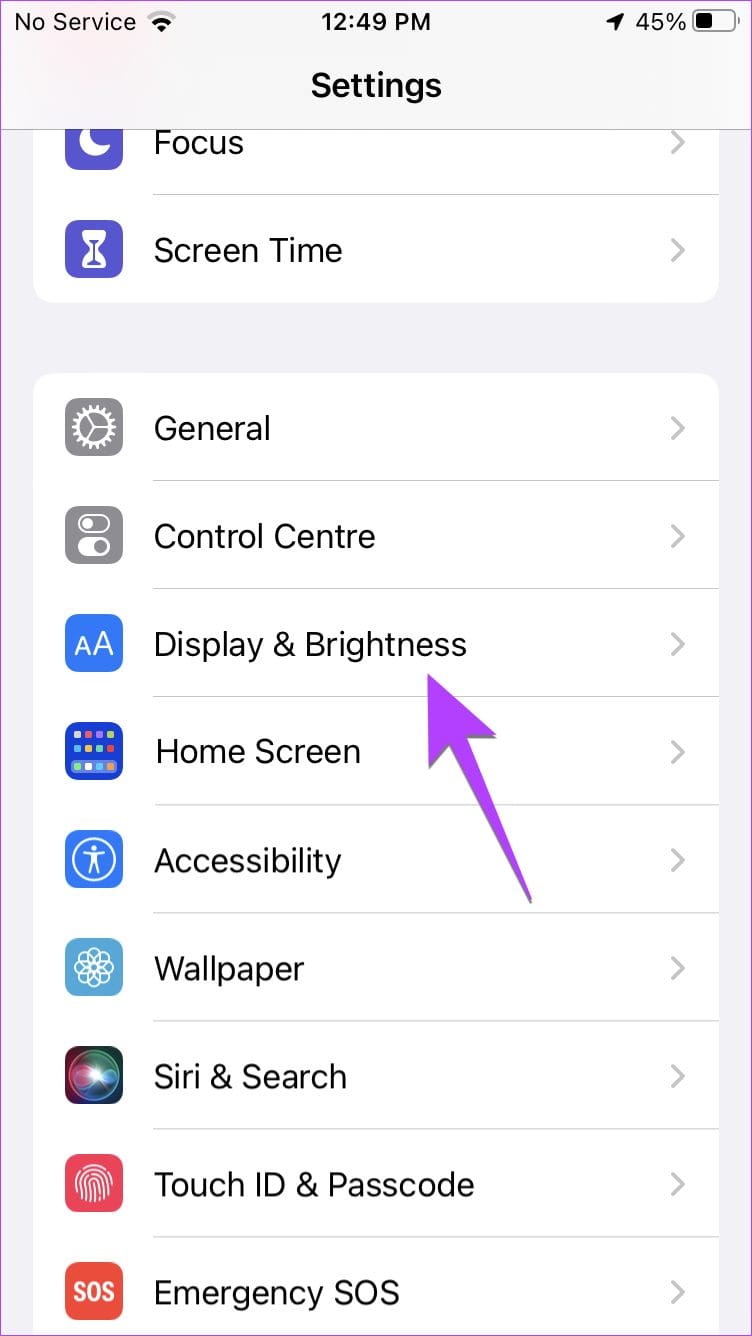
Step 1: Open Settings > Display & Brightness.
Step 2: Select Dark if you want to enable night mode or choose Light if you want to turn off dark mode.
Step 3: Turn off the toggle next to Automatic if you want to disable the automatic enabling of the dark mode at scheduled times.


Tip: Check out other ways to turn off dark mode on iPhone.
Method 6: Turn off Dark Mode Focus Filter
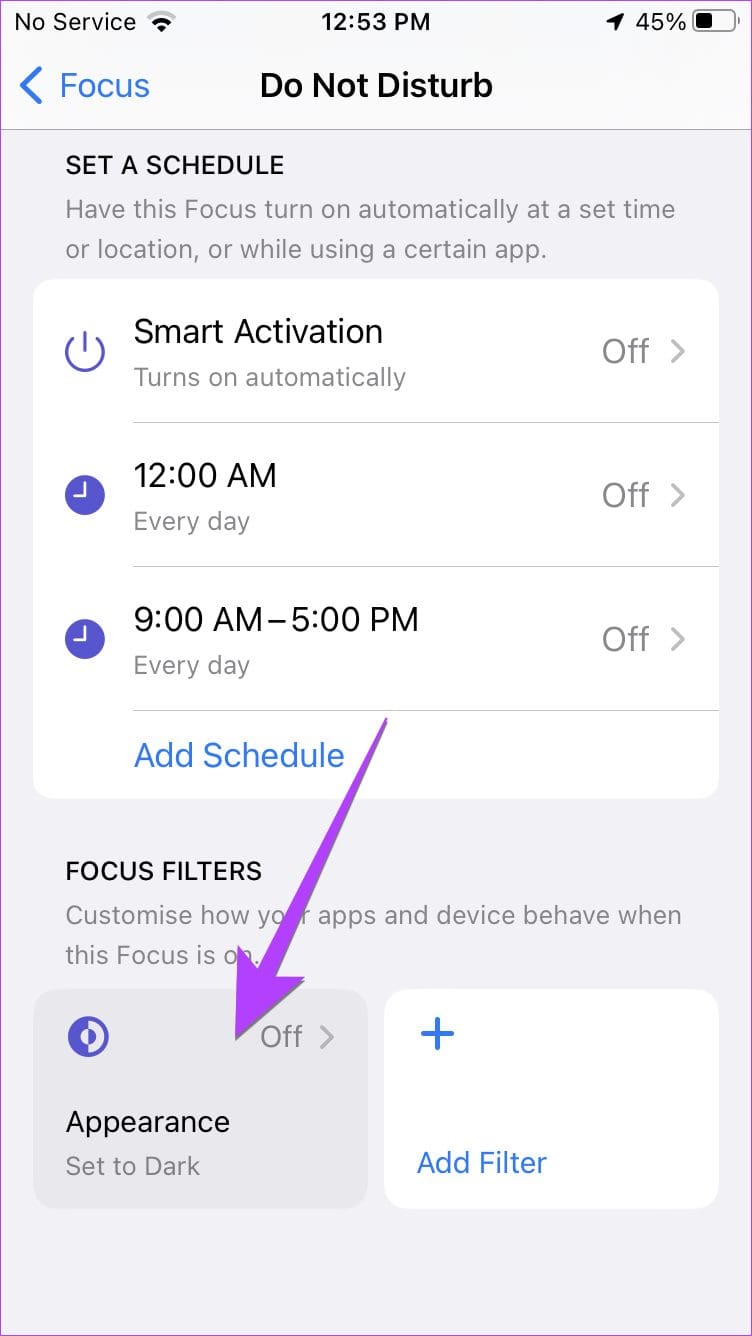
If the screen keeps turning black when you enable any Focus mode, it could be because of the Focus filter feature. To disable this feature, follow these steps:
Step 1: Open Settings > Focus > Do Not Disturb.
Step 2: Scroll down to the Focus Filters section. If there’s a tile that says Appearance, tap on it.
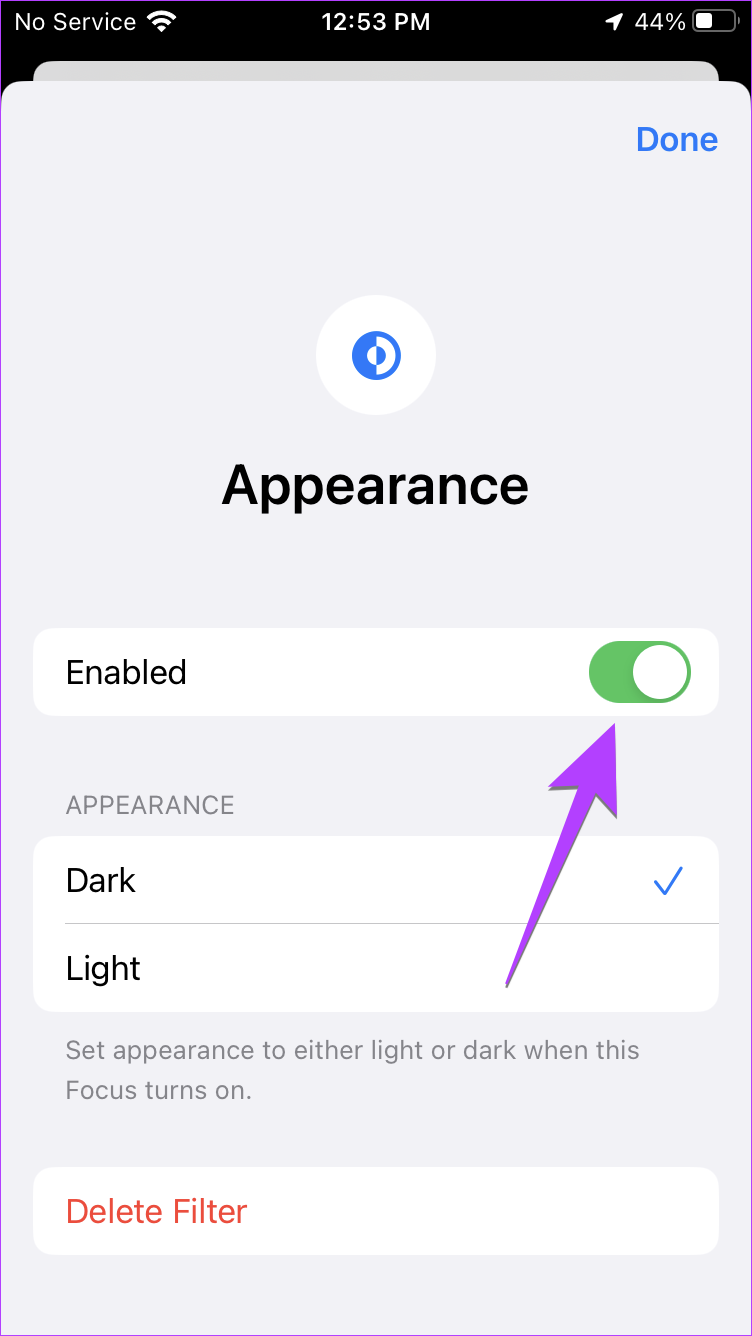
Step 3: Turn off the toggle next to Enabled and then press the Done button.
Method 7: Use Night Shift
If your iPhone screen shows an orangish tint or a warmer tone, the Night shift feature could be responsible. To disable it, follow these steps:
Step 1: Open Settings > Display and Brightness > Night Shift.
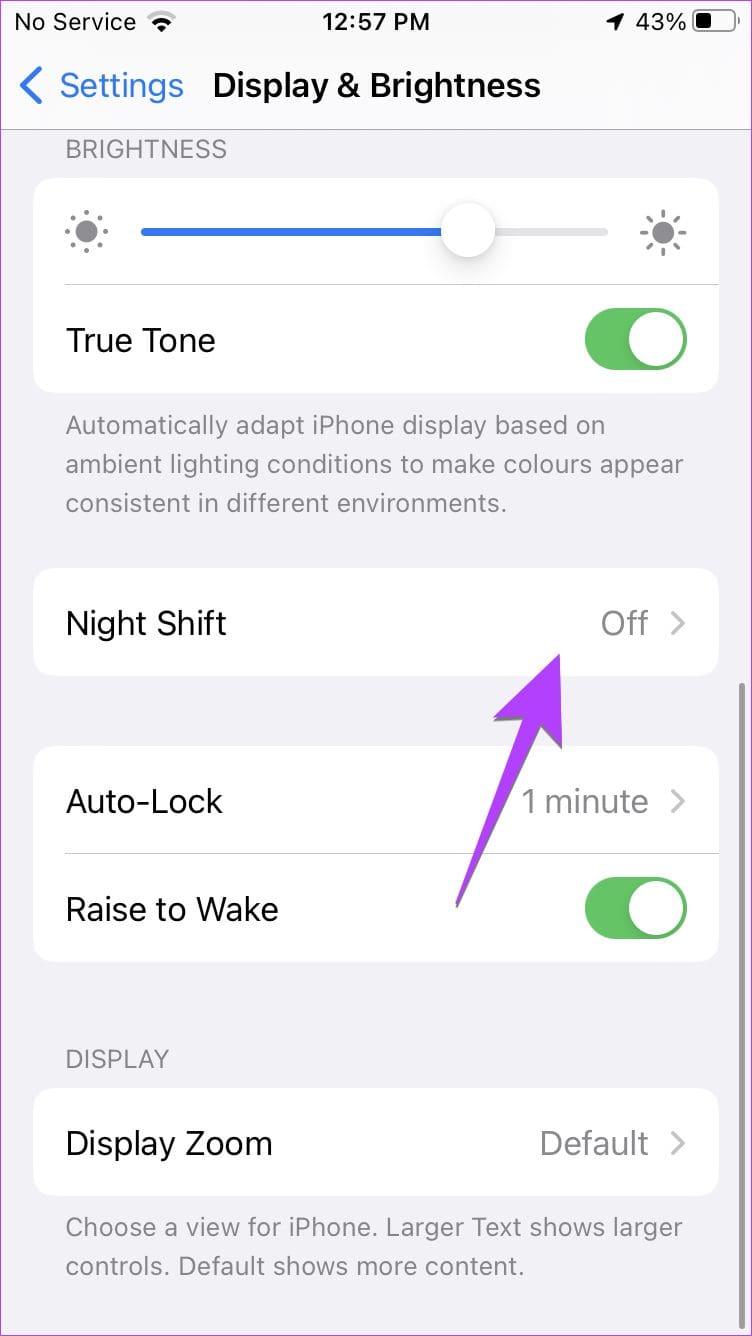
Step 2: Turn off the toggle next to Manually enable until tomorrow.
Step 3: If the Night Shift mode keeps getting activated automatically, turn off the toggle next to Scheduled.
Method 8: Use Zoom Filter
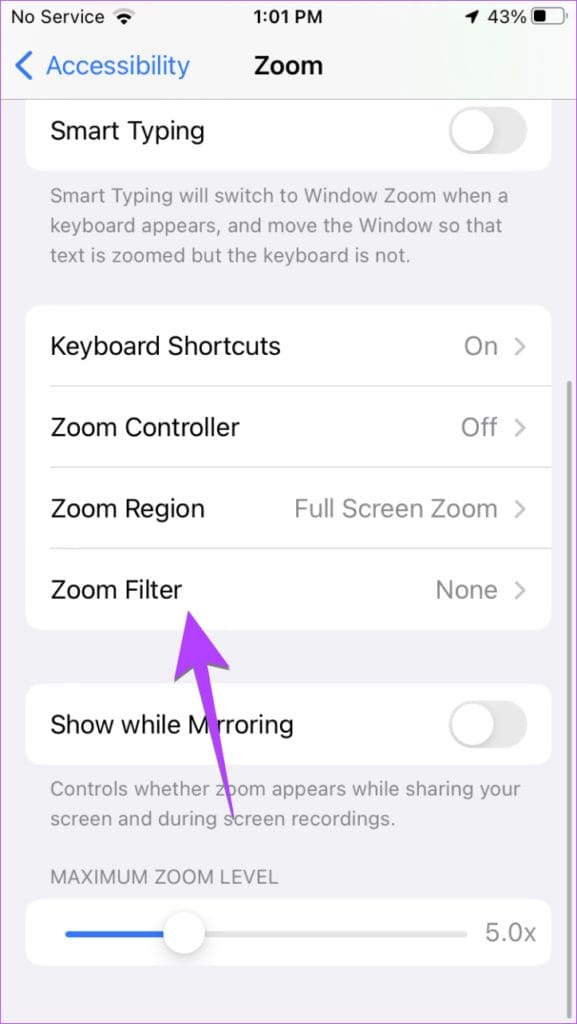
Another hidden setting that can invert colors on your iPhone is the Zoom filter. Follow these steps to disable the Zoom filter:
Open Settings > Accessibility > Zoom > Zoom Filter > None.

Method 9: Turn off Smart Invert for Home Screen
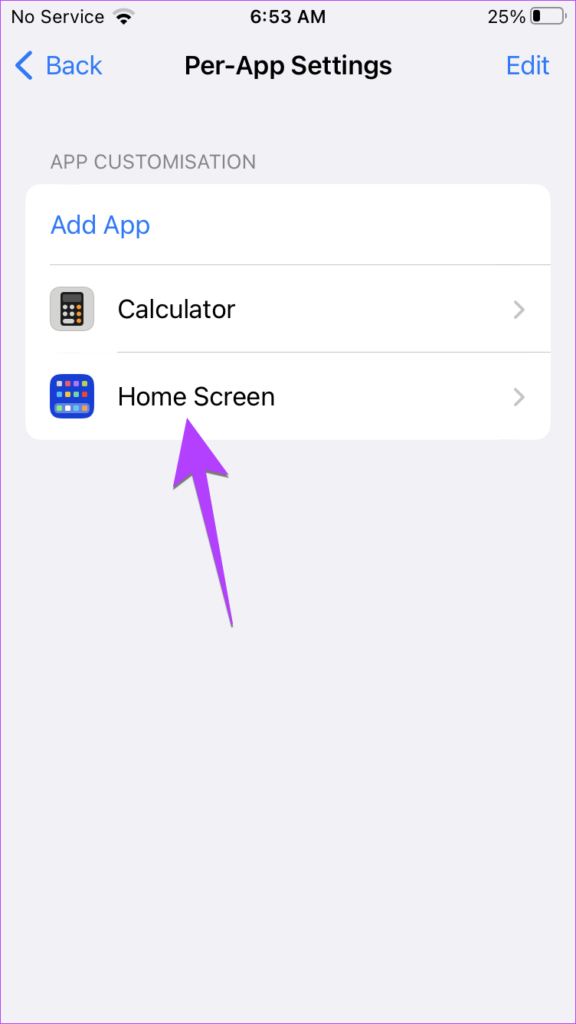
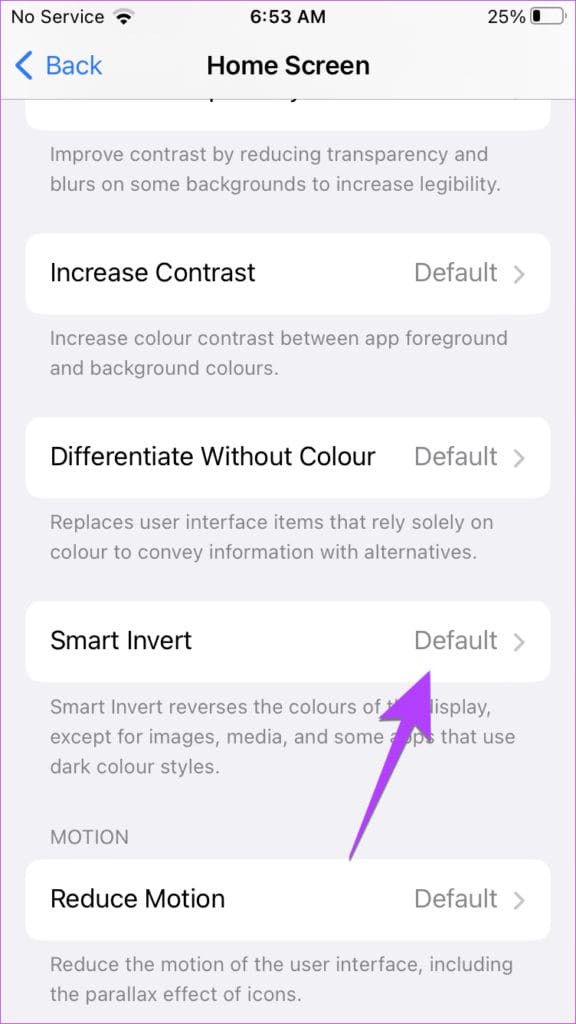
If your home screen and status bar show different colors than the rest of the apps, then the Smart invert feature might be specifically enabled for the home screen. To turn it off, follow these steps:
Step 1: Open Settings > Accessibility > Per-app Settings.
Step 2: Tap on Home Screen followed by Smart Invert. Select Off or Default.
Tip: Learn how to reset the home screen layout on iPhone to default.
Tip: If you want to rotate or invert a picture, check our guide on how to invert pictures on your iPhone. Also, know how to put an emoji on a picture.
Was this helpful?
Last updated on 16 August, 2024
Read Next
 3 Ways to Invert or Flip a Picture on iPhone and iPad
Method 1: Invert Photo Using the Photos App Step 1: Open the photo you want to flip.
3 Ways to Invert or Flip a Picture on iPhone and iPad
Method 1: Invert Photo Using the Photos App Step 1: Open the photo you want to flip.
 7 Ways to Fix iPhone Screen Colors Messed Up or Distorted Issue
The ability to show vibrant colors and crystal-clear pictures is probably one of the biggest reasons consumers buy the iPhone.
7 Ways to Fix iPhone Screen Colors Messed Up or Distorted Issue
The ability to show vibrant colors and crystal-clear pictures is probably one of the biggest reasons consumers buy the iPhone.
 4 Ways to Fix WhatsApp Picture-In-Picture Not Working
Basic Fixes Update WhatsApp: Open the Google Play Store or Apple App Store, search WhatsApp, and tap Update (if available).
4 Ways to Fix WhatsApp Picture-In-Picture Not Working
Basic Fixes Update WhatsApp: Open the Google Play Store or Apple App Store, search WhatsApp, and tap Update (if available).
 How to Enable or Disable Picture-in-Picture Mode on iPhone and iPad
Enable Automatic Picture-in-Picture Mode on iPhone and iPad If your iPhone or iPad doesn't automatically open videos in Picture-in-Picture mode when quitting to the Home screen, it's likely that your
How to Enable or Disable Picture-in-Picture Mode on iPhone and iPad
Enable Automatic Picture-in-Picture Mode on iPhone and iPad If your iPhone or iPad doesn't automatically open videos in Picture-in-Picture mode when quitting to the Home screen, it's likely that your
 Top 6 Fixes for Facetime Picture-in-Picture Not Working on iPhone & iPad
With the Picture-in-Picture (PiP) mode, multitasking is easy on iPhone and iPad.
Top 6 Fixes for Facetime Picture-in-Picture Not Working on iPhone & iPad
With the Picture-in-Picture (PiP) mode, multitasking is easy on iPhone and iPad.
 4 Ways to Fix the iPhone Picture-in-Picture Not Working
Before you begin, try restarting your iPhone, and update the app you are trying to use picture-in-picture with, to the latest version.
3 Ways to Fix Prime Video Picture-in-Picture Not Working on Android and iPhone
Basic Fixes Restart Prime Video: Restart the Prime Video app and your smartphone to eliminate bugs and glitches.
4 Ways to Fix the iPhone Picture-in-Picture Not Working
Before you begin, try restarting your iPhone, and update the app you are trying to use picture-in-picture with, to the latest version.
3 Ways to Fix Prime Video Picture-in-Picture Not Working on Android and iPhone
Basic Fixes Restart Prime Video: Restart the Prime Video app and your smartphone to eliminate bugs and glitches.
 3 Ways to Fix Picture-In-Picture Not Working in Facebook Messenger
Common Fixes Restart device - Long-press the physical Power button and tap Reboot to restart Android.
3 Ways to Fix Picture-In-Picture Not Working in Facebook Messenger
Common Fixes Restart device - Long-press the physical Power button and tap Reboot to restart Android.
The article above may contain affiliate links which help support Guiding Tech. The content remains unbiased and authentic and will never affect our editorial integrity.