
There are so many apps you can download and add to Windows, from utilities like timers to desktop games and translation tools. In most cases, you can download apps directly from the Microsoft Store. But in some instances, you may not have access to the Store. You might be on a college or work computer where the administrator hasn’t added Store access. Or the Store may be glitchy, perhaps due to Microsoft server issues.
Although Windows 11 usually installs apps via Microsoft Store app packages which come directly from the MS Store, there is a way around this. To install app package, Windows 11 can bypass the Store, but only if you have a direct download link. Learn how to create download links and install Microsoft Store apps without Store access.
Install Microsoft Store Apps Without Store Access: Step-by-Step Guide.
Step 1. Open an internet browser window on your Windows computer and search for the app you want. Search using the app name followed by Microsoft Store, like this:
Precise Calculator Microsoft Store
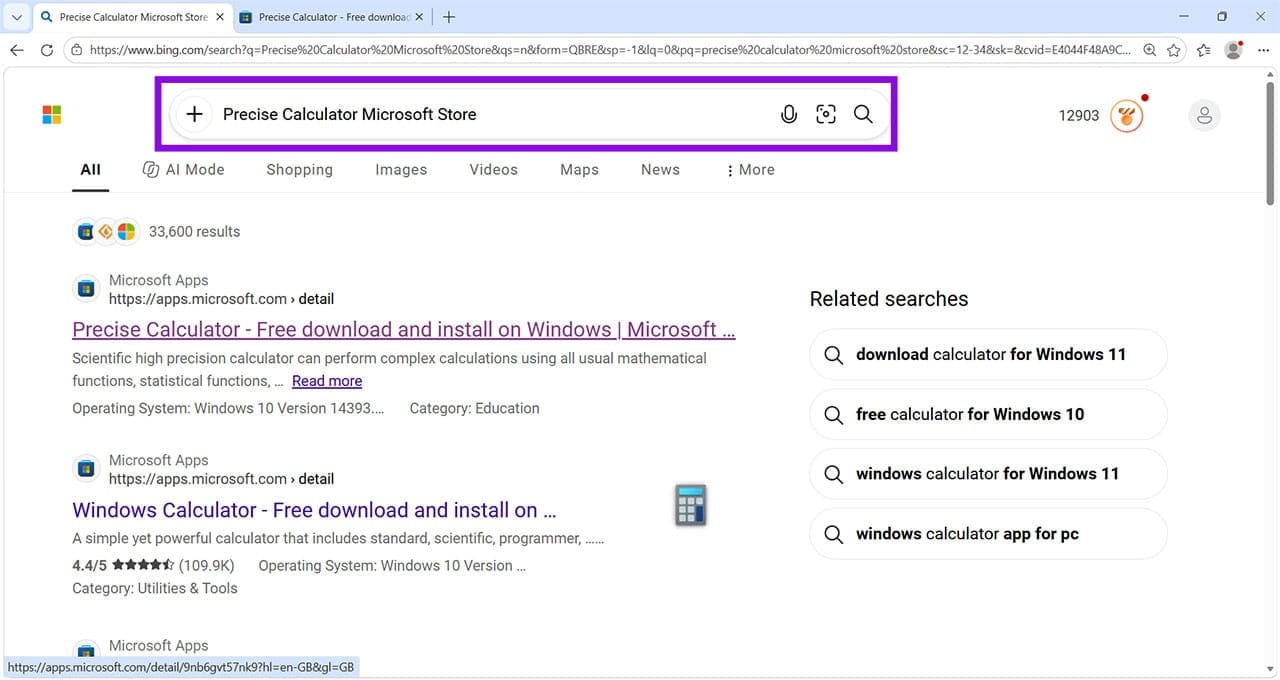
Step 2. Select the search result that takes you directly to the online Microsoft Store. Only use the official Microsoft Store links, as third-party links may have malware or other problems. Note that although you could download the app directly from the Store at this stage, this may not be possible if you’re experiencing a Store-related problem or an administrator has restricted access to the app.

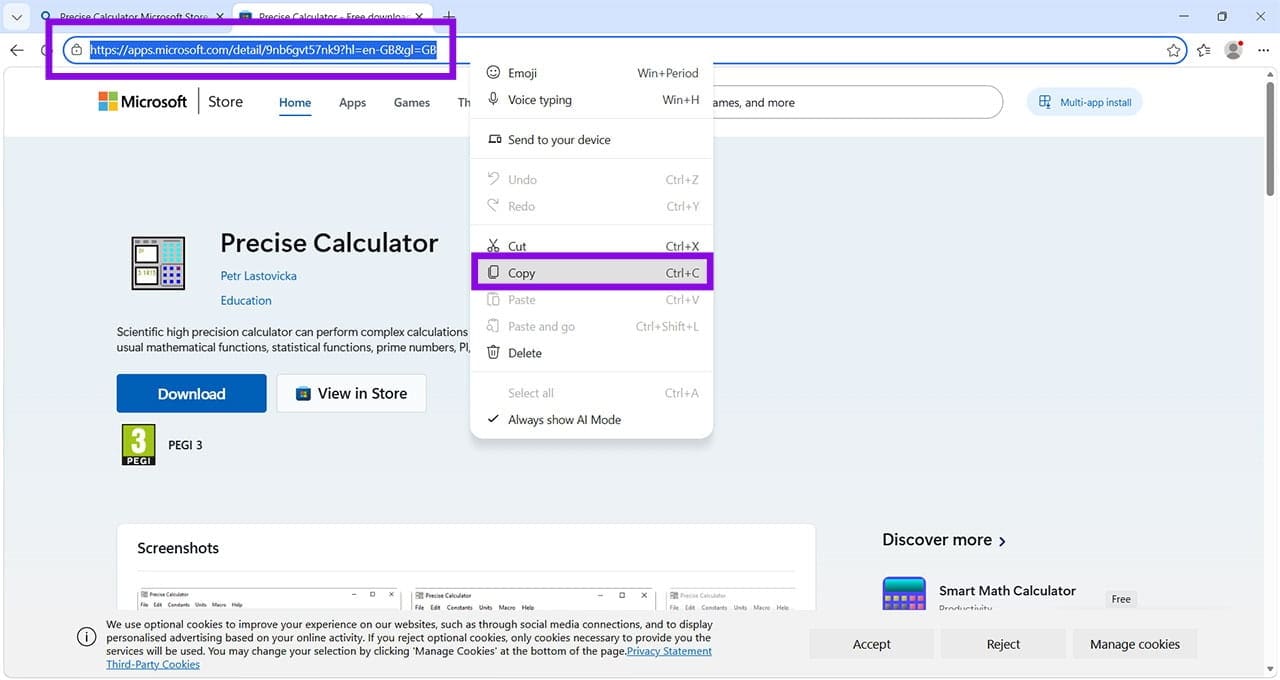
Step 3. Copy the link from the browser’s address bar.
Step 4. Navigate to https://store.rg-adguard.net/. This is a site dedicated to creating downloadable links for Microsoft Store apps.

Step 5. Paste the link that you copied into the URL field in the center of the screen.
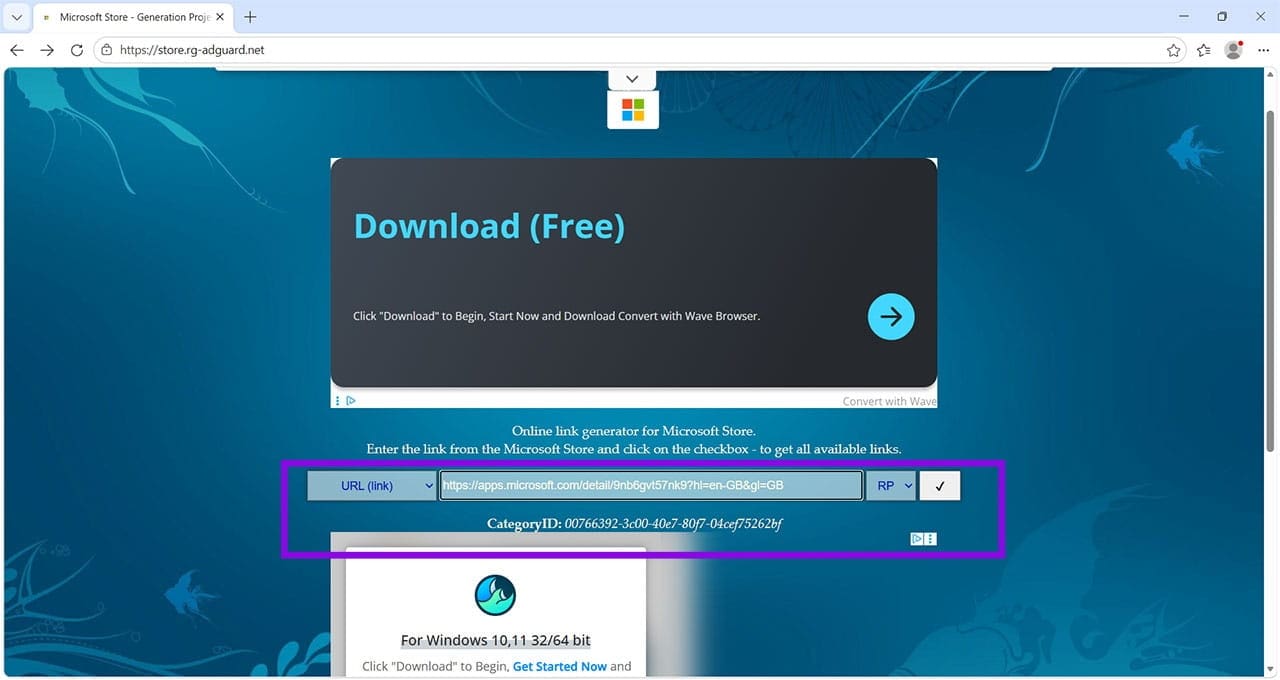
Step 6. Click on the tick button, and you’ll see a list of links. Select one nearest the top with a .appxbundle extension, as this will be the most recent compatible version of the app.
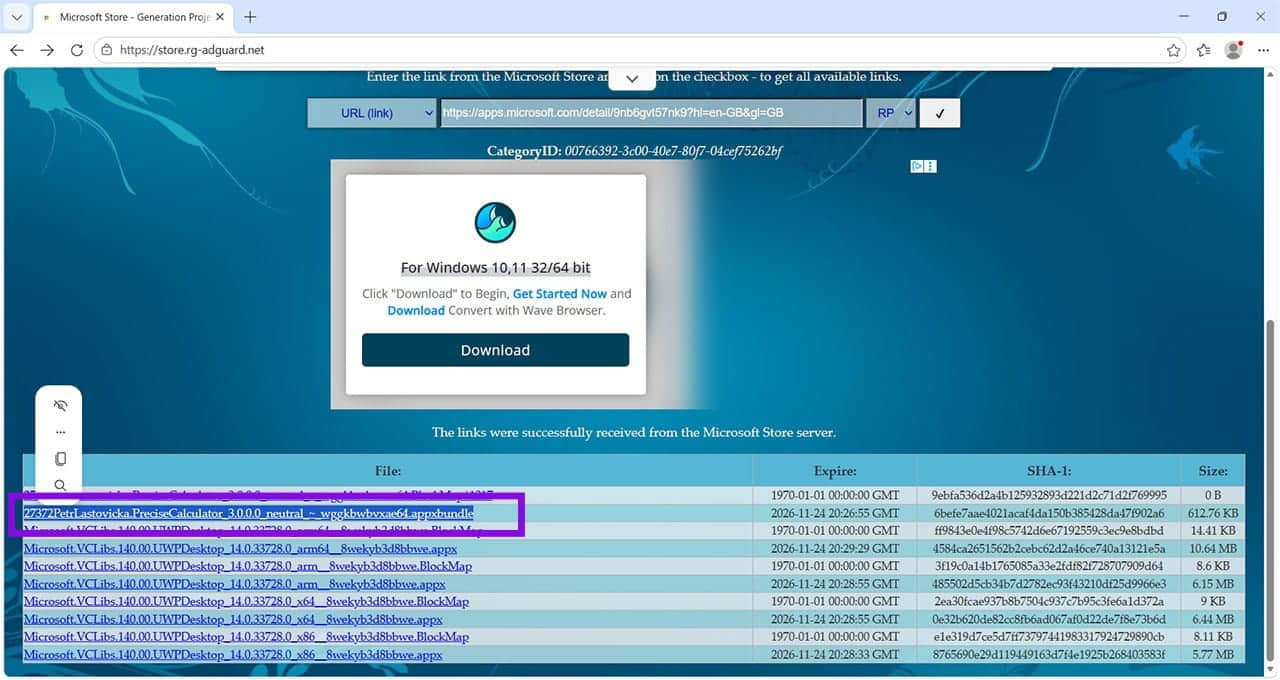
Step 7. The app installer will download automatically. Note: If you see a security warning, click “Continue.” Double-click on the downloaded file to begin installation. If you miss seeing the notification, the installer should be available in your usual Downloads folder.
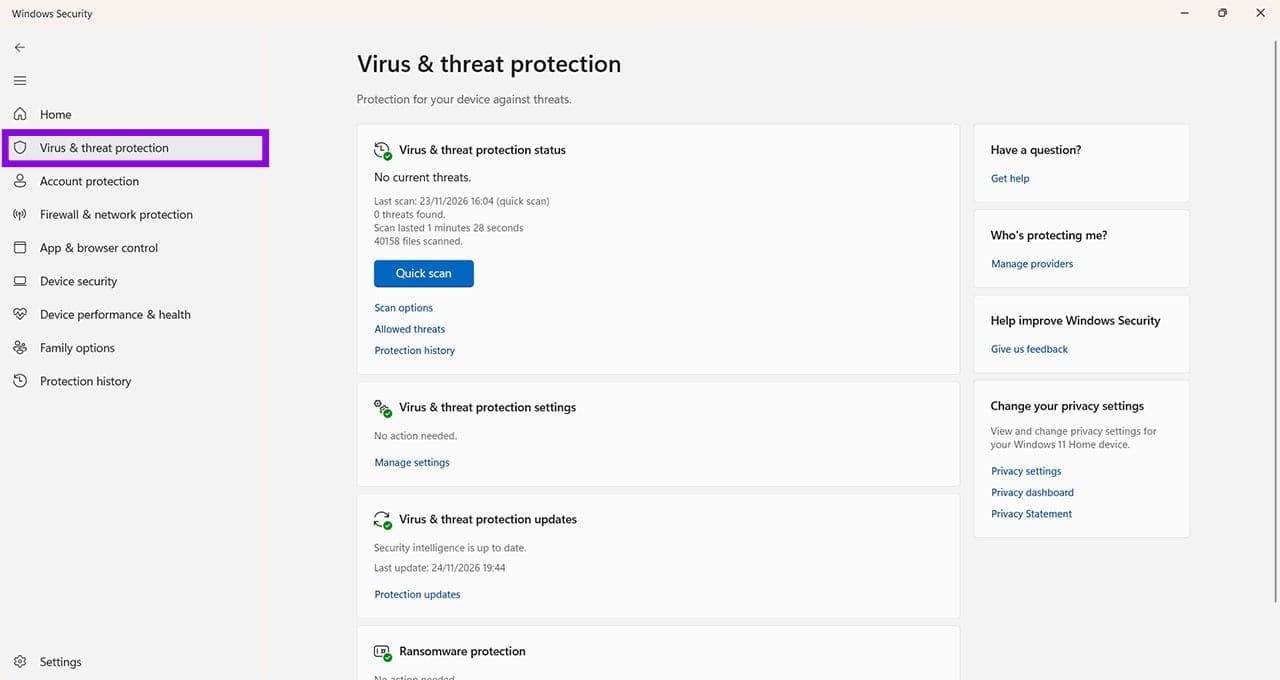
If you see a note saying the file can’t be downloaded, check whether your browser or security software has blocked it. Head to Windows Security on your Windows computer and select “Virus & threat protection” to review any security notifications.
Click “Manage settings,” found under “Virus & threat protection” settings. Turn “Real-time protection” to “Off.” This will automatically turn back on once you restart your computer.
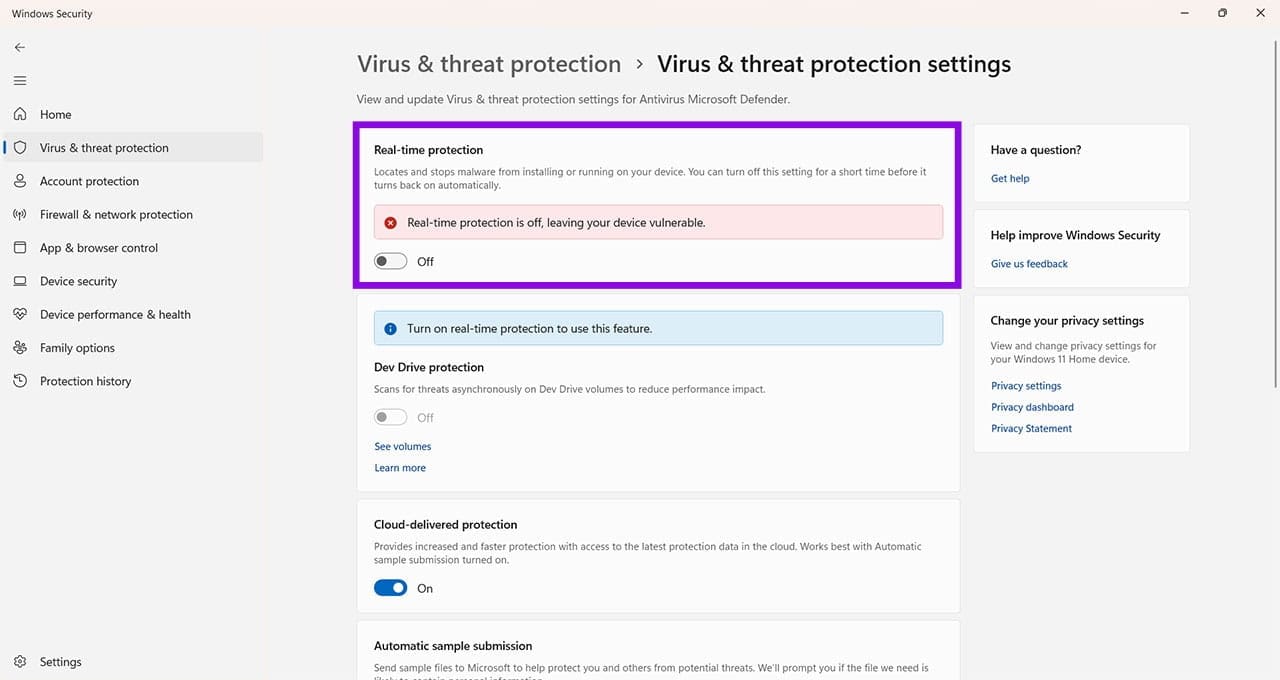
Try clicking the download link again, and you should find it works. Follow all the on-screen prompts to complete the installation of your chosen app.
Was this helpful?
Last updated on 26 November, 2026
Read Next
 How to Fix Microsoft Store Click Get or Install and Nothing Happens Issue
Windows 10's Microsoft Store contains a decent library of apps, some of which — such as iTunes — work better than traditional desktop programs.
 How to Install Apps and App Store on Xiaomi Mi TV
The new Xiaomi Mi TV offers a lot of things.
 How to Install the Google Play Store in Windows 11
With the previous Windows versions, the easiest way to use native Android apps on the PC was to download an emulator like BlueStacks.
 How to Download and Install NVIDIA Drivers Without GeForce Experience
Prerequisite 1: Check Which NVIDIA GPU You Have First, you need to check which NVIDIA graphics card you have installed on your system.
 How to Install Windows 11 Without Bloatware
If you can’t delay upgrading Windows 10 to Windows 11 any longer, you might be worried about all the extra programs that were added to help you navigate the operating
 7 Ways to Fix Microsoft Store Not Downloading Apps or Games
Fix 1: Restart Microsoft Store Shutting down the app can kill any bugs, and it is unlikely to appear once you open the Microsoft Store again.
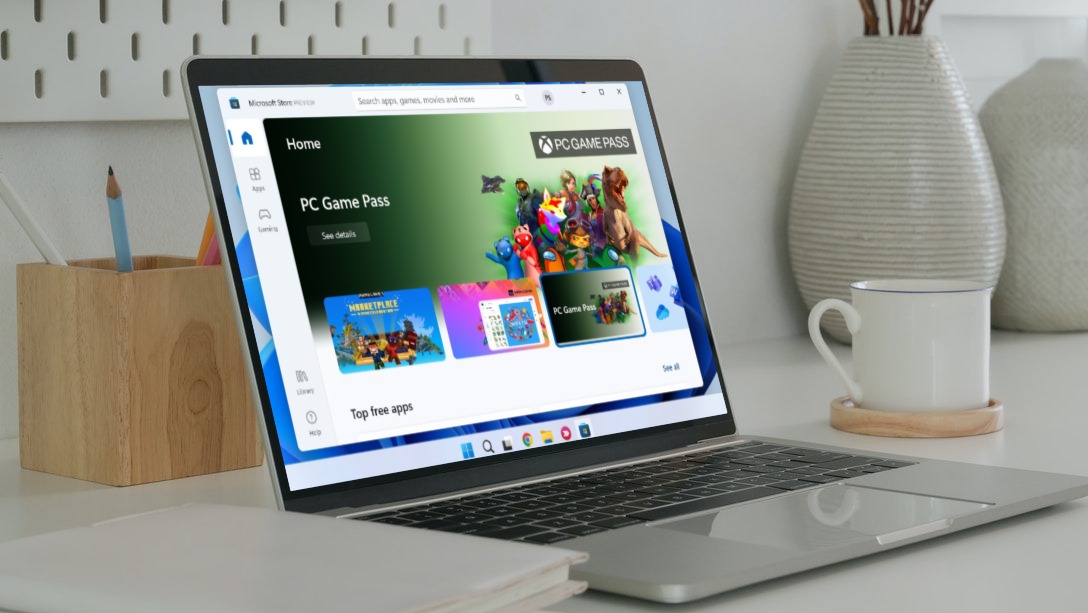 5 Ways to Fix Microsoft Store Apps Not Updating Automatically
Fix 1: Verify Auto Update Settings in the Microsoft Store The first thing you should do is verify the auto-update settings in the Microsoft Store app.
 4 Ways to Fix “Account Not in This Store” Error in App Store for iPhone
Try Basic Fixes Disable VPN: The 'Account Not In This Store' error may be appearing due to a VPN connection.
The article above may contain affiliate links which help support Guiding Tech. The content remains unbiased and authentic and will never affect our editorial integrity.