


Hide WhatsApp Online Status From One Person or Specific Contacts on iPhone
Sometimes, you may not want certain people to know when you are online or using WhatsApp. This could be for privacy reasons or to avoid unnecessary notifications from them. In such cases, you can hide your online status from specific WhatsApp contacts.
On iPhone
To hide your online status from specific contacts on WhatsApp for iPhone, follow these steps:
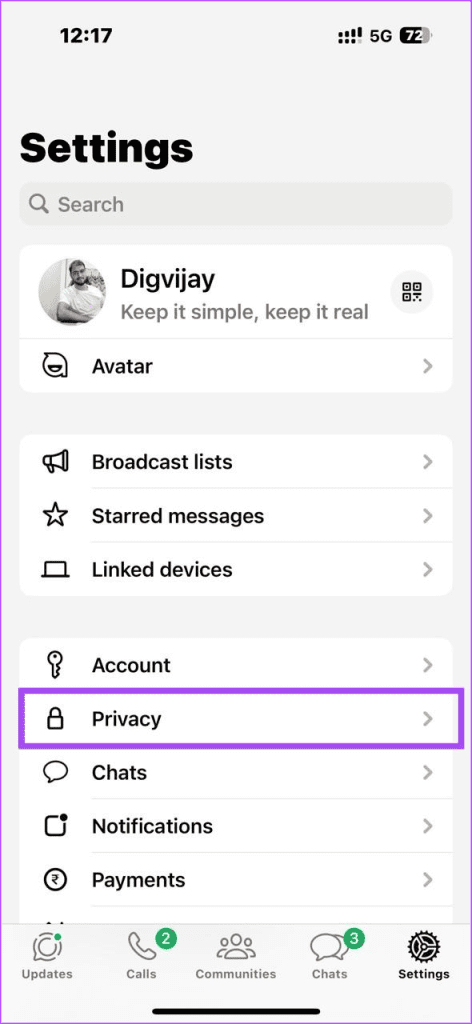
Step 1: Open WhatsApp and go to the Settings tab.
Step 2: Select Privacy, then tap on Last seen & online.
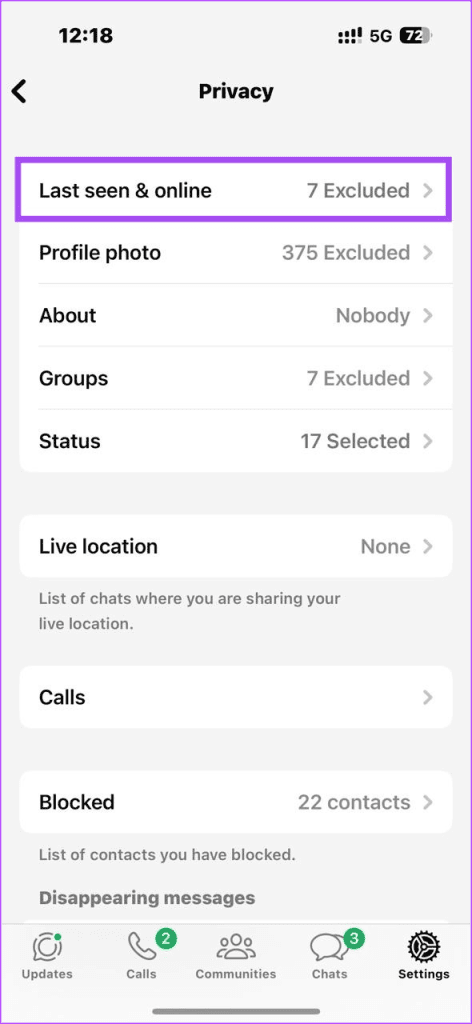
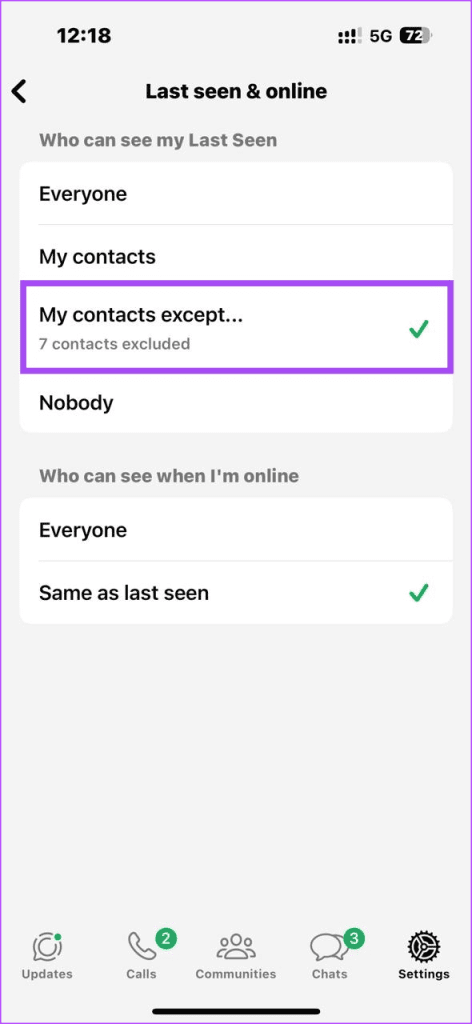
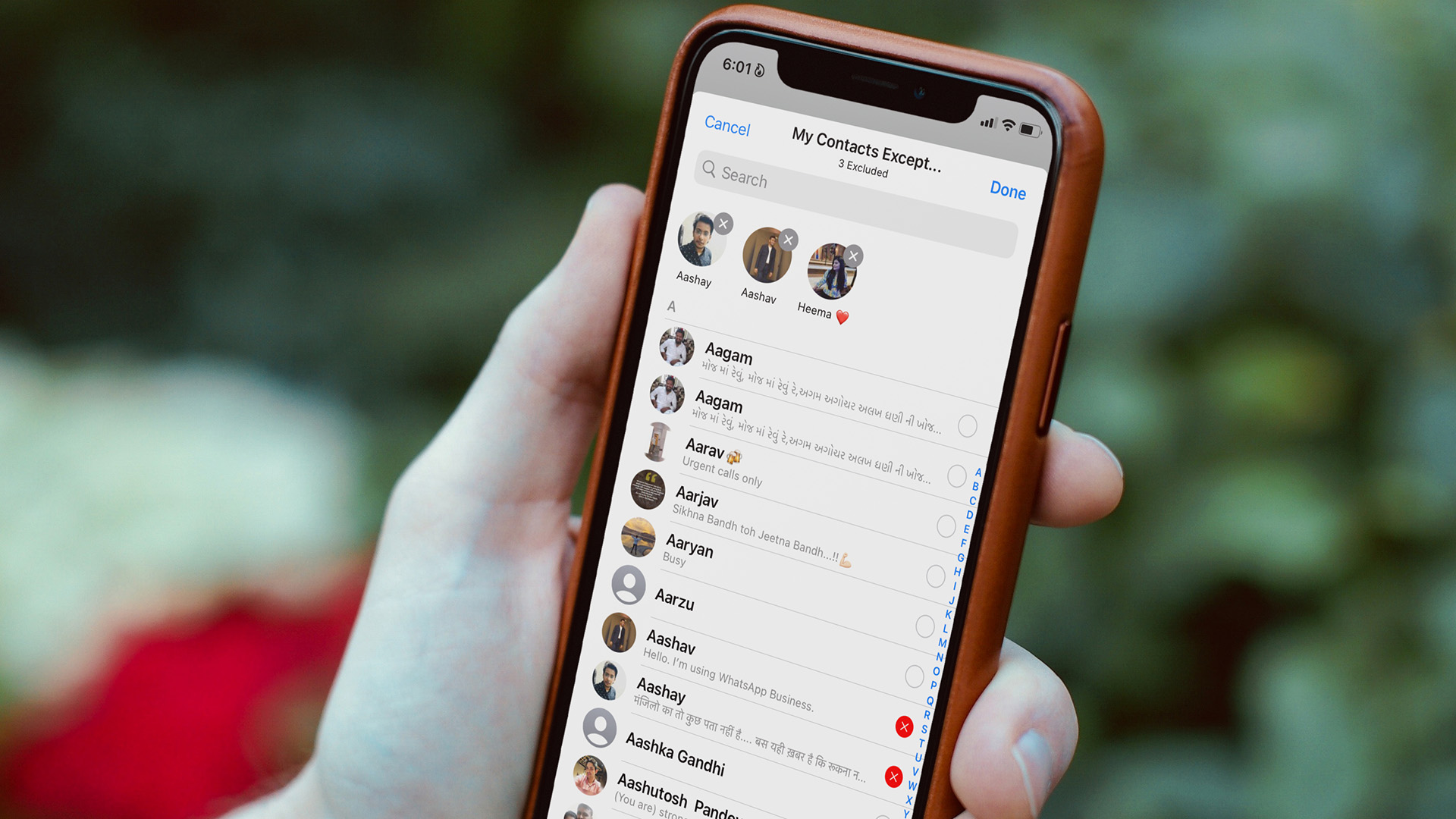
Step 3: From the options, choose My contacts except…
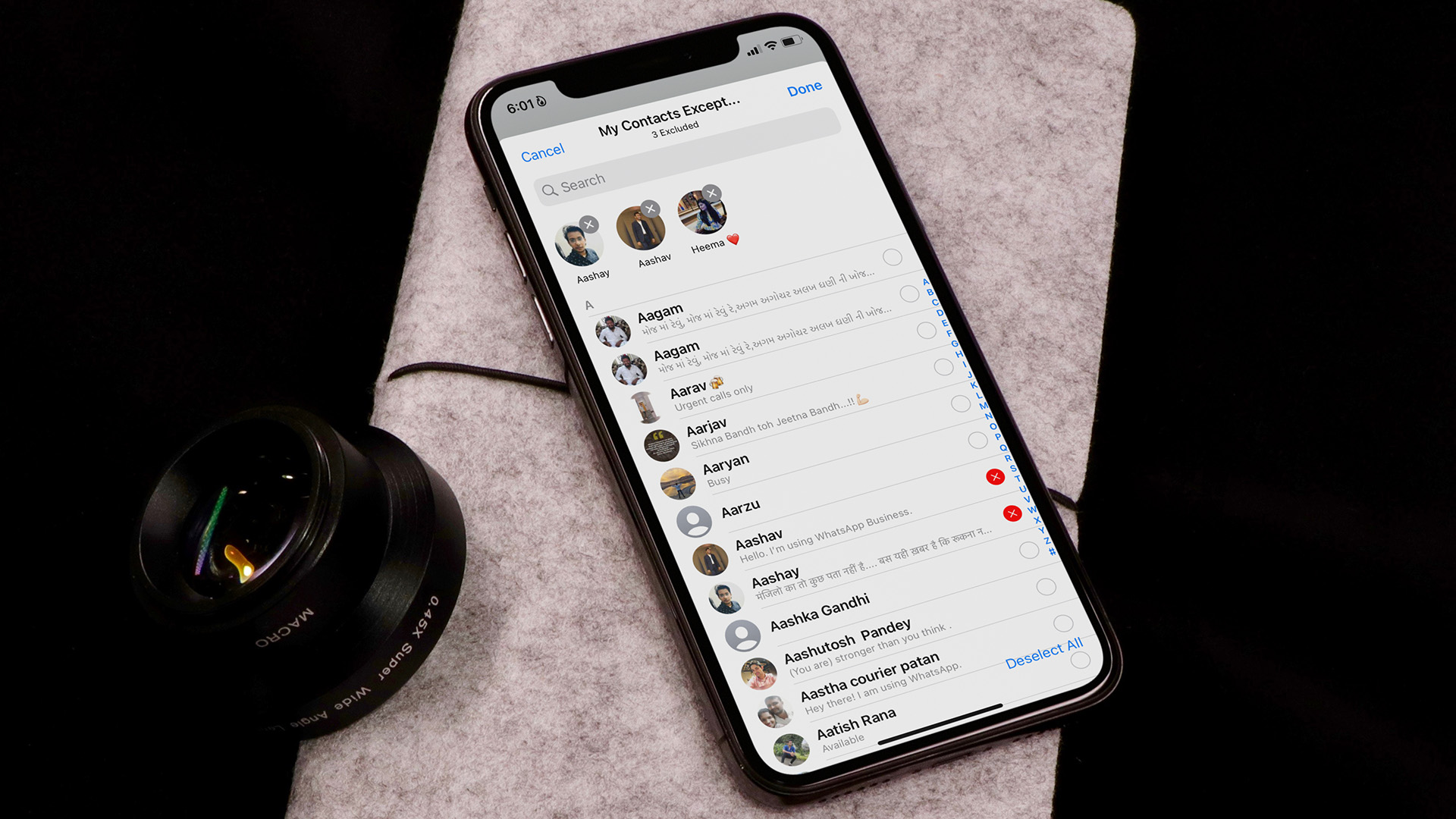
Step 4: Select the contacts you want to hide your online status from, then tap Done.
Step 5: Now select who can see when you’re online:
- Everyone: All your contacts can see when you are online.
- Same as last seen: Your online status is only visible to contacts for whom you have not hidden your last seen status.
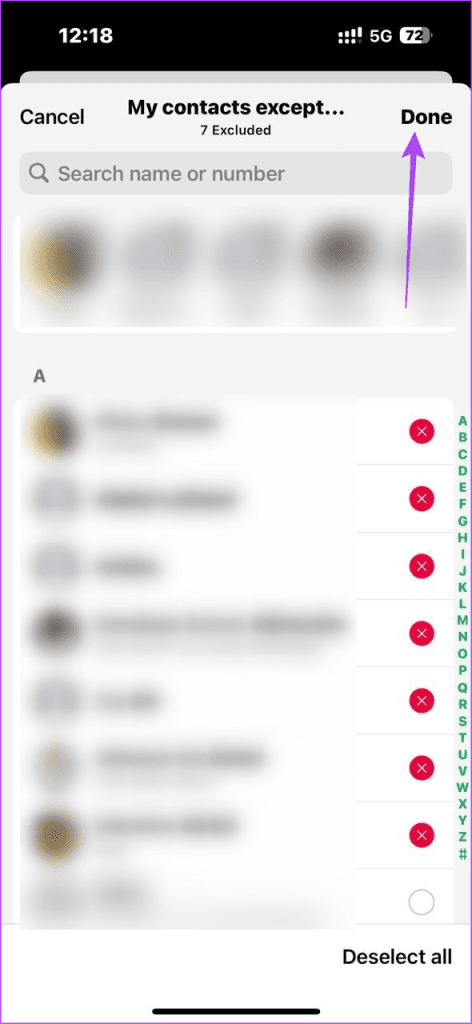
From now on, these selected contacts won’t see your online status or when you were last active on WhatsApp. However, they can still see your profile picture and status updates.
Also read: How to Hide Your Profile Picture From Specific Contacts on WhatsApp
On Android
If you use WhatsApp on an Android device, here’s how to hide your online status:
Step 1: Tap the three dots in the top-right corner of WhatsApp.
Step 2: Select Settings and go to Privacy > Last seen and online.


Step 3: Tap on My contacts except… and choose the contacts you want to hide your online status from.
Step 4: Tap on the green checkmark at the bottom right to save your changes.
Step 5: Choose who can see your online status: Everyone or Same as last seen.

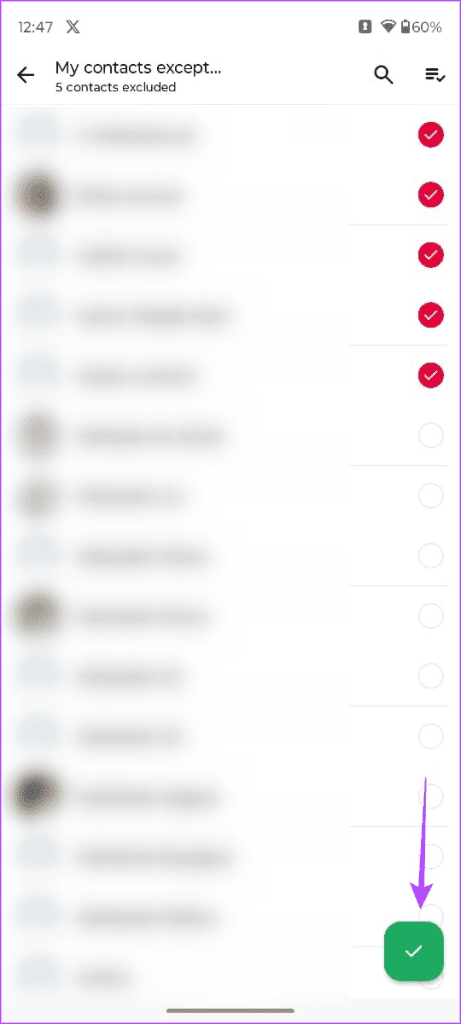
Similar to the iPhone, these selected contacts won’t see your online status or when you were last active on WhatsApp.
On WhatsApp Web and Desktop
If you use WhatsApp on a desktop web browser, here’s how to hide your online status from specific contacts:
Step 1: Open WhatsApp and click on the three dots in the top-left corner.
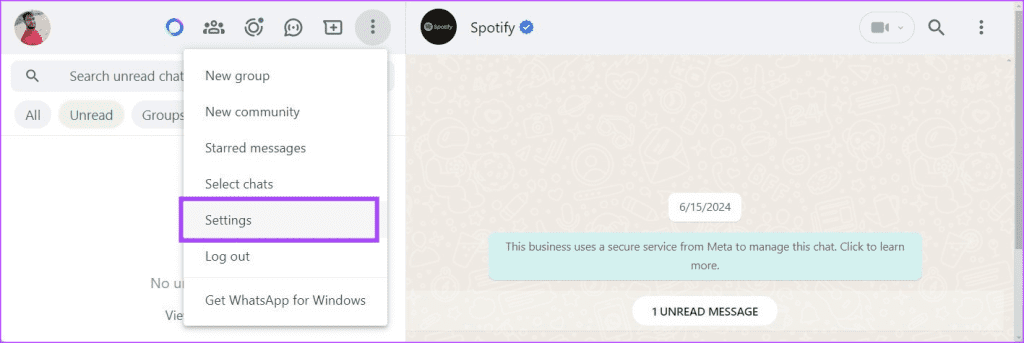
Step 2: Select Settings > Privacy > Last seen and online.
Step 3: Click on My contacts except… and choose the contacts you want to hide your online status from.
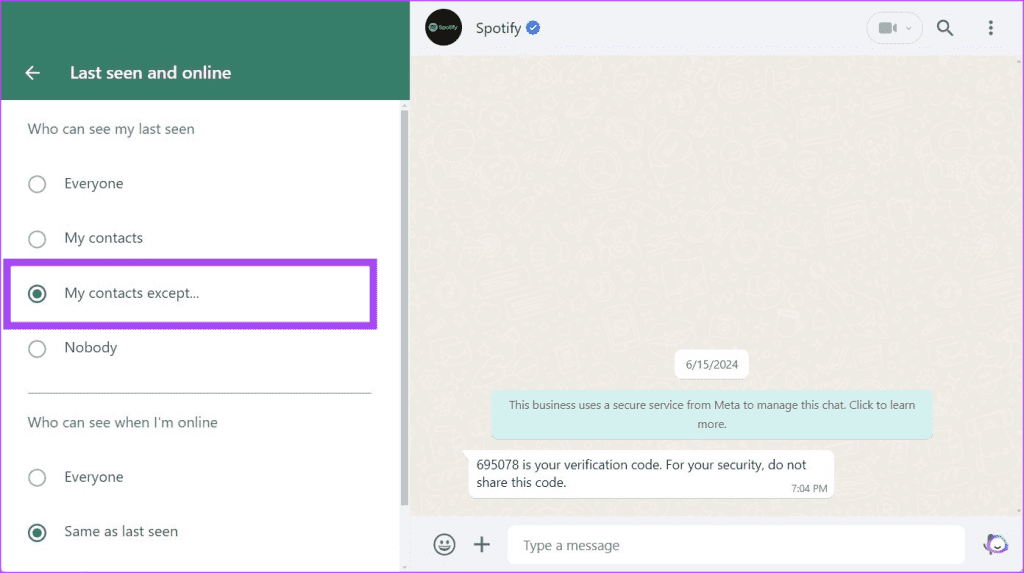
Step 4: Click on the green checkmark at the bottom right.
Step 5: Choose who can see when you’re online: Everyone or Same as last seen.
Just like on the mobile app, these selected contacts won’t be able to see your online status or your last active time on WhatsApp, but they can still view your profile picture and status updates.
Once you hide your WhatsApp last seen and online status from specific contacts, you can’t check the same in their accounts too. You must head to WhatsApp privacy settings and let other contacts see your last seen and online status.
You must disable read receipts from WhatsApp Settings separately to disable blue checkmarks on messages.
Yes, anyone with your phone number can see you’re online on WhatsApp if your online status is set to Everyone. To prevent this, either change your online status to My contacts or select the specific contacts you want to hide it from. You can also choose Nobody to hide your online status completely.
Was this helpful?
Last updated on 19 July, 2024
1 Comment
Leave a Reply
Read Next
 How to Hide Last Seen From Specific Contacts on WhatsApp
Thanks to WhatsApp’s new privacy tools, you no longer need to explain your latenight last seen to your friends or family members.
How to Hide Last Seen From Specific Contacts on WhatsApp
Thanks to WhatsApp’s new privacy tools, you no longer need to explain your latenight last seen to your friends or family members.
 How to Hide Your Profile Picture From Specific Contacts on WhatsApp
What Happens When You Hide Your Profile Picture From Specific Contacts on WhatsApp The selected WhatsApp contacts can no longer view your account photo.
How to Hide Your Profile Picture From Specific Contacts on WhatsApp
What Happens When You Hide Your Profile Picture From Specific Contacts on WhatsApp The selected WhatsApp contacts can no longer view your account photo.
 How to Hide Last Seen and Online Status in WhatsApp
Hide Last Seen and Online Status For Everyone in WhatsApp Used by over two billion users worldwide, WhatsApp eventually added privacy features to hide your status, profile picture, and About
How to Hide Last Seen and Online Status in WhatsApp
Hide Last Seen and Online Status For Everyone in WhatsApp Used by over two billion users worldwide, WhatsApp eventually added privacy features to hide your status, profile picture, and About
 How to Set Custom Notification Sound for Specific Contacts on WhatsApp
Set Specific Tones on WhatsApp iOS You can set different notification tones on WhatsApp for all contacts or groups and custom tones for individual contacts or groups.
How to Set Custom Notification Sound for Specific Contacts on WhatsApp
Set Specific Tones on WhatsApp iOS You can set different notification tones on WhatsApp for all contacts or groups and custom tones for individual contacts or groups.
 How to Hide Instagram Story From Everyone Except One Person
https://www.youtube.com/embed/SgnBlWR97EY Method 1: Use the Close Friends List You can hide your story from all except one by using the close friends list.
How to Hide Instagram Story From Everyone Except One Person
https://www.youtube.com/embed/SgnBlWR97EY Method 1: Use the Close Friends List You can hide your story from all except one by using the close friends list.
 Google Contacts vs Samsung Contacts: Which App Is Best for Saving and Managing Contacts
Apart from phones running Stock Android, all other Android phones have their own set of basic apps.
Google Contacts vs Samsung Contacts: Which App Is Best for Saving and Managing Contacts
Apart from phones running Stock Android, all other Android phones have their own set of basic apps.
 iCloud Contacts vs Google Contacts: Where Should You Save Contacts on Your iPhone
When you are using an Android phone, one prefers using Google Contacts to store and manage contacts.
iCloud Contacts vs Google Contacts: Where Should You Save Contacts on Your iPhone
When you are using an Android phone, one prefers using Google Contacts to store and manage contacts.
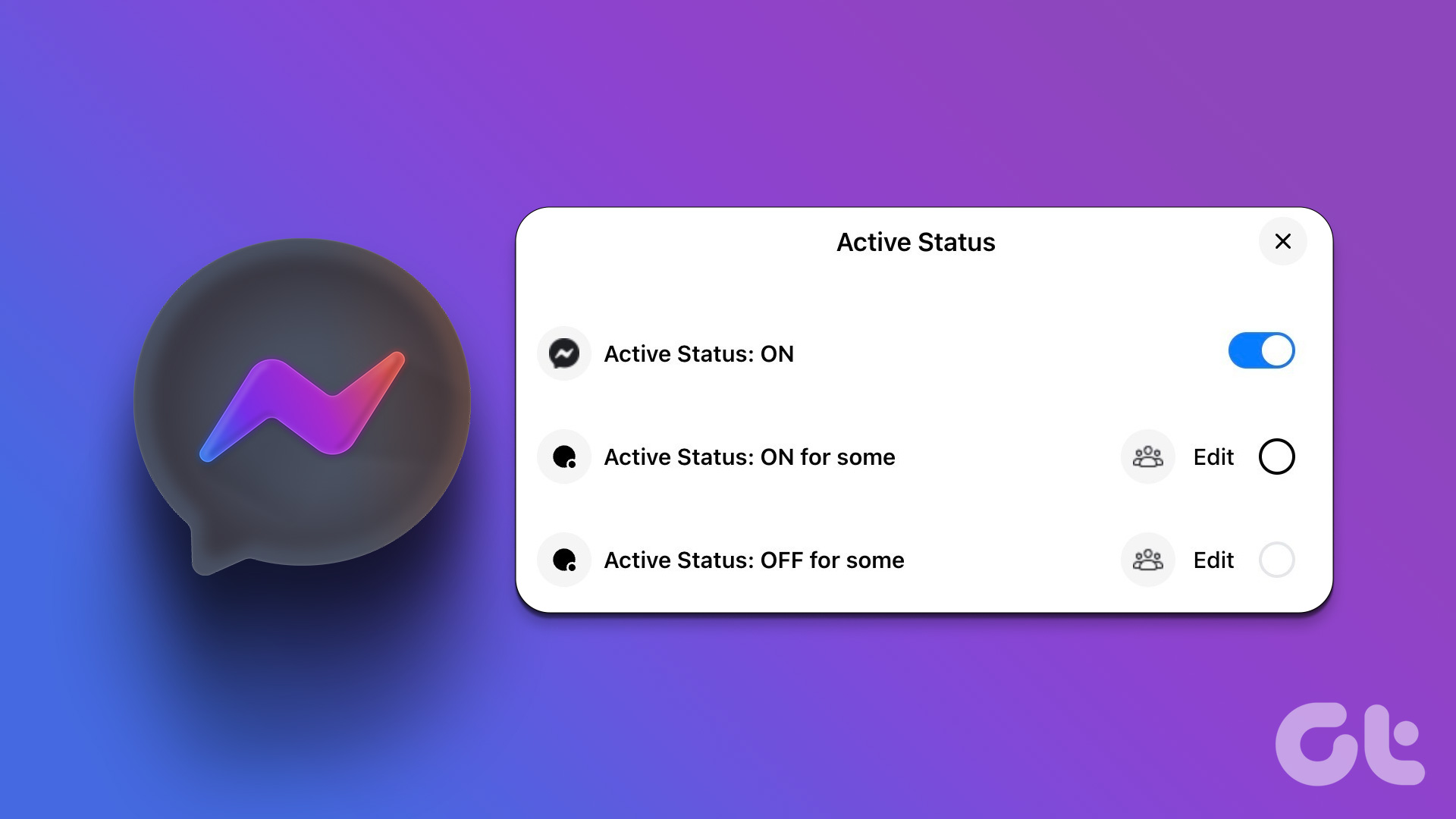 How to Hide Active Status From Someone on Facebook Messenger
Hide Active Status From a Particular Person on Messenger Although Facebook offers native Messenger apps on iOS, Android, Windows, and Mac, the ability to hide active status from one person
How to Hide Active Status From Someone on Facebook Messenger
Hide Active Status From a Particular Person on Messenger Although Facebook offers native Messenger apps on iOS, Android, Windows, and Mac, the ability to hide active status from one person
The article above may contain affiliate links which help support Guiding Tech. The content remains unbiased and authentic and will never affect our editorial integrity.

Can I hide the current last seen and show the last seen the saw on the system so it appears I’m not checking my WhatsApp account??