How to Hide Your Friends List on Facebook
On Desktop
Step 1: Go to Facebook on your Windows or Mac computer and log in with your account credentials.
Step 2: Click on your profile picture in the top-right corner.
Step 3: From the drop-down menu, choose Settings & privacy.

Step 4: Now, choose Privacy Checkup.

Step 5: On the Privacy Checkup page, click Who can see what you share.

Step 6: In the pop-up modal, click Continue.
Step 7: Scroll down to the bottom until you see ‘Friends and following.’ Now, click the button next to Who can see your friends list on your profile?

Step 8: Choose the option Only me.
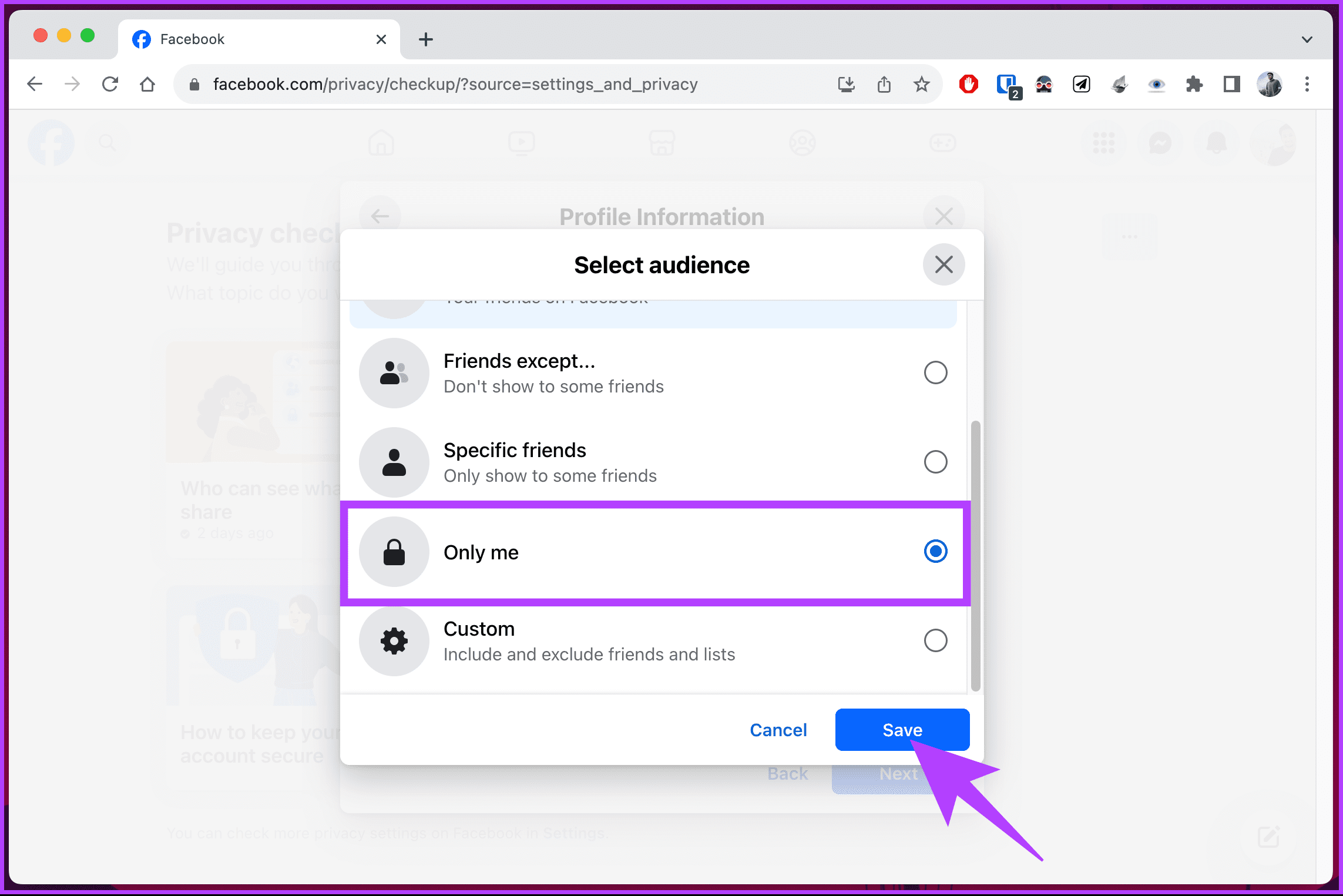
That’s about it. Changes will take effect immediately, and you can close the modal and rest assured that your activity will now be private.
If you don’t have access to a desktop and want to do the same using a mobile, continue reading.
On Facebook Mobile App
Step 1: Launch the Facebook app. Then, tap on your profile picture.
Step 2: Scroll to the bottom and choose Settings & privacy. From the drop-down, select Privacy shortcuts.
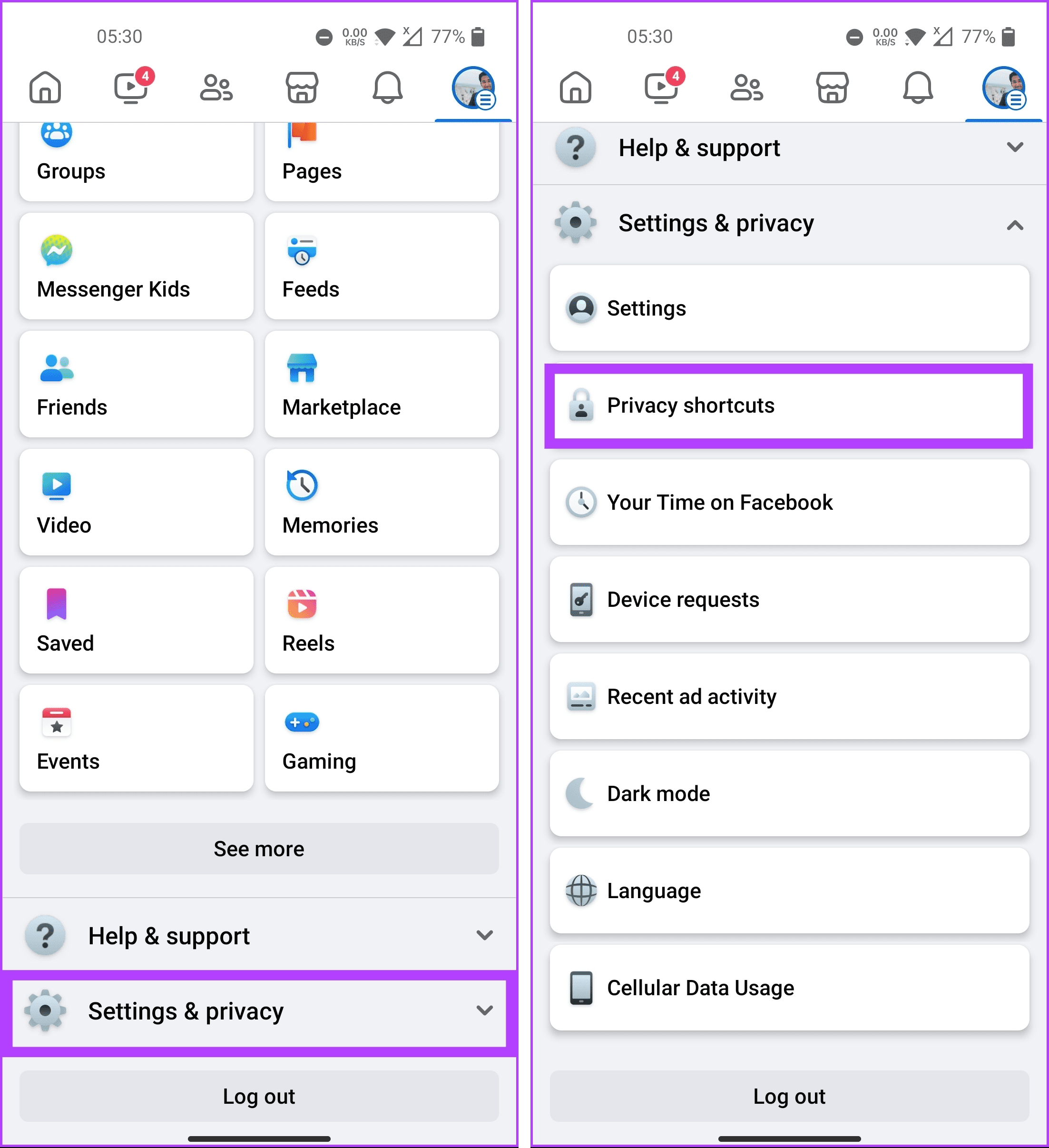
Step 3: Under Privacy Shortcuts, tap Take a Privacy Checkup. Next, select Who can see what you share.

This triggers a Privacy check flow. Proceed with the below steps.
Step 4: You will see the privacy touchpoints you will come across in the flow. Click Continue.
Step 5: Under Profile Information, scroll down to the bottom until you see ‘Friends and following.’ Now, tap the button next to Who can see your friends list on your profile?
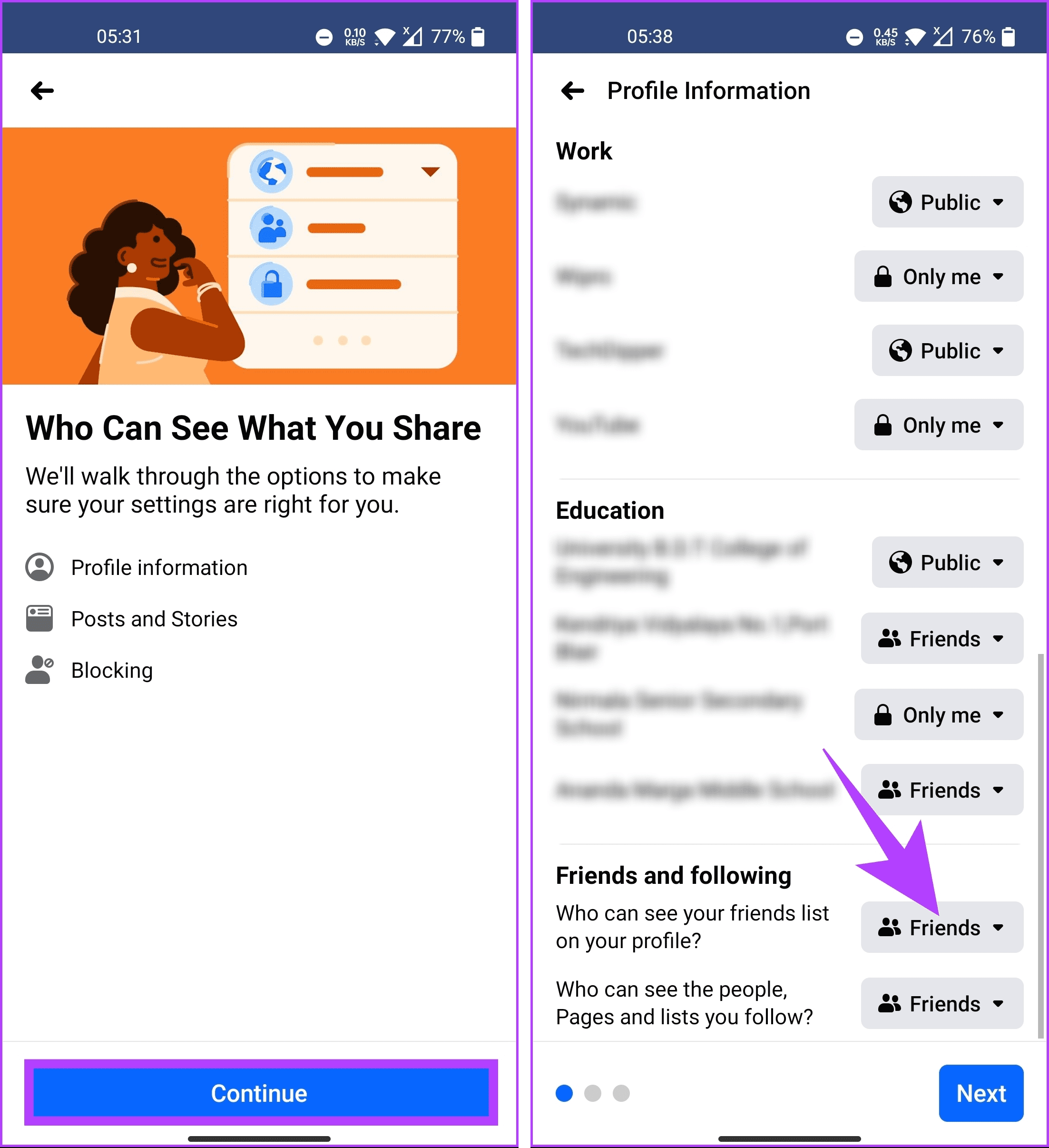
Step 6: Select the Only me option.
There you go. After applying the changes, you can tap the back arrow to return to their news feed. Keep reading if you want to hide your friends and your activity.
How to Hide Your Activity on Facebook
On Desktop
Step 1: Go to Facebook on your Windows or Mac computer and log in with your account credentials.
Step 2: Click on your profile picture in the top-right corner.
Step 3: From the drop-down menu, choose Settings & privacy.
Step 4: Now, choose Privacy Checkup.
Step 5: On the Privacy Checkup page, click Who can see what you share.
Step 6: In the pop-up modal, click Continue.
Step 7: Click the Next button again.

Step 8: Under the ‘Profile and Stories’ section, click the button next to the default audience.
Step 9: Choose the option Only me and click Save button.

Step 10: Repeat the same for Stories. Click on the button next to it.

Step 11: You cannot select Only me when posting a story, as it defies the very purpose of posting the story in the first place. So, select the Custom option and select who you want to share your stories with.
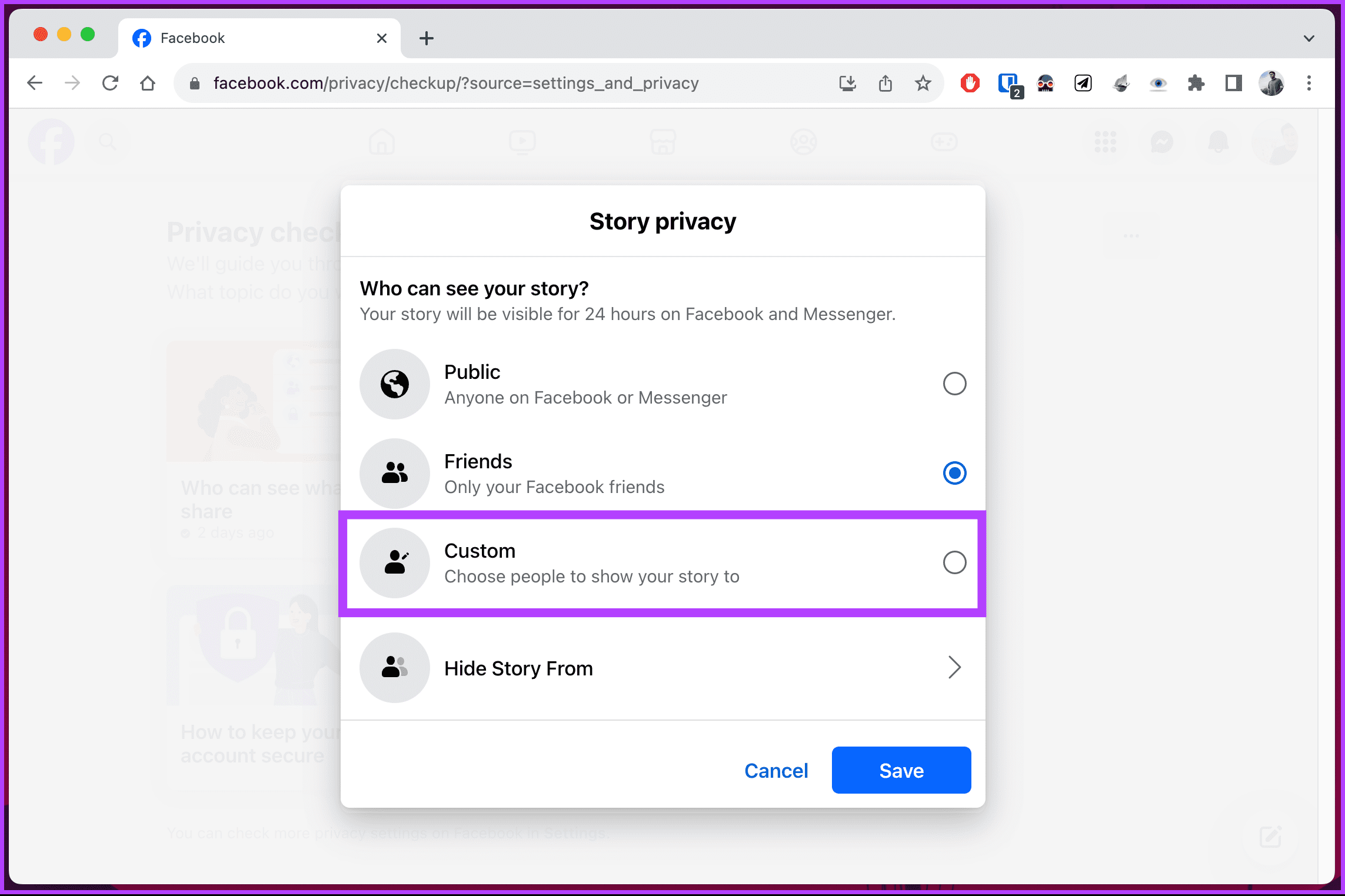
That’s about it. You can close the modal, and rest assured that your activity will now be private after the changes are made. If you want to do it through Facebook’s mobile app, continue reading.
On Facebook Mobile App
Step 1: Launch the Facebook app. Then, tap on your profile picture on the right-hand side.
Step 2: Scroll to the bottom and choose Settings & privacy. From the drop-down, select Privacy shortcuts.
Step 3: Under Privacy Shortcuts, tap Take a Privacy Checkup. Next, select Who can see what you share.
This triggers a Privacy check flow. Proceed with the below steps.
Step 4: You will see the privacy touchpoints you will come across in the flow. Click Continue. On the next screen, tap Next.

Step 5: Tap on the button next to Default audience. On the next screen, choose See More.
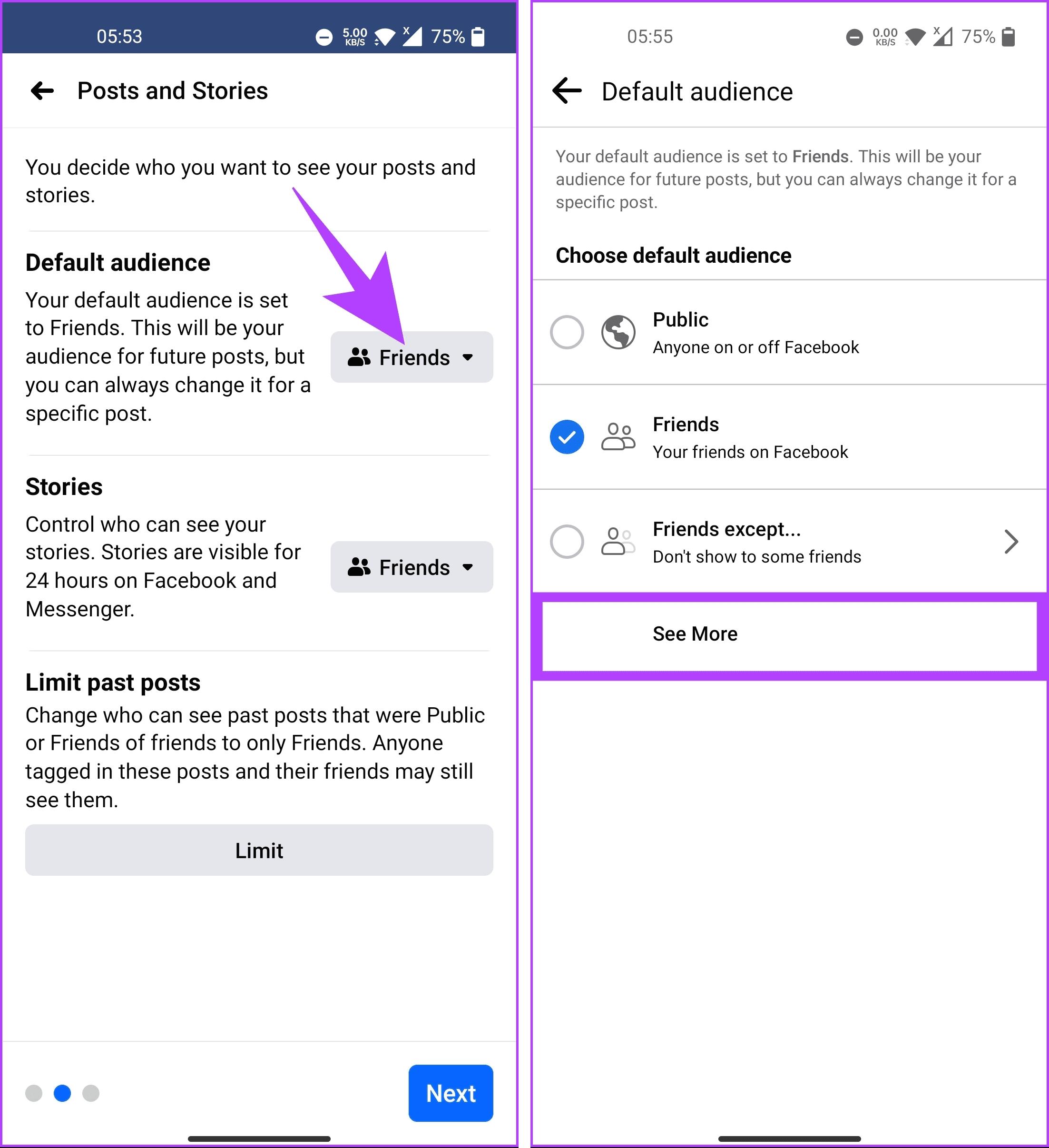
Step 6: Now, select Only me.
Step 6: You can do the same for Stories as well. However, you cannot select Only me when posting a story, as it defies the very purpose of posting the story in the first place. So, select the Custom option and select who you want to share your stories with.

There you go. You have hidden your Facebook posts from public view and kept them private. Are you looking to hide your followers’ pages, people, and lists alongside your posts and stories? Read on.
Also Read: How to use your avatar during video calls on Instagram and Facebook Messenger
How to Hide the People and Pages You Follow on Facebook
On Desktop
Step 1: Go to Facebook from your preferred browser and log in with your account credentials.
Step 2: Click on your profile picture in the top-right corner.
Step 3: From the drop-down menu, click on Settings & privacy.
Step 4: Under ‘Settings & privacy,’ choose Settings.

Step 5: Go to Privacy from the left pane on the Settings page.

Step 6: Under Your Activity section, click Edit adjacent to ‘Who can see the people, Pages, and lists you follow?’

Step 7: Click the chevron (arrow) icon next to the option, and finally, choose Only me.

That’s it. Your Facebook pages and the people you follow will be hidden from everyone’s view. If you want to do the same using mobile, continue reading.
On Facebook Mobile App
Step 1: Launch the Facebook app. Then, tap on your profile picture on the right-hand side.
Step 2: Scroll to the bottom and choose Settings & privacy. From the drop-down, select Settings.

Step 3: Now, scroll down to the ‘Audience and visibility’ section and tap Followers and public content. On the next screen, scroll down and tap Who can see the people, Pages and lists you follow?

Step 4: In the Following screen, tap See More and choose the Only me option.

There you have it. You have successfully hidden the people or pages you follow on Facebook from the public. If you have any queries, check out the FAQ section below.
FAQs on Hiding Activity on Facebook
No, you can’t hide your likes and reactions to other people’s posts. Depending on their privacy settings, they are typically visible to the person who made the post and their friends.
Yes, you can change the audience for your past posts on Facebook in your privacy settings. Go to ‘Settings & Privacy’ > Settings > Privacy > ‘Limit Past Posts’ to restrict the visibility of all your past posts to Friends.
Now that you know how to hide activity on Facebook, you can protect your privacy, manage your professional image, avoid unwanted attention, and bolster your online security.
Was this helpful?
Last updated on 24 August, 2024
Read Next
 How to Stop Seeing Threads Posts and Notifications on Instagram
How to Hide Threads' Posts and Notifications Manually Instagram uses algorithms to suggest posts and accounts based on your interactions within the app.
How to Stop Seeing Threads Posts and Notifications on Instagram
How to Hide Threads' Posts and Notifications Manually Instagram uses algorithms to suggest posts and accounts based on your interactions within the app.
 How to Access and Manage Your Google Activity Using Google Activity Controls
Google offers a wide range of products in the technology space.
How to Hide All Posts on Facebook From Public or Friends
How to Hide Past Posts on Facebook The good news is that you can manage the visibility of previously posted content.
How to Access and Manage Your Google Activity Using Google Activity Controls
Google offers a wide range of products in the technology space.
How to Hide All Posts on Facebook From Public or Friends
How to Hide Past Posts on Facebook The good news is that you can manage the visibility of previously posted content.
 How to Find and Remove Deactivated Friends From Facebook
How to Unfriend Deactivated Friends on Facebook First, you must visit the Friends section to remove the deactivated profiles from your Facebook account.
How to Find and Remove Deactivated Friends From Facebook
How to Unfriend Deactivated Friends on Facebook First, you must visit the Friends section to remove the deactivated profiles from your Facebook account.
 Top 4 Ways to Fix Facebook Not Showing Friends Post
Why Am I Not Seeing Friend's Posts in My Facebook Feed Let's first understand how the Facebook feed algorithm works.
Top 4 Ways to Fix Facebook Not Showing Friends Post
Why Am I Not Seeing Friend's Posts in My Facebook Feed Let's first understand how the Facebook feed algorithm works.
 4 Ways to Fix “We Restrict Certain Activity to Protect Our Community” on Instagram
Basic Fixes Check if Instagram is down: Check if Instagram is facing downtime.
4 Ways to Fix “We Restrict Certain Activity to Protect Our Community” on Instagram
Basic Fixes Check if Instagram is down: Check if Instagram is facing downtime.
 5 Fixes for Spotify Not Showing Friend Activity
Fix 1: Enable the Friend Activity Tab The Spotify app may not show the Friend Activity tab if you have previously hidden it using the View menu.
5 Fixes for Spotify Not Showing Friend Activity
Fix 1: Enable the Friend Activity Tab The Spotify app may not show the Friend Activity tab if you have previously hidden it using the View menu.
 How to Hide Reels on Facebook on Desktop or Mobile
How to Remove Reels on Facebook Note: For demonstration, we will go with a desktop.
How to Hide Reels on Facebook on Desktop or Mobile
How to Remove Reels on Facebook Note: For demonstration, we will go with a desktop.
The article above may contain affiliate links which help support Guiding Tech. The content remains unbiased and authentic and will never affect our editorial integrity.