How to Subscribe to Apple Music on Windows
Apple Music isn’t free, so you need to have a subscription to use it on Windows. You need an Apple ID as a pre-requisite, and you can create one from the Apple ID website. Once you do that, follow the below steps to subscribe to Apple Music.
Step 1: Download iTunes from the Microsoft Store.

If you can’t download iTunes from the Microsoft Store, download the setup files based on your Windows version.
Step 2: Open iTunes after installation and sign in to your account. You may be asked for verification, so enter the code sent to your iPhone/iPad and click on Trust this Computer.
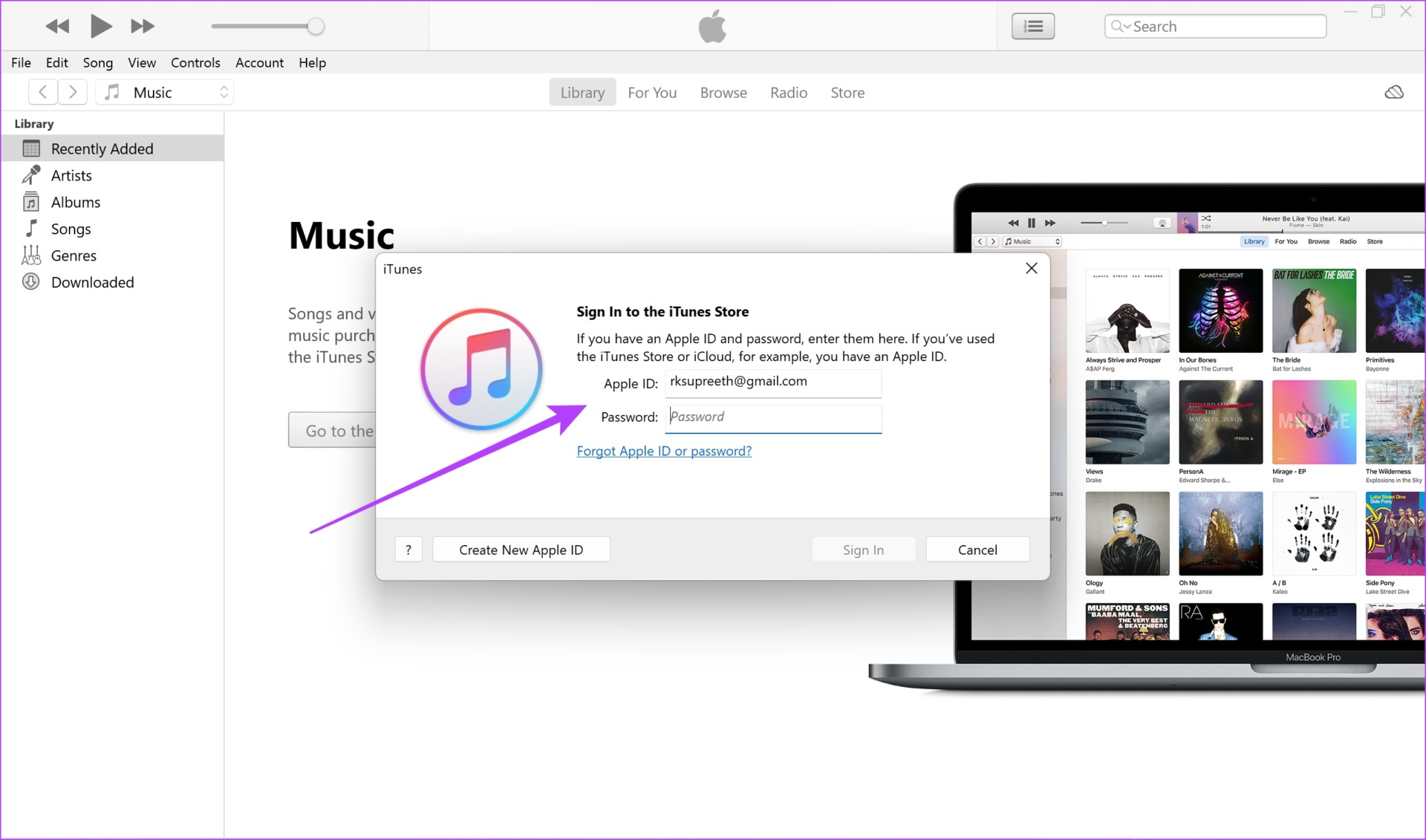
Step 3: Click on the For You tab in the toolbar and click on Continue.

Step 4: You will now be asked to choose a plan. Click on Choose Your Plan.
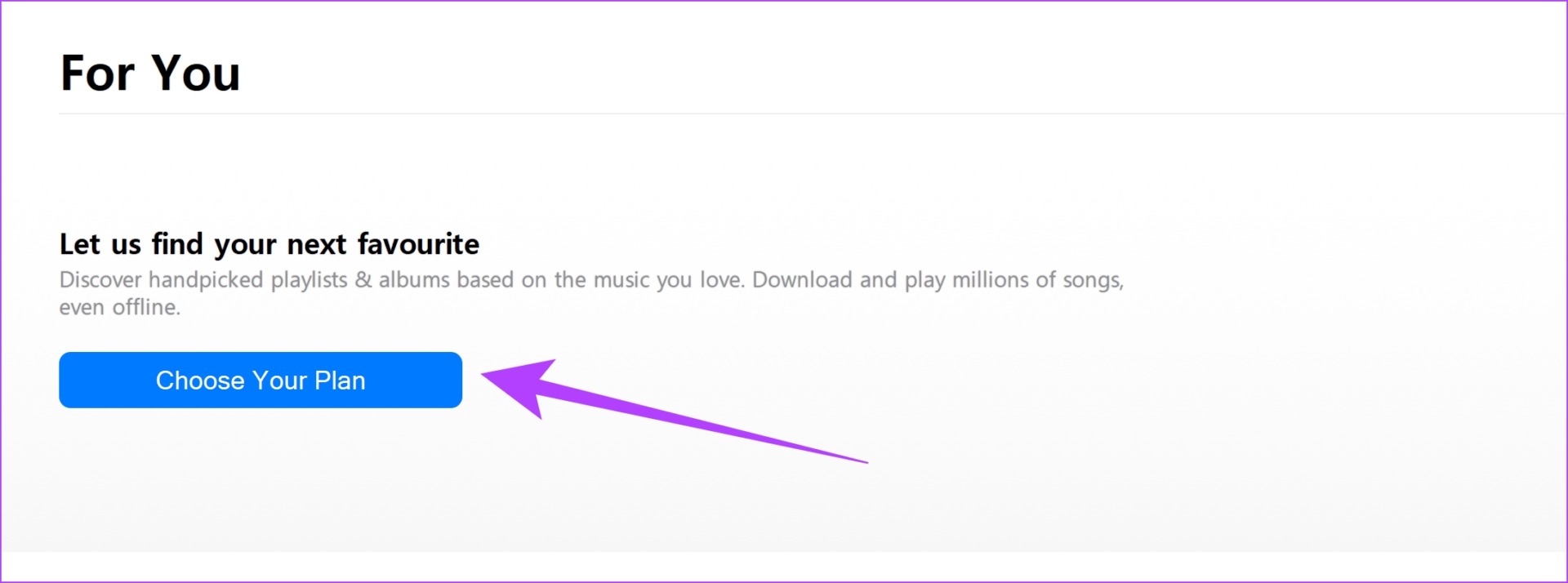
Step 5: Your first month is free, and you are required to pay after the trial period ends. Choose a plan and Click on Start Trial.
Step 6: Click on Confirm.


Step 7: Click on Continue. You will be asked to enter your payment information.
Step 8: Enter your payment information and click on done.
However, this process may be different region-wise, so follow the on-screen instructions or reach out to us in the comment section.

Once you enter your payment information, the trial for Apple Music will now begin. Next, let’s see how to get started with Apple Music.
4 Ways to Use Apple Music on Windows PC
Here are four different ways to use Apple Music on Windows. While you use iTunes to subscribe to Apple Music on Windows, you don’t have to necessarily use iTunes to listen to Music. Read on to know more.
Method 1: Use Apple Music Web Player
Apple Music has a web player that you can access from any web browser. It offers a familiar user interface and if you have used the mobile app, it won’t take time to get used to. Follow the steps below.
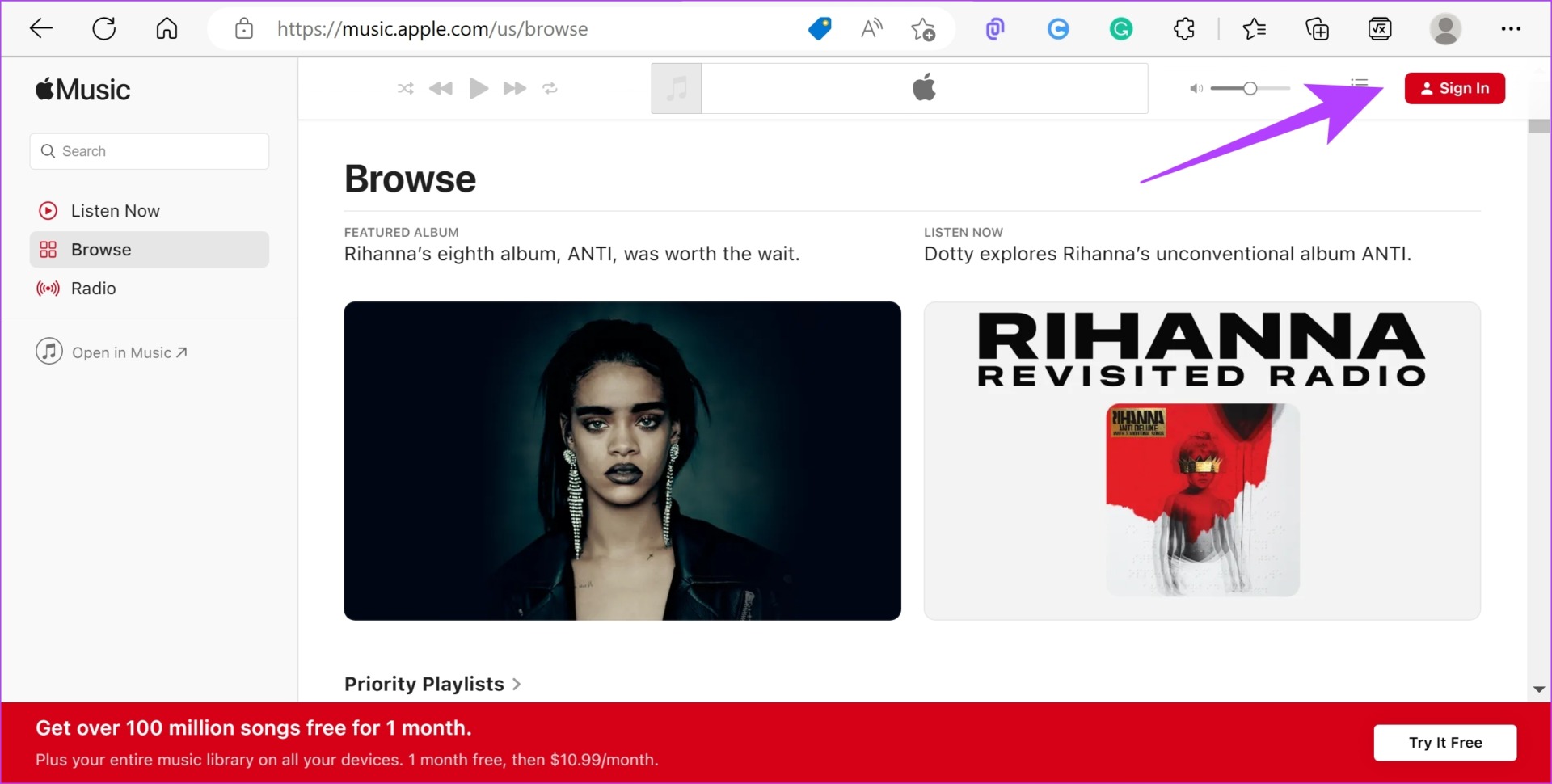
Step 1: Visit the Apple Music webplayer site. Click on Sign In in the top right corner.
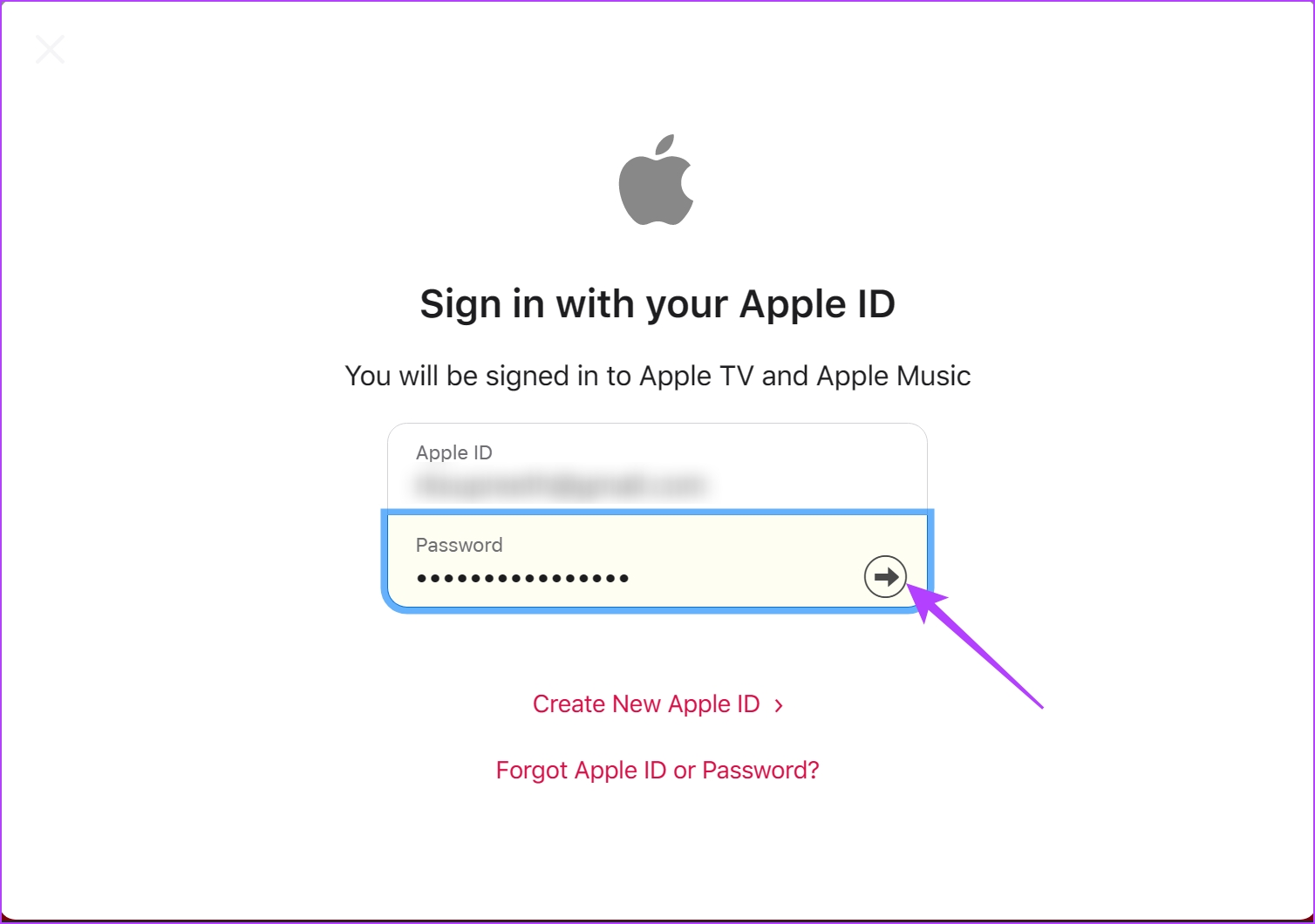
Step 2: Enter your details to sign in to the platform.
If you are asked for further verification, enter the code you receive on your iPhone and click on the ‘Trust’ button to verify the legitimacy of your browser.
You can now access Apple Music through your web browser.

However, if you prefer using an app over the website, Apple recently released a preview. Let’s explore more.
Method 2: Use the Apple Music App
At the start of 2023, Apple released a slew of products for Windows. This includes an app for Apple Music, Apple TV, and Apple Devices. Hence, you can now use Apple Music as a standalone application that can be downloaded from the Microsoft App Store.
However, there’s a problem :
- You cannot use this app on Windows 10 and older versions.
- You cannot use iTunes if you have the Apple Music Preview installed. But Apple seems to have a solution for this, and it’s an app that they released alongside the Apple Music Preview – Apple Devices Preview. This will cover all the functions you will miss out on iTunes.

Method 3: Use Apple Music on iTunes
If you use an iPhone and a Windows PC combo, iTunes is the only way to build a bridge between the two. It also offers support for Apple Music, and you can download iTunes to use Apple Music on Windows.
Step 1: Download iTunes from the Microsoft Store.
If you can’t download iTunes from the Microsoft Store, download the setup files based on your Windows version.
Step 2: Open iTunes after installation. Sign in to your account.
Step 3: You may be asked for verification. So, enter the code sent to your iPhone/iPad and click on Trust this Computer.
You are now ready to use Apple Music on Windows via iTunes.

Step 4: If you are trying to access the Music page, click on the drop-down menu in the toolbar and select Music.

Method 4: Download Cider: An Apple Music Client for Windows
Cider is a third-party client for Apple Music that uses its API to provide you with an interface to use the service. It is available on the Windows store as a paid app but you also get a free trial to use it.
Price: Free trial for a week; costs $1.99
Why use a third-party client for Apple Music, you may ask? Take a look at the feature comparison from Cider’s official website below. Cider includes a lot of features that Apple’s official app for Windows lack.
For example, the brand new Apple Music Sing feature makes it to Cider but not on the official Apple Music app.

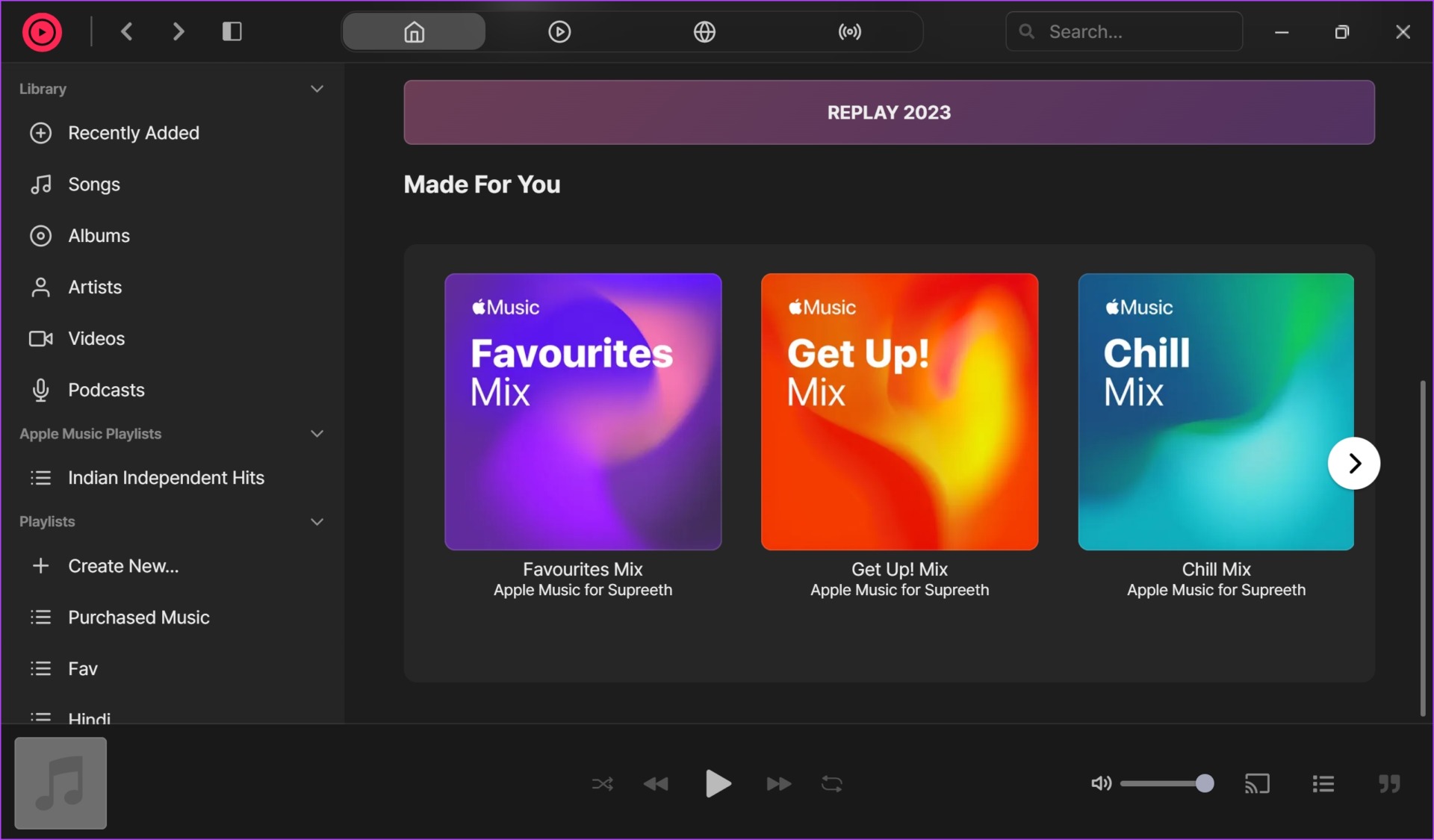
Even though Cider is still in the beta version, we were quite impressed by its user interface. Take a look at the image below. It felt smoother than using Apple Music on the web or iTunes.
Was this helpful?
Last updated on 26 August, 2024
Read Next
 3 Ways to Transfer Playlists From YouTube Music to Apple Music
There are three services you can use to perform the transfer based on your preferences.
3 Ways to Transfer Playlists From YouTube Music to Apple Music
There are three services you can use to perform the transfer based on your preferences.
 Top 7 Ways to Fix Siri Not Playing Music from Apple Music
Siri not recognizing your voice and not playing music from Apple Music can lead to an undesirable experience.
Top 7 Ways to Fix Siri Not Playing Music from Apple Music
Siri not recognizing your voice and not playing music from Apple Music can lead to an undesirable experience.
 How to Add Downloaded Music to Apple Music Library
If you download songs on your iPhone and use the Files app to listen to them, you are doing it wrong.
How to Add Downloaded Music to Apple Music Library
If you download songs on your iPhone and use the Files app to listen to them, you are doing it wrong.
 4 Fixes for Android Auto Not Playing Music From Spotify or YouTube Music
Fix 1: Change the Default Music Streaming Service Say you have a Spotify subscription.
4 Fixes for Android Auto Not Playing Music From Spotify or YouTube Music
Fix 1: Change the Default Music Streaming Service Say you have a Spotify subscription.
 3 Ways to Fix Apple Music Not Downloading Songs
Basic Fixes Check network: If you can't download songs on Apple Music, there is likely a problem with your internet connectivity.
3 Ways to Fix Apple Music Not Downloading Songs
Basic Fixes Check network: If you can't download songs on Apple Music, there is likely a problem with your internet connectivity.
 6 Ways Fix YouTube Music Not Working on Apple CarPlay
Whether you're team Android Auto or Apple CarPlay, we're all in for a long drive with blasting music.
6 Ways Fix YouTube Music Not Working on Apple CarPlay
Whether you're team Android Auto or Apple CarPlay, we're all in for a long drive with blasting music.
 How to Get Apple Music’s 50% Student Discount Now
Apple is a little late to the game, but its streaming service Apple Music just launched a student discount.
How to Get Apple Music’s 50% Student Discount Now
Apple is a little late to the game, but its streaming service Apple Music just launched a student discount.
 How to Allow or Turn off Explicit Content on Apple Music
Enable or Disable Explicit Songs on Apple Music On iPhone The content restrictions module controls Apple Music's explicit content, which now resides inside the Screen Time setting.
How to Allow or Turn off Explicit Content on Apple Music
Enable or Disable Explicit Songs on Apple Music On iPhone The content restrictions module controls Apple Music's explicit content, which now resides inside the Screen Time setting.
The article above may contain affiliate links which help support Guiding Tech. The content remains unbiased and authentic and will never affect our editorial integrity.