

Basic Fixes
- Check internet speeds: A strong Chromecast connection requires a strong internet connection as well for your Android TV.
- Log in again to your YouTube account: Open YouTube > profile icon > Sign Out > sign in again to your account.
- Force quit and relaunch the YouTube app: Long-press the YouTube app icon under the Apps tab > info > Force Stop > Confirm. Now, relaunch the app.
- Update or reinstall YouTube: Installing the latest version of the app will remove all bugs or glitches.
- Update Android TV OS version: This will also update the Google Cast receiver version for your Android TV.
Fix 1: Ensure the Same Wi-Fi Connection and Google Account
The first solution we recommend if YouTube’s Cast button is missing is to ensure that you use the same Wi-Fi network on your Android TV and your phone. The ability to cast your YouTube videos on your Android TV depends a lot on this. Also, if you use a dual-band router, ensure to connect to the same frequency band on your devices.
Along with Wi-Fi, you must use the same Google account on both your devices. Here’s how to check on your Android TV.
Step 1: Go to Settings > check the connected Wi-Fi under Network and Internet.

Step 2: Scroll down and tap on Accounts and Sign In to check the Google account.

Check your connected Wi-Fi network and ensure your other device(s) are also using the same.
Fix 2: Check if Chromecast Is Enabled
You can stream YouTube videos to your Android TV because of the Chromecast feature. So, if YouTube is still not casting to your Android TV, here’s how to check if you have enabled the feature.
Step 1: Open Settings on your Android TV > select Apps.

Step 2: Select See All Apps > go to Show System Apps.
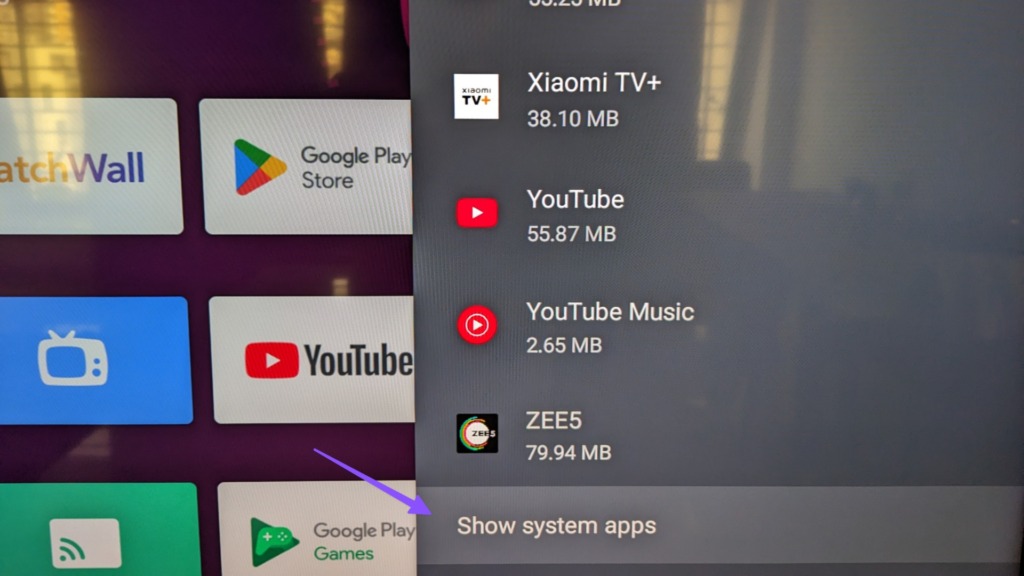
Step 3: Scroll down and select Chromecast built-in.
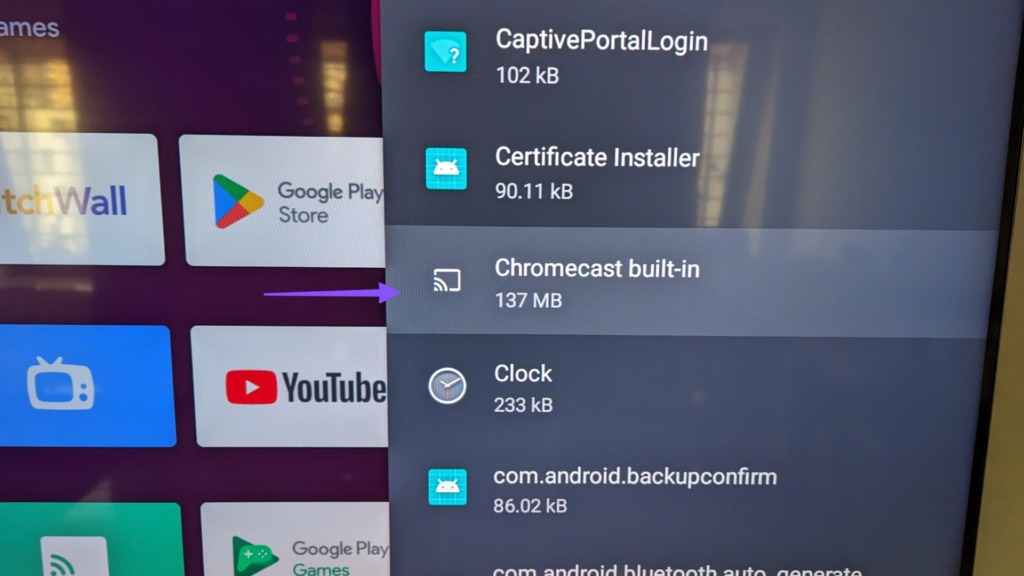
Step 6: If Chromecast is disabled, select it to enable it.
Fix 3: Reset Android TV
If none of the solutions work, reset your Android TV. Do note that it’ll remove all your apps and data from your Android TV. However, this will help you remove the problems with casting YouTube on Android TV.
Open Settings > Device Preferences > Reset.

Was this helpful?
Last updated on 16 August, 2024
1 Comment
Leave a Reply
Read Next
 3 Fixes for YouTube Not Playing 4K Videos on Apple TV 4K
Basic Fixes Check your internet connection: YouTube lets you watch 4K content in Dolby Vision and HDR.
3 Fixes for YouTube Not Playing 4K Videos on Apple TV 4K
Basic Fixes Check your internet connection: YouTube lets you watch 4K content in Dolby Vision and HDR.
 4 Fixes for No Sound in YouTube App on Apple TV
Basic Fixes Check Bluetooth devices: Disconnect any Bluetooth device to which the audio from YouTube might be transmitting.
4 Fixes for No Sound in YouTube App on Apple TV
Basic Fixes Check Bluetooth devices: Disconnect any Bluetooth device to which the audio from YouTube might be transmitting.
 3 Fixes for Android Keyboard Not Working in the YouTube App
Basic Fixes Force quit and relaunch YouTube and Android keyboard: This will give the apps a fresh start on your device.
3 Fixes for Android Keyboard Not Working in the YouTube App
Basic Fixes Force quit and relaunch YouTube and Android keyboard: This will give the apps a fresh start on your device.
 4 Fixes for Android Auto Not Playing Music From Spotify or YouTube Music
Fix 1: Change the Default Music Streaming Service Say you have a Spotify subscription.
4 Fixes for Android Auto Not Playing Music From Spotify or YouTube Music
Fix 1: Change the Default Music Streaming Service Say you have a Spotify subscription.
 YouTube and Jasmine: iPhone YouTube Apps Compared
As you surely know, YouTube is by far the most popular video sharing website out there, with its popularity only increasing even more with the arrival of mobile devices like
YouTube and Jasmine: iPhone YouTube Apps Compared
As you surely know, YouTube is by far the most popular video sharing website out there, with its popularity only increasing even more with the arrival of mobile devices like
 4 Cool Sites to Watch YouTube Videos Without YouTube
1.
4 Cool Sites to Watch YouTube Videos Without YouTube
1.
 2 Fixes for “Add To Queue” Not Working on YouTube
Basic Fixes Force quit and relaunch YouTube app: This will give the app a fresh start if it has been running in the background for quite some time now.
2 Fixes for “Add To Queue” Not Working on YouTube
Basic Fixes Force quit and relaunch YouTube app: This will give the app a fresh start if it has been running in the background for quite some time now.
 3 Fixes for Can’t Post Comments on YouTube Videos and Shorts
Try Basic Fixes The creator may have blocked your account: YouTube gives creators the option to block specific users from commenting on their videos.
3 Fixes for Can’t Post Comments on YouTube Videos and Shorts
Try Basic Fixes The creator may have blocked your account: YouTube gives creators the option to block specific users from commenting on their videos.
The article above may contain affiliate links which help support Guiding Tech. The content remains unbiased and authentic and will never affect our editorial integrity.

This is incorrect. I am having issues casting to the tv because I don’t want to use the YouTube app on the TV. I want to cast from my phone.