

Nothing brings the explosive action of console gaming closer than the right audio device, be that good headphones or surround sound. But what happens if you run into the PS5 error CE-109531-9 while trying to do so? This is a compatibility issue, and we’ve got a few fixes handy to help you out.
A Compatibility Problem
PS5 error code CE-109531-9 is primarily a compatibility issue that mainly affects Bluetooth audio devices. This means that your console can’t recognize or pair with your audio device, be it headphones or speakers. With the massive market of Bluetooth audio devices that aren’t the PlayStation’s official Pulse range, there’s room for a lot of compatibility issues, including Sony’s intentional decision to block some standard Bluetooth audio.
Troubleshooting PS5 Error CE-109531-9
With the above in mind, we’ve assembled a few troubleshooting tips that hopefully help you with a PS5 error CE-109531-9 fix.
Disconnect and Update
A good first step is to manually disconnect all devices and ensure that your PS5 is up to date. Assuming you’ve confirmed you have a compatible audio device, the rest of this fix has quite a few steps, but it might help you get your Bluetooth device detected:
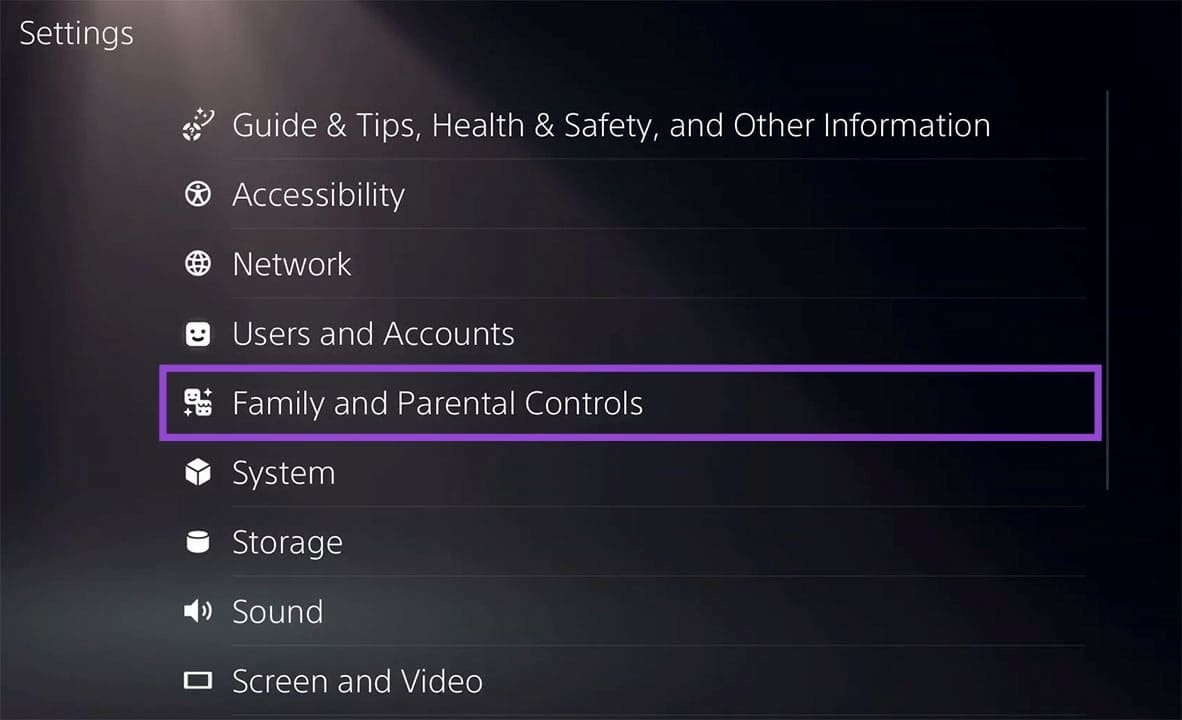
Step 1. Head to Settings and navigate to “Family and Parental Controls.”
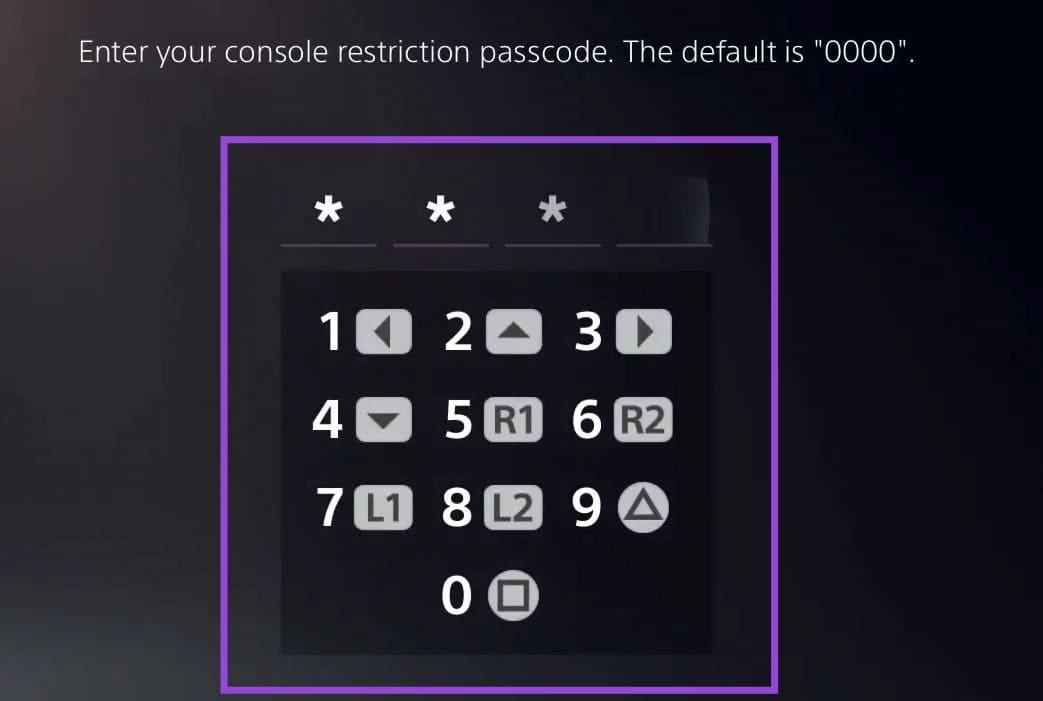
Step 2. Select “PS5 Console Restrictions” and enter your passcode.
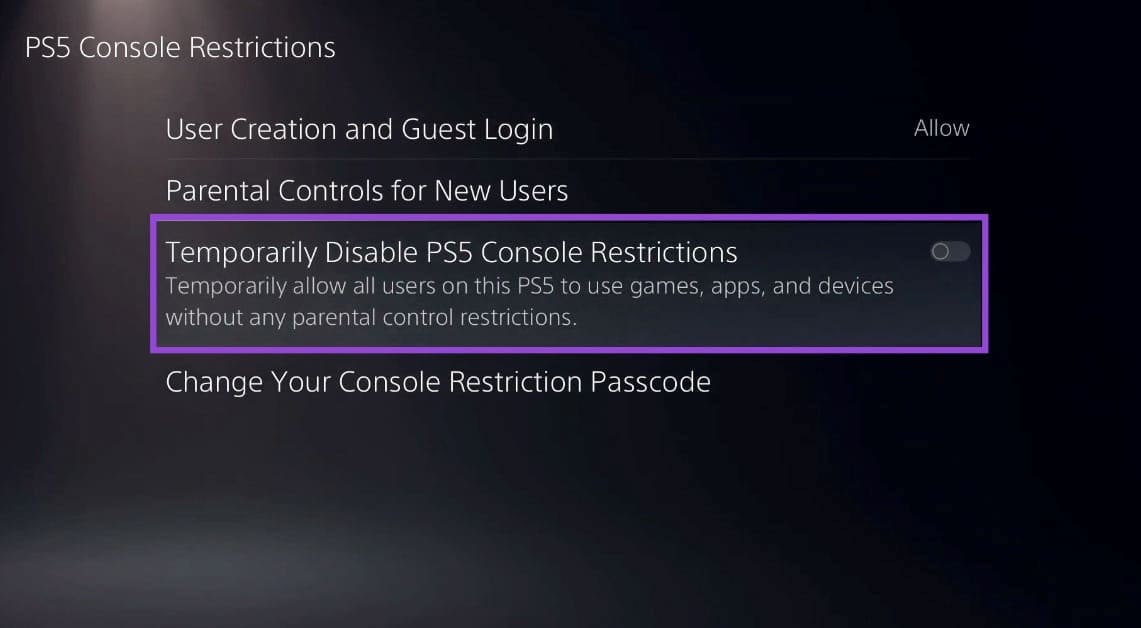
Step 3. Ensure that “Temporarily Disable PS5 Console Restrictions” is disabled.
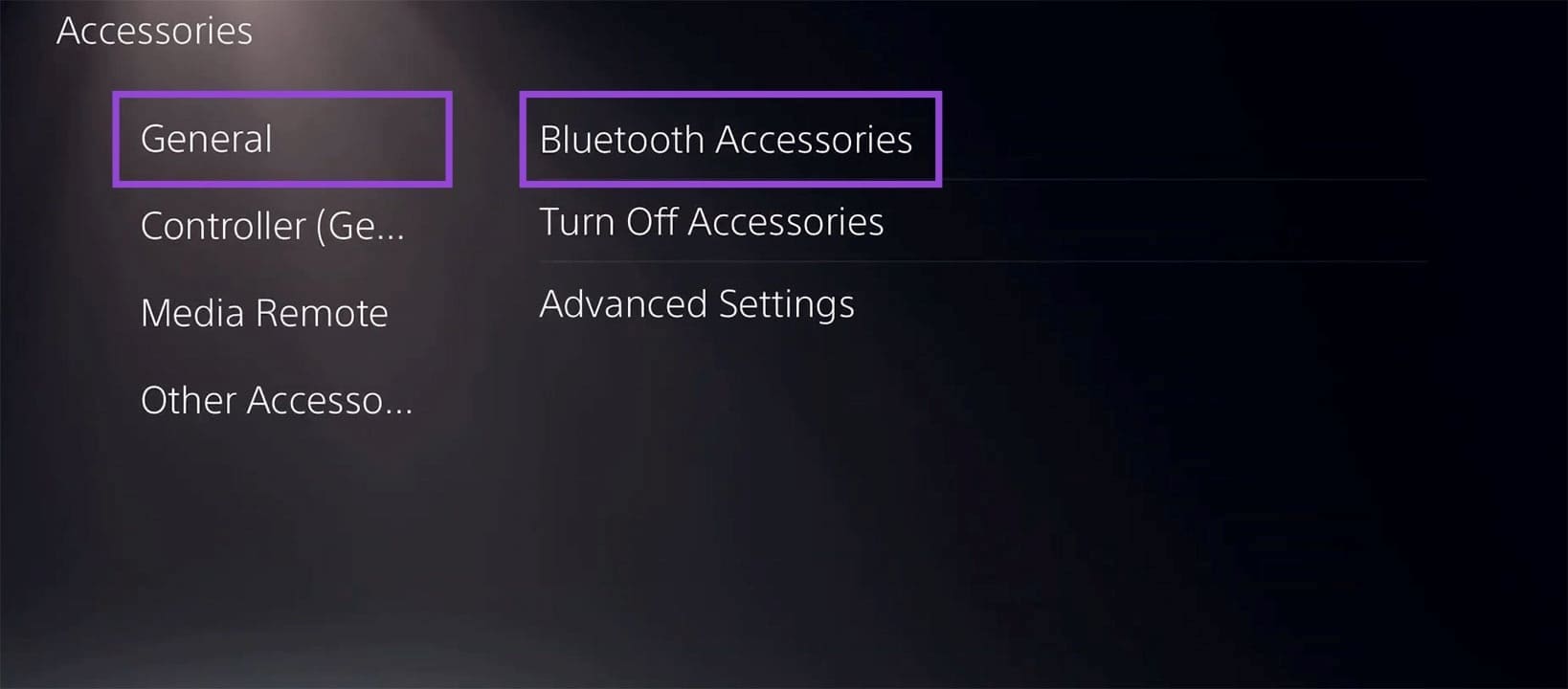
Step 4. Back in the Settings menu, click “Accessories.”
Step 5. In “General,” choose the “Bluetooth Accessories” option.
Step 6. You’ll see a list of connected devices. Select each and choose either “Disconnect” or “Forget.”
Step 7. Go back to the previous menu and in “Advanced Settings” choose “Turn Off Bluetooth.”
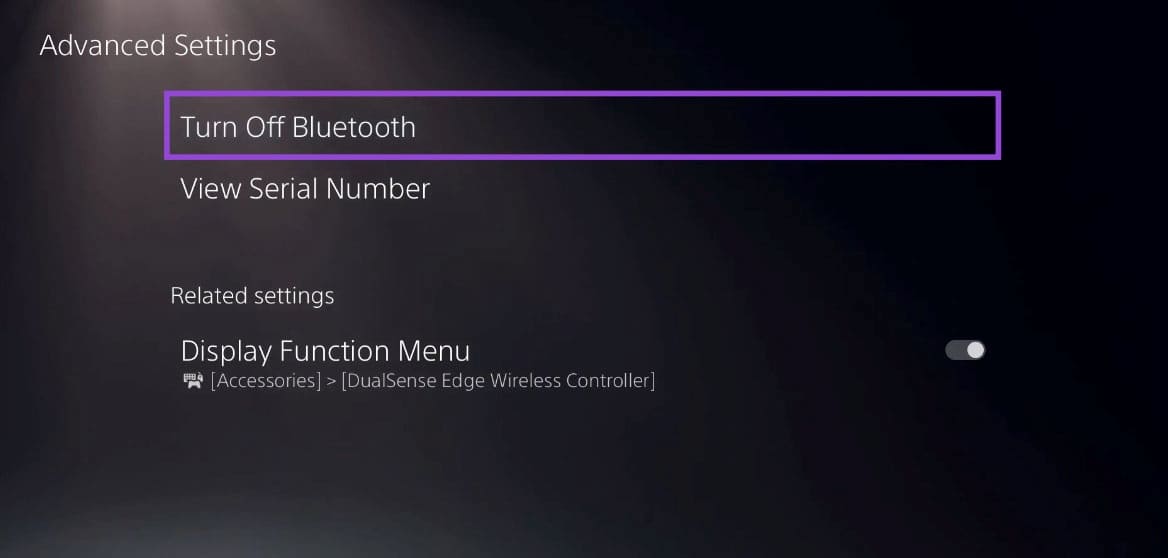
Step 8. Go back to the main Settings menu and choose “Saved Data and Game/App Settings.”
Step 9. Under “Automatic Updates,” enable both “Auto-Download” and “Auto Install in Rest Mode.”
Step 10. Back in “System” in the Settings menu, click “Report System Software Errors Automatically” to enable them.
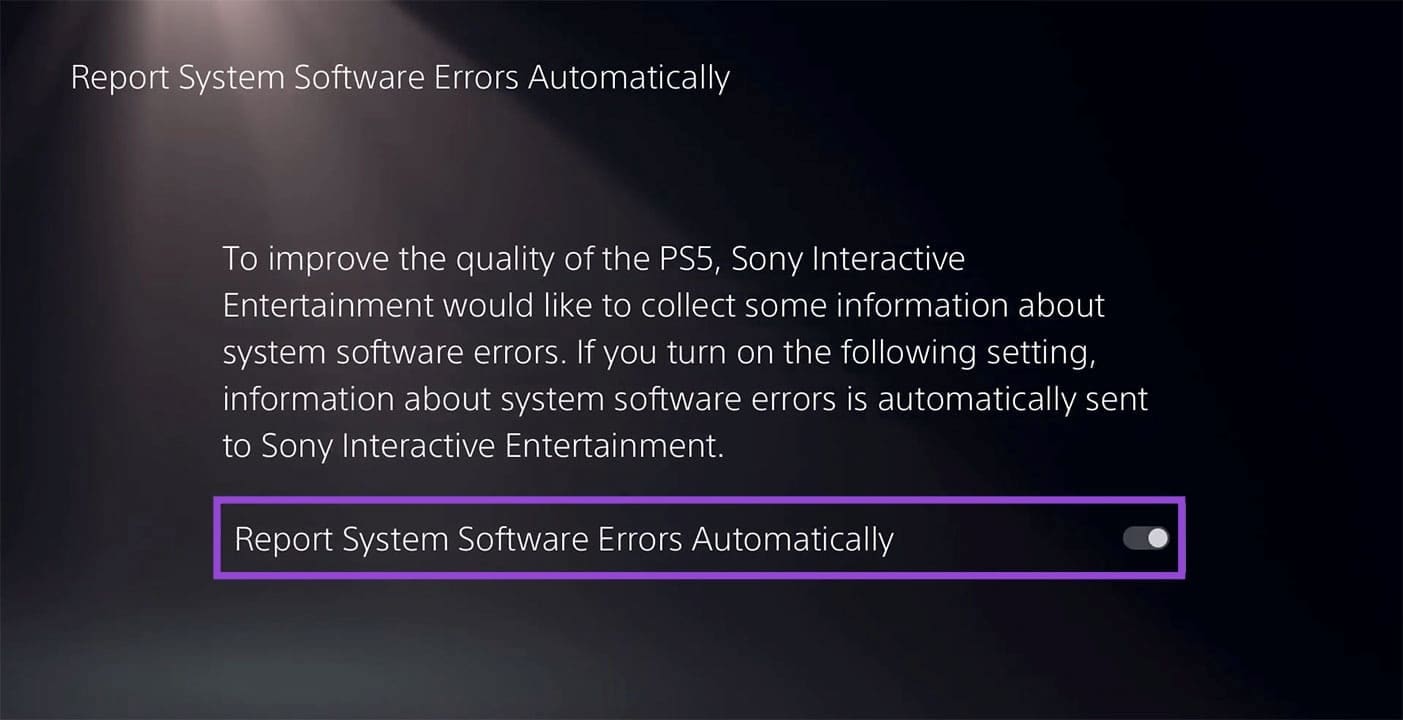
Step 11. Finally, update your PS5 via the internet or USB and reconnect your devices. Try to connect your Bluetooth audio again.
Buy a Dongle
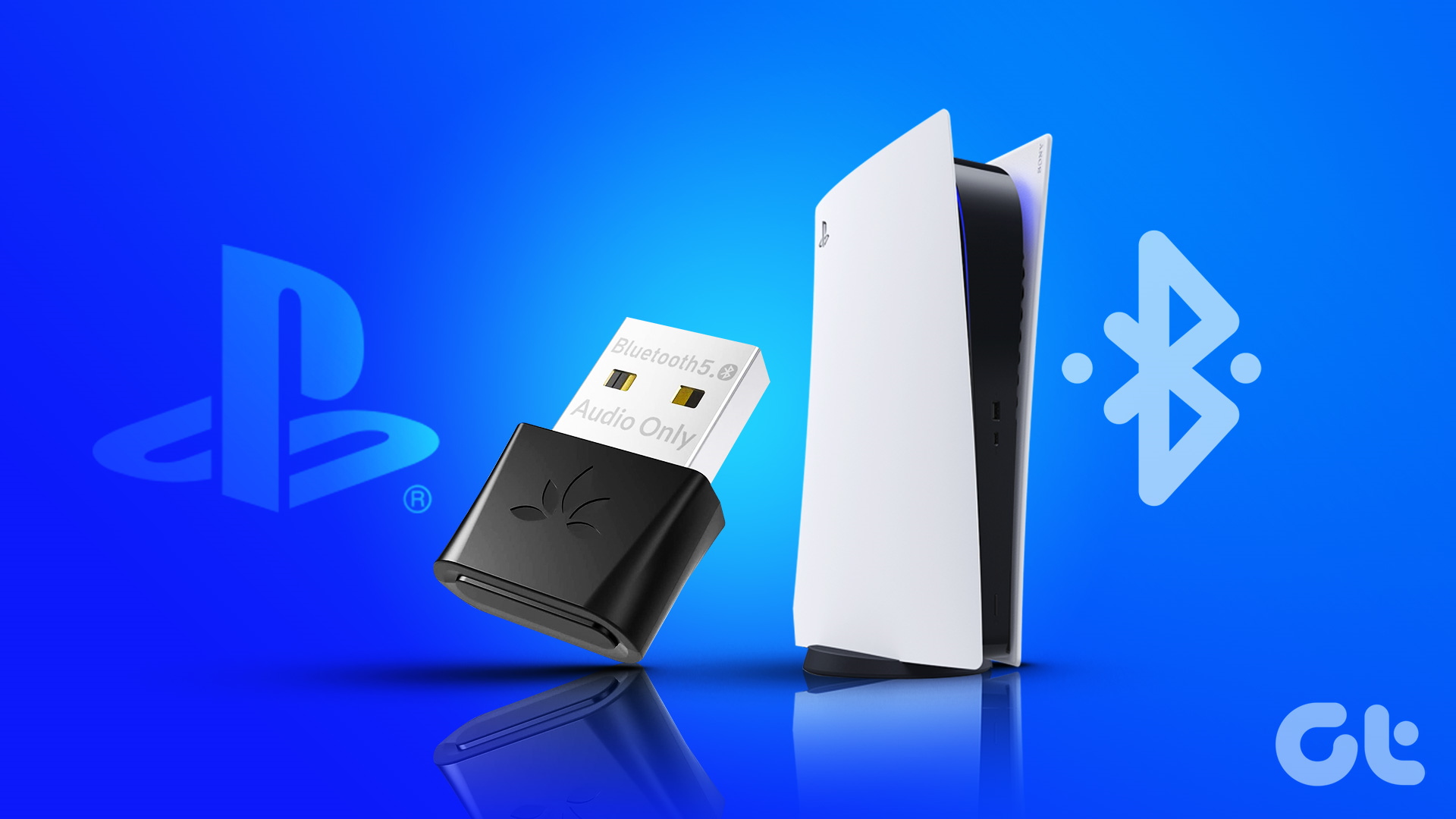
With the amount of money you’ve already sunk into your PS5 and games, it might be disheartening that you have to spend more. However, it may be that the only reliable way currently to ensure that your Bluetooth devices connect to your console reliably is to buy a USB Bluetooth adapter that plugs directly into your PS5.
There are plenty of options (and prices) to choose from, but a reliable dongle will act as an intermediary and, so long as the adapter itself is detected by the PS5, should allow any other Bluetooth device to connect.
Go Wired
It might not be the most cutting-edge solution, but if your Bluetooth audio device also comes with cables (USB or audio jack), then you can connect it to your console. If, for example, your Bluetooth headphones aren’t being detected by your PlayStation, you can always connect them the old-fashioned way via cable and headphone jack, if you have one.
Was this helpful?
Last updated on 13 March, 2026
Read Next
 5 Best Charging Cables for PS5 DualSense Controller That You Can Buy
Unlike the Xbox controllers, the Sony PlayStation 5 DualSense controllers come with a rechargeable battery.
5 Best Charging Cables for PS5 DualSense Controller That You Can Buy
Unlike the Xbox controllers, the Sony PlayStation 5 DualSense controllers come with a rechargeable battery.
 6 Best PS5 Bluetooth Adapters for Audio
The Sony PS5 lacks Bluetooth.
6 Best PS5 Bluetooth Adapters for Audio
The Sony PS5 lacks Bluetooth.
 6 Best UPS for PS5 Under $150
The Sony PlayStation 5 is an excellent gaming console, although it is sensitive to power outages.
6 Best UPS for PS5 Under $150
The Sony PlayStation 5 is an excellent gaming console, although it is sensitive to power outages.
 6 Best PS5 Racing Games To Play with Steering Wheel
One of the best gaming experiences on a console is with racing titles.
6 Best PS5 Racing Games To Play with Steering Wheel
One of the best gaming experiences on a console is with racing titles.
 How to Check DualSense Controller Battery on PS5 or PC
How to Check the DualSense Controller Battery on PS5 Checking the battery level of your DualSense controller on a PS5 is fairly straightforward, as you'd expect.
How to Check DualSense Controller Battery on PS5 or PC
How to Check the DualSense Controller Battery on PS5 Checking the battery level of your DualSense controller on a PS5 is fairly straightforward, as you'd expect.
 4 Fixes for PS5 Not Recognizing External Hard Drive
Try Basic Fixes Make sure the hard drive is compatible: Your PS5 supports nearly all external hard drives ranging from 250GB to 8TB in storage capacity, connected via the SuperSpeed
4 Fixes for PS5 Not Recognizing External Hard Drive
Try Basic Fixes Make sure the hard drive is compatible: Your PS5 supports nearly all external hard drives ranging from 250GB to 8TB in storage capacity, connected via the SuperSpeed
 5 Fixes for “Word Experienced an Error Trying to Open the File” Error in Windows
Fix 1: Unblock Your Word File Microsoft Word may fail to open a document if it has been altered by third-party software.
5 Fixes for “Word Experienced an Error Trying to Open the File” Error in Windows
Fix 1: Unblock Your Word File Microsoft Word may fail to open a document if it has been altered by third-party software.
 How to Fix “Fire TV Stick Connected With Problems” Error
Basic Fixes: Restart the Fire TV Stick and router: Temporary connection problems can cause internet issues on your Fire TV Stick.
How to Fix “Fire TV Stick Connected With Problems” Error
Basic Fixes: Restart the Fire TV Stick and router: Temporary connection problems can cause internet issues on your Fire TV Stick.
The article above may contain affiliate links which help support Guiding Tech. The content remains unbiased and authentic and will never affect our editorial integrity.

