

Try Basic Fixes
- Run Steam as an administrator: If your Steam library folder lacks the necessary write permissions, you may encounter the ‘content file locked’ error. Running Steam as an administrator on Windows could potentially resolve this issue.
- Disable any third-party antivirus program: Third-party antivirus software can sometimes block Steam downloads on Windows. To fix this issue, temporarily disable the antivirus program. If the error is solved, add Steam to the antivirus software’s whitelist to prevent future issues.
- Reinstall Steam: If everything fails, try reinstalling Steam as a last resort.
Fix 1: Reset Winsock on Your PC
Winsock is a program that helps apps like Steam connect to the internet on Windows. If there’s a problem, resetting the Winsock data might fix it.
Step 1: Right-click the Start icon and select Terminal (Admin) from the list.
Step 2: Select Yes when the User Account Control (UAC) prompt appears.
Step 3: Paste the following command in the console and press Enter.
netsh winsock reset

Restart your PC after this to finish resetting the Winsock Catalog, and check if the error still appears.
Fix 2: Clear the Steam Download Cache
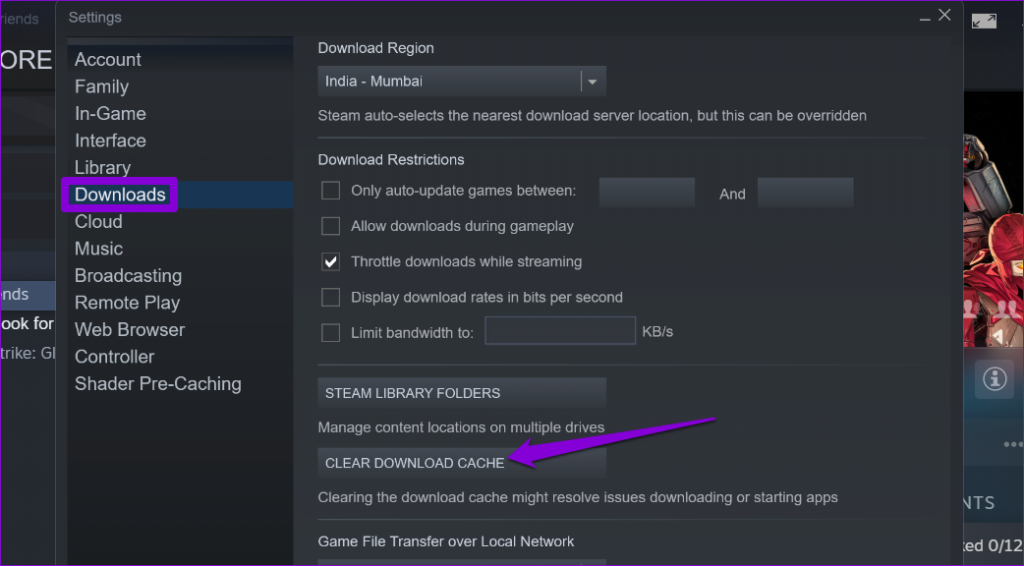
Steam may have trouble installing the update if the existing download cache is inaccessible. To fix this, try clearing the download cache in Steam by following the steps below.
Step 1: Open Steam on your PC.
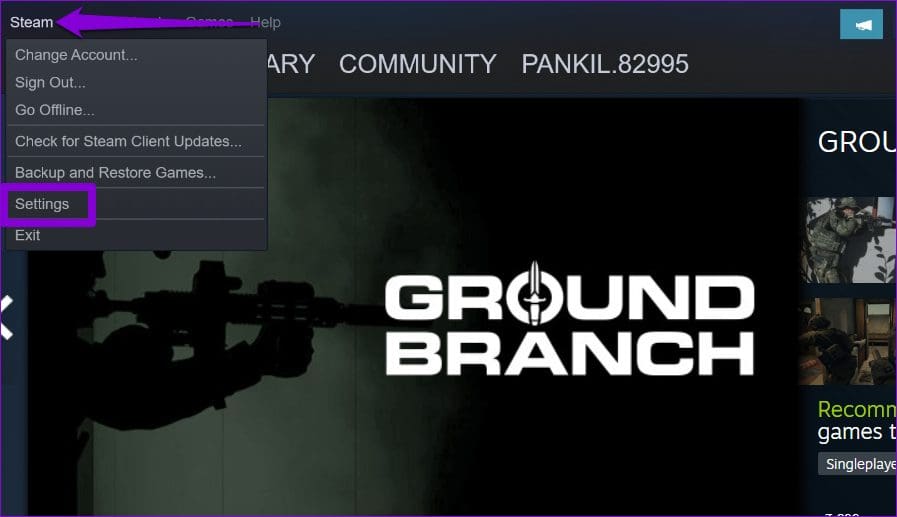
Step 2: Click the Steam menu at the top-left corner and select Settings.
Step 3: Switch to the Downloads tab and click the Clear Download Cache button.
Fix 3: Delete Downloaded Update Files
If clearing the download cache proves ineffective, try emptying Steam’s downloads folder manually. Here are the steps for the same.
Step 1: Press the Windows + E keyboard shortcut to open File Explorer and navigate to the following directory.
C:\Program Files (x86)\Steam\steamapps\downloading
Step 2: Select all the files within this folder and click the trash icon at the top to delete them.

Restart Steam after this and try to update your game one more time.
Was this helpful?
Last updated on 03 June, 2024
Read Next
 6 Ways to Fix the “Missing File Privileges” Error in Steam for Windows
Fix 1: End the igfxEM Module Process The igfxEM process is a component of the Intel Graphic Executable Main Module.
6 Ways to Fix the “Missing File Privileges” Error in Steam for Windows
Fix 1: End the igfxEM Module Process The igfxEM process is a component of the Intel Graphic Executable Main Module.
 4 Ways to Fix WhatsApp Calls Not Ringing When Phone is Locked
Basic Fixes Restart device: Restart your smartphone to fix any temporary bugs and glitches.
4 Ways to Fix WhatsApp Calls Not Ringing When Phone is Locked
Basic Fixes Restart device: Restart your smartphone to fix any temporary bugs and glitches.
 5 Ways to Fix “Word Found Unreadable Content” Error
Fix 1: Repair the Word Document Microsoft Word offers a repair feature for fixing damaged or corrupted documents.
5 Ways to Fix “Word Found Unreadable Content” Error
Fix 1: Repair the Word Document Microsoft Word offers a repair feature for fixing damaged or corrupted documents.
 4 Ways to Fix the Login Error Code E84 in Steam for Windows
Switch to a different network connection: A slow or intermittent internet connection can also cause login errors in Steam.
4 Ways to Fix the Login Error Code E84 in Steam for Windows
Switch to a different network connection: A slow or intermittent internet connection can also cause login errors in Steam.
 Top 5 Ways to Fix ‘Steam Stuck on Verifying Installation’ Error in Windows
Basic Fixes Check Your Internet Connection: As a starting point, it's important to ensure that your internet connection is working.
Top 5 Ways to Fix ‘Steam Stuck on Verifying Installation’ Error in Windows
Basic Fixes Check Your Internet Connection: As a starting point, it's important to ensure that your internet connection is working.
 6 Ways to Fix Not Enough Disk Space Error in Steam on Windows 11
Why Don’t I Have Enough Disk Space While Running Steam?
6 Ways to Fix Not Enough Disk Space Error in Steam on Windows 11
Why Don’t I Have Enough Disk Space While Running Steam?
 4 Ways to Fix Access Denied Error in Steam for Windows
Try Basic Fixes Check if Steam is down: Just like any other service, Steam is vulnerable to occasional server-side glitches.
4 Ways to Fix Access Denied Error in Steam for Windows
Try Basic Fixes Check if Steam is down: Just like any other service, Steam is vulnerable to occasional server-side glitches.
 6 Ways to Fix Failed to Load Web Page Error in Steam for Windows
Fix 1: Terminate Steam Processes and Reopen the App The "Failed to load web page" error in Steam can occur if one of the app processes is experiencing issues.
6 Ways to Fix Failed to Load Web Page Error in Steam for Windows
Fix 1: Terminate Steam Processes and Reopen the App The "Failed to load web page" error in Steam can occur if one of the app processes is experiencing issues.
The article above may contain affiliate links which help support Guiding Tech. The content remains unbiased and authentic and will never affect our editorial integrity.

