


Basic Fixes:
- Check iPhone volume levels: You can use the volume up button on your iPhone to turn up the device volume to max. Ensure the currently playing video is not muted in the player window.
- Disable Bluetooth: Sometimes, your wireless earphones stay connected to the iPhone via Bluetooth. In such cases, your iPhone will play video audio on the connected device. To stop this, turn off Bluetooth on your iPhone.
- Download the video again: Did you download a corrupt video from the web on your iPhone? You may face sound issues with such videos. Connect to a robust Wi-Fi network and try downloading the video again.
- Reopen the video app: Your camera or other third-party apps may use your iPhone’s speaker or microphone in the background. You must close such apps and only reopen the video player app. Then, try playing the video again.
- Check for iOS updates: An outdated iOS build on your iPhone can be the major factor behind audio issues. So, check and install the latest iOS updates on your iPhone and play the video again to check.
Fix 1: Check Speakers and Microphone
You’ll need to check the speakers and microphone on your iPhone closely. After several years of use, the speakers and microphone holes may fill with dust and debris. So, clean your iPhone speakers and try again. You can also clean the microphone to avoid audio issues on your iPhone.
Also Read: How to fix iPhone sound not working
Fix 2: Don’t Cover the Microphone
Are you using a cheap third-party case to protect your iPhone? Some cases cover the device microphone at the bottom, and your recorded videos may have muffled audio. Remove such iPhone covers or cases and try playing the video again to check.
Fix 3: Use Third-Party Video Player Apps
If the sound isn’t working in iPhone videos, ditch the default video player and get a third-party one from the App Store. VLC is a popular third-party video player app that supports all file formats. So, download the VLC Media Player app on your iPhone and follow the below steps.
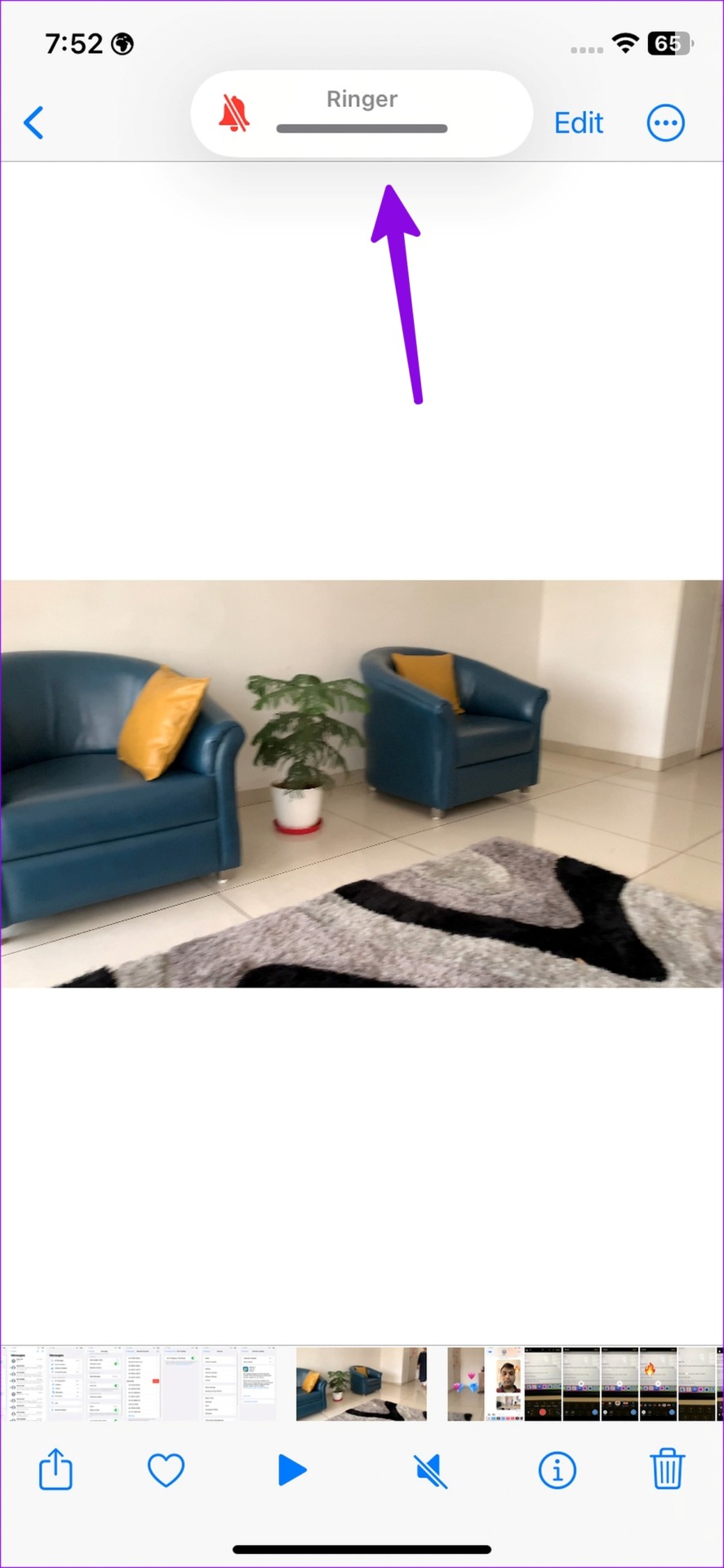
Step 1: Open the Photos app and select the video. Hit the share button.
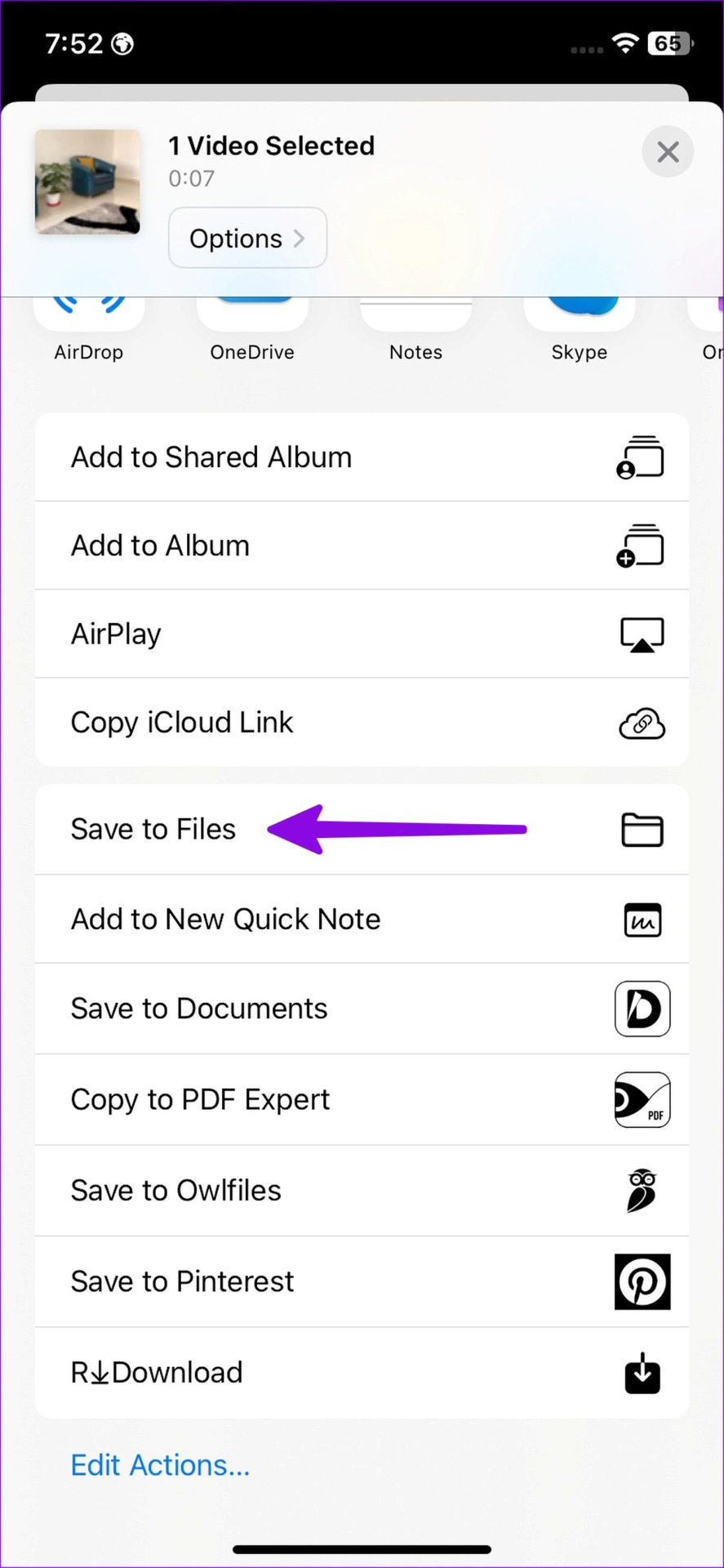
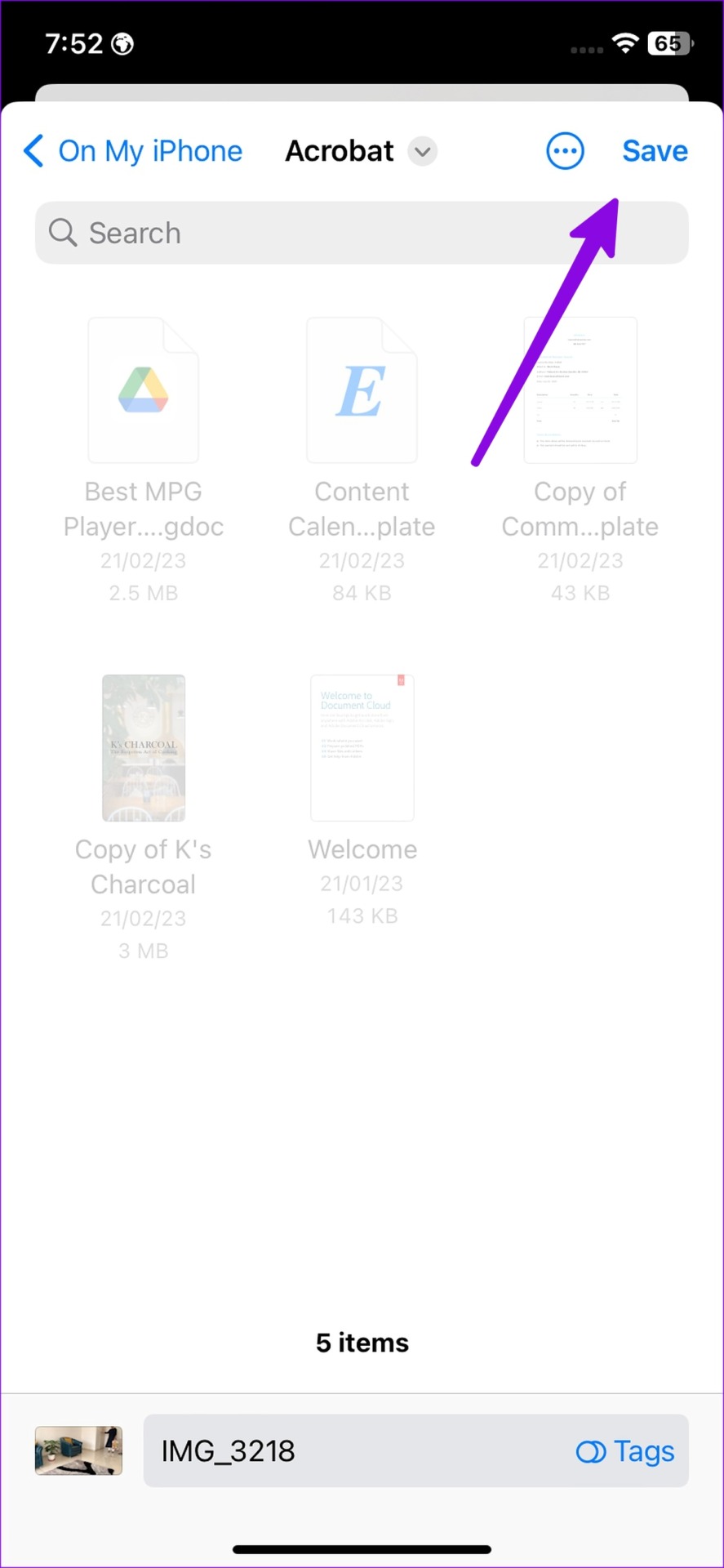
Step 2: Select Save to Files and tap on Save to save it to the relevant location.
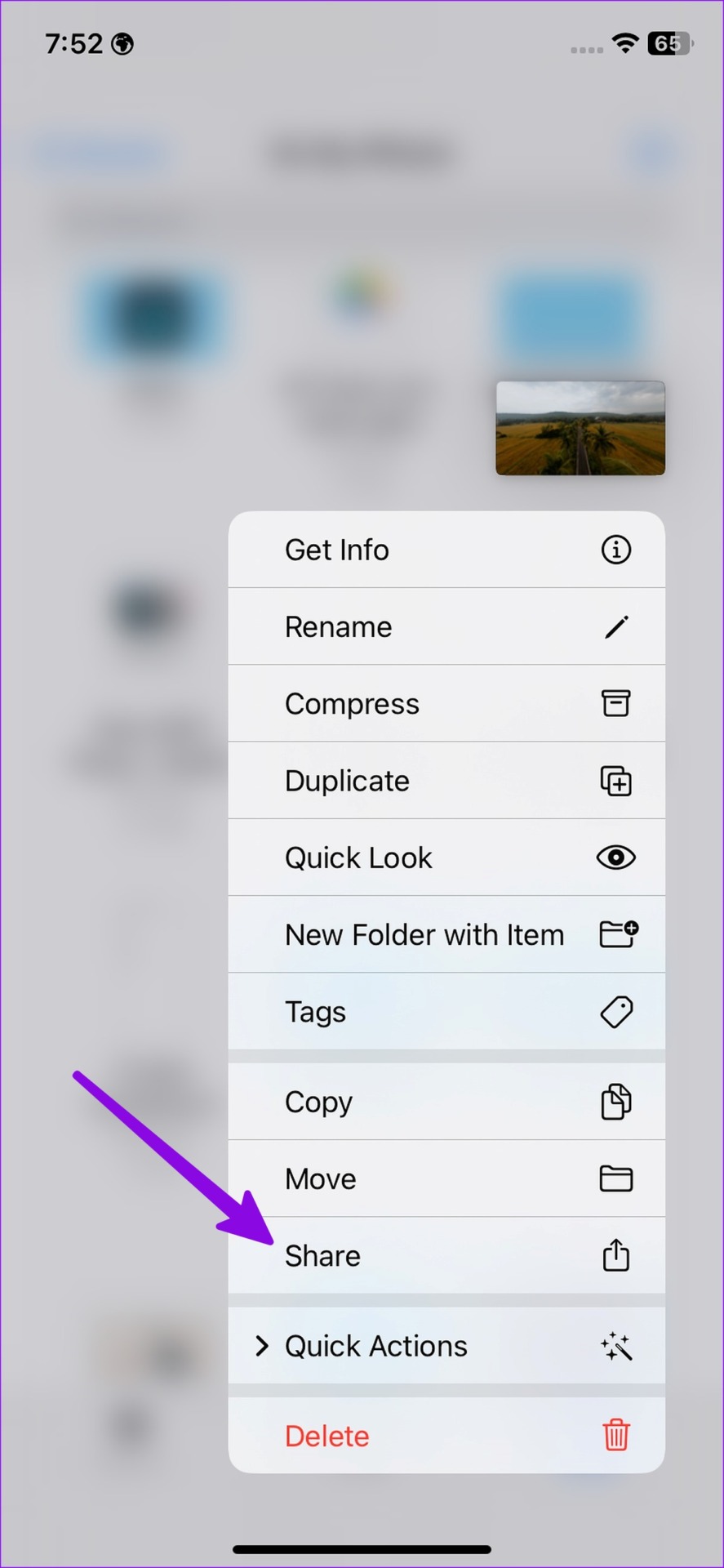
Step 3: Open the Files app and long-press on the video. Select Share.
Step 4: Select VLC from the share sheet and wait for the playback to start.

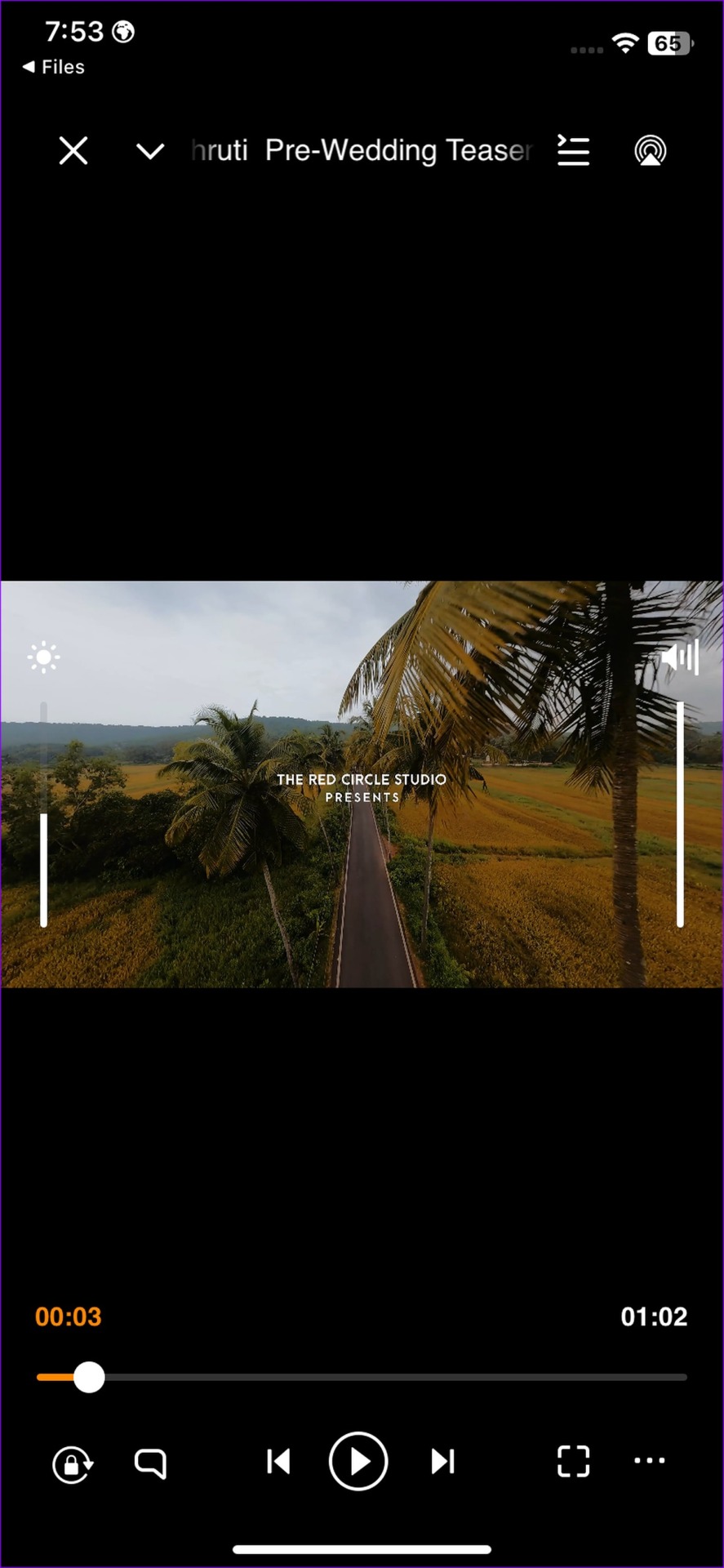
If the video plays without audio issues, recheck the above steps and ensure all the relevant sound settings are enabled on your iPhone.
Was this helpful?
Last updated on 28 June, 2024
1 Comment
Leave a Reply
Read Next
 Top 9 Ways to Fix Facebook Video or Story Sound Not Working
Although Facebook isn’t as popular as before, it still plays a major role for millions to stay in touch with friends and family.
Top 9 Ways to Fix Facebook Video or Story Sound Not Working
Although Facebook isn’t as popular as before, it still plays a major role for millions to stay in touch with friends and family.
 4 Ways to Fix Video Sound Not Working on Windows 11
Basic Fixes: Ensure the video is not muted and has sound: Click the speaker icon in the player window or the taskbar and increase the volume using the slider.
4 Ways to Fix Video Sound Not Working on Windows 11
Basic Fixes: Ensure the video is not muted and has sound: Click the speaker icon in the player window or the taskbar and increase the volume using the slider.
 12 Efficient Ways to Fix iPhone Sound Not Working
Sound is an important aspect of your iPhone that alerts you of incoming calls and notifications, lets you groove to your favorite music, and do a lot more.
12 Efficient Ways to Fix iPhone Sound Not Working
Sound is an important aspect of your iPhone that alerts you of incoming calls and notifications, lets you groove to your favorite music, and do a lot more.
 How to Convert Slow Motion Video to Normal Video on iPhone
Recording a video in slow motion can add an artistic flair to your content and make it visually appealing.
How to Convert Slow Motion Video to Normal Video on iPhone
Recording a video in slow motion can add an artistic flair to your content and make it visually appealing.
 How to Fix WhatsApp Notification Sound Not Working
Basic Fixes Ensure silent mode is turned off - The first thing you should do is to check and turn off Vibrate/Silent mode on your iPhone or Android.
How to Fix WhatsApp Notification Sound Not Working
Basic Fixes Ensure silent mode is turned off - The first thing you should do is to check and turn off Vibrate/Silent mode on your iPhone or Android.
 3 Fixes for No Sound in Facebook Messenger Video Calls
Basic Fixes Check volume levels: Check whether you have optimum volume levels on your iPhone or Android phone.
3 Fixes for No Sound in Facebook Messenger Video Calls
Basic Fixes Check volume levels: Check whether you have optimum volume levels on your iPhone or Android phone.
 5 Fixes for No Sound in WhatsApp Video Calls on iPhone and Android
Basic Fixes Force quit and relaunch WhatsApp: This will reload the app and give it a fresh start on your iPhone or Android phone.
5 Fixes for No Sound in WhatsApp Video Calls on iPhone and Android
Basic Fixes Force quit and relaunch WhatsApp: This will reload the app and give it a fresh start on your iPhone or Android phone.
 5 Ways to Fix Video Unavailable in Amazon Prime Video
Basic Fixes Check network connection: Playing Prime without any problems requires an optimum internet speed.
5 Ways to Fix Video Unavailable in Amazon Prime Video
Basic Fixes Check network connection: Playing Prime without any problems requires an optimum internet speed.
The article above may contain affiliate links which help support Guiding Tech. The content remains unbiased and authentic and will never affect our editorial integrity.

I’m not having any of the issues mentioned in your article. I want to add a couple songs from my iPhone music app. The problem is, when I go to add music not all of my music shows up while in the photo slide show. If I’m not in the photo app, all my music is there. How can I get the music I want?