Basic Troubleshooting
- Unmute/raise the volume: When your phone is silent, Instagram mutes the video on the home feed and the Reels tab. To unmute the video, raise the volume.
- Check the video for sound: Try playing some other video to see whether the problem is with the video (no sound) or your device/app.
- Disable Bluetooth or disconnect wired headphones: The sound may be relayed over the connected device. Disable/disconnect external devices to get back the audio.
- Close music/camera apps in the background: If your phone speakers are already in use in other apps like Camera, Spotify, YouTube, or Netflix, you may face issues playing audio in Instagram videos or Reels. Close these apps and try again.
- Update or reinstall Instagram: Instagram regularly releases new updates to fix bugs and add features. Update Instagram to the latest version from the Google Play Store or App Store to enjoy a bug-free experience.
Fix 1. Clear Instagram Cache (Android)
Instagram collects cache in the background to remember your search queries, load content quickly, and improve the app experience. When the app collects a corrupt cache, you may encounter issues like story sound not working, messages not working, feed not refreshing, and more.
You should clear Instagram cache and try again.
Step 1: Long-press on the Instagram app icon > open the i icon.
Step 2: Select Storage and cache.
Step 3: Here, check how much cache the app has collected. Hit Clear cache to start again.


Open the Instagram app and start playing videos and Reels with sound.
Fix 2. Log Out And Login to Instagram
This simple hack will reset the bug leading to sounds not working on Instagram Stories and Reels.
Step 1: Open the Instagram app > tap your profile icon at the bottom.
Step 2: Tap the hamburger menu at the top-right corner.
Step 3: Scroll down and hit log out.

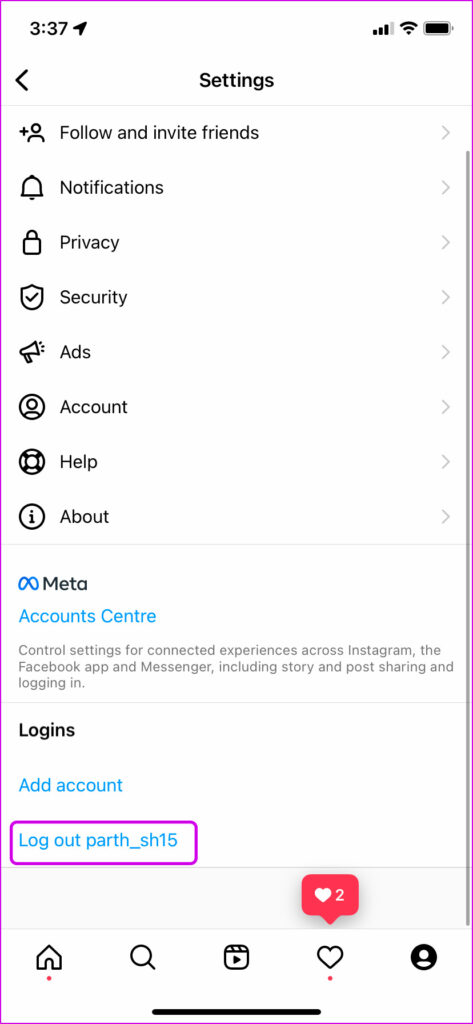
Step 4: Once done, quit the app and restart the phone (if convenient). Next, sign in with your updated Instagram account details.
Fix 3. Report the Problem to Instagram
Do you still encounter audio glitches in Instagram stories and reels? If so, you can report the problem to the social network.
Step 1: Open Instagram > go to the problematic video, reel, or story. Shake your phone.
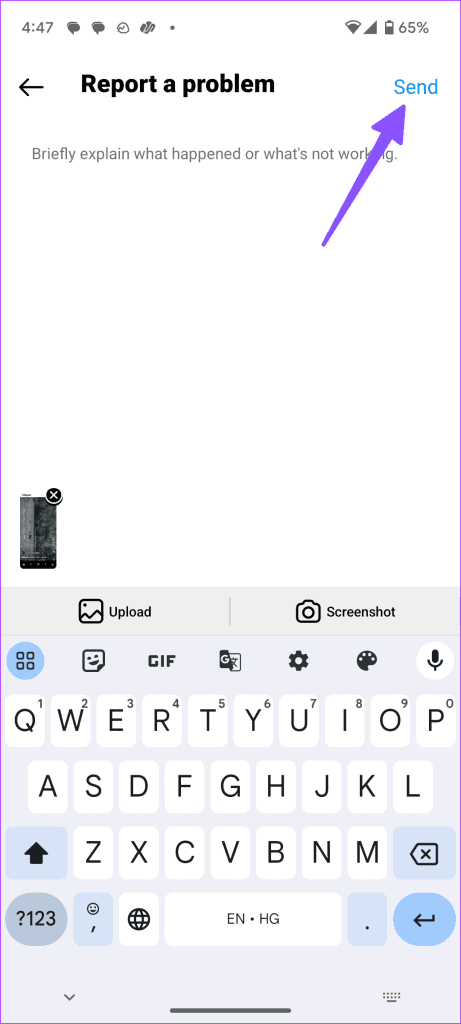
Step 2: Tap Report a problem.
Step 3: Include logs and relevant information. Instagram attaches the current screenshot. Briefly explain what happened or what’s not working and hit Send.

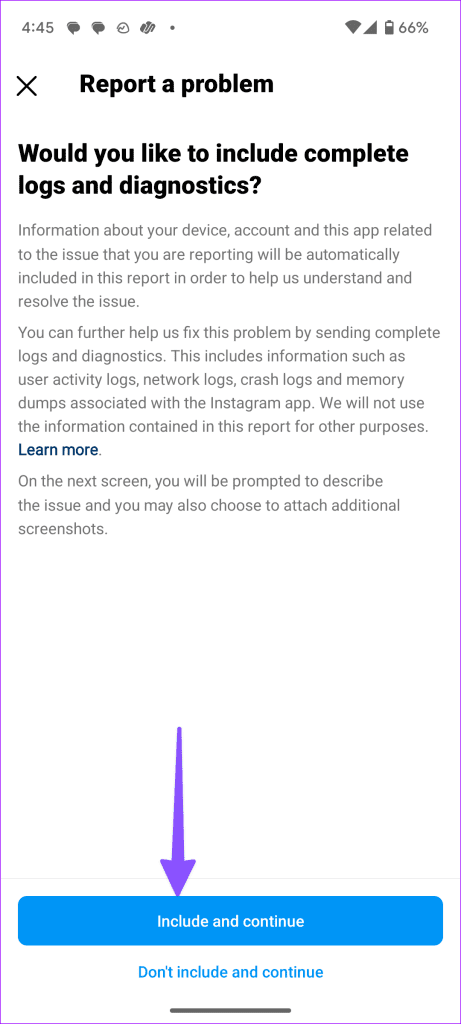
Instagram usually responds with a solution within a few days. So, sit tight and wait for the developers to resolve the issue.
Was this helpful?
Last updated on 31 July, 2024
Read Next
 4 Ways to Fix if You Can’t Pause Instagram Videos or Reels
Fix 1: Tap to Open Videos From Feed The videos on the feed or timeline cannot be paused like reels.
4 Ways to Fix if You Can’t Pause Instagram Videos or Reels
Fix 1: Tap to Open Videos From Feed The videos on the feed or timeline cannot be paused like reels.
 How to Download Instagram Reels on iPhone and Android: 5 Best Ways
Instagram Reels allows you to create and share 15-second videos.
How to Download Instagram Reels on iPhone and Android: 5 Best Ways
Instagram Reels allows you to create and share 15-second videos.
 How to Fix Reels Not Showing on Instagram
Basic Fixes Check your Internet connection: You need a stable internet connection to view Instagram reels.
How to Fix Reels Not Showing on Instagram
Basic Fixes Check your Internet connection: You need a stable internet connection to view Instagram reels.
 Why Are My Instagram Reels Blurry and How to Fix It
Why Do My Instagram Reels Look Blurry?
Why Are My Instagram Reels Blurry and How to Fix It
Why Do My Instagram Reels Look Blurry?
 How to Fix Instagram Showing the Same Reels
Basic Fixes Check your network connection: Ensure your device has a good internet connection.
How to Fix Instagram Showing the Same Reels
Basic Fixes Check your network connection: Ensure your device has a good internet connection.
 How to Find Instagram Reels That You Saved or Liked
How to Find Saved Instagram Reels On iPhone and Android Step 1: Tap on your Profile tab at the bottom and select the three-bar menu icon at the top right.
How to Find Instagram Reels That You Saved or Liked
How to Find Saved Instagram Reels On iPhone and Android Step 1: Tap on your Profile tab at the bottom and select the three-bar menu icon at the top right.
 How to Recover Deleted Instagram Posts, Stories, Reels, and IGTV Videos
To save people from losing their Instagram data when their account gets hacked, Instagram launched the Recently Deleted feature.
How to Recover Deleted Instagram Posts, Stories, Reels, and IGTV Videos
To save people from losing their Instagram data when their account gets hacked, Instagram launched the Recently Deleted feature.
 How to Edit Reels Using Instagram’s Built-In Editor
Edit Reels Using the Built-In Editor Step 1: Open the Instagram app and tap on the Create button at the bottom.
How to Edit Reels Using Instagram’s Built-In Editor
Edit Reels Using the Built-In Editor Step 1: Open the Instagram app and tap on the Create button at the bottom.
The article above may contain affiliate links which help support Guiding Tech. The content remains unbiased and authentic and will never affect our editorial integrity.