To fix Outlook error 0x800ccc0e, you’ll usually need to prompt Outlook to re-check the connection to the server and authenticate your user accounts. This can typically be done by changing settings directly or modifying how Outlook connects to the server.
Fix Outlook Error 0x800ccc0e With SMTP Settings
In most cases, the Outlook 0x800ccc0e error appears due to another email provider not being able to be authenticated via the app for email forwarding. This can usually be solved with explicit SMTP settings.
Step 1. Open Outlook and go to File, then to “Account Settings.”
Step 2. On the Email tab, select your account and click “Manage,” “Change,” or “Repair.” If you used the “Repair” option, go to “Let me repair my account manually.”
Step 3. Verify that the incoming and outgoing server addresses match what your provider specifies.
Step 4. Open “More Settings” and go to the Advanced tab.
Step 5. For IMAP accounts, set the incoming port to 993 and the outgoing SMTP port to 587. For POP accounts, the incoming port should be 995.
Step 6. Confirm that the encryption type (SSL/TLS) matches your provider’s requirements.
Step 7. Expand the “Outgoing mail” section and enable “My outgoing (SMTP) server requires authentication.”
Step 8. Click “OK,” “Next,” and “Finish” to close the Settings.
Fix Outlook Error 0x800ccc0e Manually With Windows Credential Settings
If Outlook won’t sync with Gmail or Yahoo, Windows authentication services might be to blame. You may need to bypass the app and force it to re-authenticate manually.
Step 1. Close Outlook and open the Windows search bar.
Step 2. Search for “Credential manager” and open the first result.
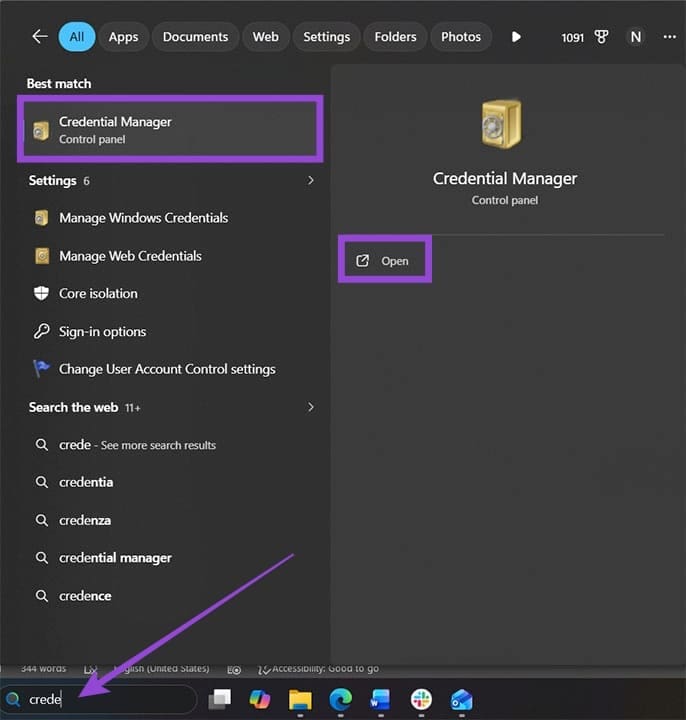
Step 3. Select the “Windows Credentials” tab, then go to “Generic Credentials.”
Step 4. Find an account that starts with “MicrosoftOffice16_Data:OAUTH2” on the list (if you can’t, you likely won’t be able to complete this fix).
Step 5. Remove any keys that start with the aforementioned string (which will include Gmail and Yahoo accounts linked to Outlook).
Step 6. Restart your Outlook (or the PC entirely).
Step 7. When opening Outlook again, you should be prompted to re-enter the password for your account.
Fix Outlook Error 0x800ccc0e in Registry
Registry changes can also force Windows to request authentication by preventing it from saving credentials.
Step 1. Open the Run utility with “Win + R.”
Step 2. Enter “regedit” and open the app.
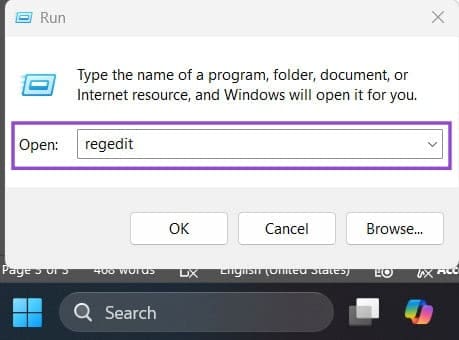
Step 3. Replace the address in the navigation bar with the following:
Computer\HKEY_CURRENT_USER\Software\Microsoft\Office\16.0\Common\Identity\Identities
You’ll need to drag over the current selection entirely.

Step 4. Go through the “Identity” folder and select each subfolder and file. Look for the field “EmailAddress” that lists the email address that’s not syncing.
Step 5. Delete all keys that have that email address, then close the Registry Editor and restart Outlook.
Was this helpful?
Last updated on 30 March, 2026
Read Next
 5 Ways to Fix Outlook IMAP Error 0x800CCC0E on Windows 11
Try Basic Fixes Clear emails from the Outbox folder: Outlook may throw the 0x800CCC0E error if some of your messages are stuck in the outbox.
5 Ways to Fix Outlook IMAP Error 0x800CCC0E on Windows 11
Try Basic Fixes Clear emails from the Outbox folder: Outlook may throw the 0x800CCC0E error if some of your messages are stuck in the outbox.
 How to Fix “Your Organization’s Policies Are Preventing” error in Outlook
Basic Fixes Notably, if you come across the ‘Your Organization's Policies Are Preventing’ error in Outlook, it would be mostly due to a restriction from your administrator.
How to Fix “Your Organization’s Policies Are Preventing” error in Outlook
Basic Fixes Notably, if you come across the ‘Your Organization's Policies Are Preventing’ error in Outlook, it would be mostly due to a restriction from your administrator.
 4 Ways to Fix Outlook Error 500 ‘Something Went Wrong’
Preliminary Fixes Troubleshoot your internet connection: Ensure you have a stable and reliable internet connection.
4 Ways to Fix Outlook Error 500 ‘Something Went Wrong’
Preliminary Fixes Troubleshoot your internet connection: Ensure you have a stable and reliable internet connection.
 Top 4 Ways to Change New Outlook Back to Old (Classic View) Outlook on Windows and Mac
The new Outlook app for desktop boasts a modern and simplified design, aligning it more closely with the web version of Microsoft Outlook.
Top 4 Ways to Change New Outlook Back to Old (Classic View) Outlook on Windows and Mac
The new Outlook app for desktop boasts a modern and simplified design, aligning it more closely with the web version of Microsoft Outlook.
 Top 6 Ways to Fix Cannot Expand Folder Error in Outlook
Microsoft Outlook users have been facing a particular error for the past decade.
Top 6 Ways to Fix Cannot Expand Folder Error in Outlook
Microsoft Outlook users have been facing a particular error for the past decade.
 6 Ways to Fix Microsoft Outlook Failed to Delete a Message Error
Fix 1.
6 Ways to Fix Microsoft Outlook Failed to Delete a Message Error
Fix 1.
 6 Ways to Fix “The Set of Folders Cannot Be Opened” Error in Outlook for Windows
Fix 1: Reset the Navigation Pane Sometimes, Outlook may fail to load the navigation pane entirely and throw an error message that reads, "Cannot start Microsoft Outlook.
6 Ways to Fix “The Set of Folders Cannot Be Opened” Error in Outlook for Windows
Fix 1: Reset the Navigation Pane Sometimes, Outlook may fail to load the navigation pane entirely and throw an error message that reads, "Cannot start Microsoft Outlook.
 5 Ways to Fix “Outlook Data File Cannot Be Accessed” Error on Windows
Fix 1: Change the Default Mail Delivery Location One of the most straightforward ways to fix the "Outlook data file cannot be accessed" error is to configure Microsoft Outlook to
5 Ways to Fix “Outlook Data File Cannot Be Accessed” Error on Windows
Fix 1: Change the Default Mail Delivery Location One of the most straightforward ways to fix the "Outlook data file cannot be accessed" error is to configure Microsoft Outlook to
The article above may contain affiliate links which help support Guiding Tech. The content remains unbiased and authentic and will never affect our editorial integrity.