


Fix 1: Disable Metered Connection
Windows has a metered connection feature that reduces data consumption and helps save on internet bills. This feature is helpful to everyone on a limited internet data usage plan. But like most Windows features, it also has its downside.
Step 1: Firstly, press the Windows + I keys shortcut to open the Settings app.
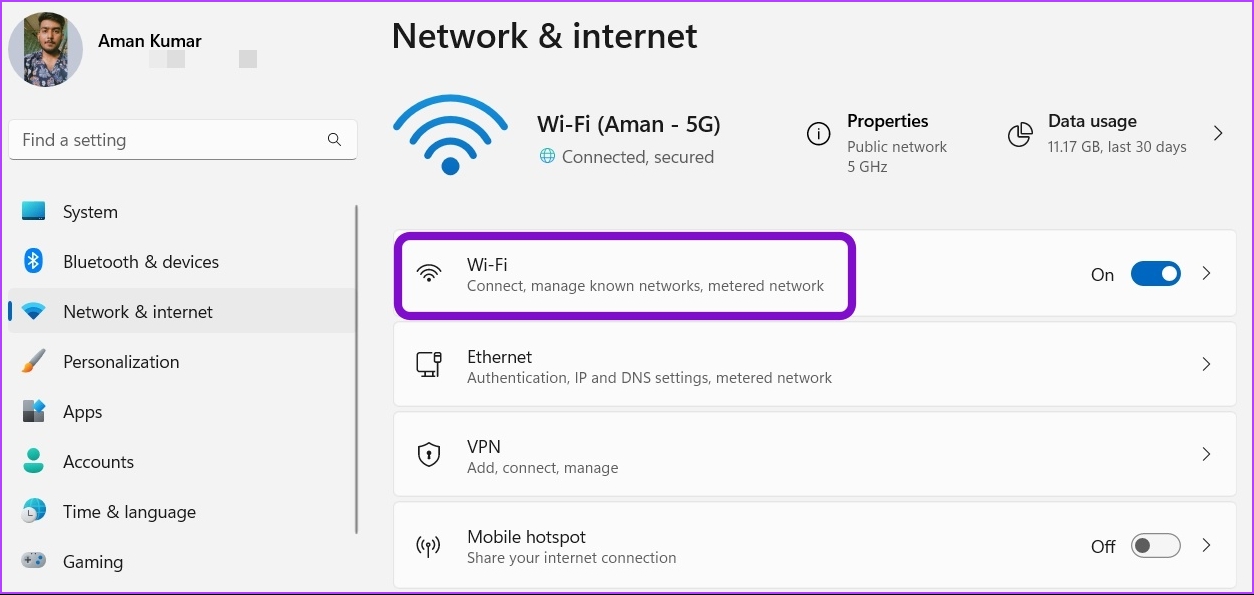
Step 2: Click the Network & internet option from the left sidebar.
Step 3: Click on Wi-Fi on the right pane and select the Wi-Fi connection you use.
Step 4: Finally, scroll down and turn off the toggle next to the Metered connection option.
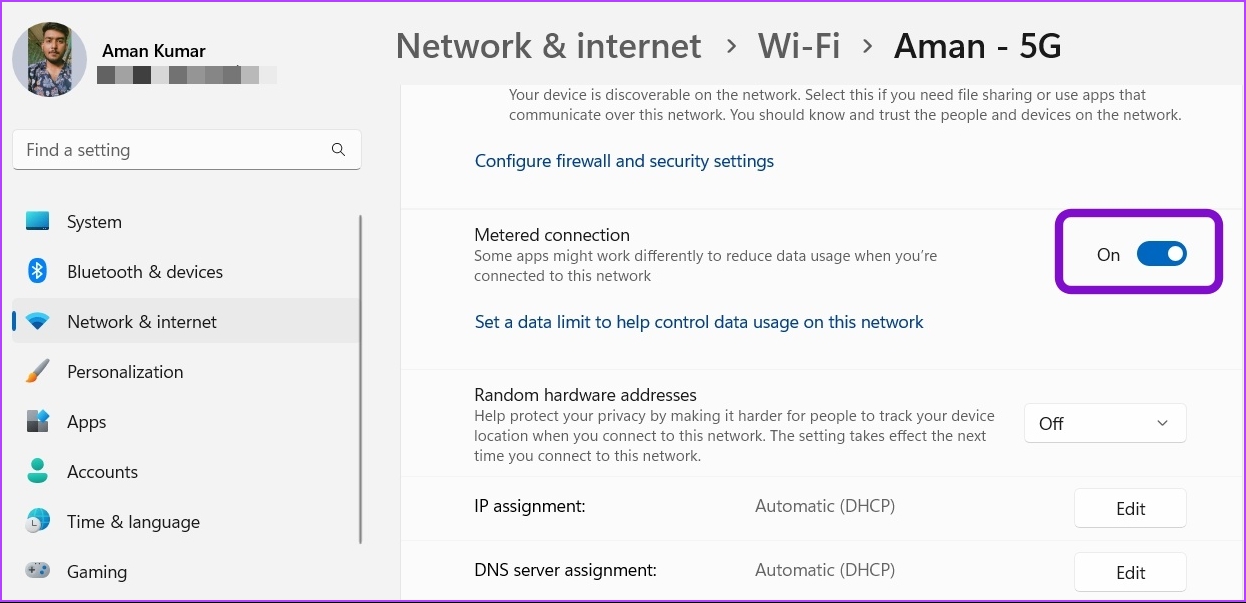
That’s it. Now, go back and check if the optional features install failed error is resolved. If not, check out the next fix.
Fix 2: Run the SFC and DISM Scan
Step 1: Press Windows + S to open the Search menu. Then, type Windows PowerShell and choose Run as administrator.
Step 2: Click Yes on the User Account Prompt pop-up.
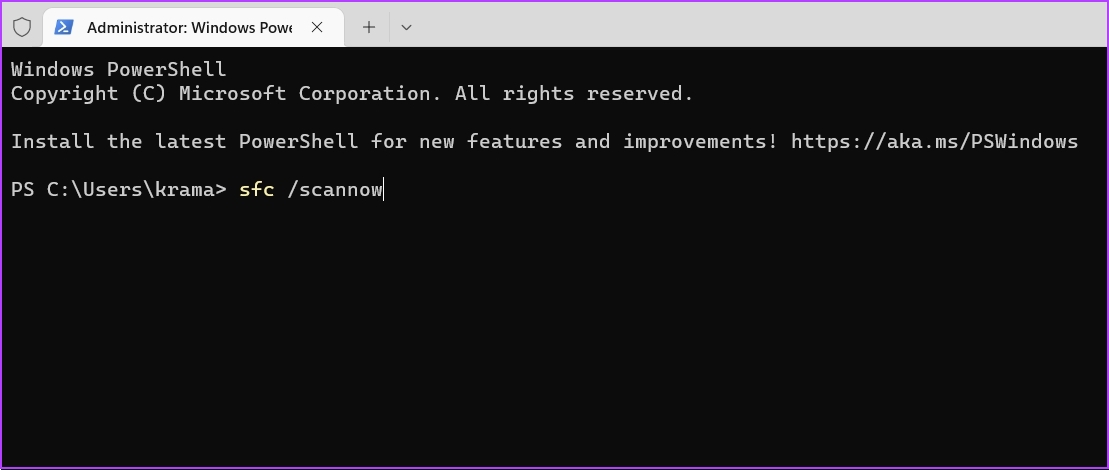
Step 3: Type the following command in the console and press Enter.
sfc /scannow
The scanning process may take some time. After it is complete, a message will appear indicating whether the scan found any problems and whether it could be repaired.
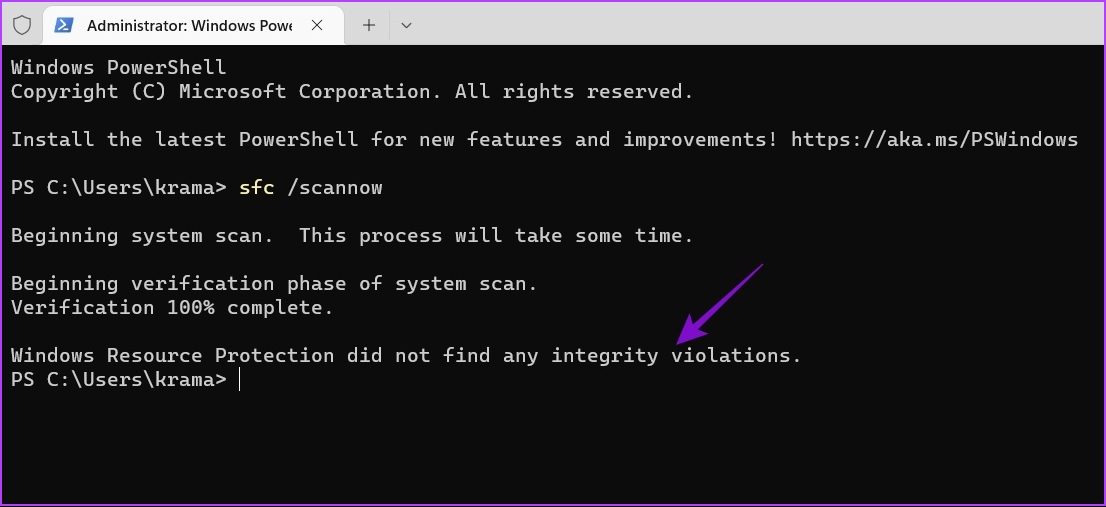
If running the SFC scan wasn’t helpful, consider running the Deployment Image Servicing and Management (DISM) scan. To run the DISM scan, open the Windows PowerShell with administrative rights again, run the following commands one by one, and press Enter after each command:
DISM /Online /Cleanup-Image /CheckHealth
DISM /Online /Cleanup-Image /ScanHealth
DISM /Online /Cleanup-Image /RestoreHealth
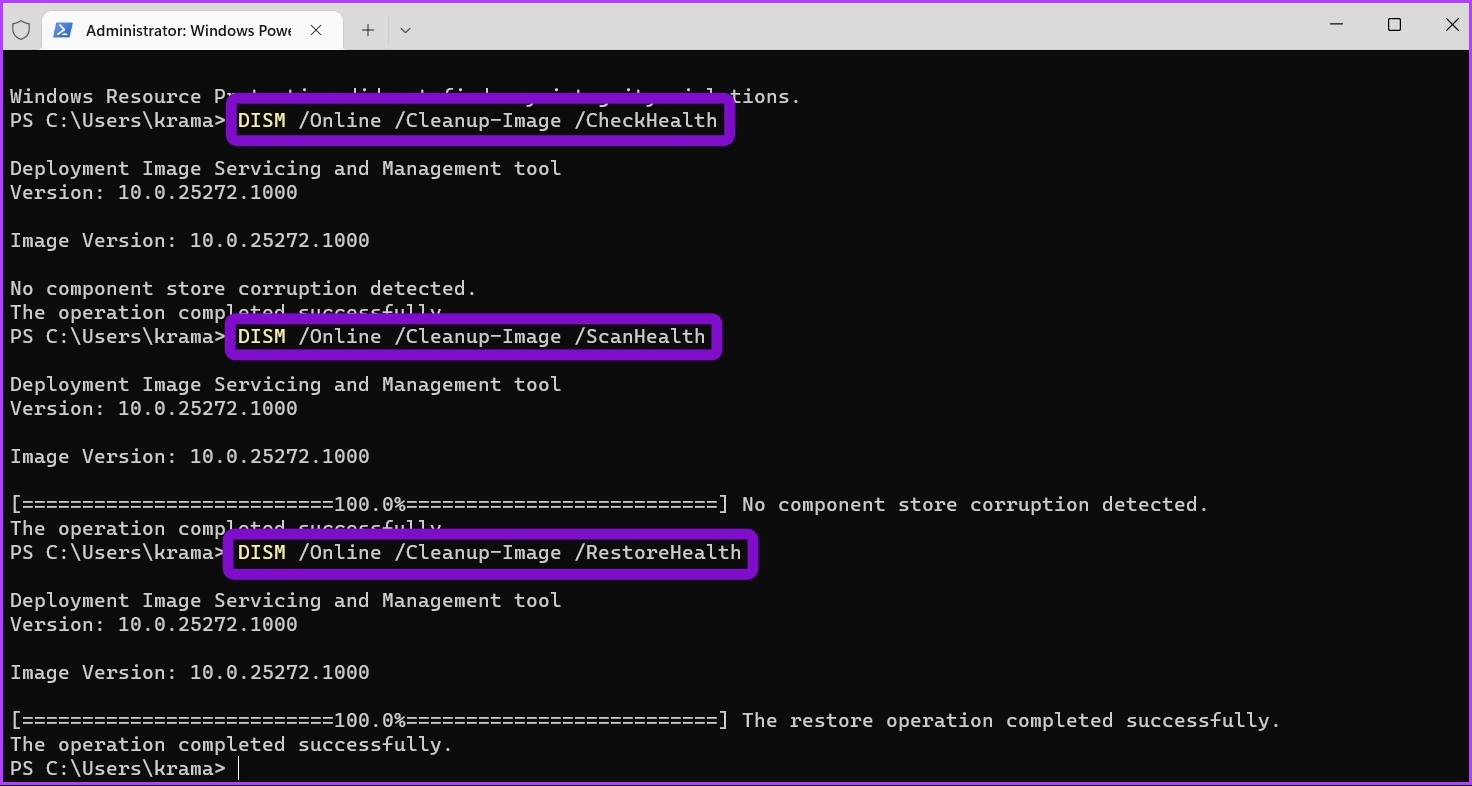
Finally, restart your computer and try to download the optional features again. If this method didn’t help, maybe the next fix will, continue reading.
Fix 3: Use the Windows Update Troubleshooter
Step 1: Open the Settings app and choose System from the left sidebar.
Step 2: Select the Troubleshoot option in the right pane.
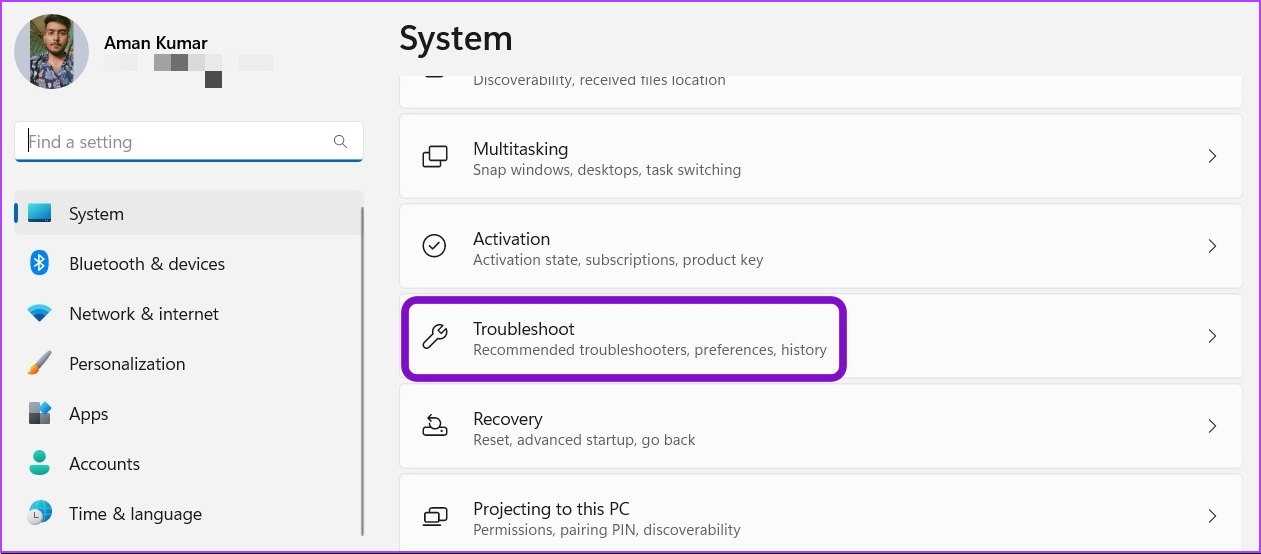
Step 3: Choose Other troubleshooters.
Step 4: Click the Run button next to Windows Update.

The Windows Update troubleshooter will appear and start looking for issues. If it finds any, it will automatically fix them without much user input. If this method didn’t help, move on to the next one.
Also Read: How to enable or disable Smart App Control in Windows 11
Fix 4: Temporarily Disable the Security Program
If you’re using Windows Security as the default security app, here are the steps to disable it.
Step 1: Firstly, press Windows + S to open the search menu. Then, type Windows Security and press Enter.
Step 3: Choose Virus & threat protection from the left sidebar.

Step 4: Choose Manage settings.

Step 5: Turn off the toggle under Real-time protection.

Step 6: Finally, click Yes on the User Account Control window that pops up.
That will disable Windows Security until you restart your computer and activate it again. Try to install the optional features again and check if the problem persists. This should fix the optional features couldn’t install error; if it doesn’t, check out the next fix.
Tip: To disable a third-party security application on your computer, right-click on its icon in the system tray area and choose the Disable option.
Fix 5: Restart the Windows Module Installer Service
Step 1: Firstly, in the Windows Search menu, type Services and press Enter.
Step 2: Scroll down to the Windows Update service and double-click on it.
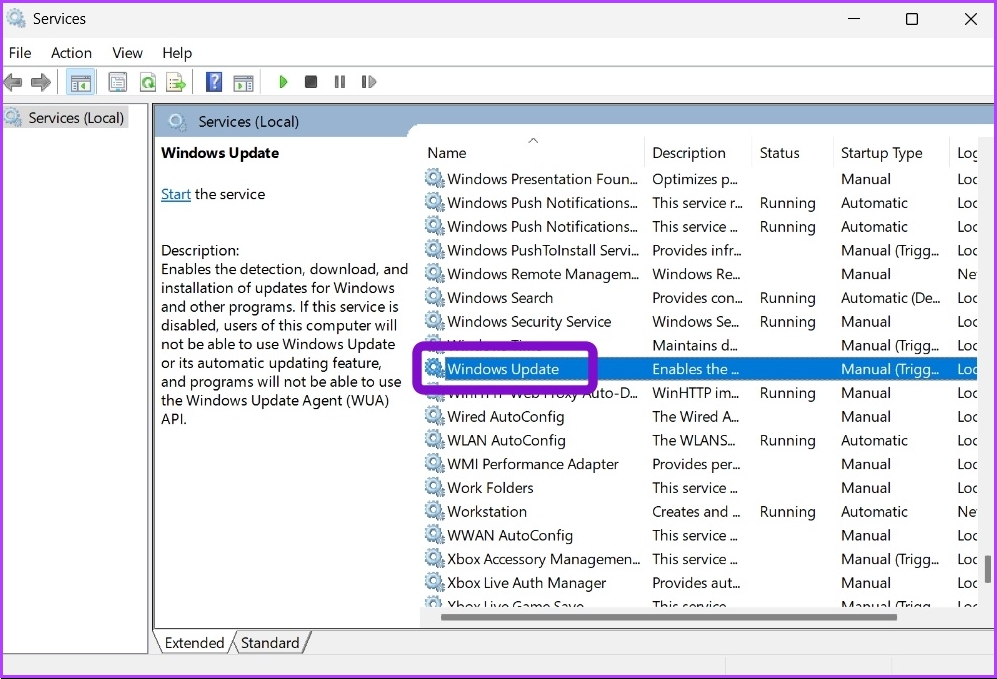
Step 3: Use the drop-down next to Startup type and select Automatic. Then, click the Start button under Service status.

Step 4: Click Apply and OK to save the changes.
Next, repeat the above steps for Background Intelligent Transfer Service and Windows Modules Installer Service to set their Startup type to Automatic. Check our post if Services is not opening on Windows 11.
Are you still facing the issue? There’s probably corruption in the Windows update components causing a problem.
Fix 6: Reset the Windows Update Components
You can reset the Windows update components, which will stop the Windows update services and flush the content of the SoftwareDistribution and catroot2 folders. After that, restart the Windows update services.
Note: After you reset Windows Update components, the service will download fresh and complete new copies of the files to install them on your Windows computer.
Step 1: Firstly, open the Search menu, type Windows PowerShell, and select Run as administrator.
Step 2: In the PowerShell window with administrative privileges, run the following commands one by one and press Enter after each command
net stop wuauserv
net stop cryptSvc
net stop bits
net stop msiserver
ren C:\Windows\SoftwareDistribution SoftwareDistribution.old
ren C:\Windows\System32\catroot2 catroot2.old
net start wuauserv
net start cryptSvc
net start bits
net start msiserver

After that, you may want to run Windows Updates from the Settings app. This should resolve the optional features couldn’t install error. If it didn’t, move on to the next fix.
Fix 7: Disable Hide Windows Features
Step 1: Firstly, press Windows keys on your keyboard. Then, type gpedit.msc, and click Open.
Note: Press the Windows + R keys to open the Run dialog box, type gpedit.msc, and click OK.
Step 2: In the left pane, select User Configuration under Local Computer Policy.
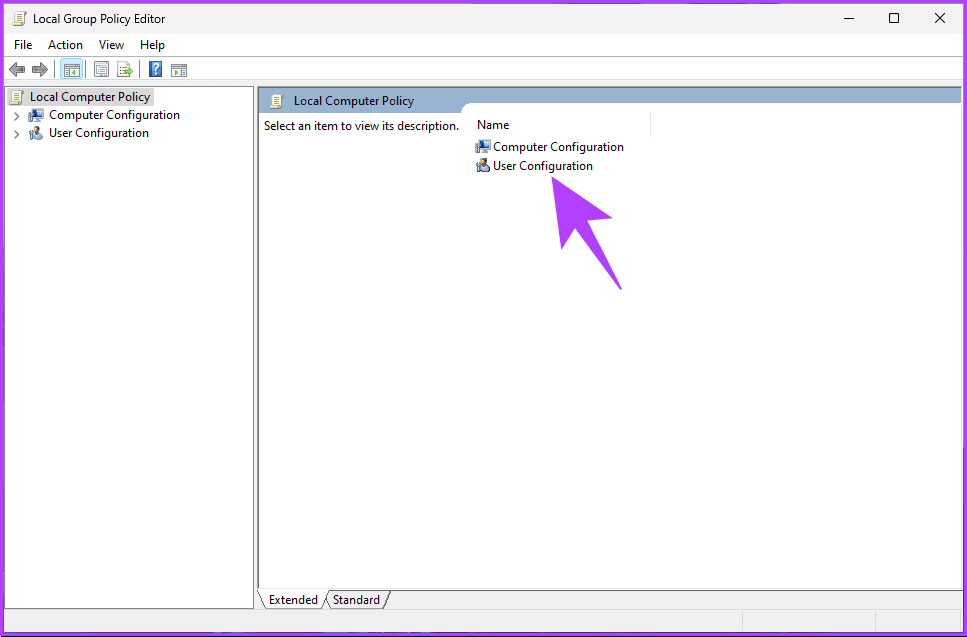
Step 3: In the right pane, double-click on Administrative Templates.
Step 4: Select the Control Panel option.

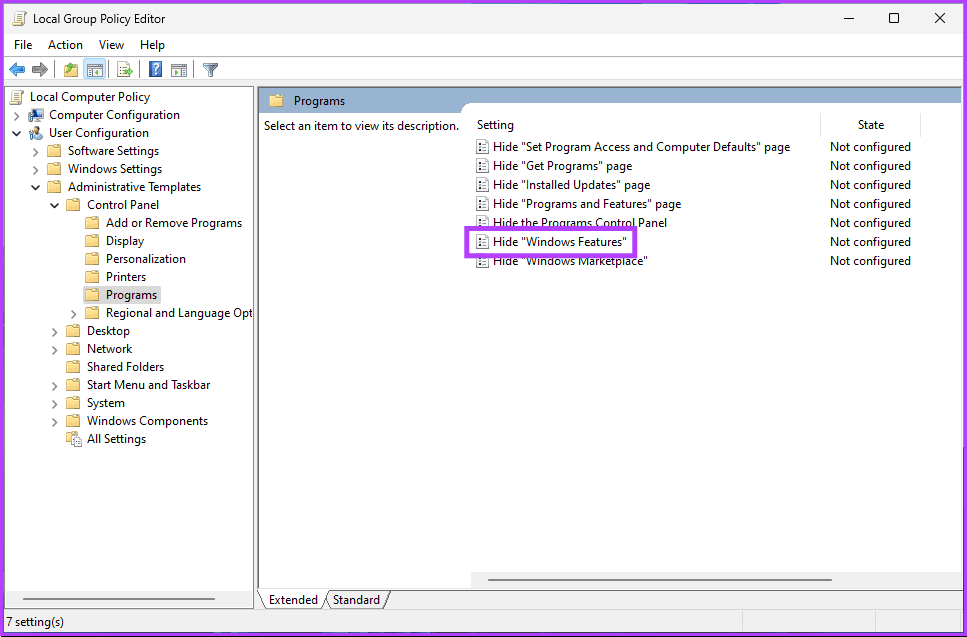
Step 5: Under the Control Panel option, navigate to Programs.
Step 6: Now double-click Hide “Windows Features”.
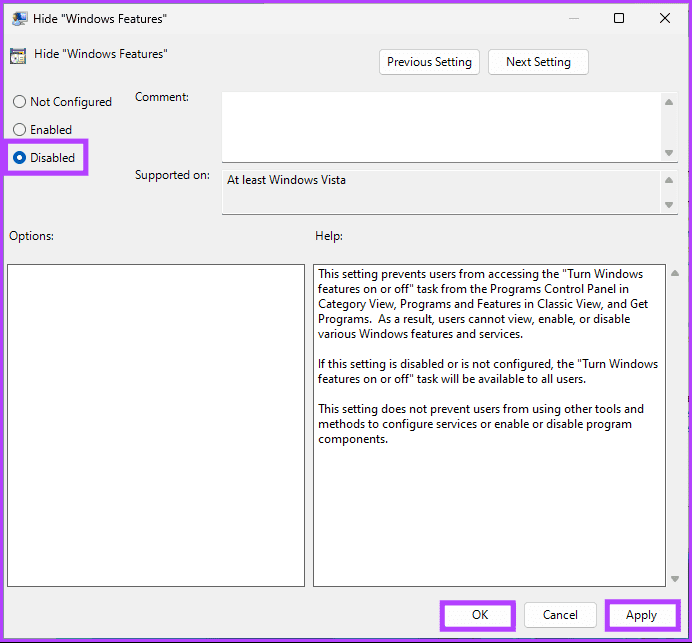
Step 7: Finally, choose the Disabled option. Finally, click on Apply, followed by OK.
That’s it. Now, exit the Group Policy Editor and check if the issue with the optional features has been resolved. If not, check out the next fix.
Fix 8: Restore Windows Features Using PowerShell
Step 1: Press the Windows key on your keyboard. Then, type PowerShell and click Run as administrator.
Step 2: Type the below command and hit Enter.
Get-WindowsOptionalFeature -Online
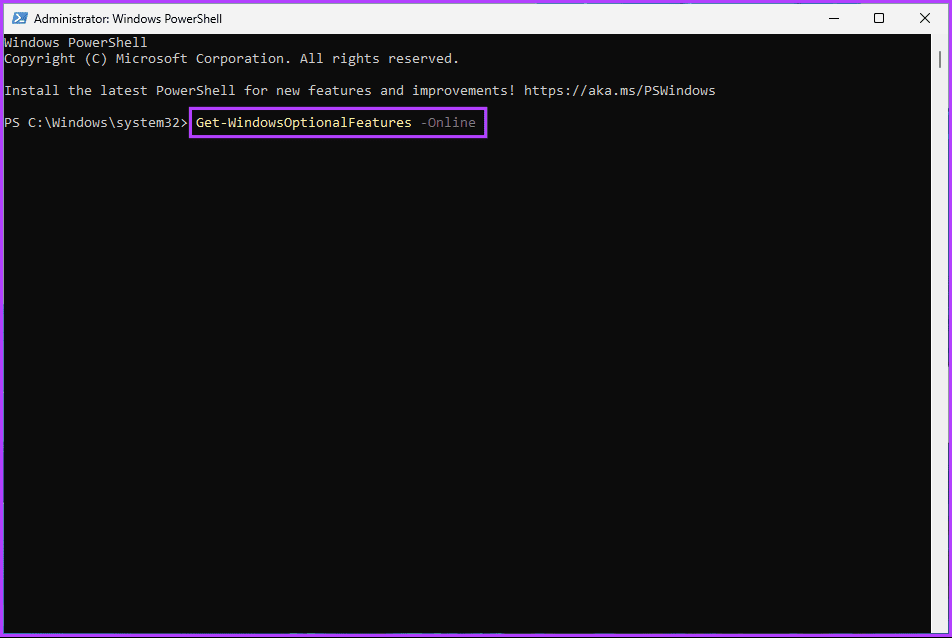
This command will display all the available FeatureName and their State that you can use.
Step 3: To turn certain features on, copy-paste the below command and press Enter.
Note: Replace FEATURENAME with the one you want to enable or disable.
Enable-WindowsOptionalFeature -Online -FeatureName FEATURENAME
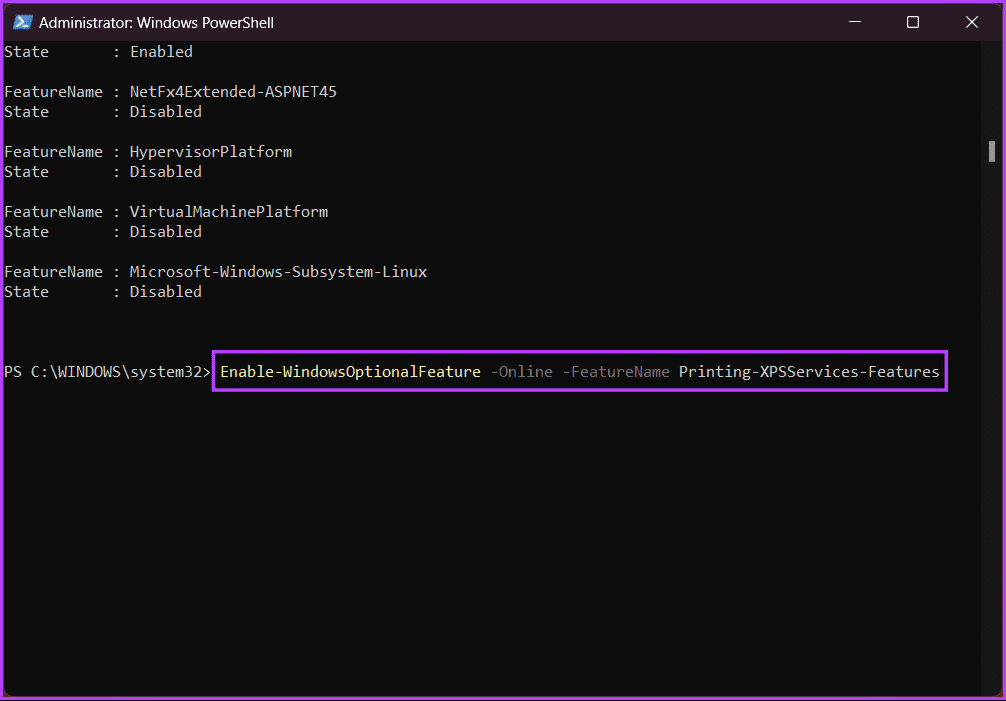
And that’s that. Finally, restart your PC for the changes to take effect. Once your PC reboots, this feature will be added to your PC, which you can enable or disable in the features window. If none of the fixes above helped, move on to the final fix.
Fix 9: Update Windows to the Latest Version
Step 1: Press the Windows key on your keyboard. Then, type Settings, and click Open.
Note: Alternatively, quickly press the Windows key + I on your keyboard to open Windows Settings.
Step 2: Go to Windows Update.

Step 3: Now, click the Check for updates button on the right pane.

Step 4: Finally, if an update is available, click the Download now button to download and install it.
Note: Depending on the size of the update and the speed of your internet connection, the update may take a few minutes to an hour to download and install.
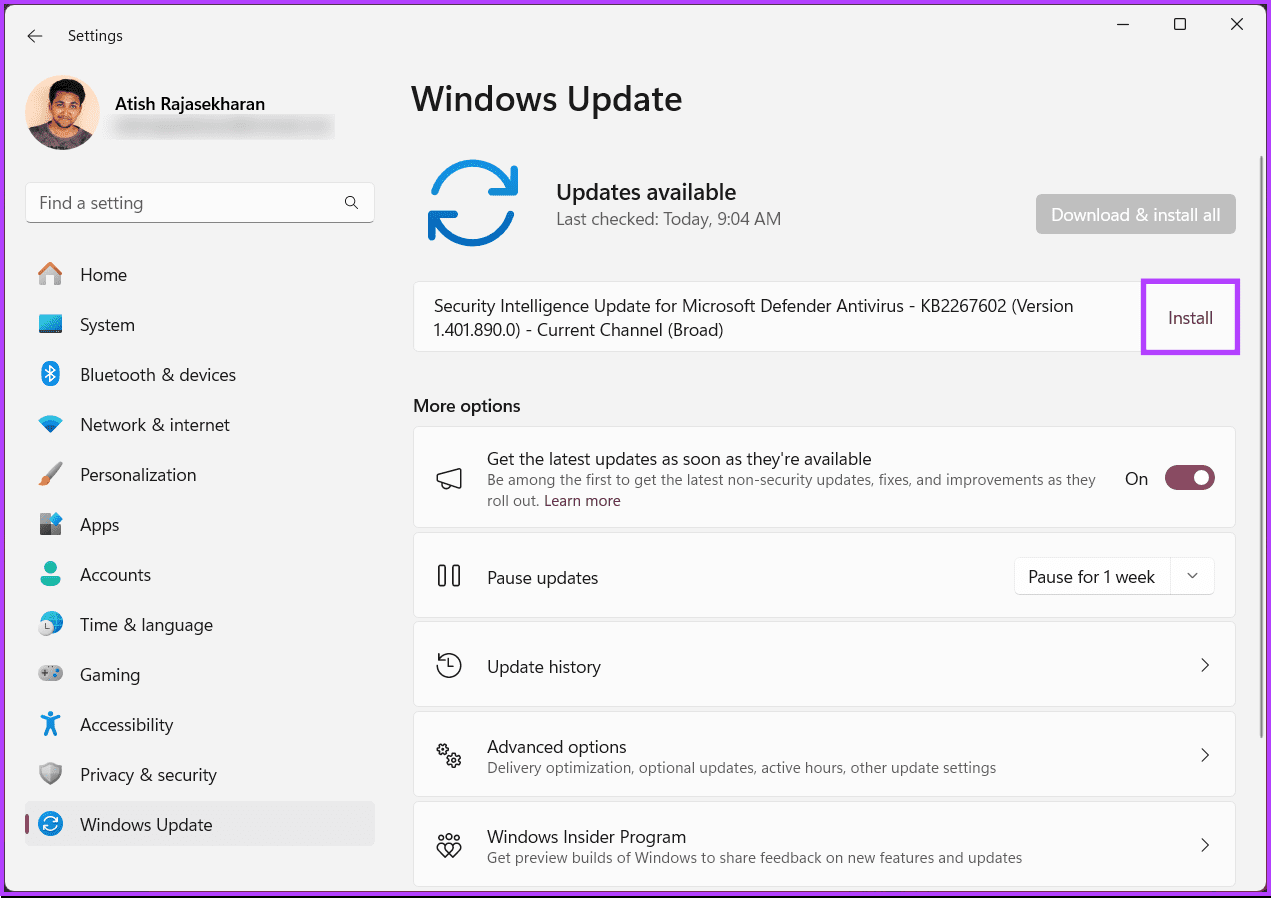
Once you have installed the latest Windows update, restart your computer. Once you are back, all the issues with optional features not showing, install failure, or couldn’t install should be resolved. If the problem persists, you may consider restoring the system or contacting Microsoft Support for further assistance.
If you have any queries we missed addressing, check out the FAQ section below.
FAQs on Fixing Optional Features Missing or Not Installing
Yes, you can manually download and install some optional features. Go to Settings > System > Optional Features. Click on Add an optional feature, select the feature you want, and click Install.
Free up disk space by uninstalling unnecessary programs, deleting temporary files, or moving files to an external drive. Ensure there’s enough space on the system drive (usually C:) for the installation to proceed.
Now that you know how to fix optional features missing or not installing errors in Windows 11, you can navigate through the error to fix it and, in turn, enhance the overall Windows experience.
Was this helpful?
Last updated on 18 August, 2024
1 Comment
Leave a Reply
Read Next
 How to Fix iCloud Missing Media Features Error on Windows
Fix 1: Turn on Missing Media Features Chances are, if you live outside of Europe or Korea, your copy of Windows came with the media features turned off by default.
How to Fix iCloud Missing Media Features Error on Windows
Fix 1: Turn on Missing Media Features Chances are, if you live outside of Europe or Korea, your copy of Windows came with the media features turned off by default.
 7 Ways to Fix Windows 11 Updates Not Downloading or Installing
Fix 1: Run the Windows Update Troubleshooter Windows 11 includes a dedicated troubleshooter that can automatically scan, detect, and fix any issues with Windows Updates.
7 Ways to Fix Windows 11 Updates Not Downloading or Installing
Fix 1: Run the Windows Update Troubleshooter Windows 11 includes a dedicated troubleshooter that can automatically scan, detect, and fix any issues with Windows Updates.
 3 Ways to Fix DirectX Not Installing Error on Windows 11
Basic Fixes Check the internet connection: The DirectX web installer requires internet connectivity to download files from the server.
3 Ways to Fix DirectX Not Installing Error on Windows 11
Basic Fixes Check the internet connection: The DirectX web installer requires internet connectivity to download files from the server.
 5 Ways to Fix Windows Keeps Installing the Same Update
Fix 1: Run the Windows Update Troubleshooter Whenever you encounter any issues with Windows Updates, you should first run the built-in troubleshooter.
5 Ways to Fix Windows Keeps Installing the Same Update
Fix 1: Run the Windows Update Troubleshooter Whenever you encounter any issues with Windows Updates, you should first run the built-in troubleshooter.
 3 Ways to Prevent Users From Installing New Software on Windows 11
Method 1: Turn Off Windows Installer via Group Policy The Group Policy Editor on Windows lets you make various administrative-level changes.
3 Ways to Prevent Users From Installing New Software on Windows 11
Method 1: Turn Off Windows Installer via Group Policy The Group Policy Editor on Windows lets you make various administrative-level changes.
 How to Stop a Specific Windows Update From Installing
Method 1: Hide a Windows Update Using the Show or Hide Updates Troubleshooter Microsoft's "Show or hide updates" tool makes it simple to stop a specific Windows Update from installing
How to Stop a Specific Windows Update From Installing
Method 1: Hide a Windows Update Using the Show or Hide Updates Troubleshooter Microsoft's "Show or hide updates" tool makes it simple to stop a specific Windows Update from installing
 Top 5 Fixes For ‘No Device Drivers Were Found’ While Installing Windows 11/10
Preliminary Fixes Check/Switch the USB Ports: One common cause of this error is the USB port being used.
Top 5 Fixes For ‘No Device Drivers Were Found’ While Installing Windows 11/10
Preliminary Fixes Check/Switch the USB Ports: One common cause of this error is the USB port being used.
 Top 9 Ways to Fix Mac Apps Stuck on Installing
The macOS ecosystem has useful apps and services to elevate your experience.
Top 9 Ways to Fix Mac Apps Stuck on Installing
The macOS ecosystem has useful apps and services to elevate your experience.
The article above may contain affiliate links which help support Guiding Tech. The content remains unbiased and authentic and will never affect our editorial integrity.


Optional feature has been relocated and can be found under System. Not Apps.