Fix 1: End the igfxEM Module Process
The igfxEM process is a component of the Intel Graphic Executable Main Module. Issues with this process can sometimes prevent Steam from functioning properly on Windows and lead to the “missing file privileges” error. You can try terminating this process using Task Manager to see if that helps.
Step 1: Press Ctrl + Shift + Esc to open the Task Manager.
Step 2: In the Processes tab, locate and select the igfxEm Module on the list. Then, click on End task at the top.

Fix 2: Change the Download Region in Steam
By default, Steam connects you to the nearest server for optimal connection speeds. However, issues with the server in your region can trigger such unusual download errors n Steam. To fix this, try changing the download region on Steam.
Step 1: Open the Steam app on your PC > click the Steam menu at the top-left corner > select Settings.
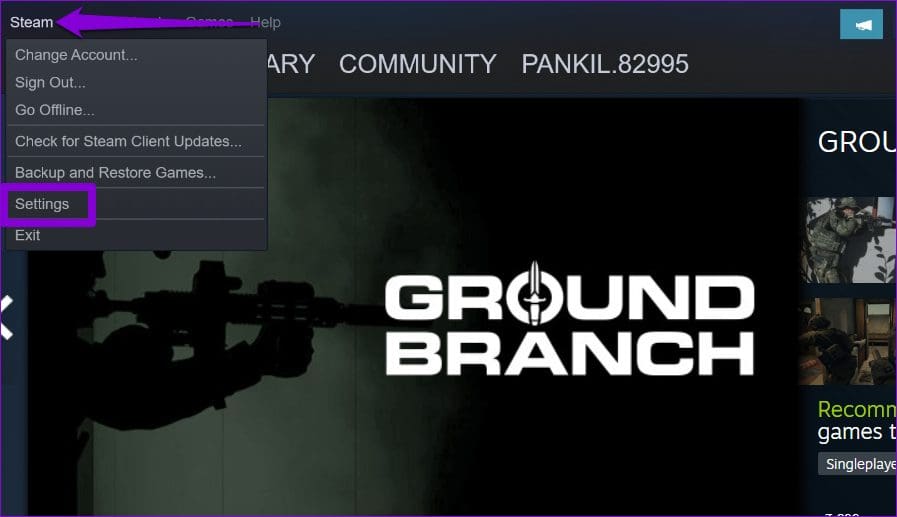
Step 2: Select Downloads from the left sidebar.
Step 3: Click the drop-down menu under Download Region > select a different nearby region > click OK.

Fix 3: Clear Download Cache in Steam
A corrupt download cache in Steam could prevent you from downloading or updating games, resulting in errors. You can remove the existing download cache to see if that helps.
Step 1: Open the Settings menu in Steam.
Step 2: Navigate to the Downloads tab > click the Clear Download Cache button > click OK.

Fix 4: Repair the Steam Library Folder
If clearing the download cache doesn’t help, try repairing the Steam Library folder, where the app stores all the downloaded game data. Here are the steps for the same.
Step 1: Open the Settings menu in Steam.
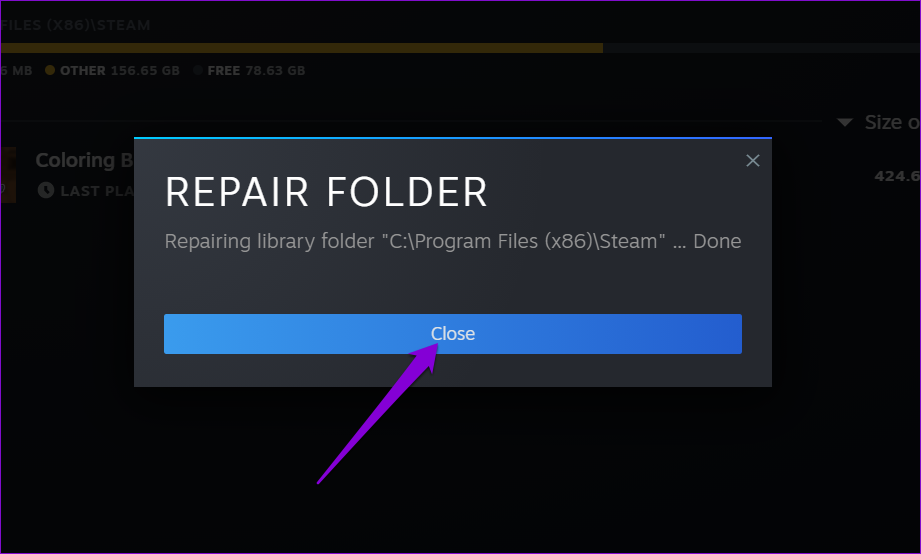
Step 2: In the Downloads tab, click on Steam Library Folders.

Step 3: Click the three-dot menu icon next to the library folder and select Repair Folder.

Step 4: Click Close once the process is complete and check if the error still appears.
Fix 5: Verify the Integrity of Game Files
If you only get the “missing file privileges” error while opening or updating a specific Steam game, some of the installed or downloaded game files are likely corrupt or missing. To fix this, check the integrity of the files associated with that game by following the steps below.
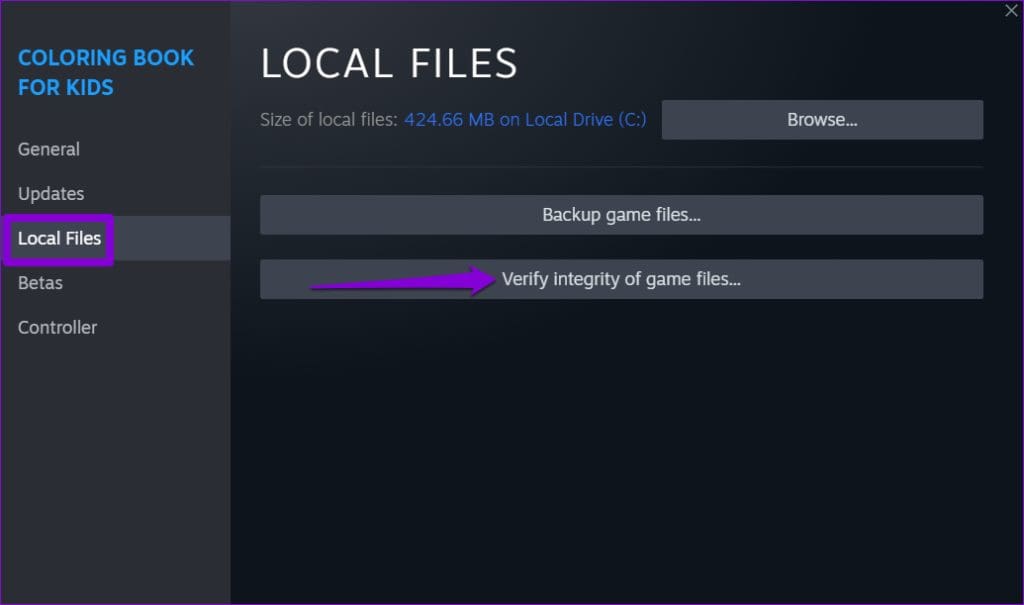
Step 1: In the Steam app, navigate to the Library tab > right-click on the problematic game > select Properties.

Step 2: Switch to the Local Files tab > click the Verify integrity of game files button.
Fix 6: Reinstall the Steam Client
If nothing works, consider uninstalling the Steam client from your PC and installing it again. Here’s how to do it.
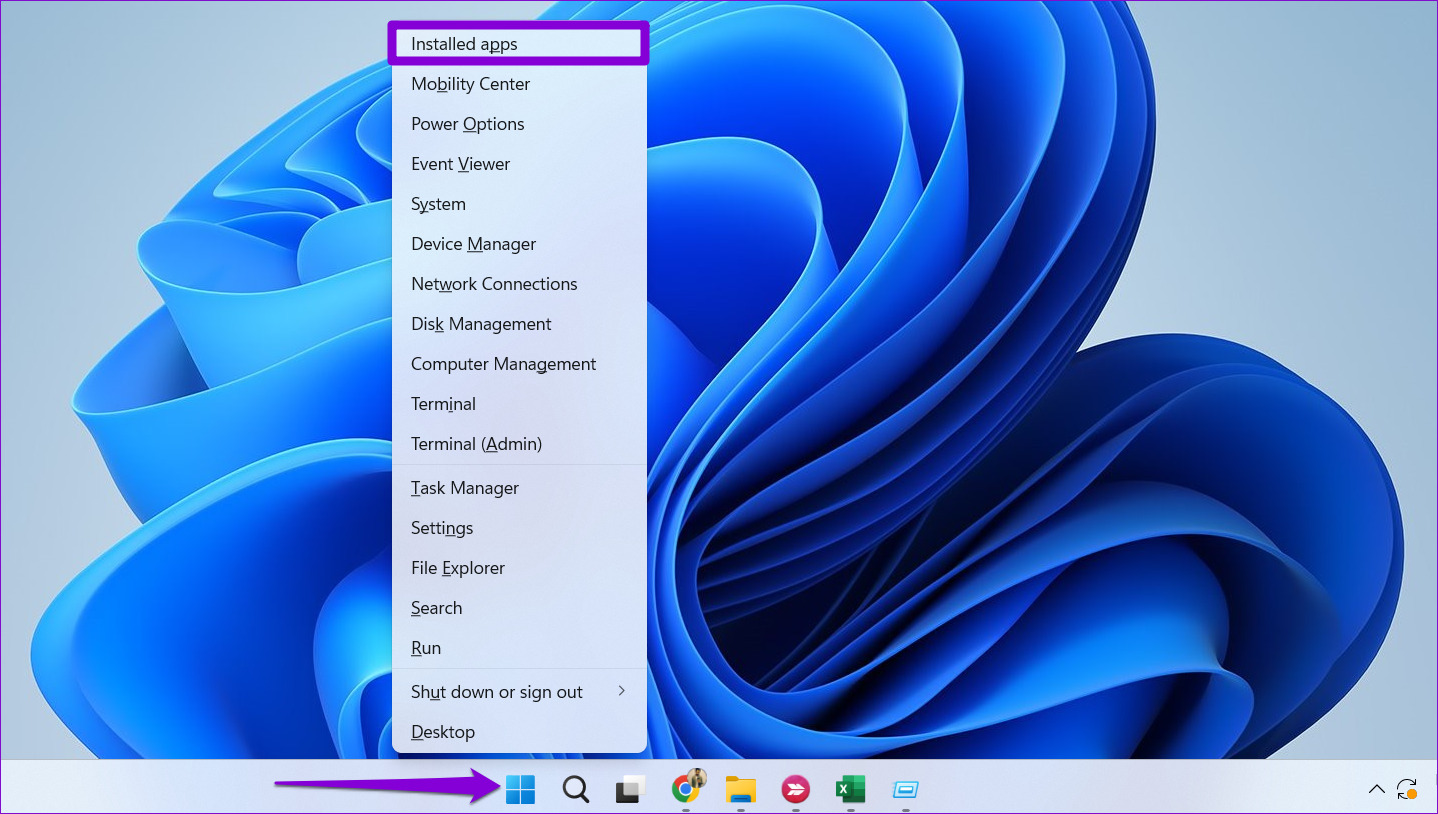
Step 1: Right-click on the Start icon > select Installed apps.
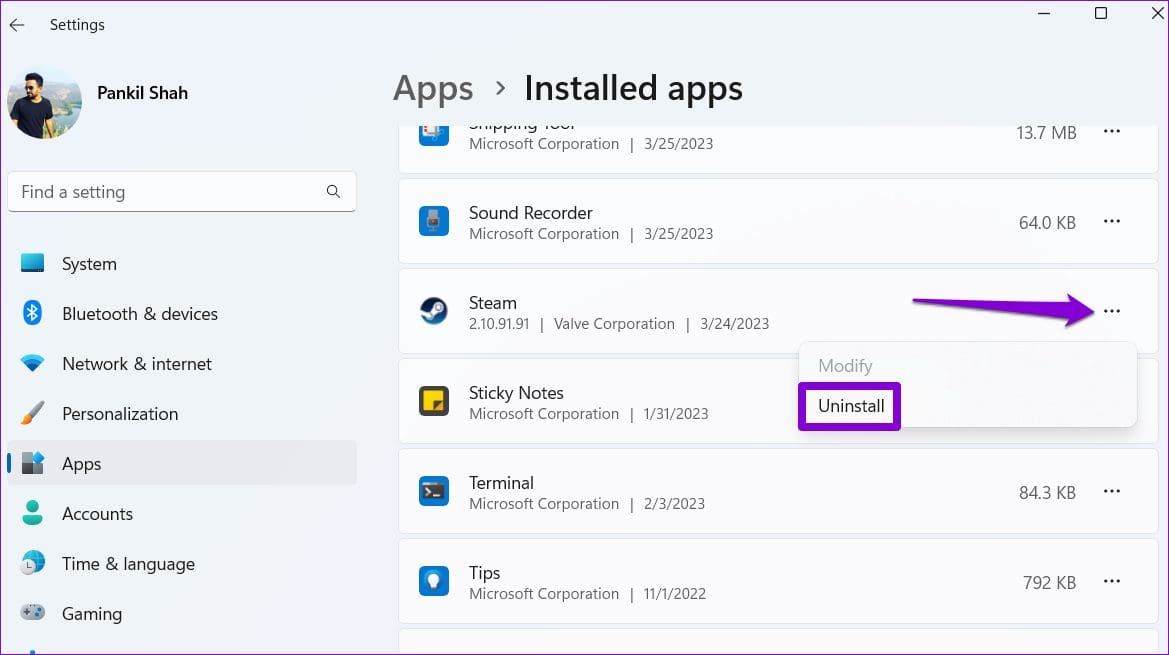
Step 2: Scroll down to locate the Steam app > click the three-dot menu icon > select Uninstall.
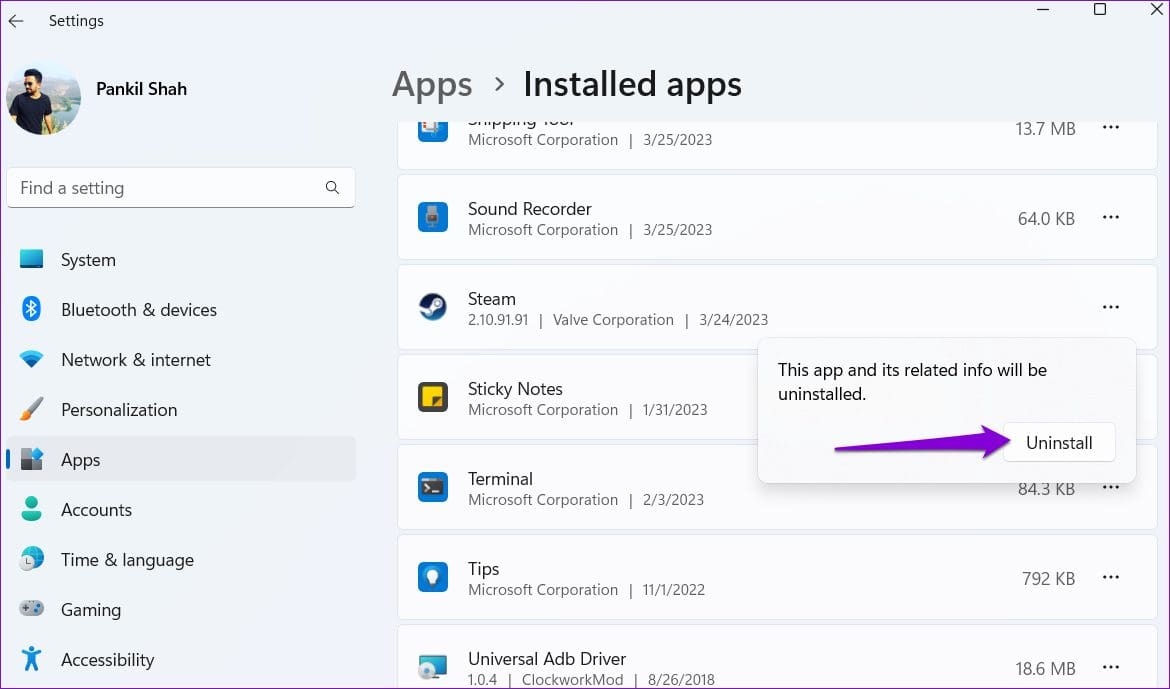
Step 3: Select Uninstall to confirm.
Step 4: After removing it, download and install the Steam app again. After this, you will not see any errors.
Was this helpful?
Last updated on 26 July, 2024
Read Next
 3 Ways to Fix Content File Locked Error in Steam for Windows
Try Basic Fixes Run Steam as an administrator: If your Steam library folder lacks the necessary write permissions, you may encounter the 'content file locked' error.
3 Ways to Fix Content File Locked Error in Steam for Windows
Try Basic Fixes Run Steam as an administrator: If your Steam library folder lacks the necessary write permissions, you may encounter the 'content file locked' error.
 5 Ways to Fix Some Update Files are Missing or Have Problems Error on Windows 11
Fix 1: Run the Windows Update Troubleshooter Windows 11 includes a dedicated troubleshooter to automatically identify and resolve any common issues with the Windows Update process.
5 Ways to Fix Some Update Files are Missing or Have Problems Error on Windows 11
Fix 1: Run the Windows Update Troubleshooter Windows 11 includes a dedicated troubleshooter to automatically identify and resolve any common issues with the Windows Update process.
 How to Fix iCloud Missing Media Features Error on Windows
Fix 1: Turn on Missing Media Features Chances are, if you live outside of Europe or Korea, your copy of Windows came with the media features turned off by default.
How to Fix iCloud Missing Media Features Error on Windows
Fix 1: Turn on Missing Media Features Chances are, if you live outside of Europe or Korea, your copy of Windows came with the media features turned off by default.
 4 Ways to Fix the Login Error Code E84 in Steam for Windows
Switch to a different network connection: A slow or intermittent internet connection can also cause login errors in Steam.
4 Ways to Fix the Login Error Code E84 in Steam for Windows
Switch to a different network connection: A slow or intermittent internet connection can also cause login errors in Steam.
 Top 5 Ways to Fix ‘Steam Stuck on Verifying Installation’ Error in Windows
Basic Fixes Check Your Internet Connection: As a starting point, it's important to ensure that your internet connection is working.
Top 5 Ways to Fix ‘Steam Stuck on Verifying Installation’ Error in Windows
Basic Fixes Check Your Internet Connection: As a starting point, it's important to ensure that your internet connection is working.
 6 Ways to Fix Not Enough Disk Space Error in Steam on Windows 11
Why Don’t I Have Enough Disk Space While Running Steam?
6 Ways to Fix Not Enough Disk Space Error in Steam on Windows 11
Why Don’t I Have Enough Disk Space While Running Steam?
 4 Ways to Fix Access Denied Error in Steam for Windows
Try Basic Fixes Check if Steam is down: Just like any other service, Steam is vulnerable to occasional server-side glitches.
4 Ways to Fix Access Denied Error in Steam for Windows
Try Basic Fixes Check if Steam is down: Just like any other service, Steam is vulnerable to occasional server-side glitches.
 6 Ways to Fix Failed to Load Web Page Error in Steam for Windows
Fix 1: Terminate Steam Processes and Reopen the App The "Failed to load web page" error in Steam can occur if one of the app processes is experiencing issues.
6 Ways to Fix Failed to Load Web Page Error in Steam for Windows
Fix 1: Terminate Steam Processes and Reopen the App The "Failed to load web page" error in Steam can occur if one of the app processes is experiencing issues.
The article above may contain affiliate links which help support Guiding Tech. The content remains unbiased and authentic and will never affect our editorial integrity.