Microsoft Word has developed a reputation for being finicky with formatting. An inserted picture can wreak havoc, while pasting text can throw a whole list into confusion. We’re going to be looking at one such issue, the Microsoft Word numbering indent problem, and also some fixes for those spaces in numbered lists that won’t stay consistent.
What Causes This Misalignment?
There are a few things that can cause alignment and indentation issues with your numbered list problem. Some minor ones include:
- Problems with the ruler and indentation spacing
- Extra spaces and tabbing before entries
- Conflicting lists (caused especially by copying and pasting)
However, the biggest problem with this error is that the tab stop or indentation setting doesn’t leave enough room for larger numbers. As soon as a list includes double or triple digits, the number may begin to extend past the tab stop, forcing Word to move the text to the next tab stop.
How to Fix the Microsoft Word Numbering Indent Problem
We’ve assembled a few troubleshooters below to help with the indentation error in Word. Before we do, it’s a good idea to get your ruler visible if it isn’t already. Click the “View” tab and check “Ruler.”

Let’s get started:
Decrease Font Size
A good quick fix that might work for you is to shrink the font size of the list of numbers. This can give the numbers more space before the tab stop and make the entire list look consistent.
Adjust the List Indents Instead.
You can also change the numbering format if you want to alter the appearance of the numbers, but that isn’t the main setting you’ll use for an indentation problem. Instead, use “Adjust List Indents” to change the number position, text indent, and everything after the number.

Check Your Indentation
A good way to fix an indentation error in Word is through the indenting settings Word applies, visible with the ruler. You can also change them there too, and what’s more, to your own preference. Here’s what to do:
Step 1. Begin by selecting your entire list.

Step 2. Move the left indent slider to change the position of the number and the text that follows it. Move the markers until the text is aligned at a consistent point throughout the list.
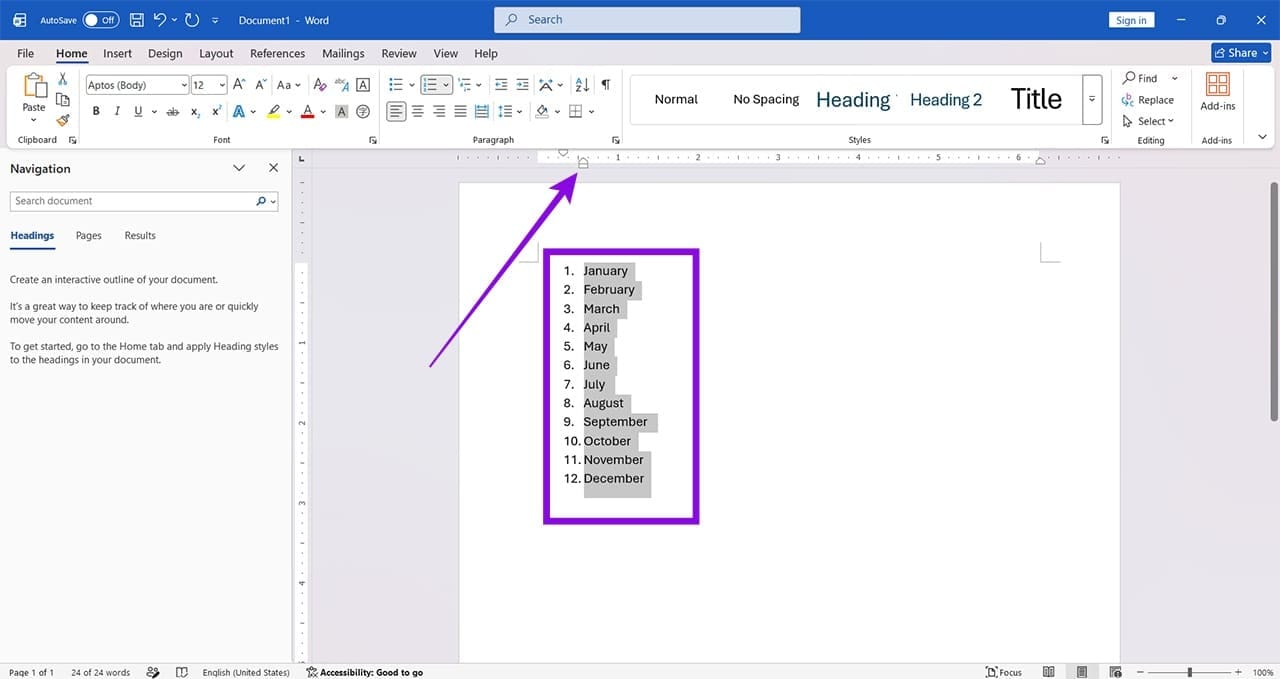
Step 3. You can also adjust the hanging-indent marker to fix where the list text begins and create a consistent space between the number and the entry.

Adjust Indents via the Menu
You can also adjust your indents via the context menu. Here’s what to do:
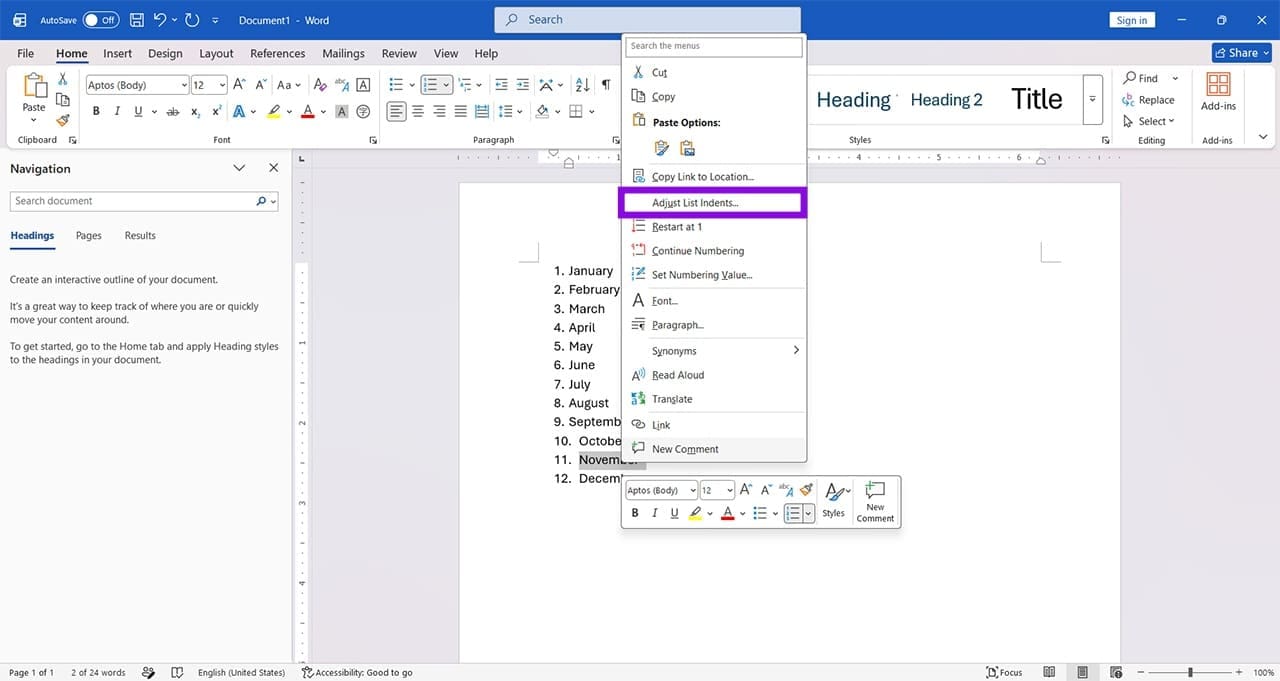
Step 1. Select any one of the entries in your list and then right-click it.
Step 2. Select “Adjust List Indents” from the context menu.
Step 3. In the menu that appears, choose “Space” under “Follow number with” and click “OK” to finalize.
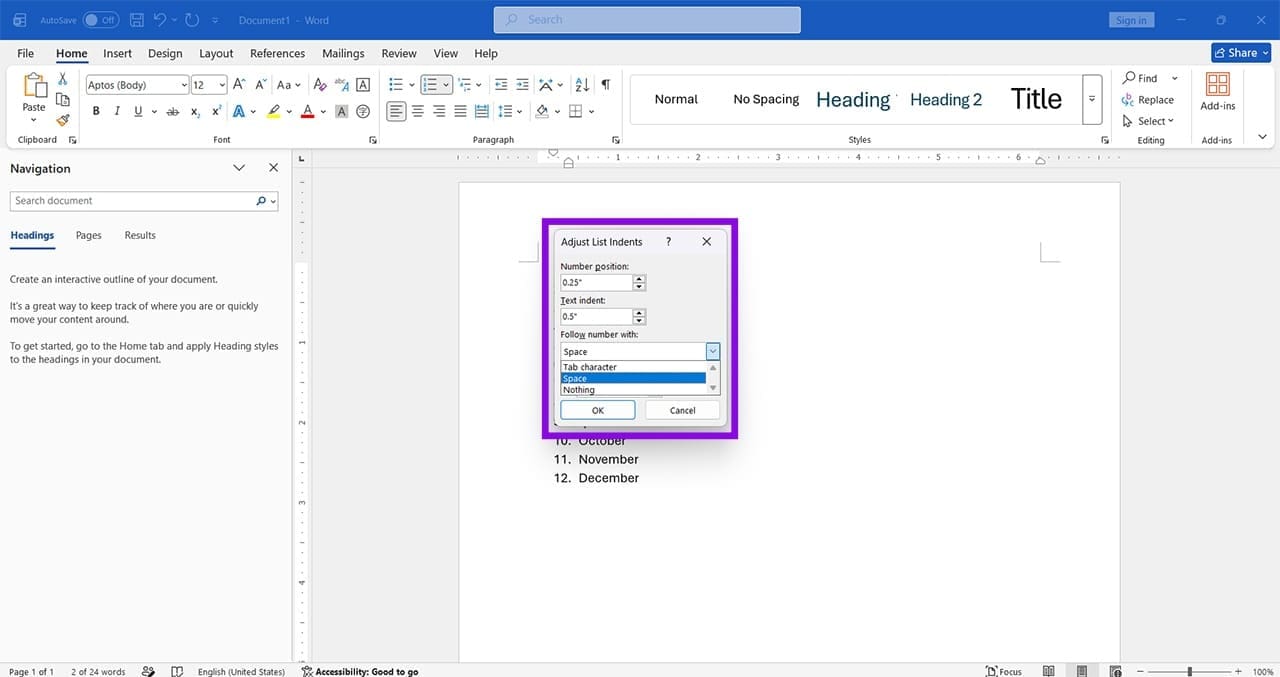
Step 4. See if this resolves the issue.
Step 5. If this doesn’t fix things, you can also keep the setting at “Tab character” and manually set your indents and number position via the two boxes above.
Was this helpful?
Last updated on 13 August, 2026
Read Next
 How to Restart Numbering in Microsoft Word
Lists and tables of contents are practically a given in any extensive Word document.
How to Restart Numbering in Microsoft Word
Lists and tables of contents are practically a given in any extensive Word document.
 3 Ways to Indent a Paragraph in Microsoft Word
Method 1: Indent First Line or Entire Paragraph Using the Tab Key The Tab key on your keyboard is the quickest method for indenting paragraphs.
3 Ways to Indent a Paragraph in Microsoft Word
Method 1: Indent First Line or Entire Paragraph Using the Tab Key The Tab key on your keyboard is the quickest method for indenting paragraphs.
 Google Docs vs. Microsoft Word Online: Which Word Processor Is Better
Google Docs vs.
Google Docs vs. Microsoft Word Online: Which Word Processor Is Better
Google Docs vs.
 Apple Pages vs Microsoft Word: Which Word Processing Software Is Better
Every major tech company out there is offering their version of the productivity suite.
Apple Pages vs Microsoft Word: Which Word Processing Software Is Better
Every major tech company out there is offering their version of the productivity suite.
 3 Ways to Add Tags in Microsoft Word
Method 1.
3 Ways to Add Tags in Microsoft Word
Method 1.
 How to Remove Extra Space Between Words in Microsoft Word
Method 1: Find and Delete Extra Spaces in Microsoft Word Using Find and Replace The first obvious way is to do it manually since you wouldn't want automation to cause
How to Remove Extra Space Between Words in Microsoft Word
Method 1: Find and Delete Extra Spaces in Microsoft Word Using Find and Replace The first obvious way is to do it manually since you wouldn't want automation to cause
 How to Adjust AutoCorrect Settings in Microsoft Word
How to Enable or Disable AutoCorrect on Microsoft Word By default, the AutoCorrect feature relies on the library of the words from the language you've chosen to use in the
How to Adjust AutoCorrect Settings in Microsoft Word
How to Enable or Disable AutoCorrect on Microsoft Word By default, the AutoCorrect feature relies on the library of the words from the language you've chosen to use in the
 2 Ways to Access the Page Setup Dialog Box in Microsoft Word
Method 1: Using the Microsoft Word Ruler The Microsoft Word ruler has several uses, including quickly accessing the Page Setup dialog box. Here's how: Step 1: Click the Start button
2 Ways to Access the Page Setup Dialog Box in Microsoft Word
Method 1: Using the Microsoft Word Ruler The Microsoft Word ruler has several uses, including quickly accessing the Page Setup dialog box. Here's how: Step 1: Click the Start button
The article above may contain affiliate links which help support Guiding Tech. The content remains unbiased and authentic and will never affect our editorial integrity.