Basic Fixes
- Check internet connection: Ensure that you have good connection speeds on your Wi-Fi network in order to load images.
- Disable VPN: Open Settings > VPN > Disable the service.
- Force quit and relaunch Mail app: Click the Apple logo > Force Quit > Mail > Force Quit.
- Update macOS to update mail app: Open Settings > General > Software Update.
Fix 1: Check Mail App Privacy Settings
The Mail app’s privacy feature hides your IP address and blocks remote content. Due to this feature, you might not be able to see images in your emails. We suggest disabling this feature temporarily by following these steps.
Step 1: Open the Mail app > Mail > Settings > Privacy.

Step 2: Uncheck the box next to Protect Mail Activity.
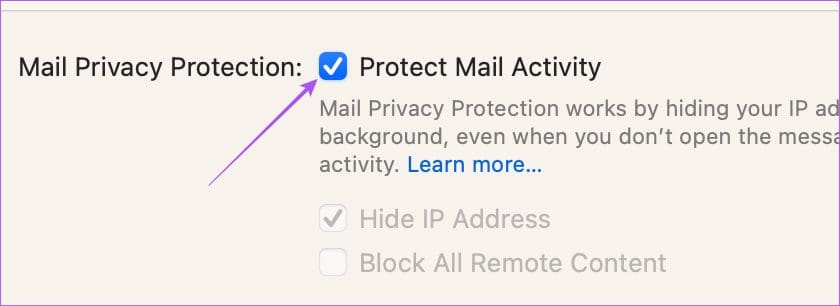
Step 3: Uncheck the box next to Block All Remote Content.

Step 4: Close the window and then open the email that contains the image file(s).
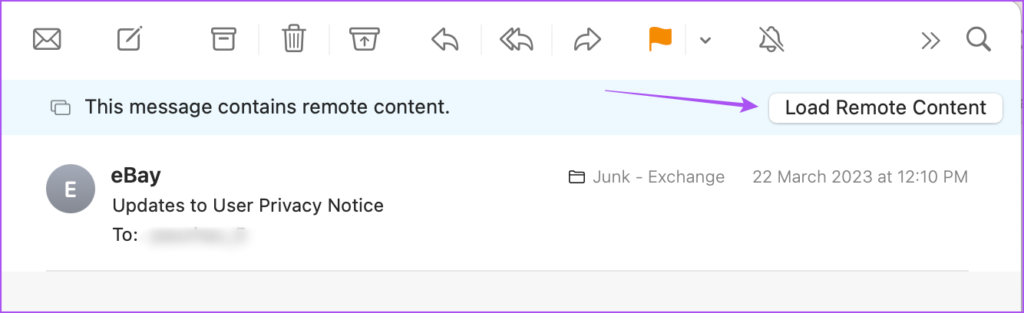
Step 5: Click on Load Remote Content at the top-right side to load the images.
Fix 2: Disable iCloud Privacy Relay
iCloud Privacy Relay was a security feature introduced with iCloud+ that lets you hide your IP address and browsing activity from advertisers and trackers. iCloud Privacy Relay will redirect web traffic toward a third-party server, and even Apple won’t have access to it. This service might not allow downloading content like images in the Mail app. So we suggest disabling this feature temporarily.
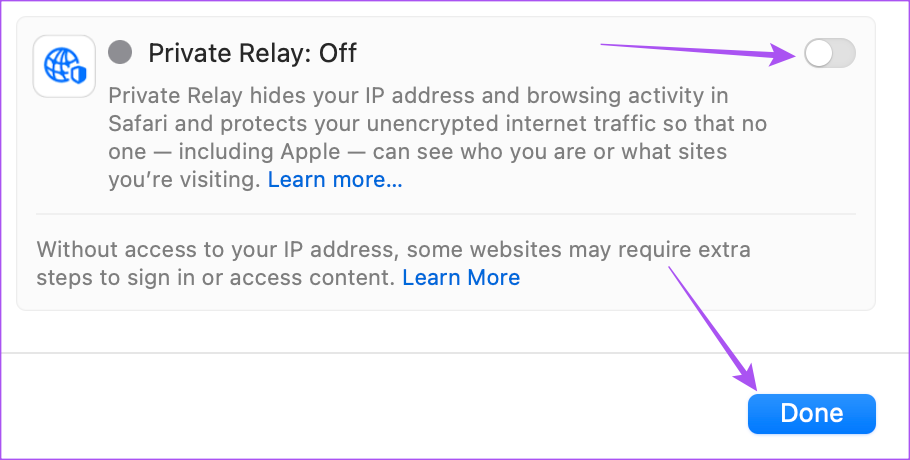
Step 1: Open Settings > Profile name > iCloud > Private Relay.
Step 2: Click the toggle next to Private Relay to turn off the feature. Then, click on Done.
Fix 3: Log in Again to Your Email Account
You can log in again to your email account in the Mail app. This will reload your entire inbox along with your preferences. This should help in reloading images in the emails that you receive.
Open the Mail app > Settings > Accounts > Select your email account > Click the Minus icon > Click the Plus icon to add your account again.

Tip: Refer to our post in case you are sometimes unable to send emails using the Mail app.
Was this helpful?
Last updated on 16 August, 2024
Read Next
 3 Fixes for Images Not Loading in Mail App for iPhone
Try Basic Fixes Turn off VPN: Since VPNs route your internet traffic through different servers, they can sometimes lead to delays or issues loading content, such as images in emails.
3 Fixes for Images Not Loading in Mail App for iPhone
Try Basic Fixes Turn off VPN: Since VPNs route your internet traffic through different servers, they can sometimes lead to delays or issues loading content, such as images in emails.
 3 Ways to Fix Apple Mail Stuck on Checking for Mail on iPhone
Basic Fixes: Check the network connection: First, check the network connection quality on your iPhone. If you face network issues, you can enable Airplane mode on your iPhone and disable it
3 Ways to Fix Apple Mail Stuck on Checking for Mail on iPhone
Basic Fixes: Check the network connection: First, check the network connection quality on your iPhone. If you face network issues, you can enable Airplane mode on your iPhone and disable it
 Outlook App vs Apple Mail: Which Is a Better iOS Mail App
Frankly, there are so many mail apps for the iOS platform that it can be difficult to zero in on one.
Outlook App vs Apple Mail: Which Is a Better iOS Mail App
Frankly, there are so many mail apps for the iOS platform that it can be difficult to zero in on one.
 7 Ways to Fix Images Not Loading in Google Chrome
Fix 1: Verify Site Settings To start, verify the content settings in Chrome and ensure websites are allowed to load images on your computer.
7 Ways to Fix Images Not Loading in Google Chrome
Fix 1: Verify Site Settings To start, verify the content settings in Chrome and ensure websites are allowed to load images on your computer.
 4 Ways to Fix Images Not Loading in Microsoft Edge
Fix 1: Check Site Permissions The first thing you should do is review site permissions in Microsoft Edge to ensure websites are allowed to load images.
4 Ways to Fix Images Not Loading in Microsoft Edge
Fix 1: Check Site Permissions The first thing you should do is review site permissions in Microsoft Edge to ensure websites are allowed to load images.
 4 Ways to Fix Safari Not Loading Images on iPhone
https://youtu.be/Fj1KYUokzkI Fix 1: Disable Content Blocker Extensions If you use any content blocker extensions to avoid ads or pop-ups while browsing, they may interfere with Safari and prevent them from
4 Ways to Fix Safari Not Loading Images on iPhone
https://youtu.be/Fj1KYUokzkI Fix 1: Disable Content Blocker Extensions If you use any content blocker extensions to avoid ads or pop-ups while browsing, they may interfere with Safari and prevent them from
 How to Add Image to Apple Mail Signature on Mac
Add Image to Email Signature in Mail App Before moving ahead, make sure you have a PNG file of your signature saved on your Mac if you want to use
How to Add Image to Apple Mail Signature on Mac
Add Image to Email Signature in Mail App Before moving ahead, make sure you have a PNG file of your signature saved on your Mac if you want to use
 3 Fixes for Apple Mail Not Syncing With Gmail on Mac
Basic Fixes Check internet connection: Check your internet speed and rest assured that your Internet Service Provider is not facing any downtime or undergoing maintenance in your area.
3 Fixes for Apple Mail Not Syncing With Gmail on Mac
Basic Fixes Check internet connection: Check your internet speed and rest assured that your Internet Service Provider is not facing any downtime or undergoing maintenance in your area.
The article above may contain affiliate links which help support Guiding Tech. The content remains unbiased and authentic and will never affect our editorial integrity.