

Try Basic Fixes
- Check if Telegram is down: Telegram links may stop working if there’s an issue with its servers. Websites like Downdetector monitor server outages for several popular services, including Telegram. You can check Telegram’s server status on Downdetector to see if others face similar issues.
- Temporarily disable VPN: Although using a VPN service allows you to route your traffic through a private server and maintain privacy, issues with that server can sometimes cause connectivity issues in Telegram. Try disabling your VPN connection momentarily to see if that works.
- Update the app: Telegram regularly receives updates that include new features, bug fixes, and performance improvements. Telegram may bother you with strange issues if you neglect these updates. Head to the Play Store (Android) or App Store (iPhone) to update the Telegram app and see if that fixes the issue.
Fix 1: Allow Telegram to Use Mobile Data (iPhone)
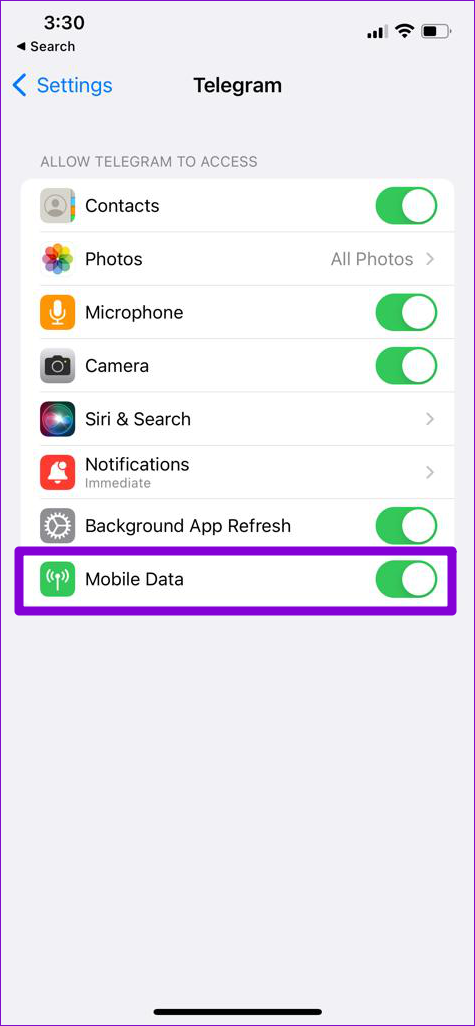
On iOS, you can enable or disable mobile data permission for each app separately. If you have previously disabled mobile data access for Telegram, the app may get stuck on connecting or fail to open any links when you are not connected to Wi-Fi.
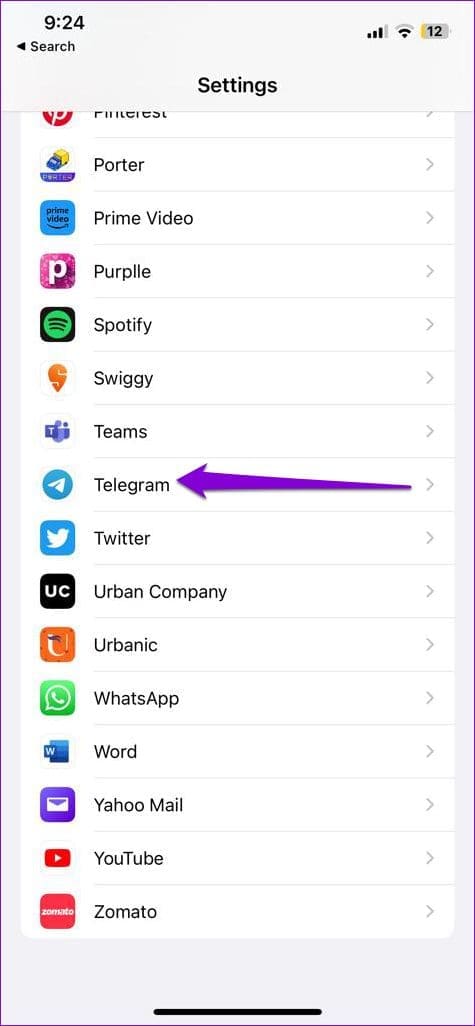
Open the Settings app and scroll down to tap Telegram. Then, enable the toggle next to Mobile Data.
Fix 2: Make Sure Telegram’s In-App Browser Is Enabled
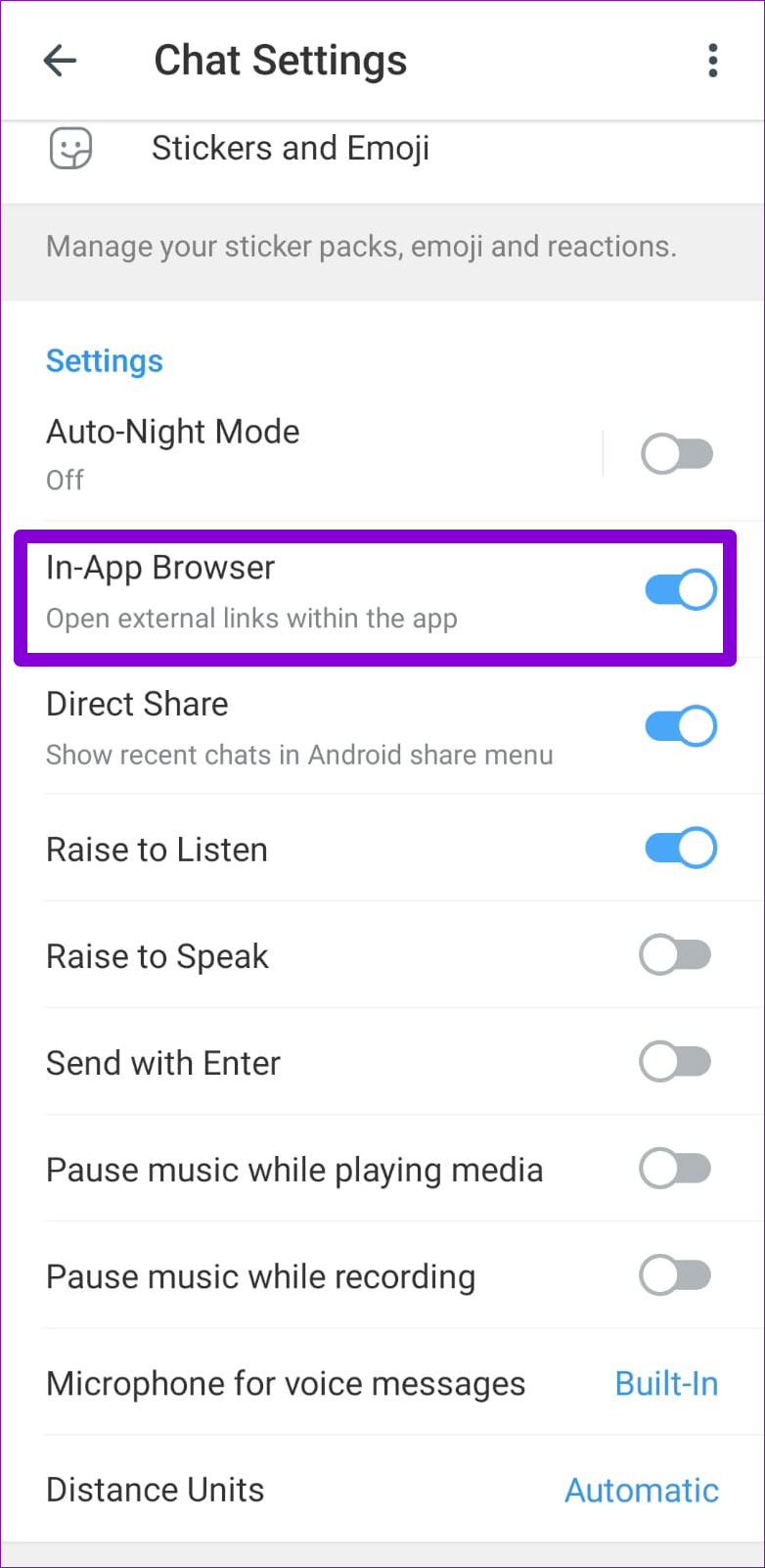
Is Telegram failing to open links within the app and instead redirecting them to your phone’s browser? That could happen if you have inadvertently disabled Telegram’s in-app browser. Here’s how to enable it.
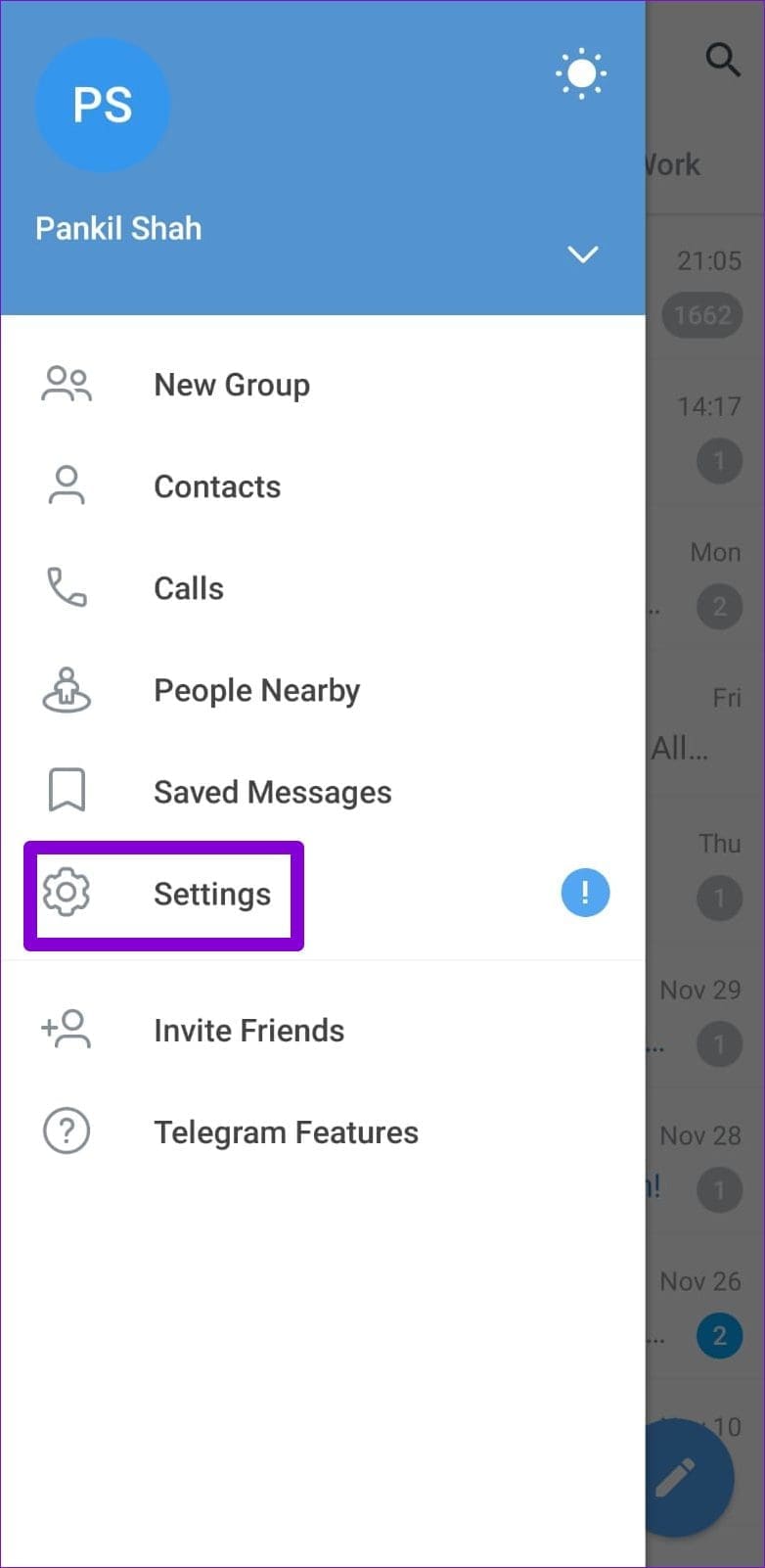
Step 1: Open the Telegram app on your phone. Tap the menu icon (three horizontal lines) at the top-left corner and select Settings.
Step 2: Tap on Chat Settings and scroll down to enable the toggle next to In-App Browser. If it’s already on, try turning it off and then back on.

Fix 3: Open the Link in an External Browser
If Telegram’s in-app browser fails to load a specific web page, you can try opening it in your default browser. This will allow you to determine whether there is an issue with the link or if it has expired. Tap the three-dot menu icon at the top-right corner and select Open in Chrome.
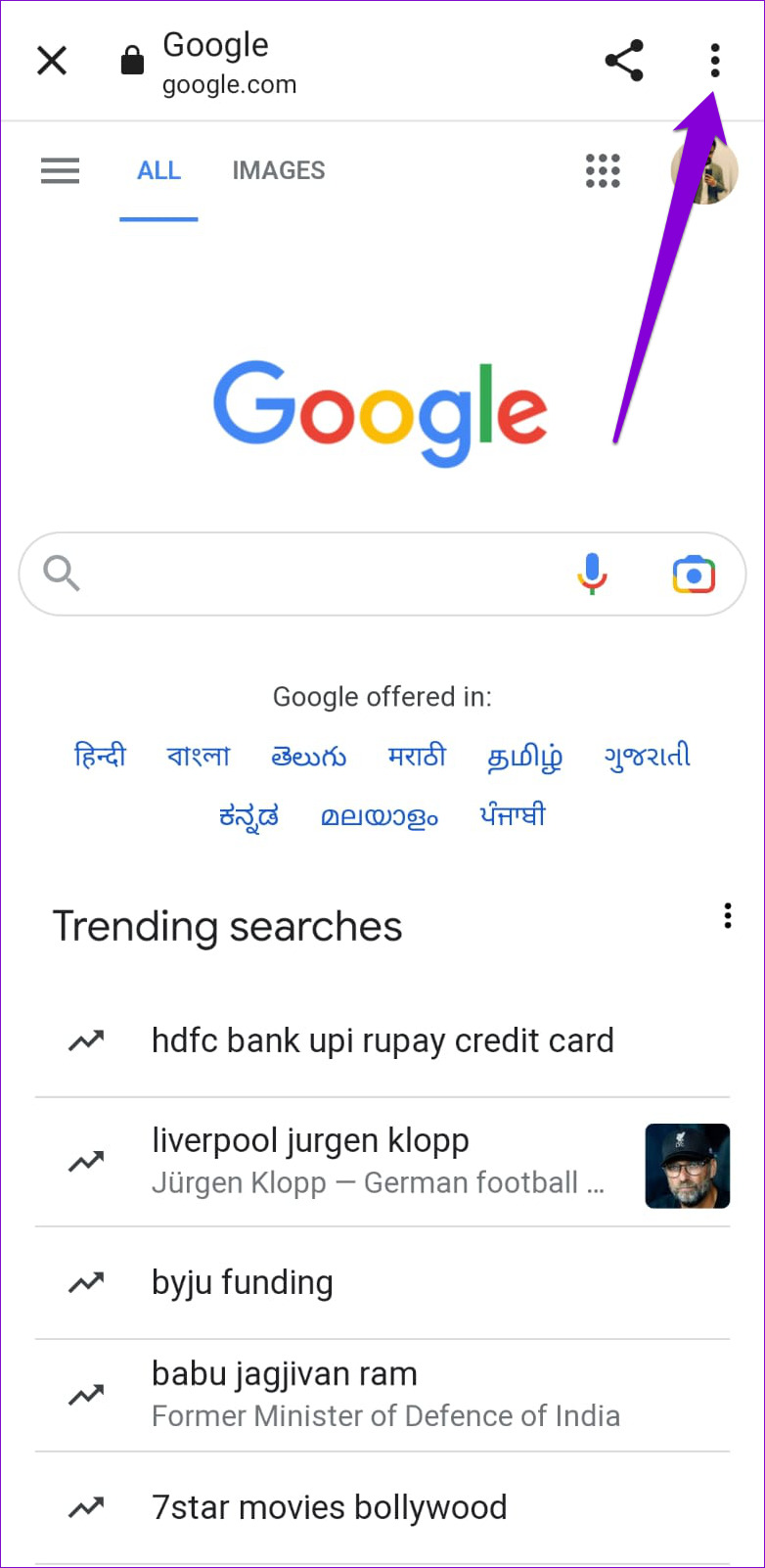
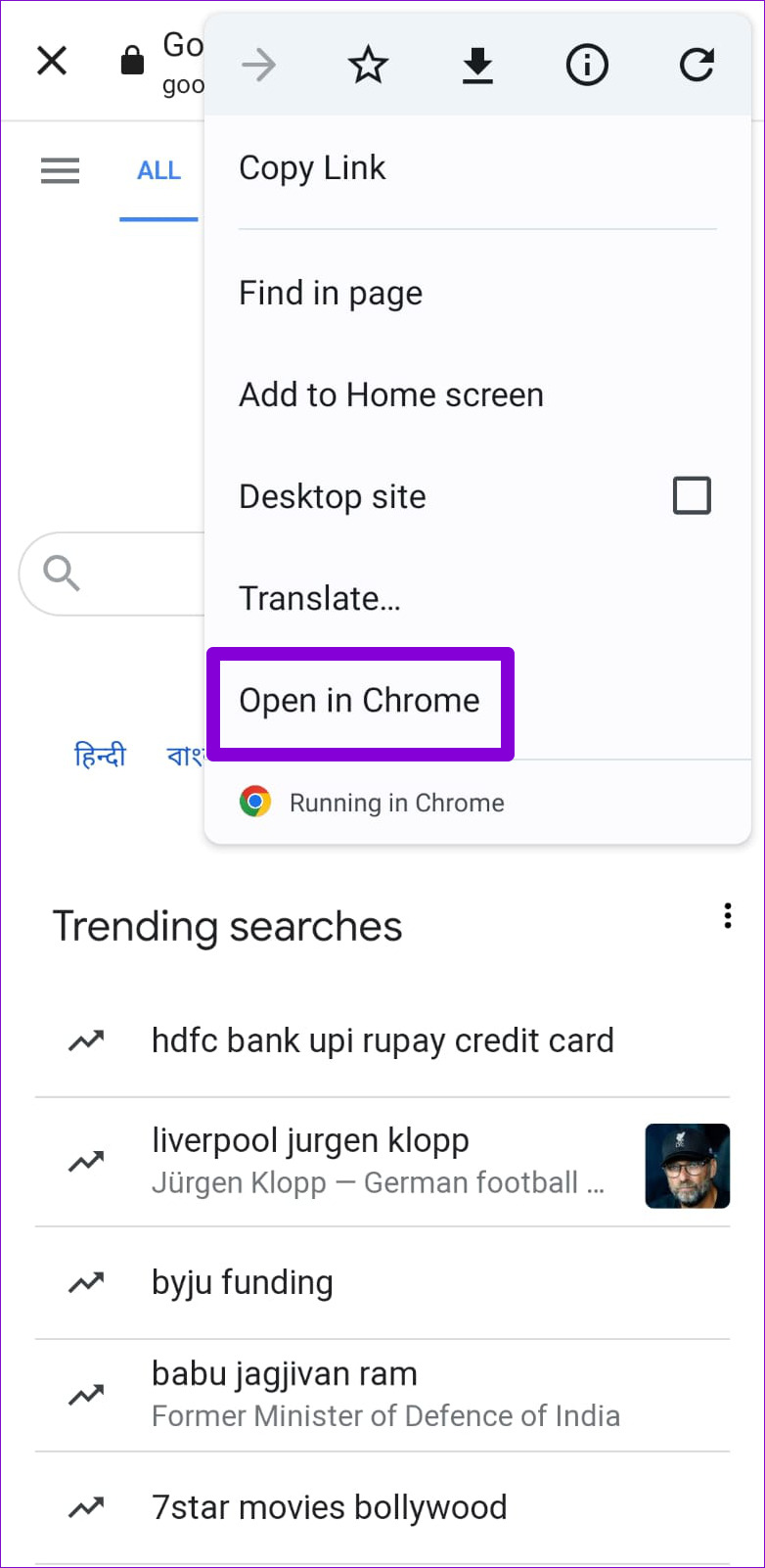
For those using an iPhone, tap the Safari icon in the bottom right corner.
Fix 4: Clear Telegram Cache
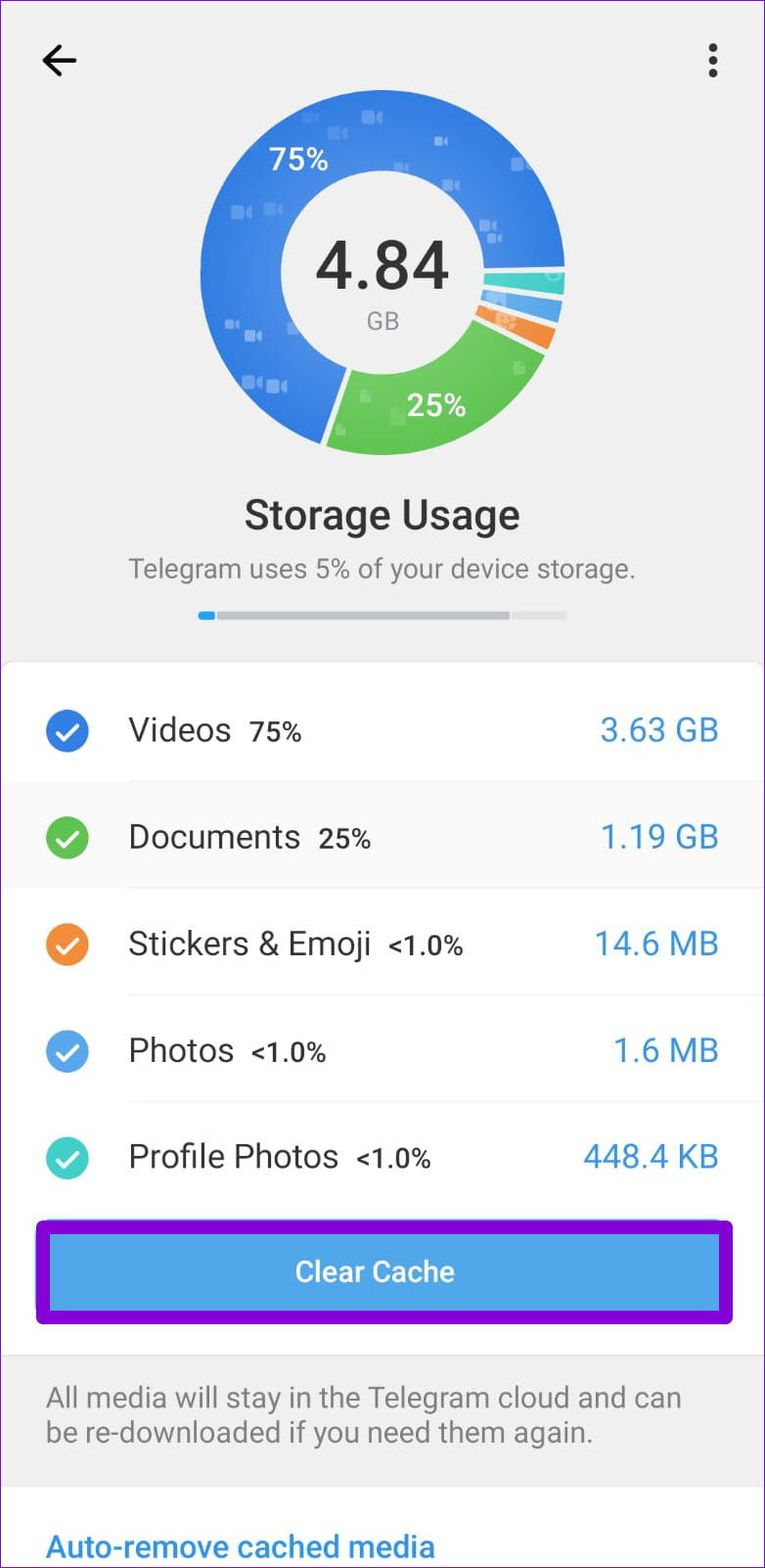
Corrupt or outdated Telegram cache files could also give you such problems. Fortunately, Telegram allows you to clear problematic cache data from its in-app settings menu. Here’s how you can access it on your Android or iPhone.
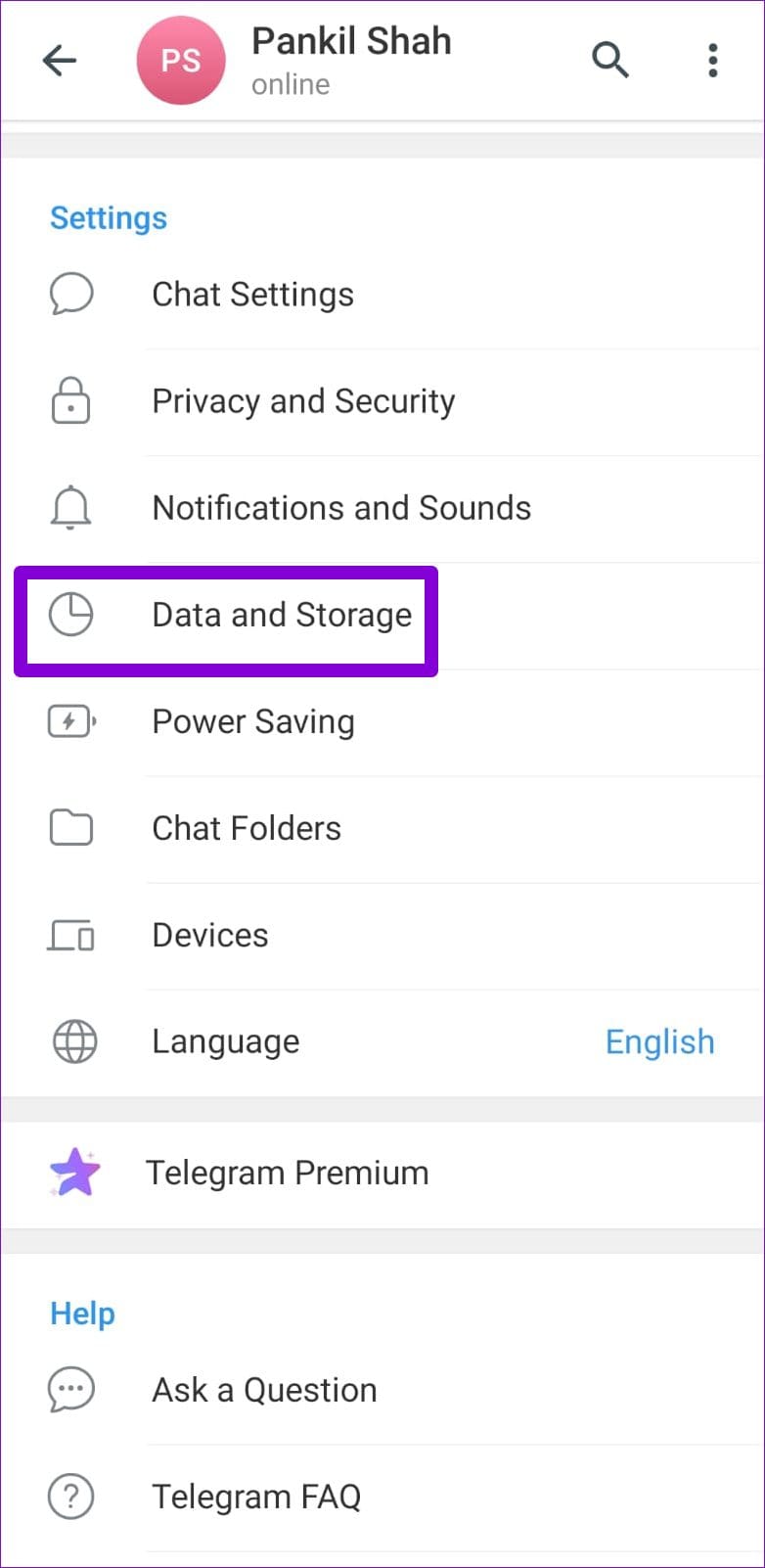
Step 1: In the Telegram app, tap the three horizontal lines at the upper-left corner and select Settings.
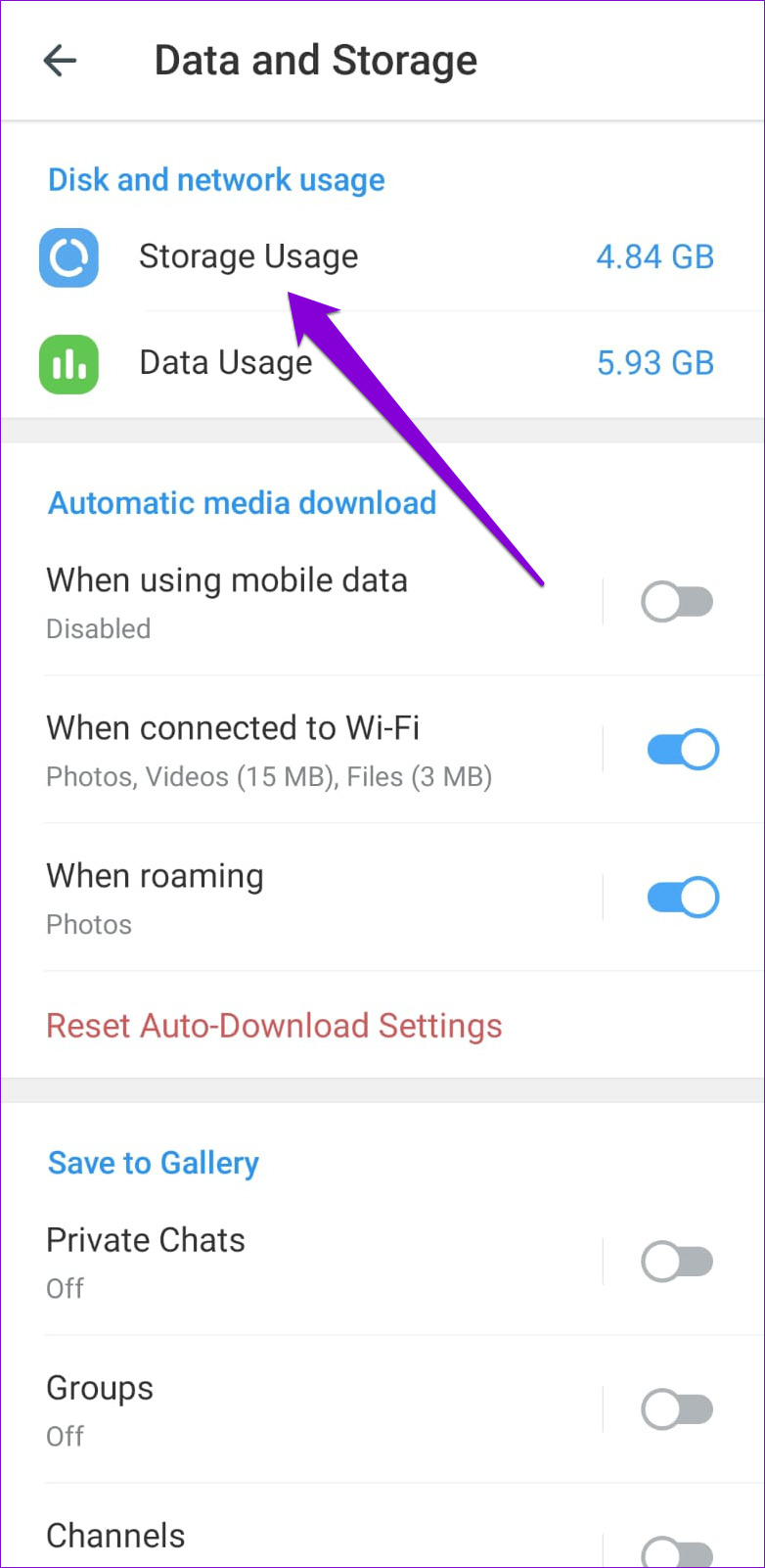
Step 2: Tap on Data and Storage and select the Storage Usage option from the following menu.
Step 3: Tap the Clear Cache option.
Was this helpful?
Last updated on 24 July, 2024
1 Comment
Leave a Reply
Read Next
 4 Fixes for Links Not Opening in WhatsApp on iPhone and Android
Basic Fixes Check if the link is working: If the links you shared with your contact are not working, you should check whether the link is correct.
4 Fixes for Links Not Opening in WhatsApp on iPhone and Android
Basic Fixes Check if the link is working: If the links you shared with your contact are not working, you should check whether the link is correct.
 5 Fixes for Links Not Opening in Facebook Messenger for Android and iPhone
Fix 1: Allow Messenger to Open Supported Links (Android) Messenger may fail to open links on your Android phone due to a lack of relevant permissions.
5 Fixes for Links Not Opening in Facebook Messenger for Android and iPhone
Fix 1: Allow Messenger to Open Supported Links (Android) Messenger may fail to open links on your Android phone due to a lack of relevant permissions.
 3 Ways to Fix Links Not Opening in Google Chrome
Fix 1: Disable Browser Extensions (for Desktop Only) Using third-party extensions in Chrome allows you to extend the browser's functionality.
3 Ways to Fix Links Not Opening in Google Chrome
Fix 1: Disable Browser Extensions (for Desktop Only) Using third-party extensions in Chrome allows you to extend the browser's functionality.
 4 Ways to Fix X (Twitter) Links Not Opening in Chrome and Safari
Basic Fixes: Open page in Incognito Mode: Incognito mode allows you to load your browser without any extensions, cookies, or cache data.
4 Ways to Fix X (Twitter) Links Not Opening in Chrome and Safari
Basic Fixes: Open page in Incognito Mode: Incognito mode allows you to load your browser without any extensions, cookies, or cache data.
 How to Fix Links Not Opening or Working in X (Twitter) App
Basic Fixes: Restart your device: Restarting your smartphone helps close and restart the app process from scratch.
How to Fix Links Not Opening or Working in X (Twitter) App
Basic Fixes: Restart your device: Restarting your smartphone helps close and restart the app process from scratch.
 3 Ways to Stop Mac From Opening Links in Safari
Method 1: Change the Default Browser on Your Mac Your Mac comes with Safari as the default browser.
3 Ways to Stop Mac From Opening Links in Safari
Method 1: Change the Default Browser on Your Mac Your Mac comes with Safari as the default browser.
 5 Ways to Fix Instagram Links Not Working on Android and iPhone
https://youtu.be/GiuTlMN5gsg Try Basic Fixes Turn Off VPN: At times, using a VPN connection may prevent Instagram links from opening since it routes your traffic through various servers.
5 Ways to Fix Instagram Links Not Working on Android and iPhone
https://youtu.be/GiuTlMN5gsg Try Basic Fixes Turn Off VPN: At times, using a VPN connection may prevent Instagram links from opening since it routes your traffic through various servers.
 4 Ways to Fix Telegram Desktop Not Opening in Windows 11
Common Fixes Check Telegram server status - Access Downdetector to check Telegram's server outage in real time.
4 Ways to Fix Telegram Desktop Not Opening in Windows 11
Common Fixes Check Telegram server status - Access Downdetector to check Telegram's server outage in real time.
The article above may contain affiliate links which help support Guiding Tech. The content remains unbiased and authentic and will never affect our editorial integrity.


My telegram refused to open link