Note: The steps executed in this article are on Windows 11. The steps may differ slightly if your device runs on Windows 10 or below.
Preliminary Fixes
- Restart your Windows: Restarting your computer is often the simplest and quickest way to resolve many issues, including keyboard auto-typing.
- Run a Malware Scan: Malware can sometimes interfere with keyboard functionality. Running a malware scan can help identify and remove any malicious software causing the auto-typing issue.
- Use System File Checker: The System File Checker (SFC) tool can help repair corrupted system files that might be causing keyboard auto-typing issues. To do so, launch Command Prompt > type sfc /scannow.
- Update Windows: Keeping your Windows operating system up to date can fix various issues, including keyboard auto-typing.
Fix 1: Check for Keyboard Hardware Issues
One of the most important things before starting to change settings on Windows is to check if there are any hardware issues, especially when using an external keyboard. To start with;
- Check if keys are stuck while being pressed.
- Try disconnecting the keyboard and reconnecting it.
- Check if the ports are connected properly and clean them.
- Inspect whether the keyboard cable has any potential damage.
If everything looks good physically, there could be an issue with Windows, then move to the next method.
Fix 2: Update Your Windows Keyboard Driver
Step 1: Press the Windows key on your keyboard, type Device Manager, and click Open.
Step 2: Go to Keyboards.
Step 3: Choose the keyboard, right-click on it, and select Update driver.

Step 4: Now, click on Search automatically for drivers.
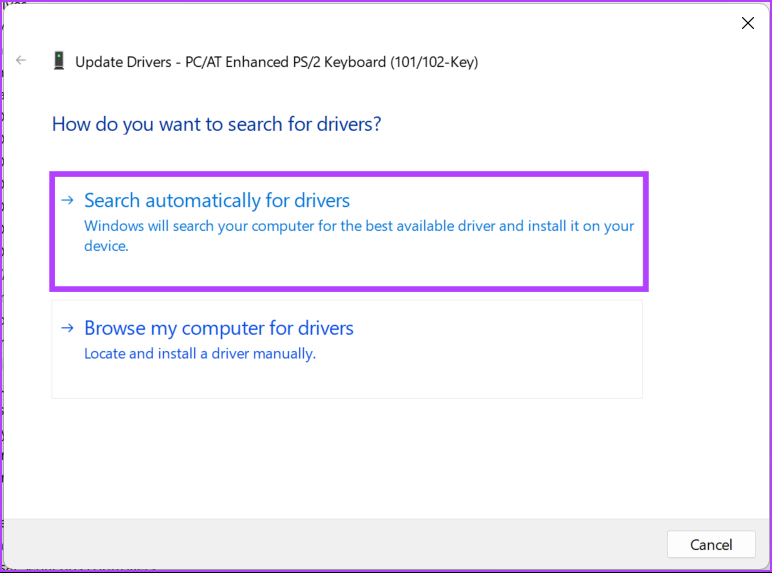
Windows will automatically check and update the drivers. Once the driver is updated, restart your computer and check if there’s any change in your keyboard behavior. If this didn’t help, go to the next method.
Fix 3: Run Keyboard Troubleshooter
Step 1: Press the Windows key, type Settings, and click Open.
Step 2: Scroll down and click on Troubleshoot to open it.
Step 3: Select Other troubleshooters.

Step 4: Under Other troubleshooters, locate the Keyboard and click the Run button.

Follow the on-screen instructions and let the troubleshooter detect and diagnose the problem causing the keyboard to press random keys. If the troubleshooter couldn’t detect any issues, it’s time to change the keyboard settings.
Fix 4: Reconfigure Keyboard Settings
Step 1: Press the Windows key, type Control Panel, and click Open.
Step 2: Click on the drop-down next to View by and select Large icons.

Step 3: Now, click on Ease of Access Center.

Step 4: Navigate to Make the keyboard easier to use and click on it.

Step 5: Uncheck Turn on Mouse Keys, Turn on Sticky Keys, and Turn on Filter Keys. Next, click Apply, followed by OK.

After changing the settings, your keyboard should function correctly. If you don’t see any changes, restart your computer and try again. If there’s still no change, move to the next method.
Fix 5: Replace the External Keyboard
If no method mentioned above helped you, chances are there’s some issue with your external/internal keyboard. You may want to switch to the in-built keyboard or vice versa. If nothing works, switch to an on-screen keyboard or buy a new external keyboard until you fix the hardware issue.
FAQs on Fixing Keyboard Auto Typing on Windows
It is an option in Windows that allows users to enter certain keyboard shortcuts using the keypad rather than pressing multiple keys simultaneously. In the case of a physical disability or other condition, this can make it easier for users to press multiple keys simultaneously.
If you press the Shift key five times in a row on a Windows computer, it will enable or disable the Sticky Keys feature.
The ghost keys are caused by phantom keys, also known as ghosting. When pressing one key, multiple keys appear to be pressed at the same time. As a result, incorrect characters can be entered when typing or entering data. Hopefully, the solutions in this article should help you fix this issue as well.
We have listed all the possible solutions to fix the keyboard auto-typing on your Windows device. Restarting the operating system and checking for updates are often the most effective ones.
Was this helpful?
Last updated on 12 July, 2024
Read Next
 3 Ways to Fix Keyboard Typing Multiple Letters in Windows 11/10
Basic Fixes Clean keyboard: Over time, your keyboard might gather small dust particles under the keys.
3 Ways to Fix Keyboard Typing Multiple Letters in Windows 11/10
Basic Fixes Clean keyboard: Over time, your keyboard might gather small dust particles under the keys.
 3 Fixes for Keyboard Typing Wrong Characters in Windows 11
Basic Fixes: Check for faults and replace the bad keyboard: Ensure the keyboard is not faulty.
3 Fixes for Keyboard Typing Wrong Characters in Windows 11
Basic Fixes: Check for faults and replace the bad keyboard: Ensure the keyboard is not faulty.
 6 Ways to Fix Keyboard Typing Lag on Android
Basic Fixes: Let your phone cool down: After a long gaming season or extensive video recording, your Android phone might feel warm to touch on the sides.
6 Ways to Fix Keyboard Typing Lag on Android
Basic Fixes: Let your phone cool down: After a long gaming season or extensive video recording, your Android phone might feel warm to touch on the sides.
 Top 4 Ways to Fix Google Docs Voice Typing Not Working
Voice Typing is one of the many hidden features of Google Docs that people are yet to use regularly.
Top 4 Ways to Fix Google Docs Voice Typing Not Working
Voice Typing is one of the many hidden features of Google Docs that people are yet to use regularly.
 5 Ways to Fix Microsoft Teams Delay When Typing
Fix 1: Close Background Apps Microsoft Teams may sometimes cause high CPU and memory usage, which could easily lead to lag problems.
5 Ways to Fix Microsoft Teams Delay When Typing
Fix 1: Close Background Apps Microsoft Teams may sometimes cause high CPU and memory usage, which could easily lead to lag problems.
 How to Fix Typing Indicator Not Showing on Instagram
Basic Fixes Force quit and relaunch Instagram: You can force quit and relaunch the app to give it a fresh start, especially if it has been running in the background
How to Fix Typing Indicator Not Showing on Instagram
Basic Fixes Force quit and relaunch Instagram: You can force quit and relaunch the app to give it a fresh start, especially if it has been running in the background
 3 Best Ways to Fix Keyboard Backlight Not Working on Windows 10 and Windows 11
Try Basic Fixes Toggle the keyboard backlight using the hotkey: You can use a key combination to quickly enable or disable the keyboard backlight on your Windows 11 PC.
3 Best Ways to Fix Keyboard Backlight Not Working on Windows 10 and Windows 11
Try Basic Fixes Toggle the keyboard backlight using the hotkey: You can use a key combination to quickly enable or disable the keyboard backlight on your Windows 11 PC.
 How to Use Voice Typing on Google Docs on Mobile and Desktop
While Google Docs is primarily geared toward drafting formal letters, invites, meeting notes, and table of contents, you can also use it to jot down ideas or as a journal.
How to Use Voice Typing on Google Docs on Mobile and Desktop
While Google Docs is primarily geared toward drafting formal letters, invites, meeting notes, and table of contents, you can also use it to jot down ideas or as a journal.
The article above may contain affiliate links which help support Guiding Tech. The content remains unbiased and authentic and will never affect our editorial integrity.