


Fix 1: Use the Built-in Troubleshooter
The Hardware and Device troubleshooter can help you resolve hardware-related issues that trigger the Exception Access Violation error.
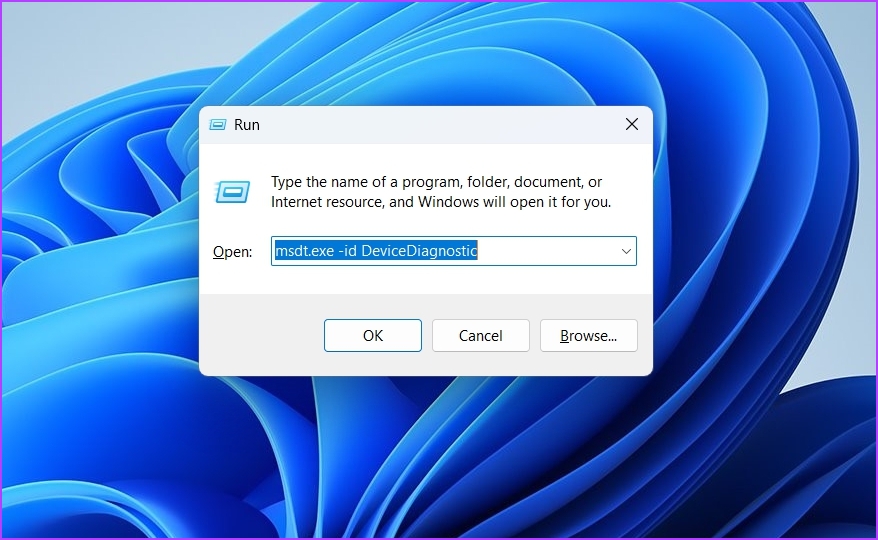
Step 1: Press the Windows + R shortcut to open the Run dialog box.
Step 2: Type msdt.exe -id DeviceDiagnostic in the search box and click OK.
Step 3: In the Hardware and Devices window, click on Advanced.

Step 4: Check the box for Apply repairs automatically and click Next.

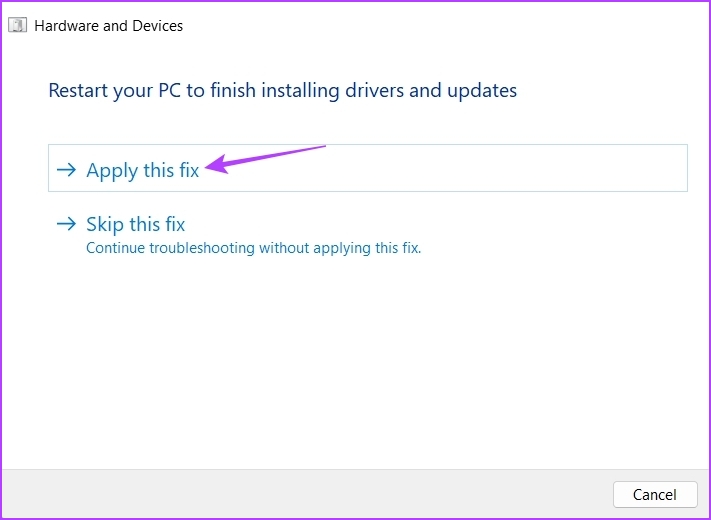
Step 5: The troubleshooter will scan your computer for issues and suggest a solution. Click the Apply this fix option to confirm.
Fix 2: Temporarily Turn Off User Account Control
When User Account Control is enabled, apps and tasks always require administrator permission to make changes to the system. However, this protective measure can interfere with trusted apps and cause errors.
Note: Proceed cautiously and disable user account control when you fully trust the application you’re trying to launch.
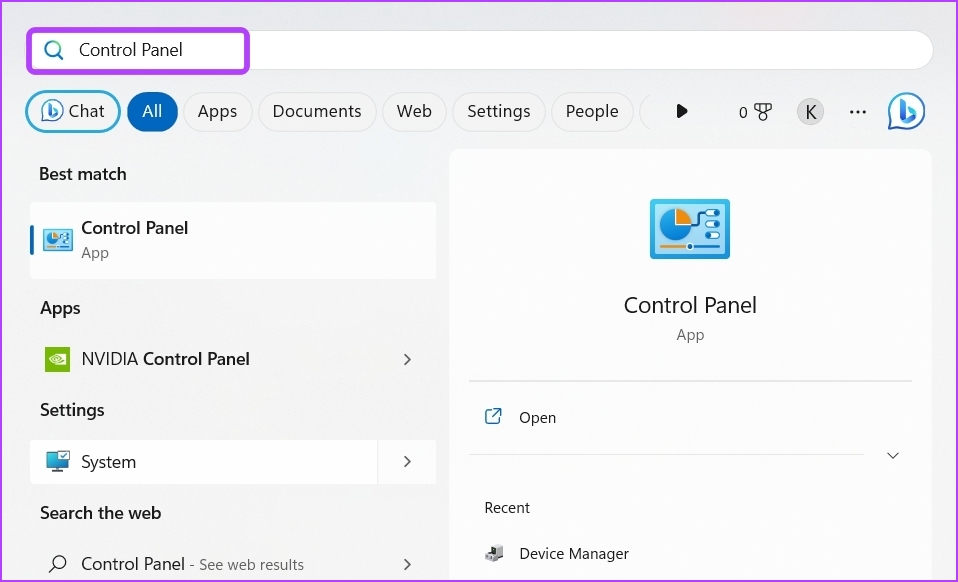
Step 1: Press the Windows key to open the Start menu, type Control Panel in the search bar, and click Enter.
Step 2: In the Control Panel, choose System and Security.

Step 3: Choose Change User Account Control settings under the Security and Maintenance section.

Step 4: Drag the slider to Never notify and click OK.
After that, restart your computer and check if the problem persists.

Fix 3: Disable Data Execution Prevention (DEP)
Data Execution Prevention can interfere with legitimate applications and cause them to crash. Try disabling it to fix the issue.
Step 1: Press the Windows + R shortcut to open the Run dialog box, type sysdm.cpl in the search bar, and click OK.

Step 2: Switch to the Advanced tab and click the Settings button.
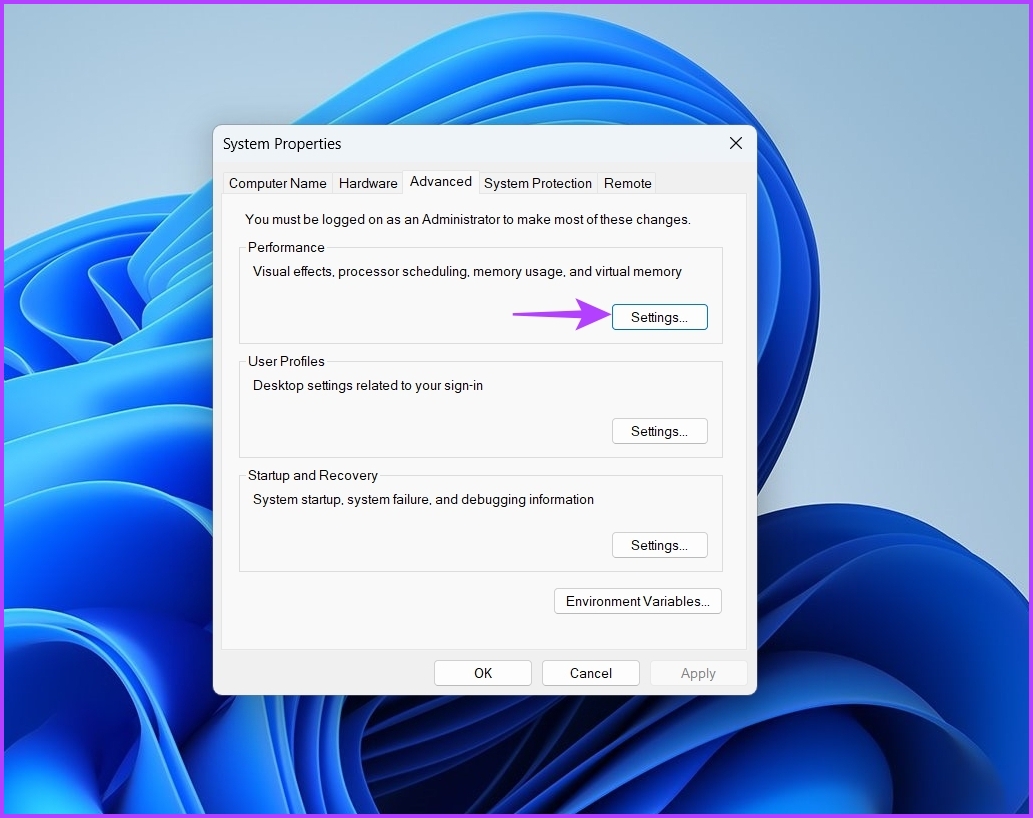
Step 3: In the Performance Options prompt, switch to the Data Execution Prevention tab.
Step 4: Check the Turn on DEP for all programs and services except those I select option and click Add.
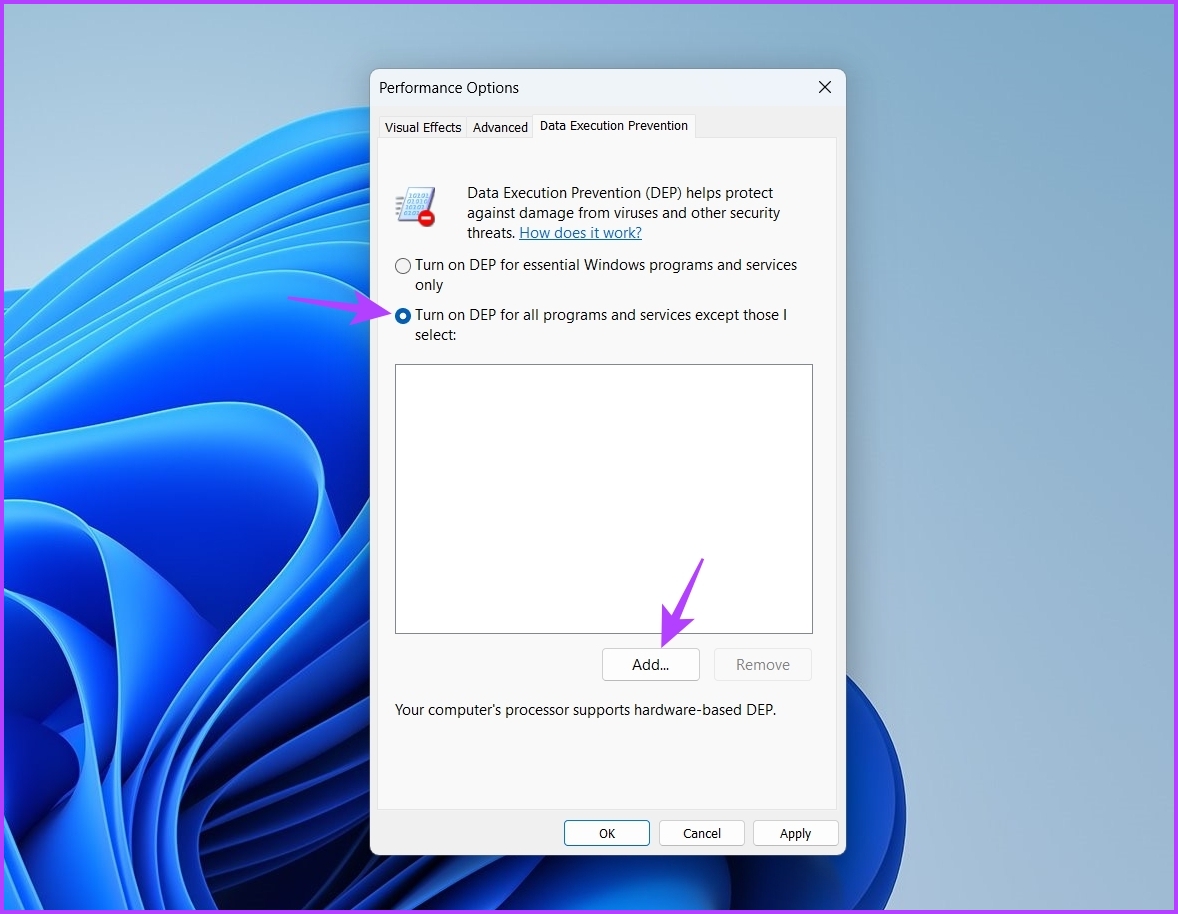
Step 5: Choose the executable causing the issue and click Open.
Step 6: Click Apply and OK to save the changes.

Also Read: How to run executables (EXE) from PowerShell
Fix 4: Use the Compatibility Mode
The Exception Access Violation error will likely appear if the error-causing program isn’t compatible with Windows 11. The solution here is to run that program in compatibility mode.
Step 1: Right-click on the error-causing application and choose Properties.
Step 2: Switch to the Compatibility tab. Click the drop-down icon under Run this program in compatibility mode for and choose Windows 8.
Step 3: Next, click Apply and OK to save the changes.


If nothing works, run an SFC scan to fix the corrupted system files or re-install the app facing the issue.
Was this helpful?
Last updated on 16 July, 2024
Read Next
 How to Solve the Unhandled Exception Has Occurred Error in Windows 10
The ‘unhandled exception has occurred’ error is not associated with a particular app, which makes it that much harder to resolve.
How to Solve the Unhandled Exception Has Occurred Error in Windows 10
The ‘unhandled exception has occurred’ error is not associated with a particular app, which makes it that much harder to resolve.
 6 Ways to Fix “Folder Access Denied” Error on Windows
Basic Fixes Check if the folder is encrypted. The administrator could have password-locked or encrypted the folder, so contact them for assistance.
6 Ways to Fix “Folder Access Denied” Error on Windows
Basic Fixes Check if the folder is encrypted. The administrator could have password-locked or encrypted the folder, so contact them for assistance.
 4 Ways to Fix Access Denied Error in Steam for Windows
Try Basic Fixes Check if Steam is down: Just like any other service, Steam is vulnerable to occasional server-side glitches.
4 Ways to Fix Access Denied Error in Steam for Windows
Try Basic Fixes Check if Steam is down: Just like any other service, Steam is vulnerable to occasional server-side glitches.
 6 Fixes for ‘You Do Not Have Sufficient Access to Uninstall’ Error in Windows
Method 1: Attempt Uninstallation With Admin Rights You need to locate the application's uninstaller file and re-attempt the uninstallation with administrator privileges.
6 Fixes for ‘You Do Not Have Sufficient Access to Uninstall’ Error in Windows
Method 1: Attempt Uninstallation With Admin Rights You need to locate the application's uninstaller file and re-attempt the uninstallation with administrator privileges.
 6 Best Ways to Access Windows Tools on Windows 11
Windows Tools carries useful utilities like Event Viewer, Task Scheduler, and System Configuration Tool, organized into a folder for easy access.
6 Best Ways to Access Windows Tools on Windows 11
Windows Tools carries useful utilities like Event Viewer, Task Scheduler, and System Configuration Tool, organized into a folder for easy access.
 5 Ways to Fix Quick Access Not Working on Windows 11
https://youtu.be/NlAnVpZD1hA Fix 1: Check File Explorer Options If Quick Access is not showing your recently opened files and frequently used folders, check File Explorer's Options to ensure the feature is
5 Ways to Fix Quick Access Not Working on Windows 11
https://youtu.be/NlAnVpZD1hA Fix 1: Check File Explorer Options If Quick Access is not showing your recently opened files and frequently used folders, check File Explorer's Options to ensure the feature is
 6 Ways to Fix Wi-Fi Showing Limited Access on Windows 11
Common Fixes Restart your router: Press your router's Power button to reboot it.
6 Ways to Fix Wi-Fi Showing Limited Access on Windows 11
Common Fixes Restart your router: Press your router's Power button to reboot it.
 3 Ways to Fix Microsoft Access Not Responding on Windows 11
Basic Fixes: Update Windows 11 and Microsoft Office: You should run a Windows update to ensure that an outdated computer is not the problem.
3 Ways to Fix Microsoft Access Not Responding on Windows 11
Basic Fixes: Update Windows 11 and Microsoft Office: You should run a Windows update to ensure that an outdated computer is not the problem.
The article above may contain affiliate links which help support Guiding Tech. The content remains unbiased and authentic and will never affect our editorial integrity.

