Steam is an amazingly efficient way to play, store, and download your games all in one place. If you’re suddenly having trouble with an error pop-up when trying to update, install, or save a game, then you’re dealing with a Disk Write Error.
In this article, we’ll be showing you how to fix a Steam Disk Write Error.
What Causes This Error?
The Steam Disk Write Error can be caused by a few things:
- You lack space on the drive where Steam files are saved.
- The Steam cache or game files are corrupted.
- Interference from your antivirus or firewall.
- File permission problems are preventing Steam from reading or writing.
How to Fix a Steam Disk Write Error
Let’s take a look at a few fixes that target the above issues and hopefully resolve yours:
Check Your Storage
A good first step is to see if there’s enough space to save and edit files. This is quite easy to do:
Step 1. Open Settings (Win + I) and click “System” in the sidebar.
Step 2. Scroll down to “Storage” in the main window.
Step 3. Your PC will load your current storage and give you a breakdown of what’s taking up space.
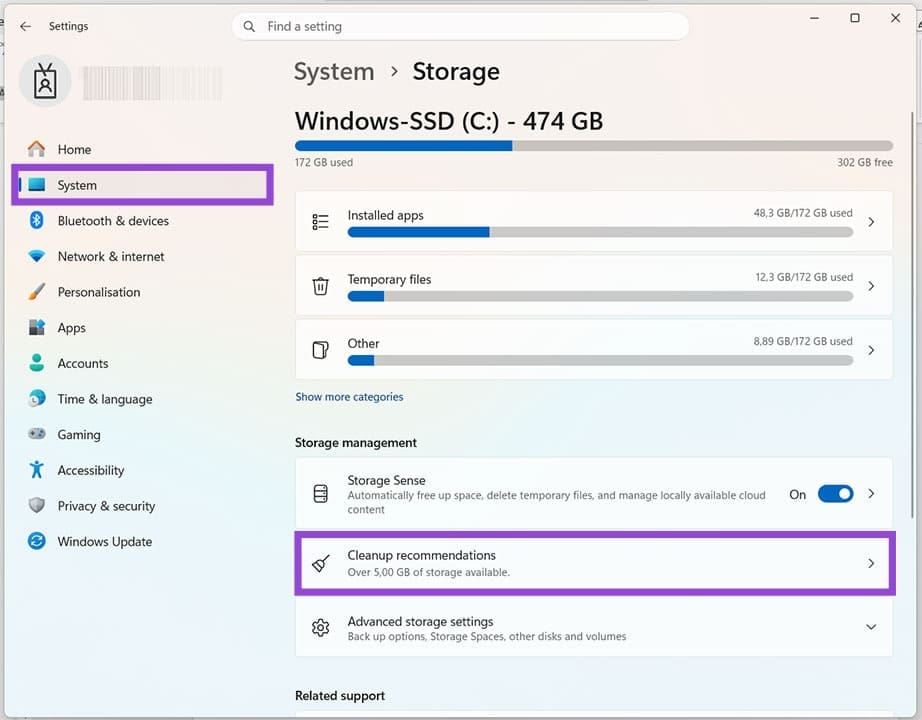
Step 4. For easy cleanup, click “Cleanup recommendations” to see what can be removed.
If you have multiple drives, be sure to check that Steam is saving and writing to one that has space.
Clear the Download Cache
If you suspect file corruption in Steam, you can try clearing your Download Cache. It’s quick enough to do:
Step 1. Click “Steam” in the top menu and “Settings” from the dropdown menu that appears.
Step 2. In the Settings window, click “Downloads” from the sidebar.
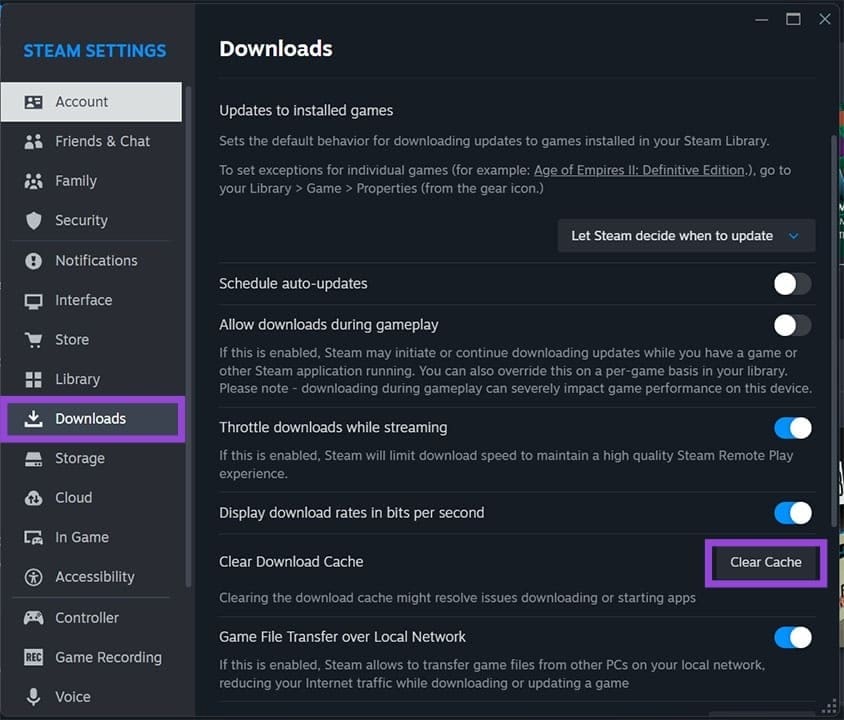
Step 3. In the main window, hit the “Clear Cache” button next to “Clear Download Cache.”
Step 4. Let the process run and write to disk again.
Repair the Library
For a more in-depth scan and fix of files, you can try repairing your game library. This might take a while, depending on your library size and PC speed:
Step 1. Open “Settings” in the Steam menu.
Step 2. Click “Storage” in the sidebar.
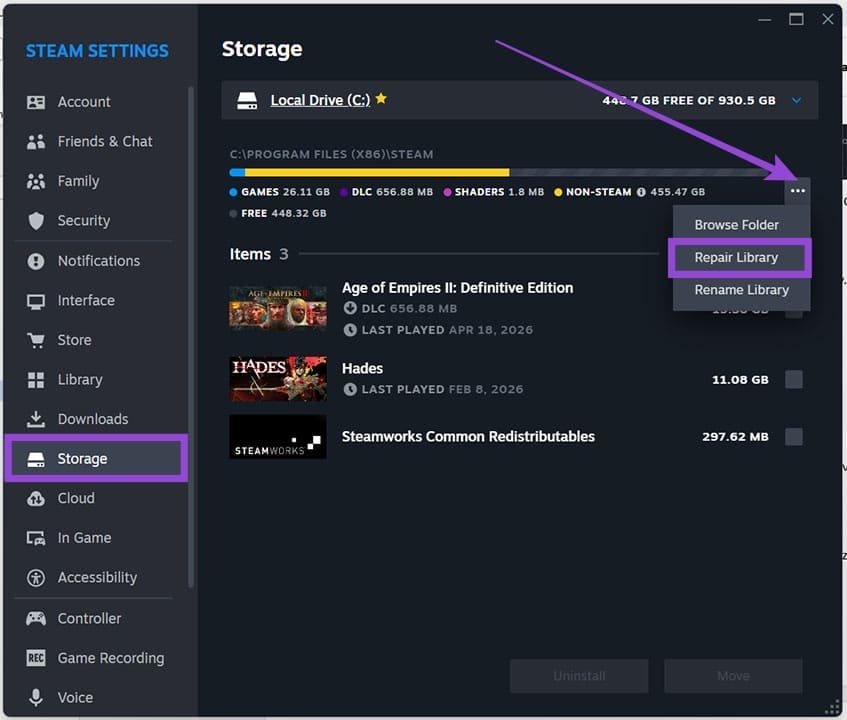
Step 3. Next to your storage bar, click the Ellipsis Menu (three dots).
Step 4. Choose “Repair Library” from the list, and let the process run.
Fixes in File Explorer
To fix the Disk Write Error, there are two things you can do in File Explorer. Let’s cover them both:
Step 1. Right-click your Steam.exe icon on your Desktop (or in C:\Program Files (x86)\Steam).
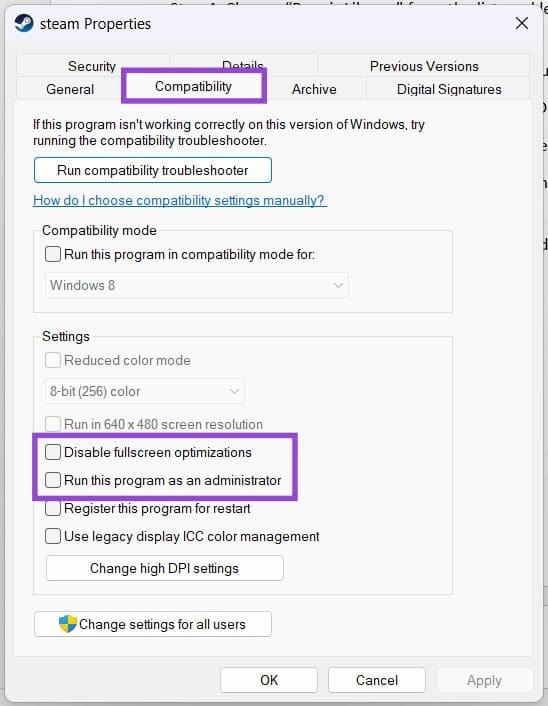
Step 2. Select “Properties” and select the “Compatibility” tab from the context menu.
Step 3. Uncheck “Disable full-screen optimizations” and check “Run this program as Administrator.”
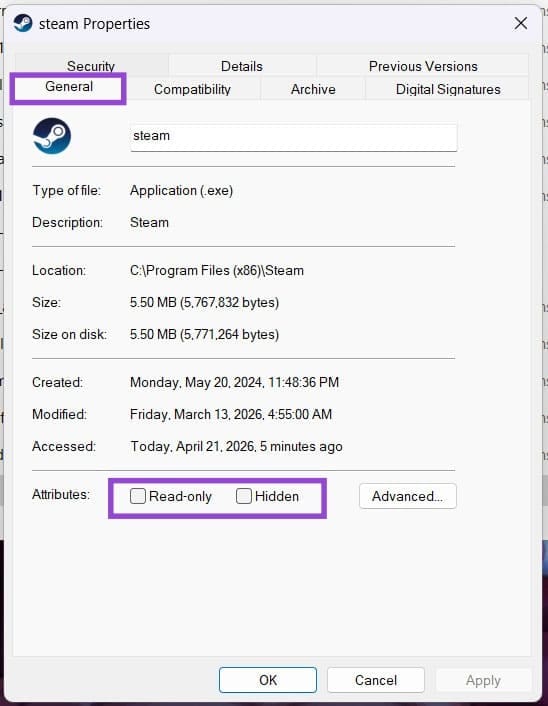
Step 4. Go to the “General” tab and uncheck “Read only” and “Hidden” if they are checked.
Step 5. In the Security tab, click your user profile in the top window, and ensure that nothing is set to “Deny” in the bottom window.
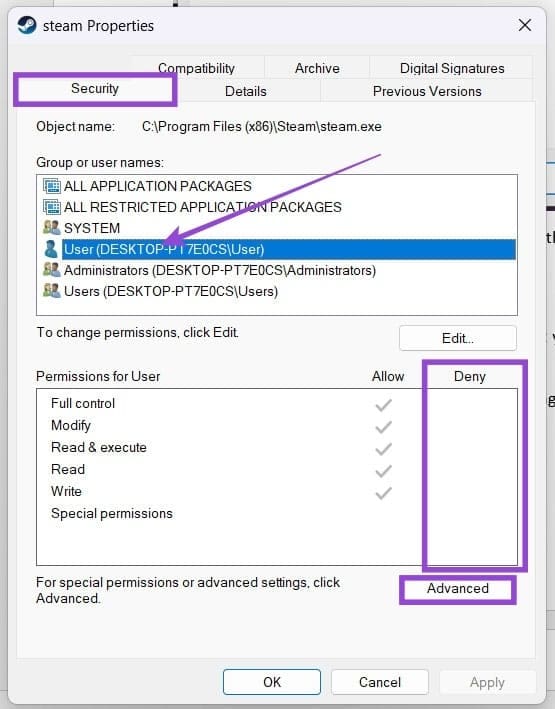
Step 6. If there is, click “Advanced options,” select your profile, and click the “Add” button. Allow any denied settings.
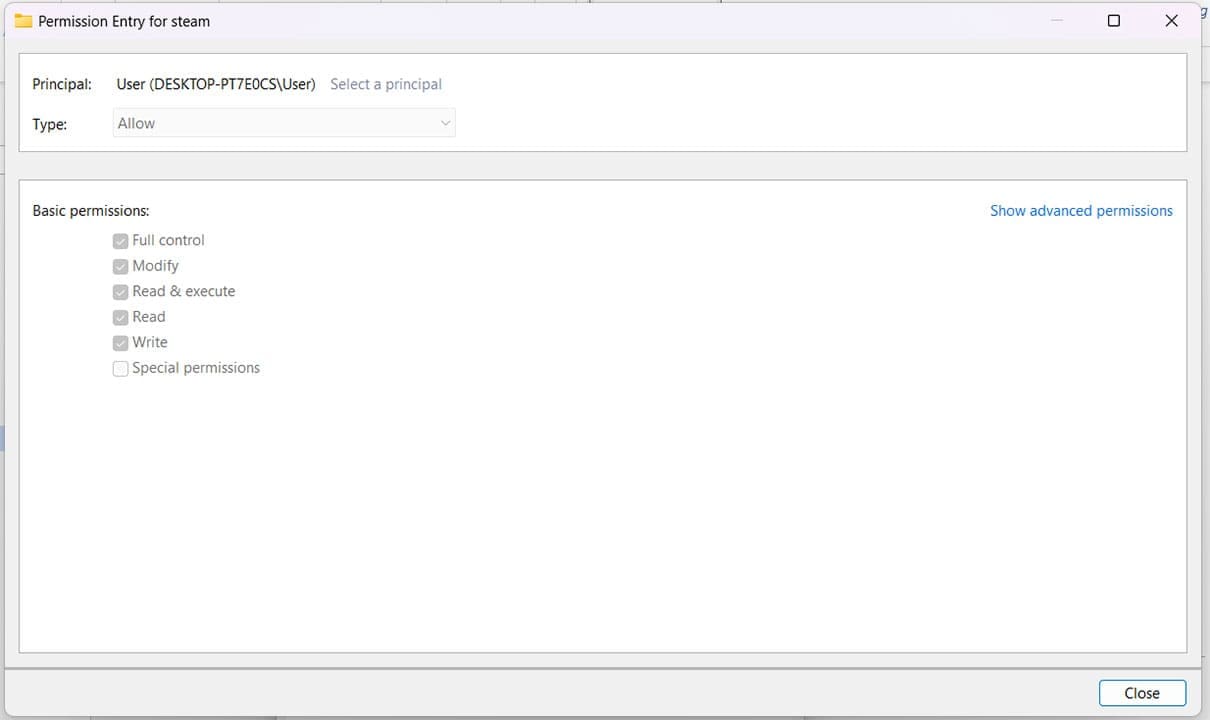
Step 7. Click “Apply” and “OK” to finalize everything.
Check Firewall Settings
It might be that your Firewall is blocking Steam and its ability to write. Be sure to allow both “Steam.exe” and “streaming_client” to be added as exceptions on whatever firewall software you have.
Was this helpful?
Last updated on 30 April, 2026
Read Next
 6 Ways to Fix Not Enough Disk Space Error in Steam on Windows 11
Why Don’t I Have Enough Disk Space While Running Steam?
6 Ways to Fix Not Enough Disk Space Error in Steam on Windows 11
Why Don’t I Have Enough Disk Space While Running Steam?
 Not Enough Free Disk Space Steam Fix
So, you’re settling down to play the Steam game you’ve been waiting ages for, only to have Steam tell you that your hard drive doesn’t have enough space.
Not Enough Free Disk Space Steam Fix
So, you’re settling down to play the Steam game you’ve been waiting ages for, only to have Steam tell you that your hard drive doesn’t have enough space.
 4 Ways to Write a Fraction in Microsoft Word
Method 1: Using Equations Unlike the symbols and autoformat options, which present limited fraction types to insert in your document, you can try creating your fraction using equations.
4 Ways to Write a Fraction in Microsoft Word
Method 1: Using Equations Unlike the symbols and autoformat options, which present limited fraction types to insert in your document, you can try creating your fraction using equations.
 How to Write Vertically in Excel
In some cases, category names or other options look better or more organized with vertical rather than horizontal text, especially if you’re trying to cram a long table onto a
How to Write Vertically in Excel
In some cases, category names or other options look better or more organized with vertical rather than horizontal text, especially if you’re trying to cram a long table onto a
 Top 5 Ways to Fix Disk Structure Is Corrupted and Unreadable Error on Windows 10
Windows 10 gives you alerts whenever the external storage disk goes corrupt.
Top 5 Ways to Fix Disk Structure Is Corrupted and Unreadable Error on Windows 10
Windows 10 gives you alerts whenever the external storage disk goes corrupt.
 A Complete Guide to OneDrive Storage and Avoiding Disk Full Error
Microsoft OneDrive, previously known as SkyDrive, is a complete cloud storage solution for Windows users.
A Complete Guide to OneDrive Storage and Avoiding Disk Full Error
Microsoft OneDrive, previously known as SkyDrive, is a complete cloud storage solution for Windows users.
 9 Ways to Solve 100% Disk Usage Error in Windows 10
You know why you are here, right?
9 Ways to Solve 100% Disk Usage Error in Windows 10
You know why you are here, right?
 4 Ways to Fix the Login Error Code E84 in Steam for Windows
Switch to a different network connection: A slow or intermittent internet connection can also cause login errors in Steam.
4 Ways to Fix the Login Error Code E84 in Steam for Windows
Switch to a different network connection: A slow or intermittent internet connection can also cause login errors in Steam.
The article above may contain affiliate links which help support Guiding Tech. The content remains unbiased and authentic and will never affect our editorial integrity.