
One of the least used and perhaps even least intuitive features in Windows 11 is the ability to store items that you copy across the device. The clipboard can save up to 25 items, which can then be manually pasted wherever you need them. And if you have logged in with the same account on two PCs, you can have the clipboard sync between them to easily copy and paste text.
Here’s how to enable sync clipboard history Windows 11 has and what you can do with it.
How to Enable Sync Clipboard History in Windows 11
Enabling the feature is a simple process that requires turning on the clipboard history option as well.
Step 1. Open “Settings” (Win + I) and go to the “System” tab on the left.
Step 2. Scroll down and select “Clipboard.”

Step 3. Turn on both the “Clipboard history” and the “Clipboard history across your devices” features.
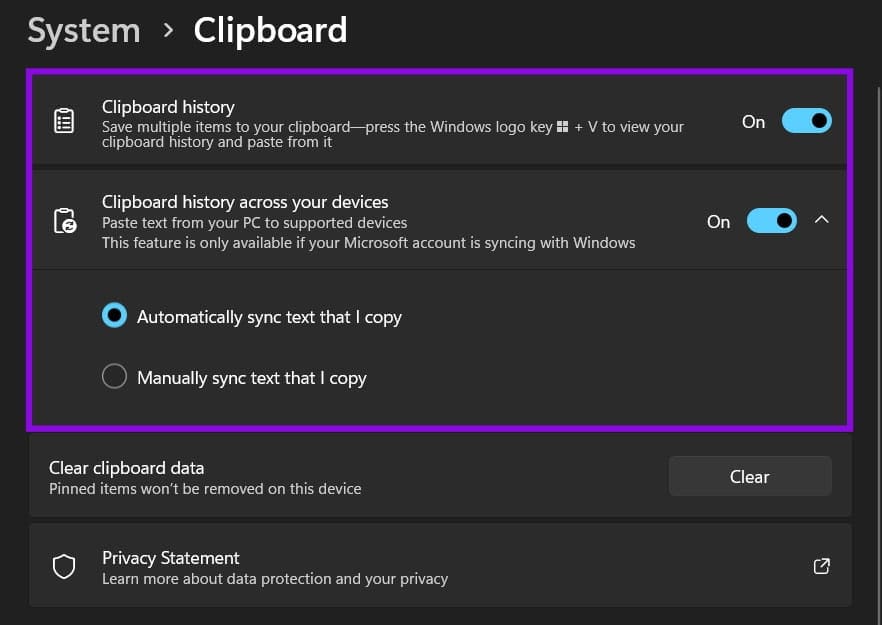
When turning on the feature, you’ll have two options:
- Automatic syncing immediately updates the clipboard across all devices whenever you add a new item (by saving to your account’s cloud storage).
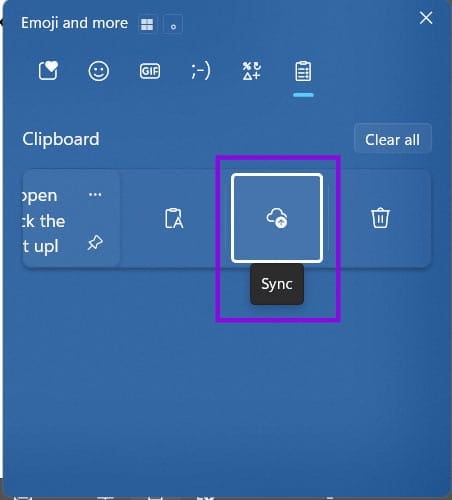
- Manual syncing requires you to open the Clipboard tray (Win + V) and click the “Sync” option for any new text items (under the three-dots icon). This can be helpful if you’re copying sensitive information between PCs.
Once turned on, the feature stays on until you disable it. Note that you have to make the change individually on all PCs. Where the feature is turned off, you won’t be able to access synced items.
How to Disable Sync Clipboard History Windows 11
If you don’t want to use the feature anymore or prevent a specific PC from accessing the clipboard, removing it is just as easy as turning it on.
Step 1. Go to “Settings” and open the “System” tab on the left, scroll down, and open the “Clipboard” option.
Step 2. Turn off “Clipboard history across your devices.”
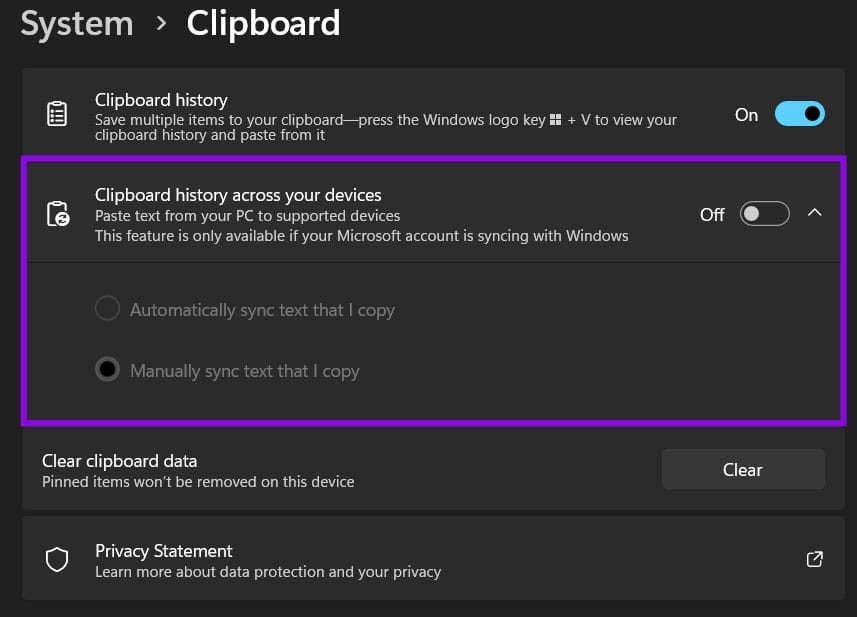
You can still use the Clipboard history features; it will just be limited to the items you copy on that device.
Using the Clipboard History
While the clipboard can technically store 25 items, older unpinned items are automatically removed as you copy new ones, so you’ll likely need to clear it sooner than that since the tray itself is relatively small and difficult to navigate.
You can open the tray with Win + V. Then, you can use the up and down arrow buttons to cycle through the items. Hitting “Enter” pastes the item wherever the cursor currently is (you can also manually click and paste if the cursor is located in a rich text editor der).

If you open more options for a particular item, you can paste it as plain text, manually sync it to the cloud (if you’re syncing history), or delete it. You can also use the “pin” icon to keep it at the top of the list. Pinned items also won’t be overwritten by new ones if you reach the item limit.
Was this helpful?
Last updated on 13 November, 2026
Read Next
 3 Ways to Clear the Clipboard History in Windows 11
Method 1: Using the Clipboard Tab The easiest and quickest way to empty clipboard history in Windows is through the Clipboard tab.
 How to Fix Broken Clipboard History in Windows 11
Clipboard history is a helpful feature in Windows, as it lets you view and access bits of content you’ve copied in the past, like text and images.
 How to Bring Up Clipboard History in Windows 11
Whenever you copy something on a Windows PC or laptop, be it a piece of text, a hyperlink, or an image, it goes to a temporary storage area called the
 5 Best Apps to Sync Clipboard Between PC and Android
When Pushbullet moved its amazing universal clipboard feature to the premium version, I was devastated.
 3 Ways to Enable or Disable Sync Settings in Windows
Method 1: Turn Sync Settings On or Off Using the Settings App The Settings app gives you several options for managing your account preferences, including the ability to enable or
 How to Check and Recover Clipboard History on Android
Method 1: Check and Recover Clipboard History Using Gboard One of the easiest ways to view and recover your clipboard history on an Android device is by using Gboard, the
 2 Ways to Check Clipboard History on Mac
Method 1: Default Clipboard Step 1: Open Finder on Mac, go to Edit in the menu bar, and choose Show Clipboard.
 How to Fix Windows Clipboard Not Working on Windows 10
Basic Fixes Update Windows: Before starting, make sure that you're running the latest version of Windows.
The article above may contain affiliate links which help support Guiding Tech. The content remains unbiased and authentic and will never affect our editorial integrity.