How to Enable Touch Keyboard on Windows 11
Enabling the Touch Keyboard on Windows 11 is quite straightforward. Here’s how to do it.
Step 1: Right-click on the Taskbar and select Taskbar settings.

Step 2: In the Settings window that appears, expand Taskbar corner icons, and toggle on the switch next to the Touch keyboard.

Once you complete the steps mentioned above, a small keyboard icon will appear on the Taskbar. You can click on it to easily access the Touch Keyboard.

How to Use Touch Keyboard on Windows 11
Once you’ve opened the Touch Keyboard, you can use your mouse cursor or the touch input to start typing. Alternatively, click the gear icon to switch to handwriting mode and use your stylus or a mouse to write.

Similarly, clicking the mic icon will allow you to use the text-to-speech functionality.

Aside from the various input methods, clicking the Recent icon lets you access emojis, GIFs, symbols, and the clipboard history.

After typing with the Touch Keyboard, click on the X icon or press any key on your physical keyboard to close it.

Additionally, you can also switch between different languages on the Touch Keyboard. For that, you’ll need to add new languages to your PC first. Once installed, click the language icon on the Touch Keyboard to switch languages.

How to Customize Touch Keyboard on Windows 11
Windows 11 also offers a few customization options that you can use to personalize your Touch Keyboard experience.
Change Keyboard Layout
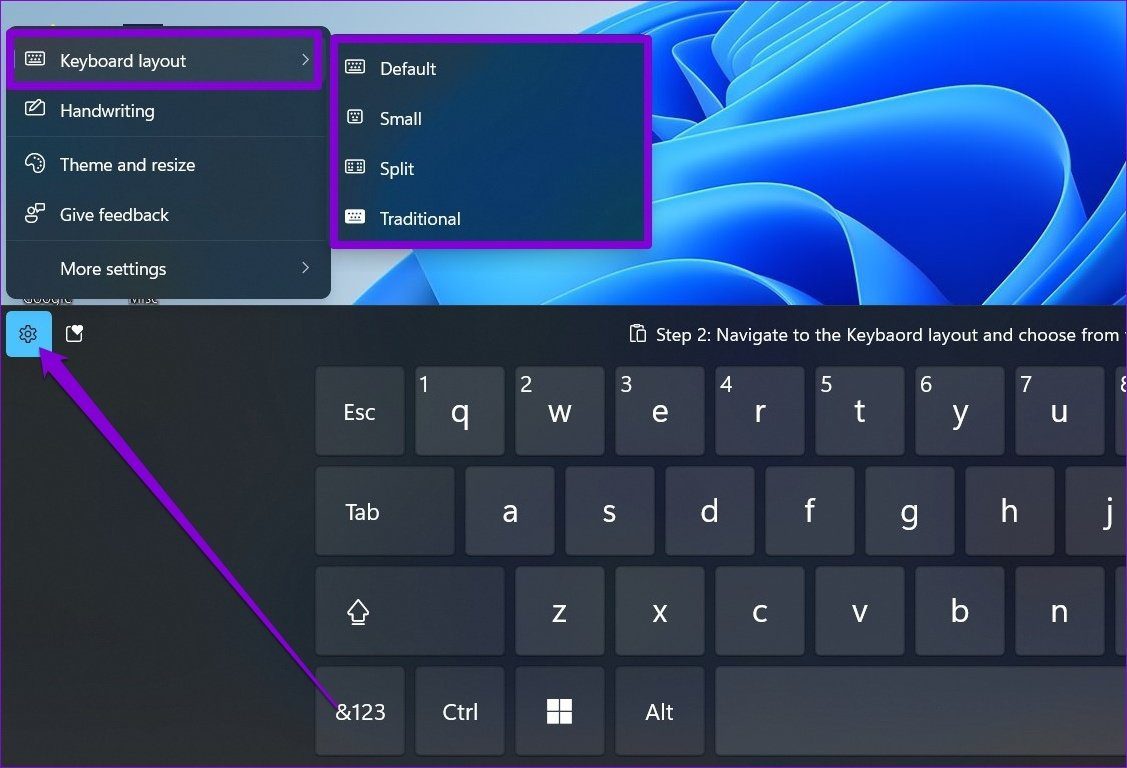
Step 1: Open the Touch Keyboard and click the gear icon on the left.
Step 2: Navigate to the Keybaord layout and choose from the available layouts.
Change Keyboard Size
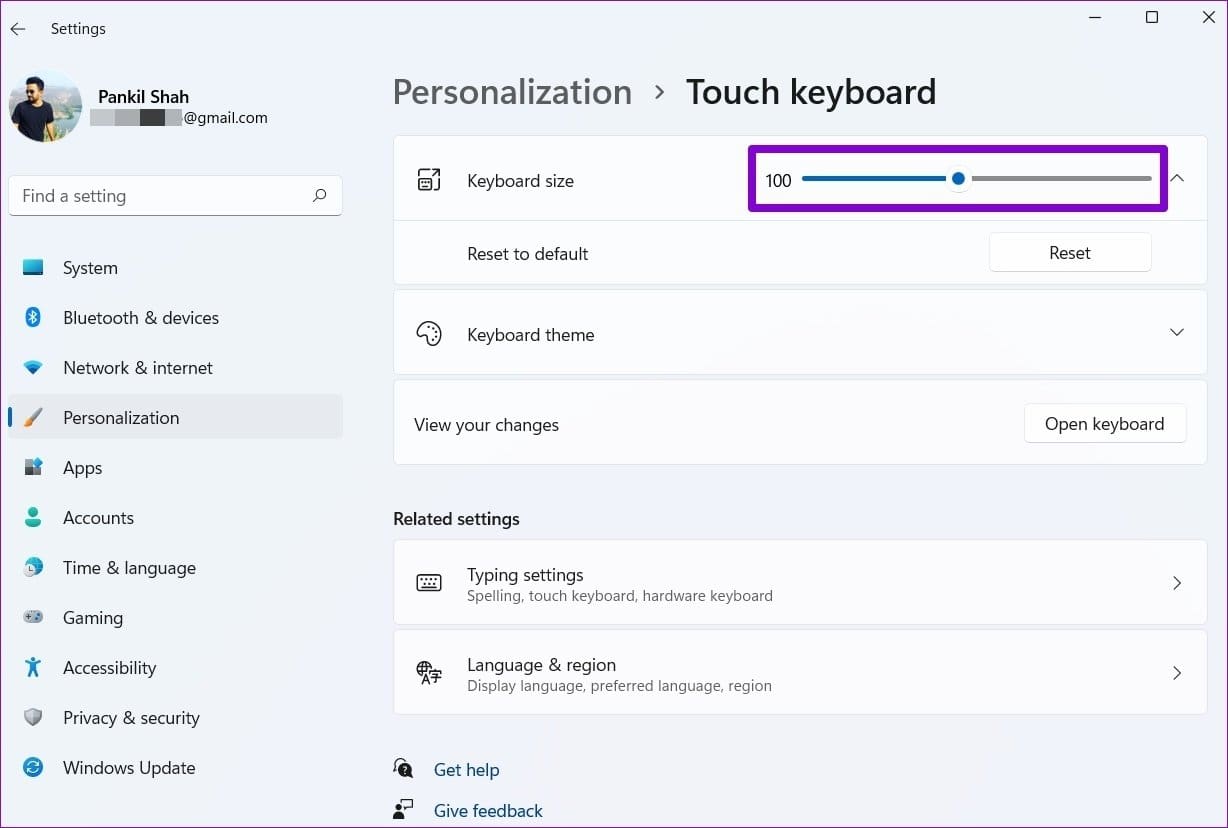
Step 1: Press the Windows key + I to open the Settings app. Navigate to the Personalization tab and select Touch keyboard.

Step 2: Use the slider next to the Keyboard size to increase or decrease the size of the keyboard. Click the Open keyboard button to preview the keyboard.
Change Keyboard Themes
Step 1: Open the search menu, type in Touch Keyboard settings, and press Enter.

Step 2: Expand the Keyboard theme section and scroll through the list to pick a theme.
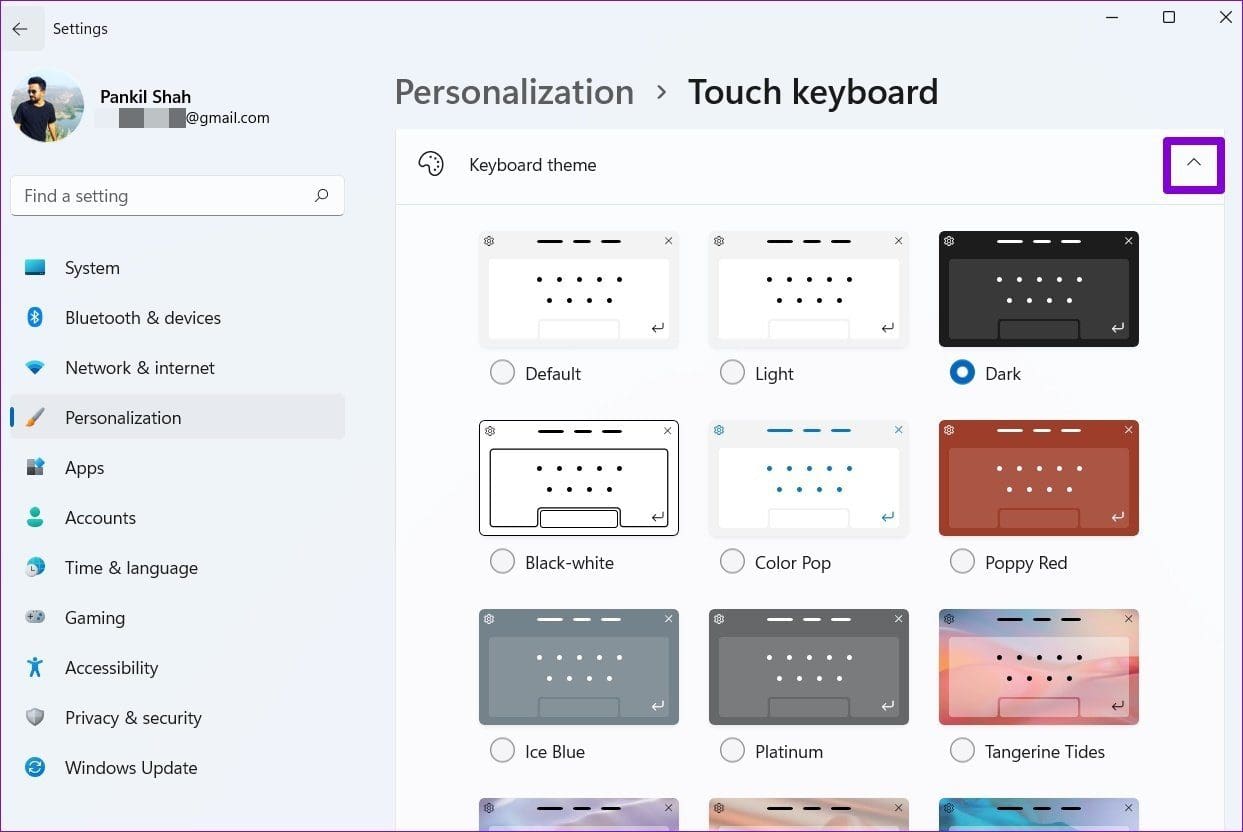
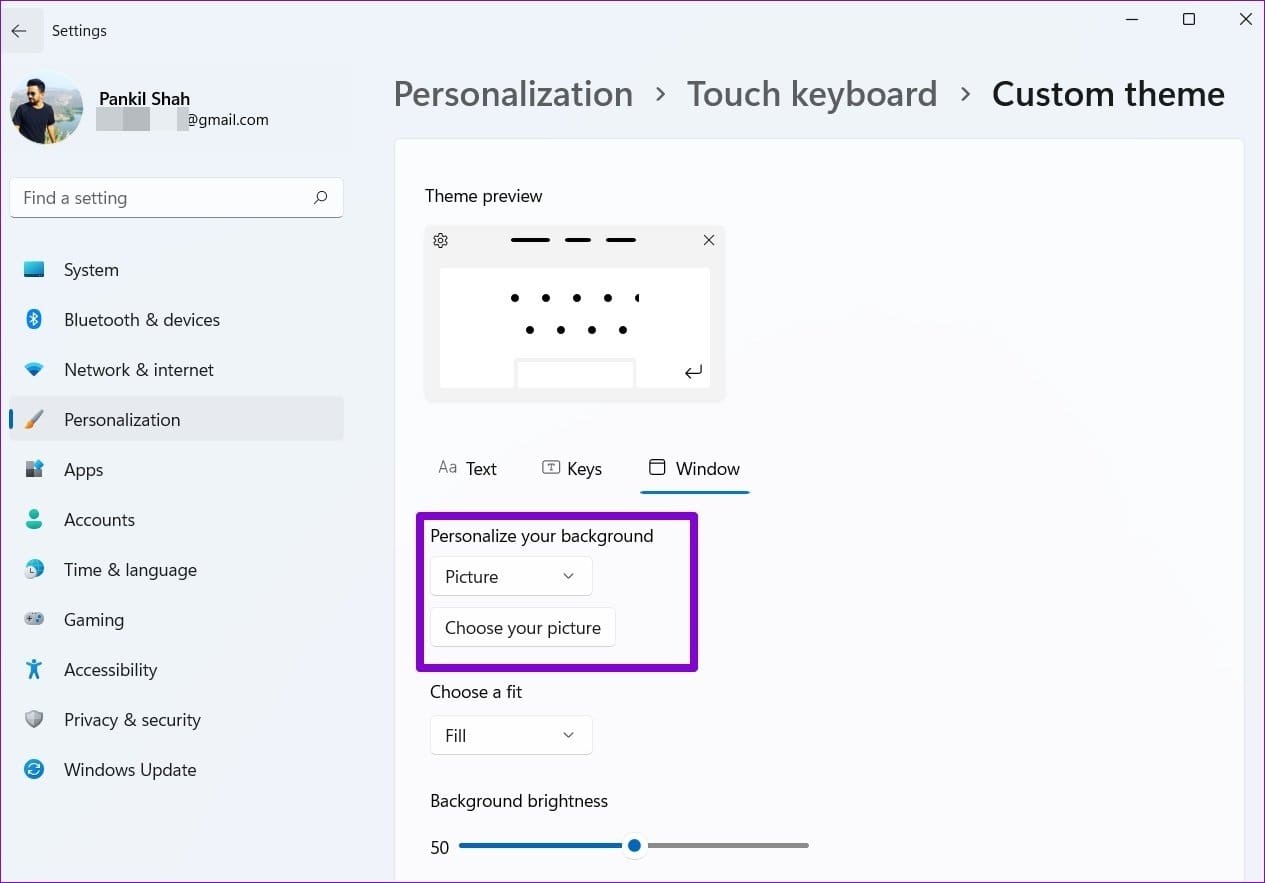
If you can’t find a desirable theme from the presets, you can also create a custom theme. To do so, select the Custom theme option and then click on the Edit button.

You can customize each element of the Touch Keyboard, including the color and transparency of the window, keys, and the text on the keys.

You also get to personalize your keyboard by setting a custom picture. To do so, move to the Window tab and select Picture under “Personalize your background.” Then click Choose your picture to upload it from your PC.
Change Key Text Size & Background
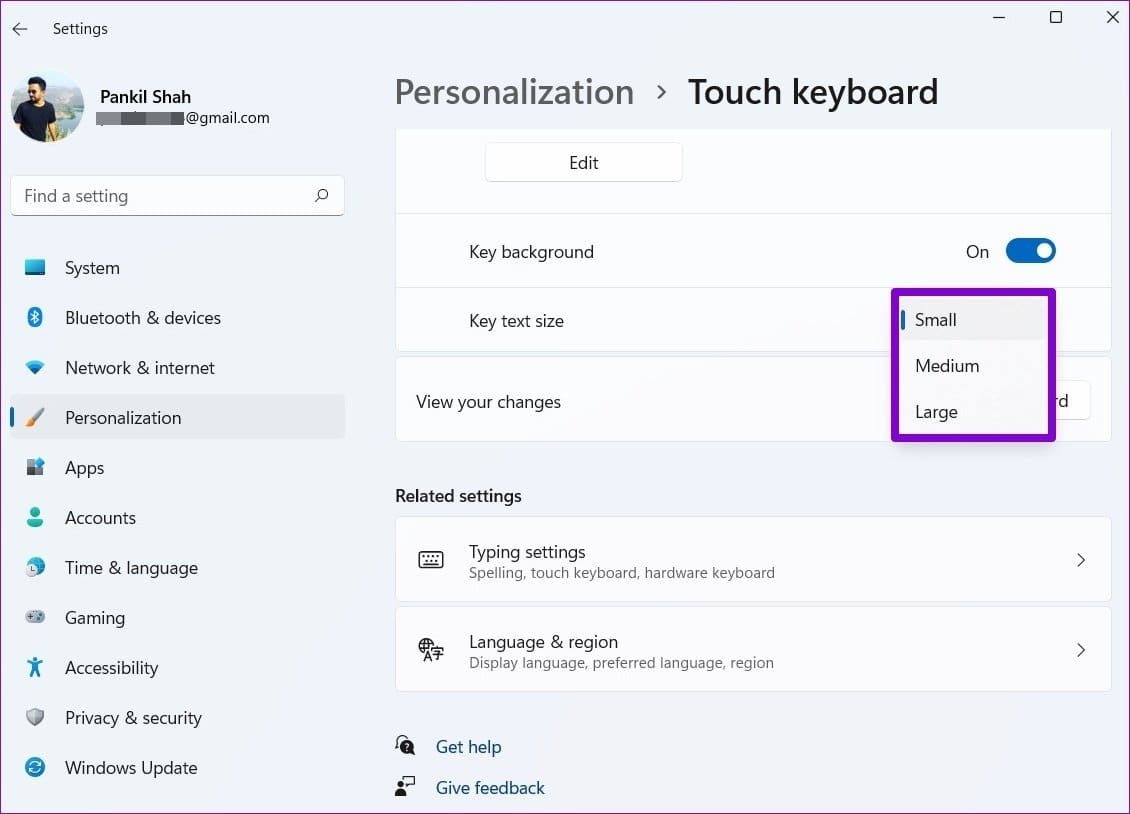
Under the Keyboard theme, you can use the drop-down menu next to the Key text size to modify it. Similarly, you can also toggle the switch to enable or disable the Key background.
Was this helpful?
Last updated on 09 August, 2024
Read Next
 How to Hide Android On-Screen Keyboard When Using External Keyboard
Google understands that multiple users connect physical keyboards to their Android devices.
How to Hide Android On-Screen Keyboard When Using External Keyboard
Google understands that multiple users connect physical keyboards to their Android devices.
 Top 3 Touch Mouse Alternatives to Apple’s Magic Mouse
The Magic Mouse is useful for plenty of people, but some can get annoyed by its poor ergonomics.
Top 3 Touch Mouse Alternatives to Apple’s Magic Mouse
The Magic Mouse is useful for plenty of people, but some can get annoyed by its poor ergonomics.
 How to Change iPhone’s Touch Sensitivity Settings
How to Change Your iPhone’s Touch Sensitivity Settings If your iPhone feels too sensitive or responsive, adjust the settings.
How to Change iPhone’s Touch Sensitivity Settings
How to Change Your iPhone’s Touch Sensitivity Settings If your iPhone feels too sensitive or responsive, adjust the settings.
 10 Best Ways to Fix Ghost Touch On iPhone
The iPhone was one of the first devices to introduce multi-touch capabilities to the masses.
10 Best Ways to Fix Ghost Touch On iPhone
The iPhone was one of the first devices to introduce multi-touch capabilities to the masses.
 5 Fixes for Touch Controls Not Working on AirPods and AirPods Pro
Fix 1: Clean the Outer Surface of the AirPods The touch sensors on the AirPods need to detect proper contact with your fingers to register a touch or a press.
5 Fixes for Touch Controls Not Working on AirPods and AirPods Pro
Fix 1: Clean the Outer Surface of the AirPods The touch sensors on the AirPods need to detect proper contact with your fingers to register a touch or a press.
 3 Best Ways to Fix Keyboard Backlight Not Working on Windows 10 and Windows 11
Try Basic Fixes Toggle the keyboard backlight using the hotkey: You can use a key combination to quickly enable or disable the keyboard backlight on your Windows 11 PC.
3 Best Ways to Fix Keyboard Backlight Not Working on Windows 10 and Windows 11
Try Basic Fixes Toggle the keyboard backlight using the hotkey: You can use a key combination to quickly enable or disable the keyboard backlight on your Windows 11 PC.
 4 Fixes for Bluetooth Keyboard Not Connecting to Windows 11 PC
Basic Fixes Check the battery level on your Bluetooth keyboard: Most Bluetooth keyboards come with a battery-level indicator.
4 Fixes for Bluetooth Keyboard Not Connecting to Windows 11 PC
Basic Fixes Check the battery level on your Bluetooth keyboard: Most Bluetooth keyboards come with a battery-level indicator.
 3 Ways to Open On-Screen Keyboard in Windows 11
https://youtu.be/fKDIO4PpMJk Basic Ways: Using the keyboard shortcut: You can use the Windows + Ctrl + O keys to open the On-Screen Keyboard in Windows 11.
3 Ways to Open On-Screen Keyboard in Windows 11
https://youtu.be/fKDIO4PpMJk Basic Ways: Using the keyboard shortcut: You can use the Windows + Ctrl + O keys to open the On-Screen Keyboard in Windows 11.
The article above may contain affiliate links which help support Guiding Tech. The content remains unbiased and authentic and will never affect our editorial integrity.