How to Enable Focus Mode in Microsoft Word
Focus Mode hides the Ribbon and Taskbar on your document to reduce distractions and let you work only on the document’s text and other elements.
Method 1: Using Keyboard Shortcuts
To enable Focus Mode quickly and conveniently in Microsoft Word, you must memorize keyboard shortcuts. On your keyboard, press the Alt + W + O keys simultaneously.

Method 2: Using the Taskbar
On the Taskbar, click on the Focus icon at the bottom right of the Microsoft Word app.

Method 3: Through the Ribbon
The Ribbon contains many features that help optimize the use of Microsoft Word. Here’s how to enable Focus Mode using it.
Step 1: On the Ribbon, click on the View tab.
Step 2: From the Immersive group, click on Focus.

Method 4: From the Search Bar
The search bar conveniently locates a feature in Microsoft Word when you forget its location or relevant tab. Here’s how to use it to enable Focus Mode.
Step 1: Click on the Search bar at the top of the Microsoft Word app.
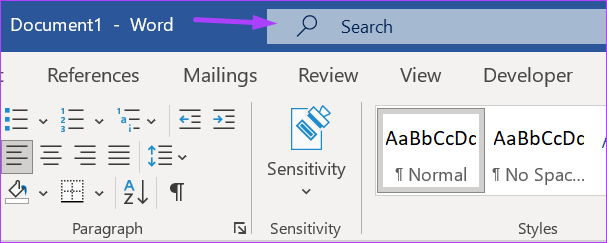
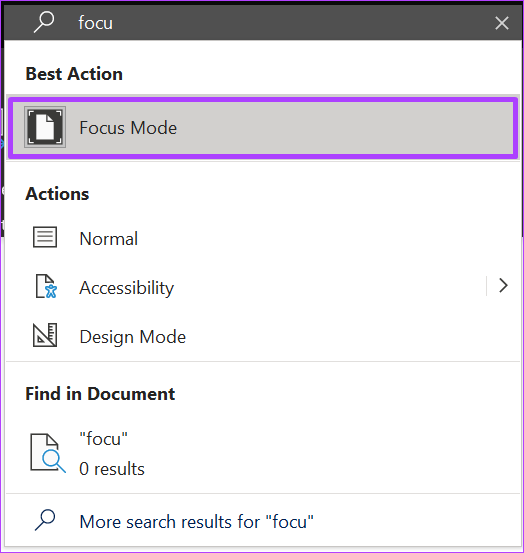
Step 2: Search for Focus Mode and click on the result.

Also Read: How to create or edit custom properties for a Microsoft Word file.
How to Change the Focus Mode Background Color in Microsoft Word
The default background color in Microsoft Word is white. This is the same color also applied in Focus Mode. If the white color distracts you, it can be changed in Focus Mode.
You can’t change the background color in Focus Mode in the standard Word view. Users must enable Focus Mode to access the setting to change the background color.
Step 1: After enabling Focus Mode, click on the ellipsis at the top of the screen.

Step 2: On the Ribbon, click on View.

Step 3: From the Immersive group, click on Background.

Step 4: Select your preferred background color from the options displayed.

Also Read: How to create a custom color set and theme in Microsoft Word
How to Disable Focus Mode in Microsoft Word
Disabling Focus Mode is as easy as enabling it. Here are the different methods to do so:
Method 1: Using the Escape Key
This is the simplest way to disable focus mode and requires only one action from your end.
Step 1: After enabling Focus Mode, tap the Esc key on your keyboard to exit it.

Method 2: Using the Taskbar
Using the Taskbar, here’s how to exit Focus Mode on your Word app.
Step 1: After enabling Focus Mode, click on the ellipsis at the top of the screen to reveal the taskbar at the bottom of the app.
Step 2: On the Taskbar, click on the Focus icon at the bottom right to exit Focus Mode.

Method 3: Using the Ribbon
Using the Ribbon, here’s how to exit Focus Mode on your Word app.
Step 1: After enabling Focus Mode, click on the ellipsis at the top of the screen to reveal the Ribbon at the top.
Step 2: On the Ribbon, click on the View tab.
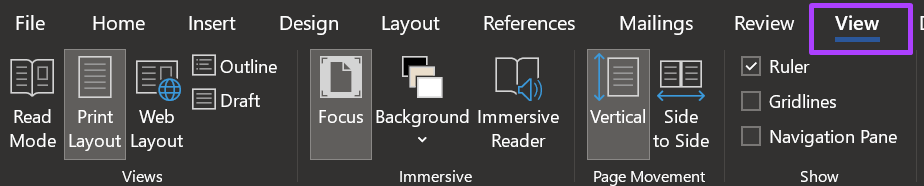
Step 3: Click on Focus to exit Focus Mode from the Immersive group.

Method 4: From the Search Bar
Using the Search bar, here’s how to exit Focus Mode on your Word app.
Step 1: After enabling Focus Mode, click on the ellipsis at the top to reveal the search bar at the top of the app.
Step 2: Click on the Search bar and search for Focus Mode.
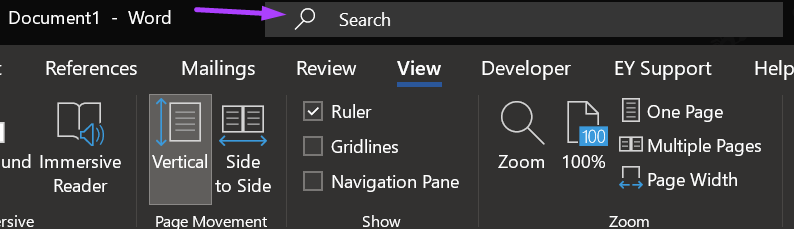
Step 3: Click on the result to exit Focus Mode.
Also Read: How to enable equation editor in Microsoft Word
Was this helpful?
Last updated on 19 July, 2024
Read Next
 How to Enable and Disable Hyphenation in Microsoft Word
How to Turn on Hyphenation in Microsoft Word There are two types of hyphenation - automatic and manual.
How to Enable and Disable Hyphenation in Microsoft Word
How to Turn on Hyphenation in Microsoft Word There are two types of hyphenation - automatic and manual.
 Google Docs vs. Microsoft Word Online: Which Word Processor Is Better
Google Docs vs.
Google Docs vs. Microsoft Word Online: Which Word Processor Is Better
Google Docs vs.
 Why Am I Getting Calls When Do Not Disturb or Focus Mode Is On
Stop Getting Calls During DND or Focus Mode on iPhone 1.
Why Am I Getting Calls When Do Not Disturb or Focus Mode Is On
Stop Getting Calls During DND or Focus Mode on iPhone 1.
 How to Enable or Disable Slow Mode on Discord
What Is Slow Mode in Discord Discord’s slow mode feature helps limit the number of messages a user can send in a channel.
How to Enable or Disable Slow Mode on Discord
What Is Slow Mode in Discord Discord’s slow mode feature helps limit the number of messages a user can send in a channel.
 How to Enable or Disable Reader Mode in Chrome
Method 1: Using the Reading Mode Chrome Flag Similar to forcing dark mode on Chrome, you may enable the Reader Mode using Chrome flags.
How to Enable or Disable Reader Mode in Chrome
Method 1: Using the Reading Mode Chrome Flag Similar to forcing dark mode on Chrome, you may enable the Reader Mode using Chrome flags.
 Airplane Mode: What It Does and How to Enable or Disable It on Your Phone
What Is Airplane Mode?
Airplane Mode: What It Does and How to Enable or Disable It on Your Phone
What Is Airplane Mode?
 How to Enable or Disable Internet Explorer Mode in Edge
Enable or Disable the Internet Explorer Mode in Microsoft Edge Microsoft Edge's Internet Explorer mode lets you effortlessly access old websites without switching browsers.
How to Enable or Disable Internet Explorer Mode in Edge
Enable or Disable the Internet Explorer Mode in Microsoft Edge Microsoft Edge's Internet Explorer mode lets you effortlessly access old websites without switching browsers.
 How to Clear or Disable Recently Used Documents List in Microsoft Word
Remove Specific or All Entries From Recent Documents List in Microsoft Word If you only want to remove a few documents from the Recent list, go to the Home tab
How to Clear or Disable Recently Used Documents List in Microsoft Word
Remove Specific or All Entries From Recent Documents List in Microsoft Word If you only want to remove a few documents from the Recent list, go to the Home tab
The article above may contain affiliate links which help support Guiding Tech. The content remains unbiased and authentic and will never affect our editorial integrity.