

Edit Videos in WhatsApp
WhatsApp offers multiple options to edit your videos before sharing them with WhatsApp contacts. Let us take a look at them one by one.
Crop/Trim Videos on WhatsApp
Step 1: Open WhatsApp on your iPhone or Android and then open your chat.
Step 2: Select the video from your gallery that you want to edit and then use the trimming tool at the top to reduce the length of your video.
Step 3: To crop your video, tap the Crop icon at the top.


Step 4: You can crop the video by manually selecting the areas.
You can also tap the Aspect Ratio icon at the bottom-right corner and select the one to crop your video.

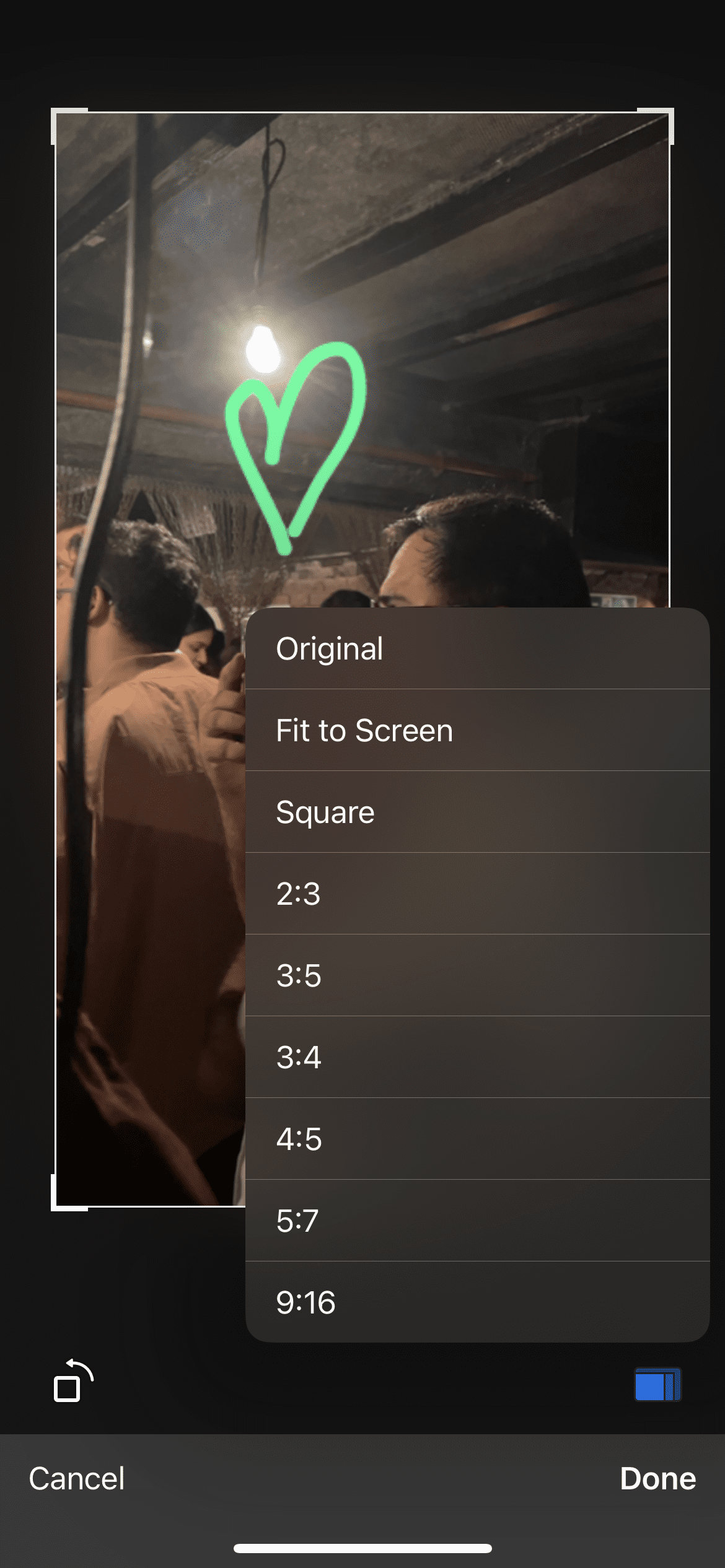
Step 5: Tap on Done at the bottom-right corner to confirm.
Add Stickers or Emojis to Videos on WhatsApp
Step 1: Open WhatsApp and select the video you want to share with your contact.
Step 2: Tap the Sticker icon at the top. You can also choose an emoji.

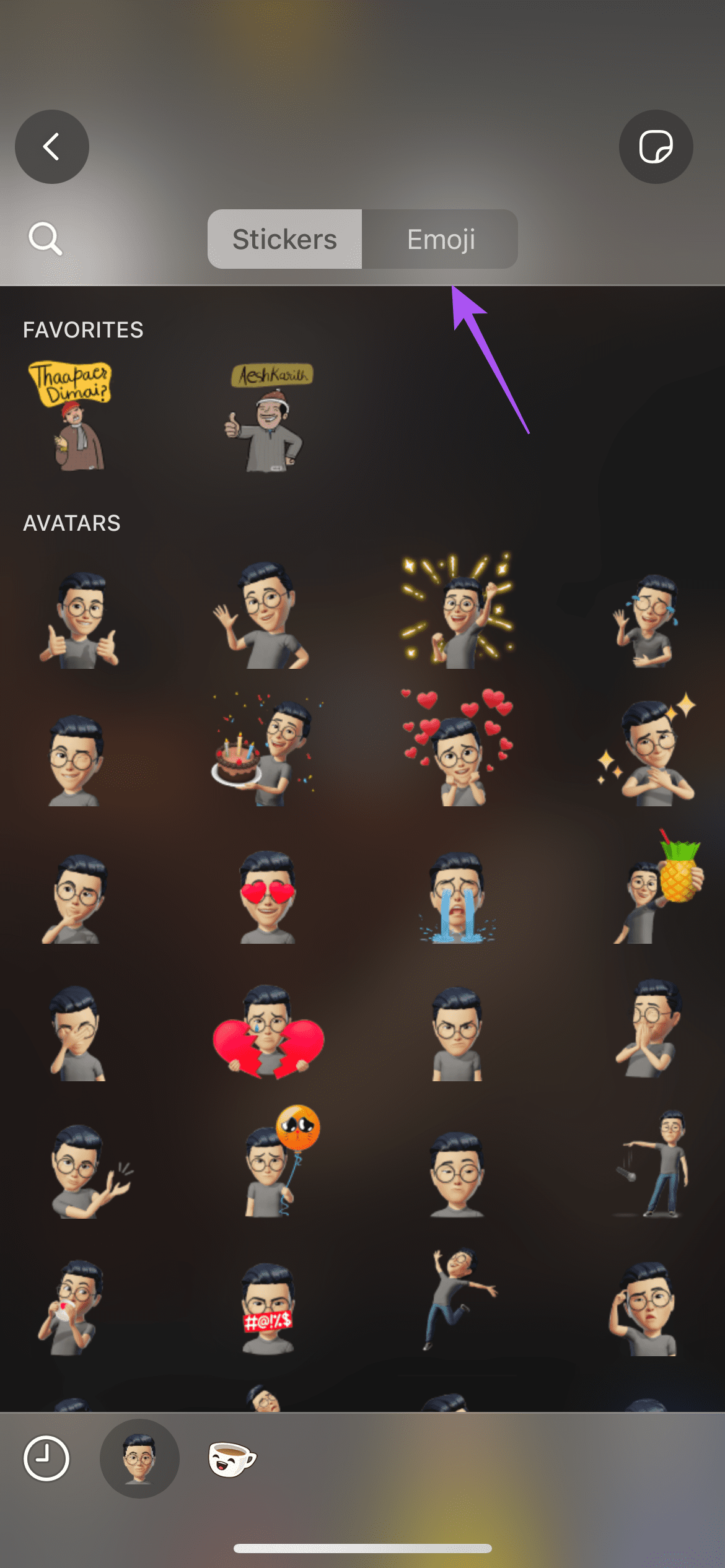
Step 3: Select the sticker of your choice.
To remove the emoji, select and drag it to the Delete icon at the top-left corner.
Add Text to Videos on WhatsApp
Step 1: Open WhatsApp and then choose the video you want to share with your contact.
Step 2: Tap on the Text icon at the top and then start writing your text.
You can change the appearance and alignment of your text which will appear for the entirety of your video.
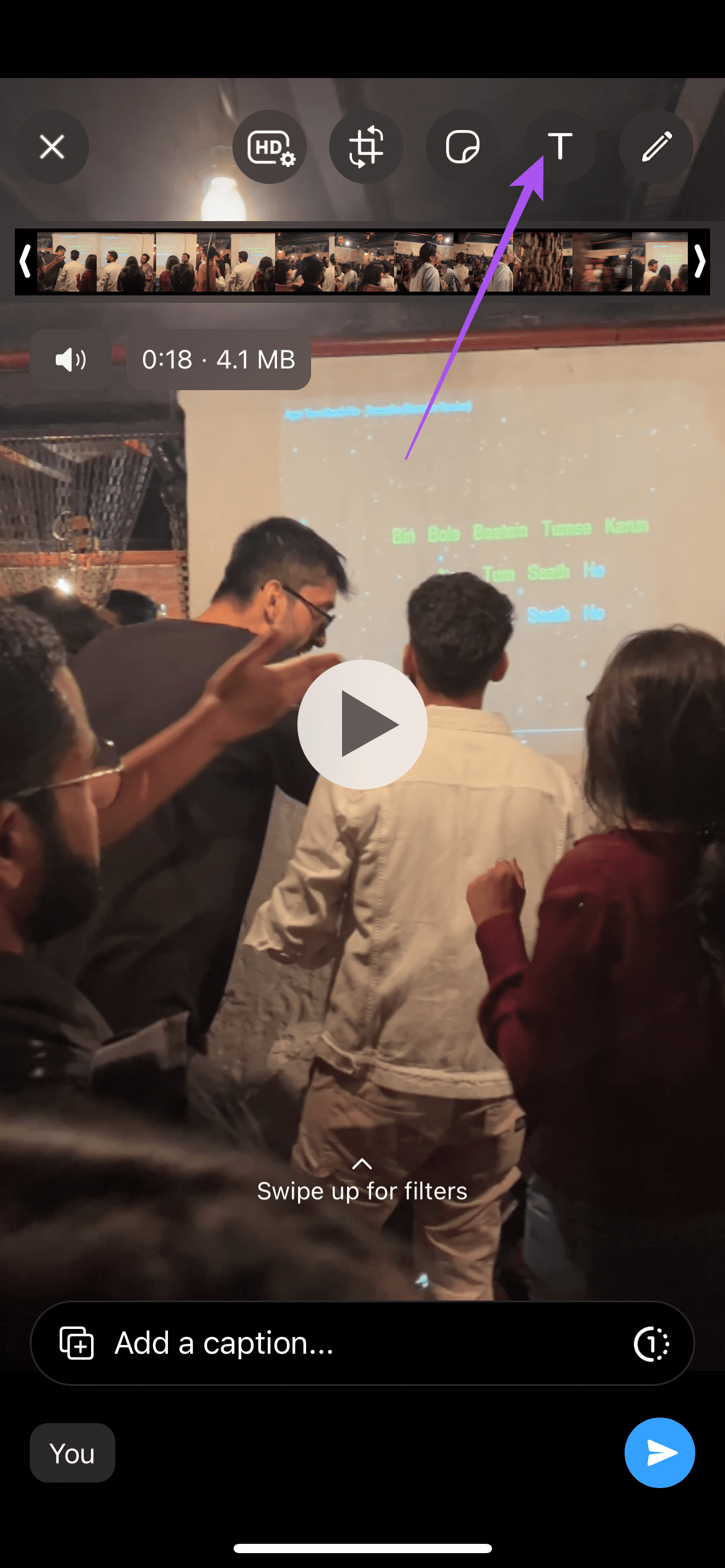

Step 3: Tap on Done at the top-left corner to confirm.
Add Drawing to Videos on WhatsApp
Step 1: Open WhatsApp and then choose the video you want to share with your contact.
Step 2: Tap on the Drawing icon at the top-left corner and then start scribbling on your video.

Your drawing will appear for the entirety of the video and not just on specific portions.
Step 3: Tap on Done at the top-left corner to confirm. You can tap the Undo icon to remove your drawing.
WhatsApp gives you multiple built-in options to edit your videos. You can also split your videos for posting WhatsApp Status in the app itself. But we have also covered a post showing how to upload a WhatsApp Status video of over 30 seconds.
Was this helpful?
Last updated on 15 July, 2024
Read Next
 How to Create and Edit Videos in Canva
How to Crop, Trim, and Combine Videos in Canva First, let's see how you can upload your video to start editing it in Canva.
How to Create and Edit Videos in Canva
How to Crop, Trim, and Combine Videos in Canva First, let's see how you can upload your video to start editing it in Canva.
 How to Send High Quality Videos on WhatsApp (iPhone and Android)
Method 1.
How to Send High Quality Videos on WhatsApp (iPhone and Android)
Method 1.
 How to Fix WhatsApp Not Sending Videos on iPhone and Android
https://youtu.be/z40Ak4iUlQ8 Why Can't You Send a Video on WhatsApp?
How to Fix WhatsApp Not Sending Videos on iPhone and Android
https://youtu.be/z40Ak4iUlQ8 Why Can't You Send a Video on WhatsApp?
 How to Fix WhatsApp Videos Not Playing on iPhone or Android
Basic Fixes Check your network connection: Ensure your phone has a robust internet connection.
How to Fix WhatsApp Videos Not Playing on iPhone or Android
Basic Fixes Check your network connection: Ensure your phone has a robust internet connection.
 How to Edit Videos on Samsung Galaxy Phones
How to Edit Videos With the Samsung Gallery App To access the built-in video editor on your Samsung Galaxy phone, open the Gallery app and head to the video you
How to Edit Videos on Samsung Galaxy Phones
How to Edit Videos With the Samsung Gallery App To access the built-in video editor on your Samsung Galaxy phone, open the Gallery app and head to the video you
 3 Ways to Edit a WhatsApp Message
How many times have you sent a WhatsApp message with a typing mistake?
3 Ways to Edit a WhatsApp Message
How many times have you sent a WhatsApp message with a typing mistake?
 How to Edit and Cut WhatsApp Voice Messages
How to Edit WhatsApp Voice Messages Using Audio Cutter Apps You can natively edit voice messages in WhatsApp.
How to Edit and Cut WhatsApp Voice Messages
How to Edit WhatsApp Voice Messages Using Audio Cutter Apps You can natively edit voice messages in WhatsApp.
 How to Send HD Photos and Videos in WhatsApp
How to Send HD Photos and Videos on WhatsApp Mobile App To send your photo or video without compromising image quality, use the sharing options available in the WhatsApp mobile
How to Send HD Photos and Videos in WhatsApp
How to Send HD Photos and Videos on WhatsApp Mobile App To send your photo or video without compromising image quality, use the sharing options available in the WhatsApp mobile
The article above may contain affiliate links which help support Guiding Tech. The content remains unbiased and authentic and will never affect our editorial integrity.

