Method 1. Download Google Maps for Windows via Microsoft Edge
You can use the default Chromium-based Microsoft Edge browser to install Google Maps on Windows. You don’t need to install any third-party app to complete the job.
Step 1: Launch the Microsoft Edge browser and open Google Maps.
Step 2: Click the app icon in the address bar at the top. It will ask you to install the Google Maps app. Click on the Install button to do so.

Step 3: Microsoft Edge opens the app window with Google Maps. You can pin it to the taskbar or Start menu, create a desktop shortcut, or launch the app when you log in from the options menu and click Allow.

Post this, Google Maps will work as a native app on Windows. You can search for it in the Start menu, add it to an app folder, and use it without launching a browser.
Method 2. Download Google Maps via Google Chrome on Windows
Although Microsoft Edge has dramatically improved in the past few years, many still prefer Google Chrome for browsing the web.
Step 1: Go to Google Maps, click the three vertical dots menu at the top-right corner, and select Install Google Maps.

Step 2: Click on the Install button to confirm. The web app looks and feels the same as above.

Method 3. Install Google Maps on Windows via BlueStacks
BlueStacks is an Android simulator that runs Android apps on Windows. You can use it to run your PC’s Android version of Google Maps.
Step 1: Install Bluestacks on your Windows PC and sign in to your Google account when you open the Google PlayStore.
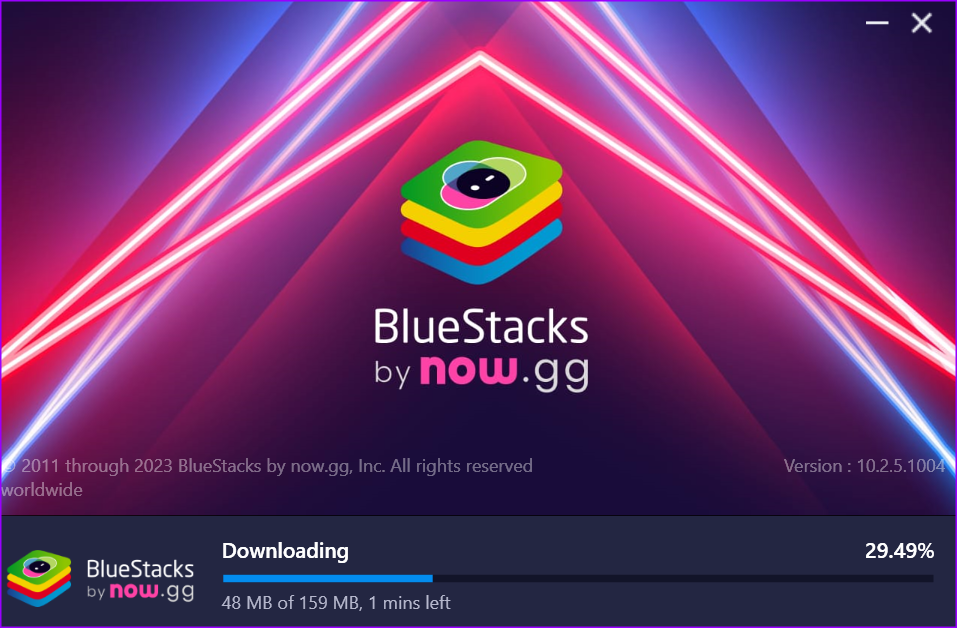
Note: Connect to a robust Wi-Fi network before the installation. The company also recommends disabling any anti-virus software on Windows.
Step 2: Search for Google Maps and click the Install button to download the app on your PC.

Step 3: Since it’s an Android app, you will get the same experience as on Android or iOS.
The trick above takes some time on Windows machines with low-end CPUs. We recommend sticking with the Google Maps web app.
Was this helpful?
Last updated on 18 July, 2024
Read Next
 Google Maps vs Maps Go Comparison: Explaining the Difference
Last year, Google announced the optimized version of Android Oreo operating system, Android Go.
Google Maps vs Maps Go Comparison: Explaining the Difference
Last year, Google announced the optimized version of Android Oreo operating system, Android Go.
 How to Switch Between KM and Miles in Google Maps and Apple Maps
How to Change Kilometers to Miles in Apple Maps To change KM to Miles (or vice versa) on iPhone, iPad, and Mac, all you need to do is change your
How to Switch Between KM and Miles in Google Maps and Apple Maps
How to Change Kilometers to Miles in Apple Maps To change KM to Miles (or vice versa) on iPhone, iPad, and Mac, all you need to do is change your
 How to View and Manage Your Location History in Google Maps
While Google Maps helps you to look for new places and find the best routes, it also saves these things in your Location History.
How to View and Manage Your Location History in Google Maps
While Google Maps helps you to look for new places and find the best routes, it also saves these things in your Location History.
 3 Ways to Fix Google Maps Not Showing Route
Basic Fixes Update the app: Google constantly releases updates for its apps to add new features or fix known bugs.
3 Ways to Fix Google Maps Not Showing Route
Basic Fixes Update the app: Google constantly releases updates for its apps to add new features or fix known bugs.
 4 Ways to Fix Google Maps Draining Battery on Android and iPhone
https://youtu.be/HEEhE2uFRfw Try Basic Fixes Remove the Google Maps widget from home screen: If you use Google Maps' live traffic widget to get traffic information on your home screen, the app’s
4 Ways to Fix Google Maps Draining Battery on Android and iPhone
https://youtu.be/HEEhE2uFRfw Try Basic Fixes Remove the Google Maps widget from home screen: If you use Google Maps' live traffic widget to get traffic information on your home screen, the app’s
 4 Fixes for Speedometer or Speed Limits Not Showing in Google Maps on Android
Common Fixes Check feature availability - Speedometer or Speed limits may be unavailable in your region.
4 Fixes for Speedometer or Speed Limits Not Showing in Google Maps on Android
Common Fixes Check feature availability - Speedometer or Speed limits may be unavailable in your region.
 How to Calibrate Google Maps on Android and iPhone
How to Calibrate Google Maps on iPhone Using the iOS Settings menu, you can ensure that your device's compass is calibrated.
How to Calibrate Google Maps on Android and iPhone
How to Calibrate Google Maps on iPhone Using the iOS Settings menu, you can ensure that your device's compass is calibrated.
 5 Ways to Fix Location Sharing Not Updating in Google Maps on Phone
Common Fixes Check your internet connection - Google Maps will fail to update the location if your internet is unstable.
5 Ways to Fix Location Sharing Not Updating in Google Maps on Phone
Common Fixes Check your internet connection - Google Maps will fail to update the location if your internet is unstable.
The article above may contain affiliate links which help support Guiding Tech. The content remains unbiased and authentic and will never affect our editorial integrity.