Download Photos, Videos, PDF Files, and Documents From Google Drive to iPhone
Step 1: Open the Google Drive app on your iPhone.
Step 2: Find an image, video, or file you want to download.
Step 3: Tap the three horizontal dots (kebab menu) beside it and tap Download.


Step 5: Tap Save Image if the file is an image; if it is some other document, tap Save to Files.


Step 6: Open the Photos or Files app and check for the images or file.
Pro Tip: You may take special steps if Google Drive is not downloading files on your iPhone.
Download Multiple Photos and Videos From Google Drive to iPhone Gallery
If you have multiple images, videos, or files to download, you may download them all at once. Follow the steps below.
Step 1: Launch the Google Drive app.
Step 2: Long-tap a file to select it, and repeat the step for all files to download.
Step 3: Tap the more icon at the top right and tap Download.
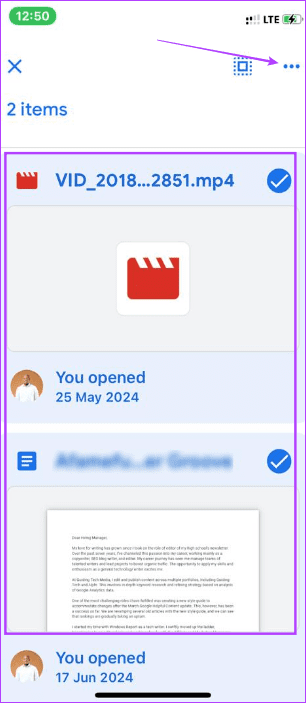

Step 4: Tap the Save to Files option > tap Save on the next screen.


Was this helpful?
Last updated on 23 August, 2024
Read Next
 How to Download Photos From Google Photos on Desktop and Mobile
If you save photos in Cloud services like Google Photos, you may want to download your precious memories to your local storage.
How to Download Photos From Google Photos on Desktop and Mobile
If you save photos in Cloud services like Google Photos, you may want to download your precious memories to your local storage.
 How to Delete Photos From iPhone But Not From Google Photos
How to Delete Photos from iPhone But Keep Them in Google Photos Open Google Photos, swipe up the photo you want to delete, and select Delete from Device.
How to Delete Photos From iPhone But Not From Google Photos
How to Delete Photos from iPhone But Keep Them in Google Photos Open Google Photos, swipe up the photo you want to delete, and select Delete from Device.
 How to Move Photos From iPhone to Google Photos
Method 1.
How to Move Photos From iPhone to Google Photos
Method 1.
 How to Download Multiple Files From Google Drive Without Zipping
Method 1: Using the Google Drive App on a PC Google Drive zips files only when you download them via a browser.
How to Download Multiple Files From Google Drive Without Zipping
Method 1: Using the Google Drive App on a PC Google Drive zips files only when you download them via a browser.
 Samsung My Files vs Google Files: Which File Manager Is Better on Galaxy Phones
Samsung apps are bundled to replace the official Google Apps in the One UI.
Samsung My Files vs Google Files: Which File Manager Is Better on Galaxy Phones
Samsung apps are bundled to replace the official Google Apps in the One UI.
 How to Save Pictures or Videos From Files to Photos App on iPhone and iPad
Option 1: How to Move a Single Picture or Video Present in an iPhone or iPad Folder From Files to Photos App Step 1: Launch the Files app on your
How to Save Pictures or Videos From Files to Photos App on iPhone and iPad
Option 1: How to Move a Single Picture or Video Present in an iPhone or iPad Folder From Files to Photos App Step 1: Launch the Files app on your
 Google Drive vs Google Photos: Which Is Best for Storing Photos
Google Drive vs Google Photos Comparison Key Differences Feature Google Drive Google PhotosFile Types All types Photos, Videos, GIFsOrganization Folders & Subfolders AlbumsPhoto Quality Original Original, High (compressed), Express (compressed)Storage
Google Drive vs Google Photos: Which Is Best for Storing Photos
Google Drive vs Google Photos Comparison Key Differences Feature Google Drive Google PhotosFile Types All types Photos, Videos, GIFsOrganization Folders & Subfolders AlbumsPhoto Quality Original Original, High (compressed), Express (compressed)Storage
 How to Remove Photos from Google Drive but Not Google Photos
Google Drive and Photos are two similar yet distinct products for storing photos and videos.
How to Remove Photos from Google Drive but Not Google Photos
Google Drive and Photos are two similar yet distinct products for storing photos and videos.
The article above may contain affiliate links which help support Guiding Tech. The content remains unbiased and authentic and will never affect our editorial integrity.