

Prerequisite 1: Check Which NVIDIA GPU You Have
First, you need to check which NVIDIA graphics card you have installed on your system. To do that, follow the steps below.
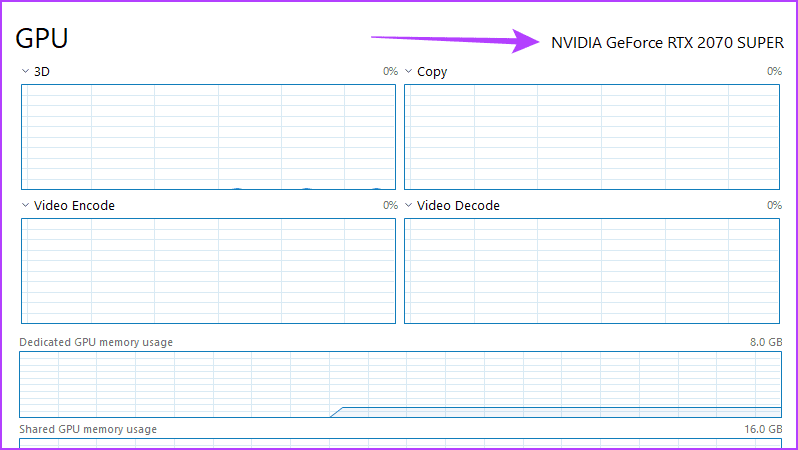
Step 1: Press the Ctrl + Shift + Esc keys together to open the Task Manager. If it’s in compact mode, click on More Details at the bottom right to expand the Task Manager window. Inside, switch to the Performance tab.

Step 2: Over to the left side, you will see the various components installed on your system. Click on the GPU section to view its details.

Step 3: Note down the GPU name that’s on your PC.
Prerequisite 2: Check if Windows Is 32-bit or 64-bit
The next thing that you need to confirm is whether you are using a 32-bit or 64-bit version of Windows. While there are plenty of ways to check that, we’ll show you the easiest one.
Step 1: Press the Windows + I keys to open the Windows Settings page. Inside, navigate to System > About.
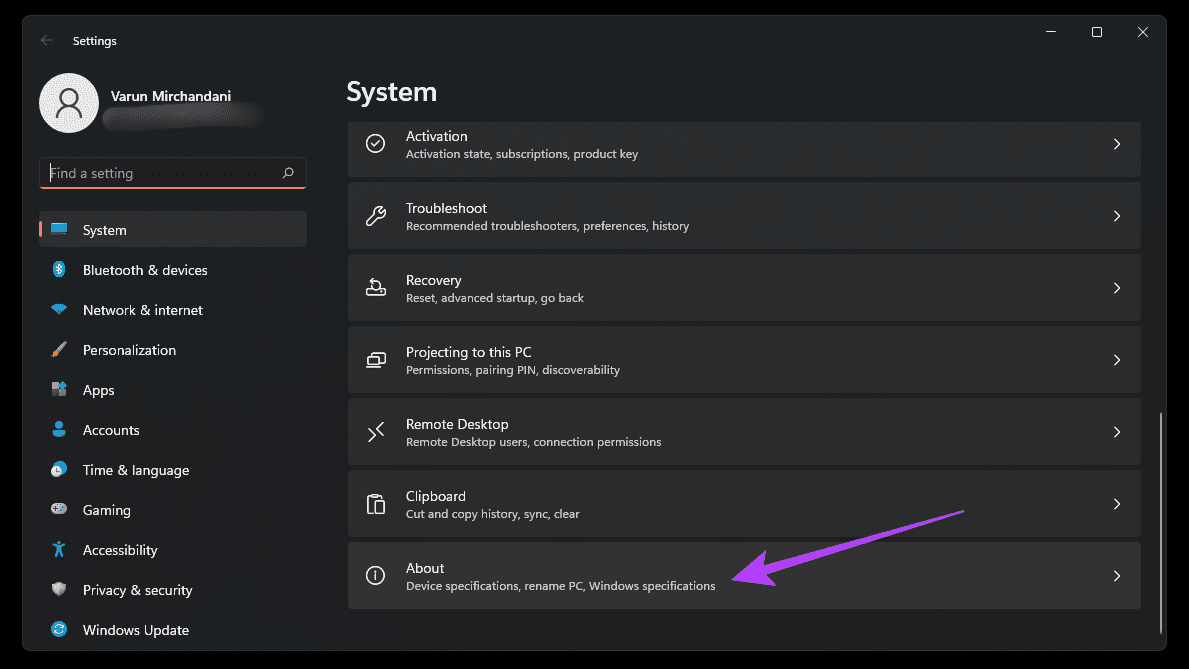
Step 2: Note down your system type under the device specifications.

How to Download and Install NVIDIA Graphics Drivers Without GeForce Experience
Now that you have all the necessary information about your PC, you can download and install the NVIDIA graphics drivers without GeForce Experience. Here’s how.
Step 1: Head over to NVIDIA’s driver download page.
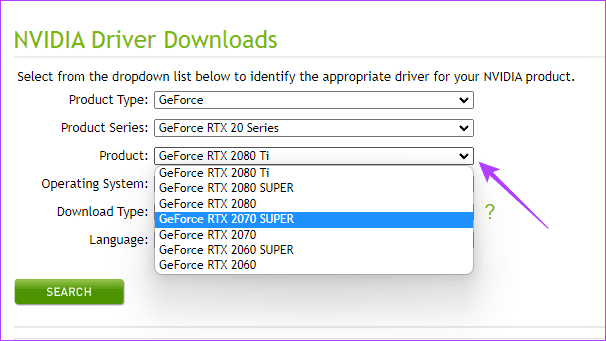
Step 2: Select your product type based on your graphics card.
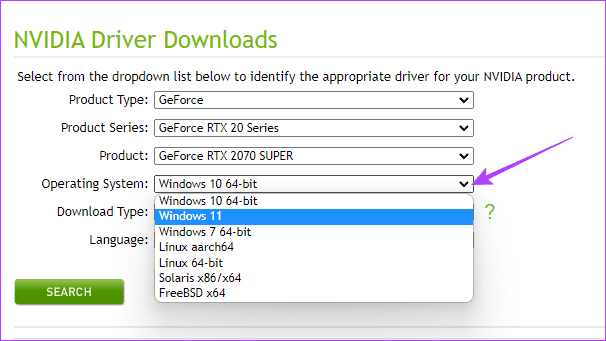
Step 3: Select your Windows version along with the system type.
Step 4: Click on Search.
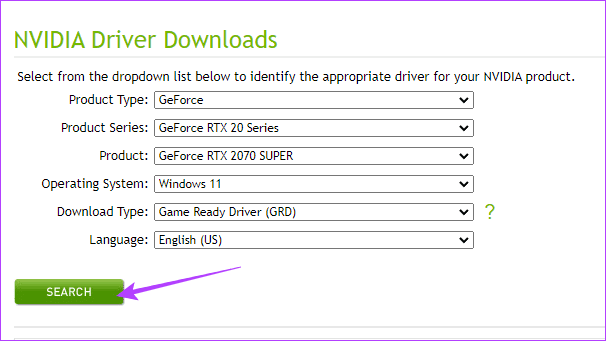
Step 5: The page will refresh to show you the latest driver version. Click on Download.
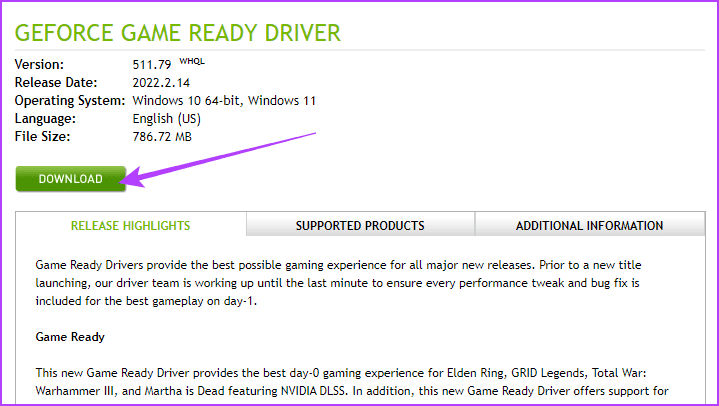
Step 6: In the new page that opens up, click on Download again. The latest driver package for your graphics card will begin downloading in a .EXE format.

Step 7: Once downloaded, double-click the driver package and extract it.
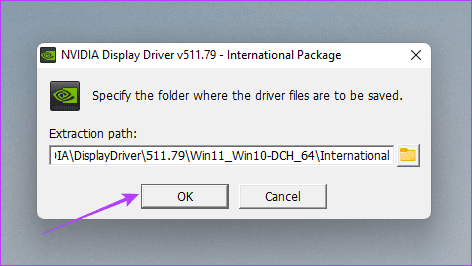
Step 8: Once the files are extracted, the NVIDIA Installer window will open up. It will start with a system check.
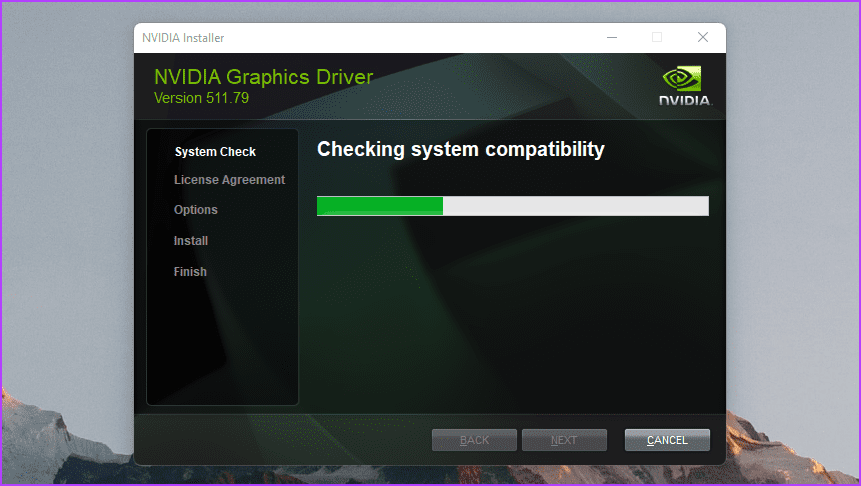
Step 9: In the next step, the installer will ask you whether you wish to install the NVIDIA Graphics Driver and GeForce Experience, or just the NVIDIA Graphics Driver. Select the second option, and then click on Agree and Continue.

Step 4: Follow the on-screen instructions to finish the installation of your NVIDIA Graphics Drivers without GeForce Experience.
Was this helpful?
Last updated on 09 July, 2024
1 Comment
Leave a Reply
Read Next
 Top 9 Ways to Fix NVIDIA GeForce Overlay Not Working on Windows
NVIDIA GeForce Experience is a utility that helps you keep the GPU drivers up to date.
Top 9 Ways to Fix NVIDIA GeForce Overlay Not Working on Windows
NVIDIA GeForce Experience is a utility that helps you keep the GPU drivers up to date.
 3 Fixes if GeForce Experience Not Recording Game Audio in Windows 11
Common Fixes Close and restart GeForce Experience - Click the Arrow button in the system tray notifications area and right-click the NVIDIA icon to select Exit.
3 Fixes if GeForce Experience Not Recording Game Audio in Windows 11
Common Fixes Close and restart GeForce Experience - Click the Arrow button in the system tray notifications area and right-click the NVIDIA icon to select Exit.
 4 Ways to Fix Unable to Install Drivers on Windows 11
Try Basic Fixes Install Windows updates: The driver installation issue may be limited to your Windows build.
4 Ways to Fix Unable to Install Drivers on Windows 11
Try Basic Fixes Install Windows updates: The driver installation issue may be limited to your Windows build.
 How to Download and Use NVIDIA Chat with RTX on Windows
AI is almost everywhere; with platforms like ChatGPT, it is now even available on your smartphone.
How to Download and Use NVIDIA Chat with RTX on Windows
AI is almost everywhere; with platforms like ChatGPT, it is now even available on your smartphone.
 6 Ways to Fix NVIDIA’s ‘Unable to Change Display Mode’ Error on Windows 11
Method 1: Terminate and Restart the NVIDIA Control Panel It is common for apps and their associated processes to encounter glitches and stop working properly.
6 Ways to Fix NVIDIA’s ‘Unable to Change Display Mode’ Error on Windows 11
Method 1: Terminate and Restart the NVIDIA Control Panel It is common for apps and their associated processes to encounter glitches and stop working properly.
 How to Overclock a Monitor: NVIDIA, AMD, and Intel GPUs
When gaming, having a high-performance monitor can make a significant difference in your overall experience.
How to Overclock a Monitor: NVIDIA, AMD, and Intel GPUs
When gaming, having a high-performance monitor can make a significant difference in your overall experience.
 How to Use AMD FSR3 on NVIDIA RTX GPUs
If you already own an NVIDIA GPU, one of the best features available is DLSS technology.
How to Use AMD FSR3 on NVIDIA RTX GPUs
If you already own an NVIDIA GPU, one of the best features available is DLSS technology.
 How to Download and Install Chrome Offline on Windows
Setting up Google Chrome on Windows 10 is a relatively smooth and uneventful affair.
How to Download and Install Chrome Offline on Windows
Setting up Google Chrome on Windows 10 is a relatively smooth and uneventful affair.
The article above may contain affiliate links which help support Guiding Tech. The content remains unbiased and authentic and will never affect our editorial integrity.


We are waiting for an article explaining how to press the computer power button with your finger.