Windows 11 supports a range of touch gestures that work across both touchscreens and precision touchpads. But while the gestures can speed things up, they can be triggered by even slightly pressing a palm against the touchpad. You can disable Windows 11 touch gestures in Settings, and a few through the Registry as well if you want them to apply to every user. Here’s how.
Option 1 – Enable or Disable Windows 11 Touch Gestures for Multi-Finger Swiping
The primary touchpad settings allow for more than just a simple on/off toggle; they also manage multi-finger gestures. More specifically, it controls three- and four-finger swipes on the screen and can trigger system actions like Task View or desktop switching.
Step 1. Open Settings with “Win + I.”
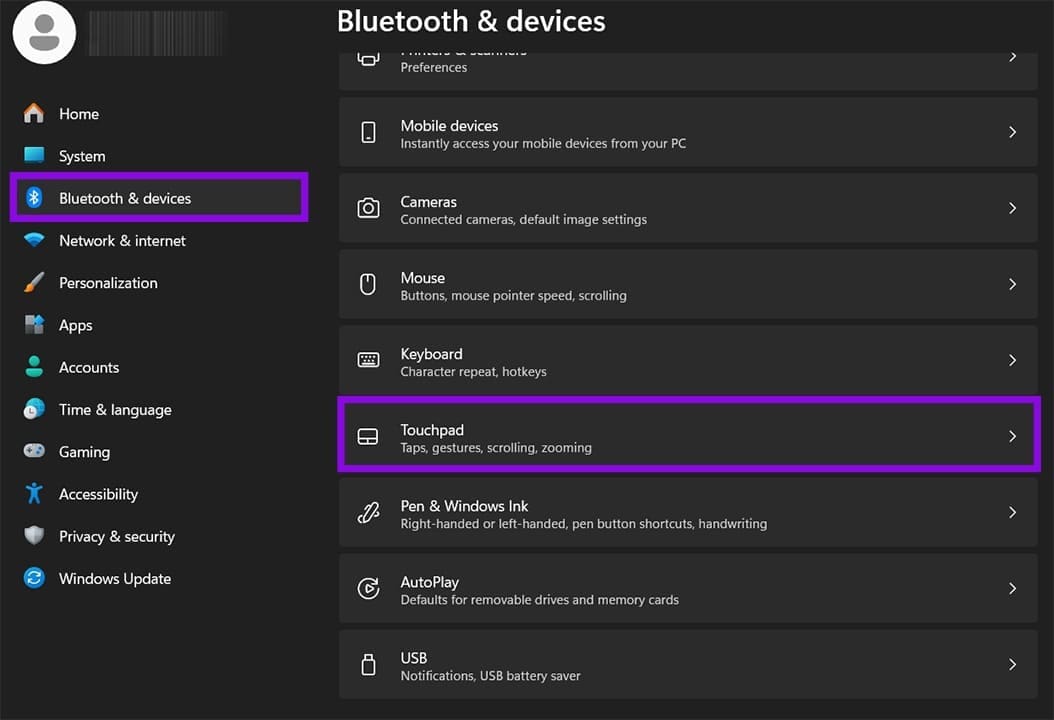
Step 2. Go to “Bluetooth & devices” on the left sidebar, then select “Touchpad” (for laptops) or “Touch” (for tablets).
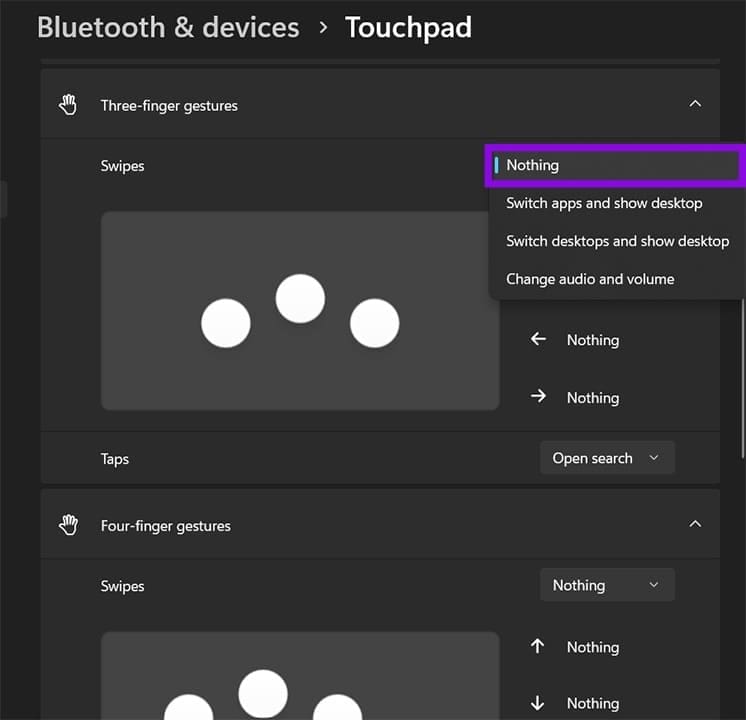
Step 3. Go to the “Three-finger gestures” option. Set the dropdown option to “Nothing.”
Step 4. Repeat the process for “Four-finger gestures.”
Note that disabling this also affects how some apps handle three- and four-finger input within their own interface. If an app you use relies on those inputs, you’ll need to leave this toggle on.
Option 2 – Disable Specific Touchpad Tap Gestures
Windows 11 registers several tapping actions on the touchpad by default: a single tap to click, a two-finger tap to right-click, a three-finger tap to open Search, and a two-finger tap in the lower-right corner for a right-click. Any of these can be unchecked individually.
Step 1. Go to “Touchpad” settings.
Step 2. Expand the “Taps” section.
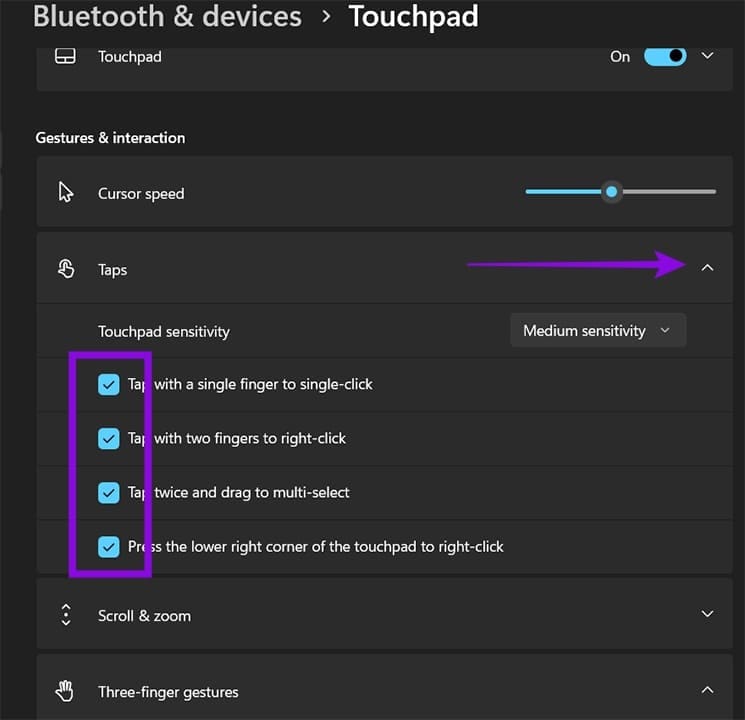
Step 3. Uncheck any tap gesture you want to disable:
- “Tap with a single finger to single-click” – You’ll need to press the physical button on the bottom-left
- “Tap with two fingers to right-click” – Removes the two-finger tap right-click (available bottom-right on the touchpad)
- “Tap twice and drag to multi-select” – Disables the tap-and-drag selection gesture
- “Press the lower right corner of the touchpad to right-click” – Disables the corner-press right-click
Step 4. Expand the “Three-finger gestures” section. For the “Taps” option, select what you want the action to be (or “Nothing” if you want to disable it).
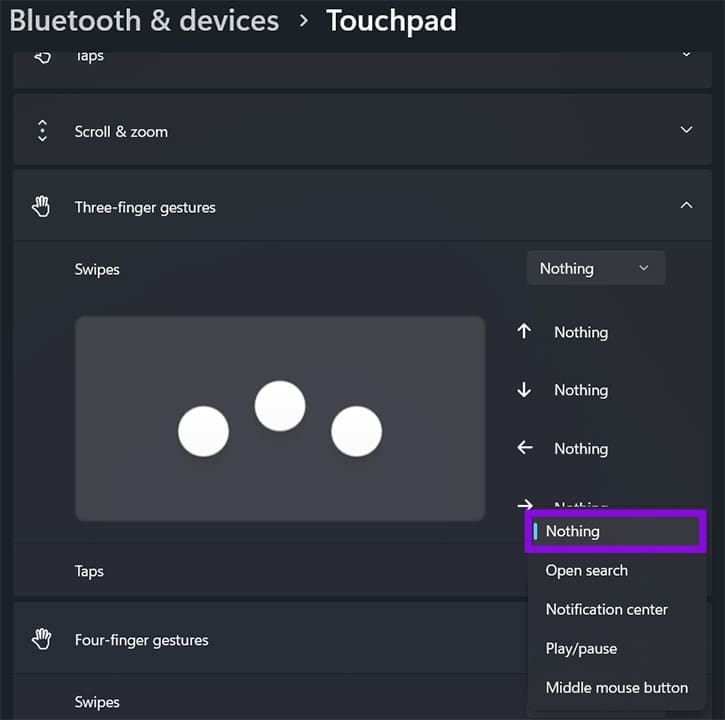
Step 5. Repeat for “Four-finger gestures.”
Exiting Settings applies the changes.
Option 3 – Disable or Enable the Touchpad Entirely
If you’re using a mouse and don’t want the touchpad active at all, the following action can disable touchpad gestures Windows 11 has entirely.
Step 1. Go to Touchpad Settings (in “Bluetooth & devices”).
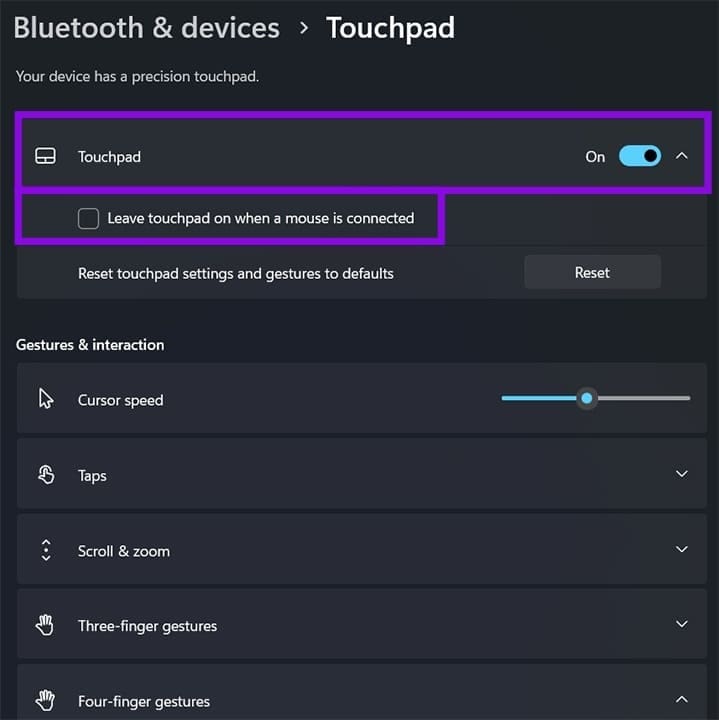
Step 2. At the top of the page, you’ll see the “Touchpad” toggle. Turn it to “Off” to disable the touchpad completely. Most laptops also have a keyboard shortcut, such as “Fn + F5” or “Fn + F6,” to disable the touchpad.
If you want to disable the touchpad only while using a mouse, check the box under the toggle that reads “Leave touchpad on when a mouse is connected.”
Option 4 – Enable or Disable Touch Gestures via the Registry
For users who want to apply touch gestures or limit them as part of a system configuration, this can be achieved via the Registry Editor.
Step 1. Hit “Win + R,” type “regedit,” and hit “Enter.” Accept the UAC prompt.
Step 2. Navigate to: HKEY_CURRENT_USER\Software\Microsoft\Windows\CurrentVersion\PrecisionTouchPad
You can copy this address, then paste it directly into the Registry Editor’s address bar.
Step 3. In the right pane, look for the value named “Zooming” (controls pinch-to-zoom) or values named “ThreeFingerSlideEnabled” and “FourFingerSlideEnabled.” If these entries don’t exist, right-click the right pane, select New > DWORD (32-bit) Value, and create them.
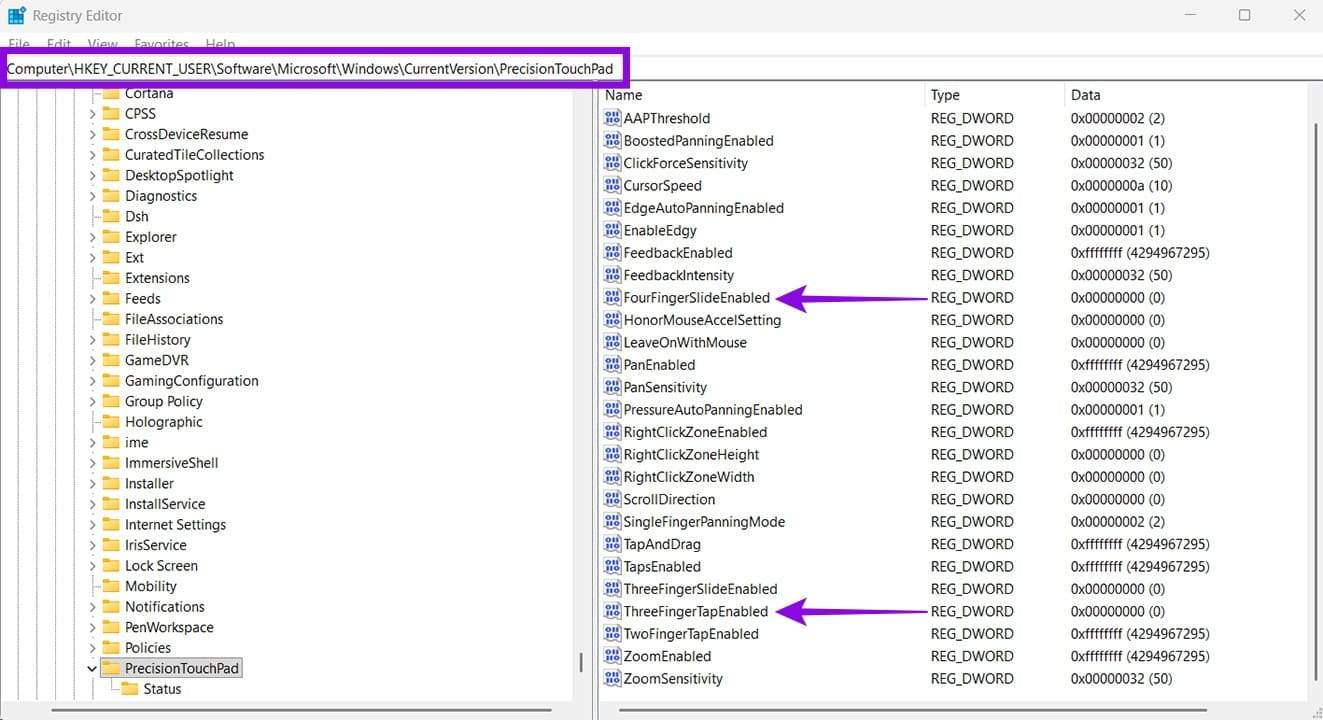
Step 4. Double-click the value you want to change. Set it to “0” to disable that gesture, or “1” to enable it.
Step 5. Close the Registry Editor. The change takes effect immediately without a restart.
As with any Registry edit, it’s a good idea to export a backup of the key before making changes.
Was this helpful?
Last updated on 16 May, 2026
Read Next
 How to Enable and Use Touch Keyboard on Windows 11
How to Enable Touch Keyboard on Windows 11 Enabling the Touch Keyboard on Windows 11 is quite straightforward.
How to Enable and Use Touch Keyboard on Windows 11
How to Enable Touch Keyboard on Windows 11 Enabling the Touch Keyboard on Windows 11 is quite straightforward.
 Top 9 Ways to Fix Touchpad Gestures Not Working in Windows 10
Windows 10 supports various touchpad (trackpad) gestures.
Top 9 Ways to Fix Touchpad Gestures Not Working in Windows 10
Windows 10 supports various touchpad (trackpad) gestures.
 5 Ways to Fix Touchpad Gestures Not Working on Windows 11
Fix 1: Enable Touchpad Gestures The first thing you need to do is review the touchpad settings on your PC and ensure that gesture controls are enabled.
5 Ways to Fix Touchpad Gestures Not Working on Windows 11
Fix 1: Enable Touchpad Gestures The first thing you need to do is review the touchpad settings on your PC and ensure that gesture controls are enabled.
 4 Ways to Fix Gestures Not Working on Android
Try Basic Fixes Remove the screen protector and case: Using a low-quality screen protector from an unknown brand may affect the touchscreen's functionality.
4 Ways to Fix Gestures Not Working on Android
Try Basic Fixes Remove the screen protector and case: Using a low-quality screen protector from an unknown brand may affect the touchscreen's functionality.
 3 Ways to Fix Trackpad Gestures Not Working on Mac
Basic Fixes Disconnect External Mouse: This is to ensure there aren't any hardware conflicts Update to the Latest Version: Updating your machine to the latest macOS version can also fix
3 Ways to Fix Trackpad Gestures Not Working on Mac
Basic Fixes Disconnect External Mouse: This is to ensure there aren't any hardware conflicts Update to the Latest Version: Updating your machine to the latest macOS version can also fix
 How to Customize Gestures for Apple’s Trackpad or Magic Mouse on a Mac
One of the iPhone’s greatest innovations was the ability to zoom with a pinch.
How to Customize Gestures for Apple’s Trackpad or Magic Mouse on a Mac
One of the iPhone’s greatest innovations was the ability to zoom with a pinch.
 4 Ways to Fix FaceTime Reactions (Gestures) Not Working
Basic Fixes Update iOS: Ensure your device is running on iOS 17 and above.
4 Ways to Fix FaceTime Reactions (Gestures) Not Working
Basic Fixes Update iOS: Ensure your device is running on iOS 17 and above.
 3 Ways to Disable or Enable Search Highlights in Windows 10 and Windows 11
Method 1: Disable or Enable Search Highlights From the Settings App The Settings app on Windows allows you to control most things on your PC.
3 Ways to Disable or Enable Search Highlights in Windows 10 and Windows 11
Method 1: Disable or Enable Search Highlights From the Settings App The Settings app on Windows allows you to control most things on your PC.
The article above may contain affiliate links which help support Guiding Tech. The content remains unbiased and authentic and will never affect our editorial integrity.