

Mozilla Firefox is the browser of choice for many users who want to control privacy and AI features. To stay ahead of competitors, the browser’s development team recently added AI features, like the ability to instantly create alt text for images or to summarize web pages.
The Firefox community was, by and large, unhappy with these additions as they wanted an AI-free browser. Mozilla has now come up with a compromise: an AI-feature-rich browser, but with the AI features controlled by the user, rather than forced on them. They’ve also created a single toggle button that blocks all AI functionality.
Follow the steps below to disable AI Firefox features across your browser.
Mozilla Firefox Disable AI Features: Step-by-Step Guide
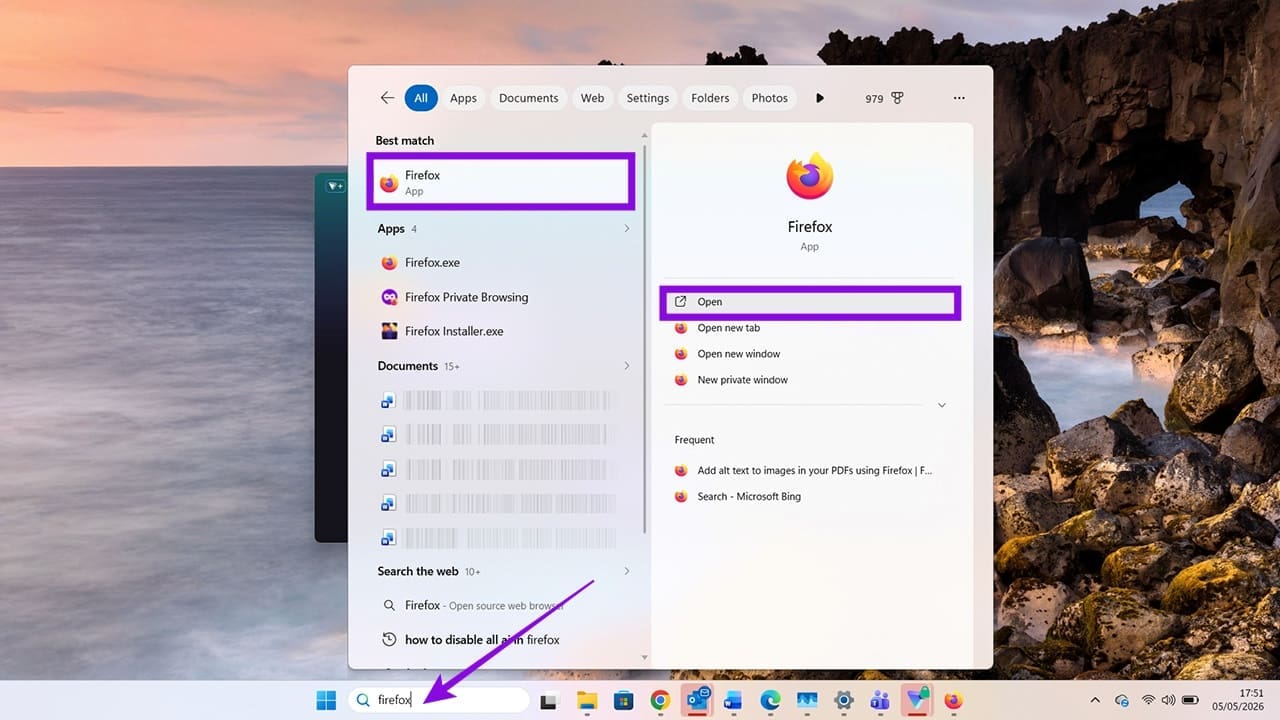
Step 1. Open your Firefox browser.
Step 2. Once in the browser, head to the menu in the top-right corner, indicated by three stacked, horizontal lines, sometimes called the “hamburger menu.”
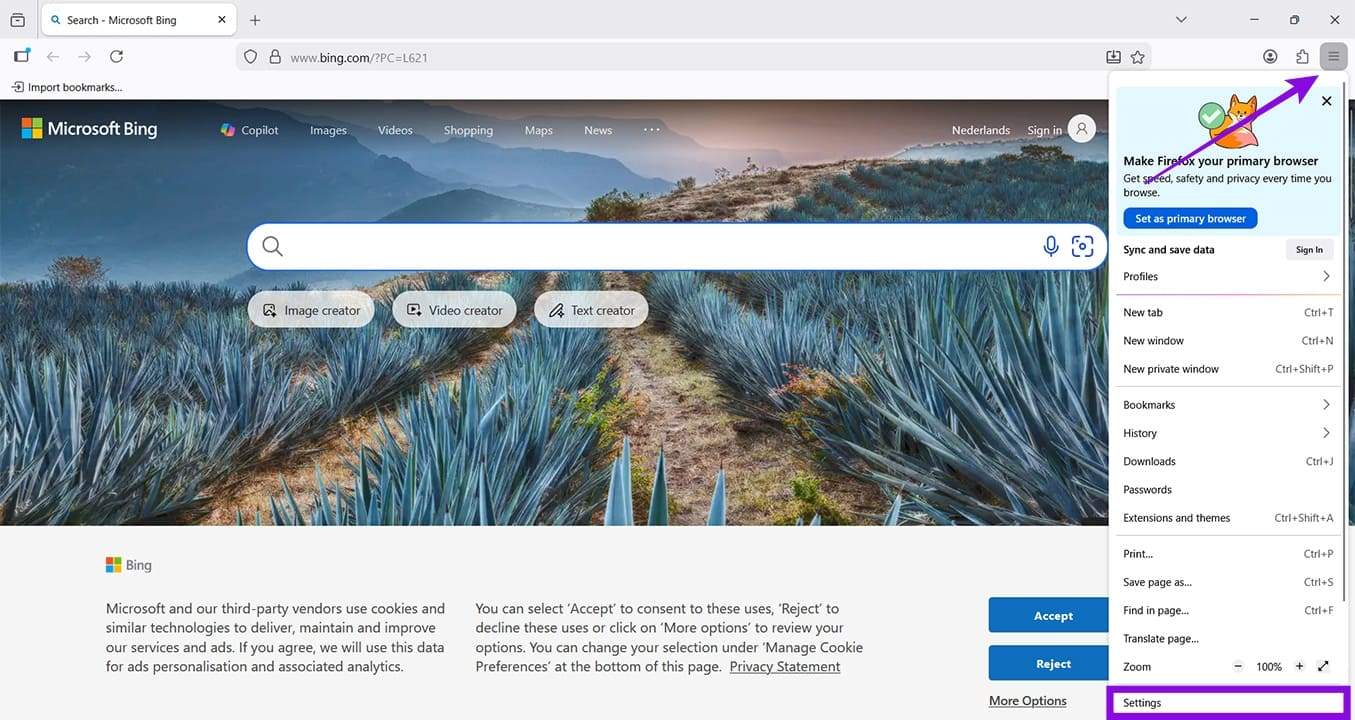
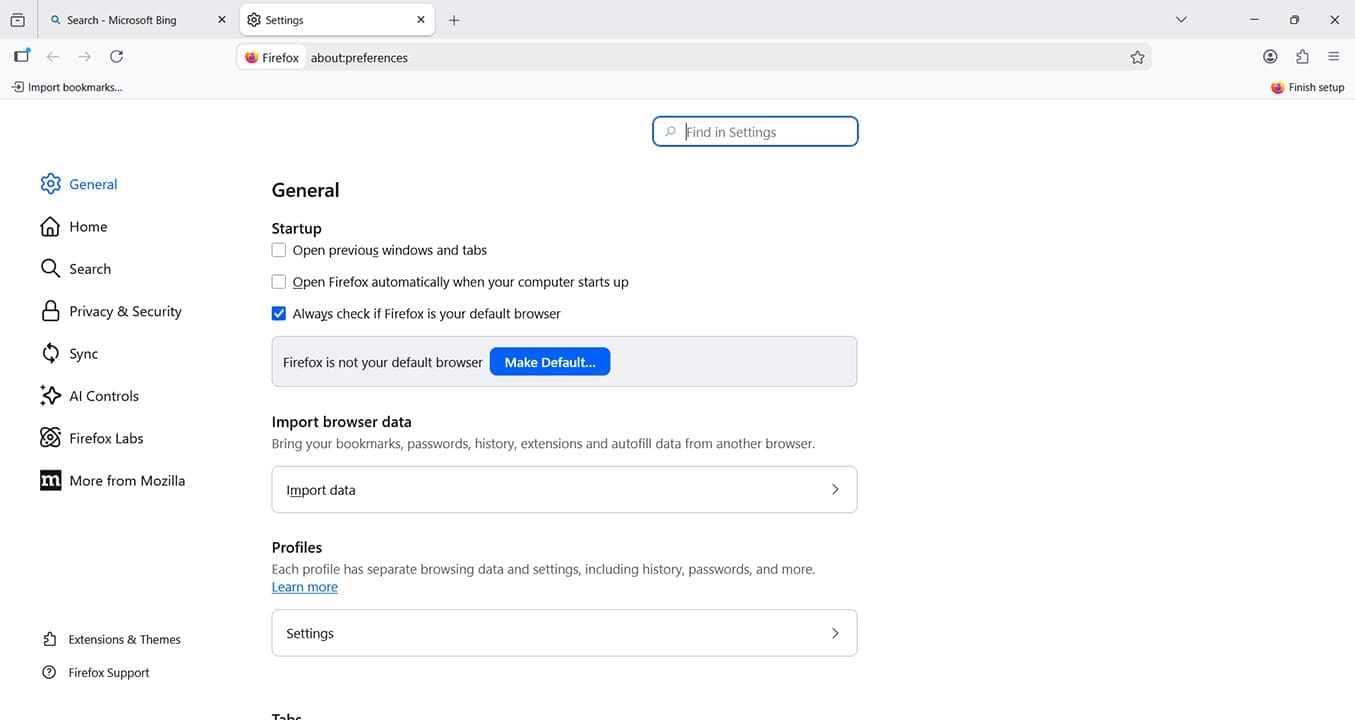
Step 3. Click “Settings” to open the Firefox settings menu in a separate browser tab.
Step 4. Click “AI Controls” on the left-hand side. The icon is a twinkling four-pointed star.
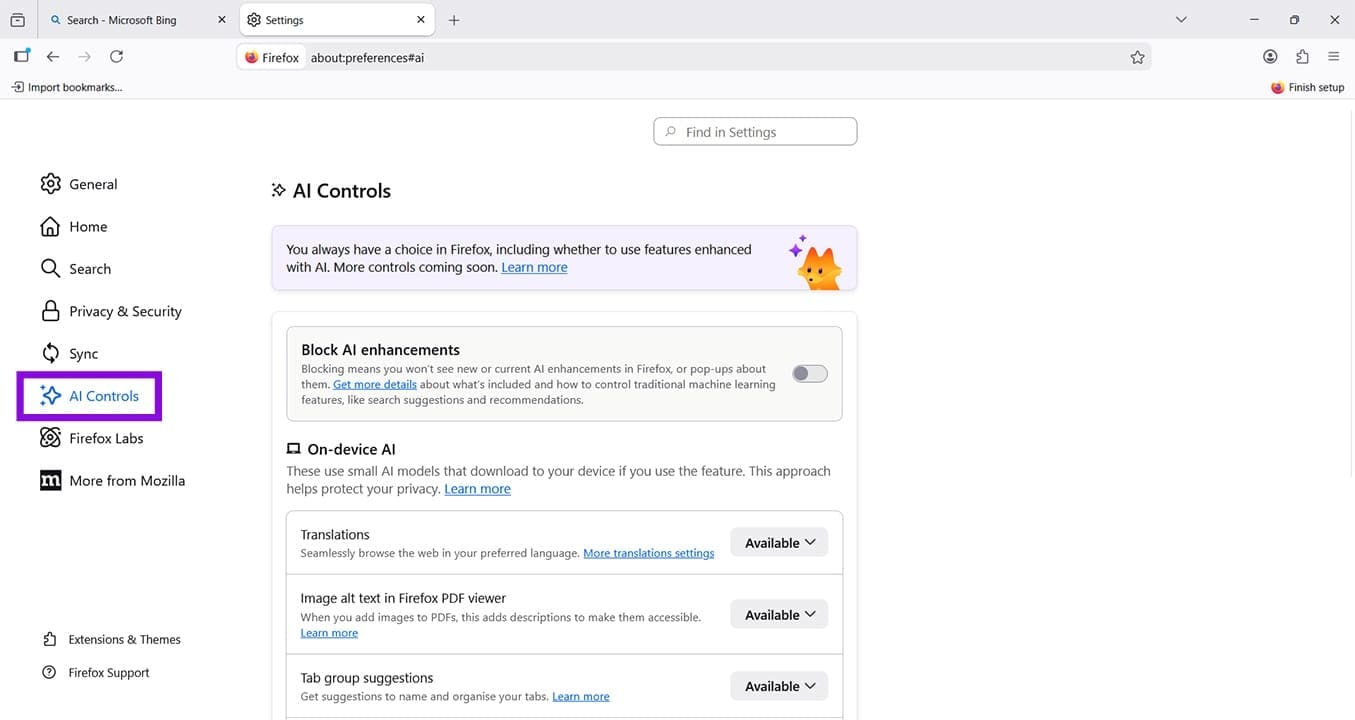
Step 5. You’ll see that, by default, your AI functions are “Available” rather than “Enabled.” As you use your browser, each of the AI options will appear as a pop-up. You can enable the options via the pop-up and use them accordingly. Alternatively, you can click the drop-down arrow next to each setting and choose “Blocked.” Use this feature to filter out AI features you don’t want and keep the ones you do.
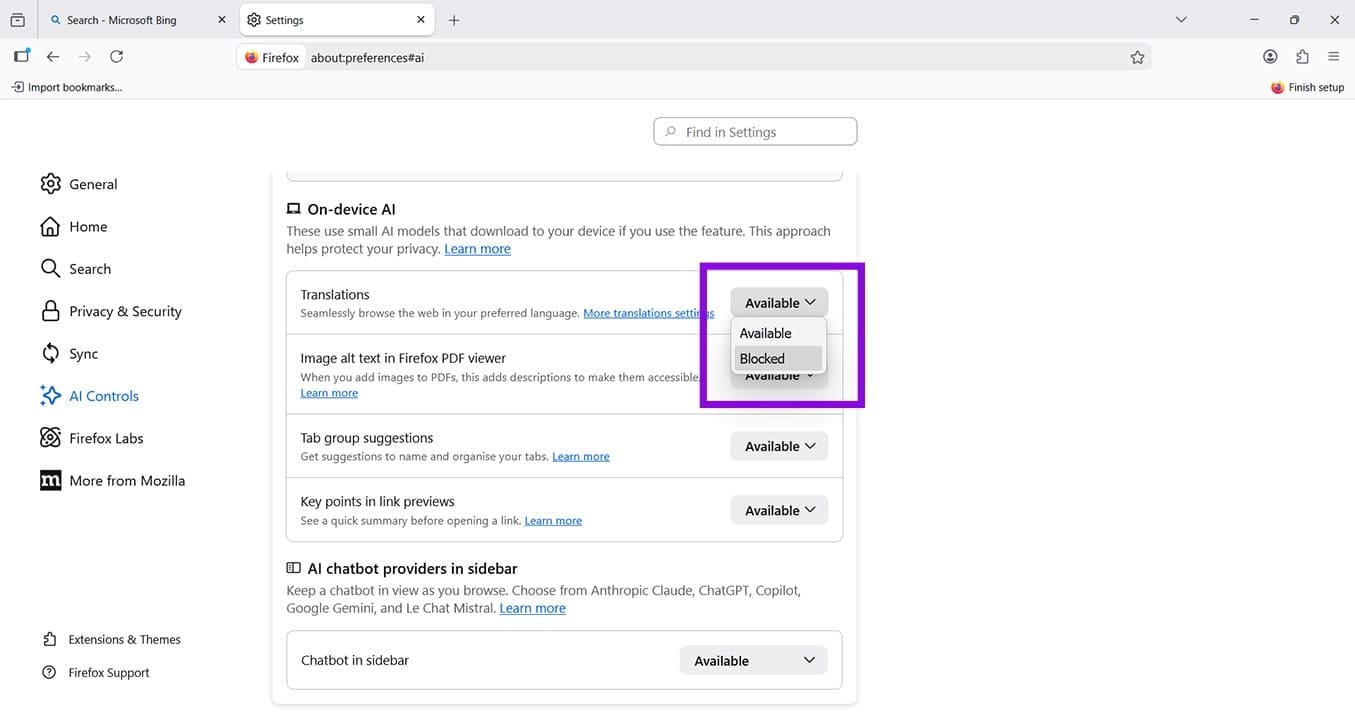
Step 6. If you previously enabled a feature, you can always change your mind and block it, using the same drop-down menu.
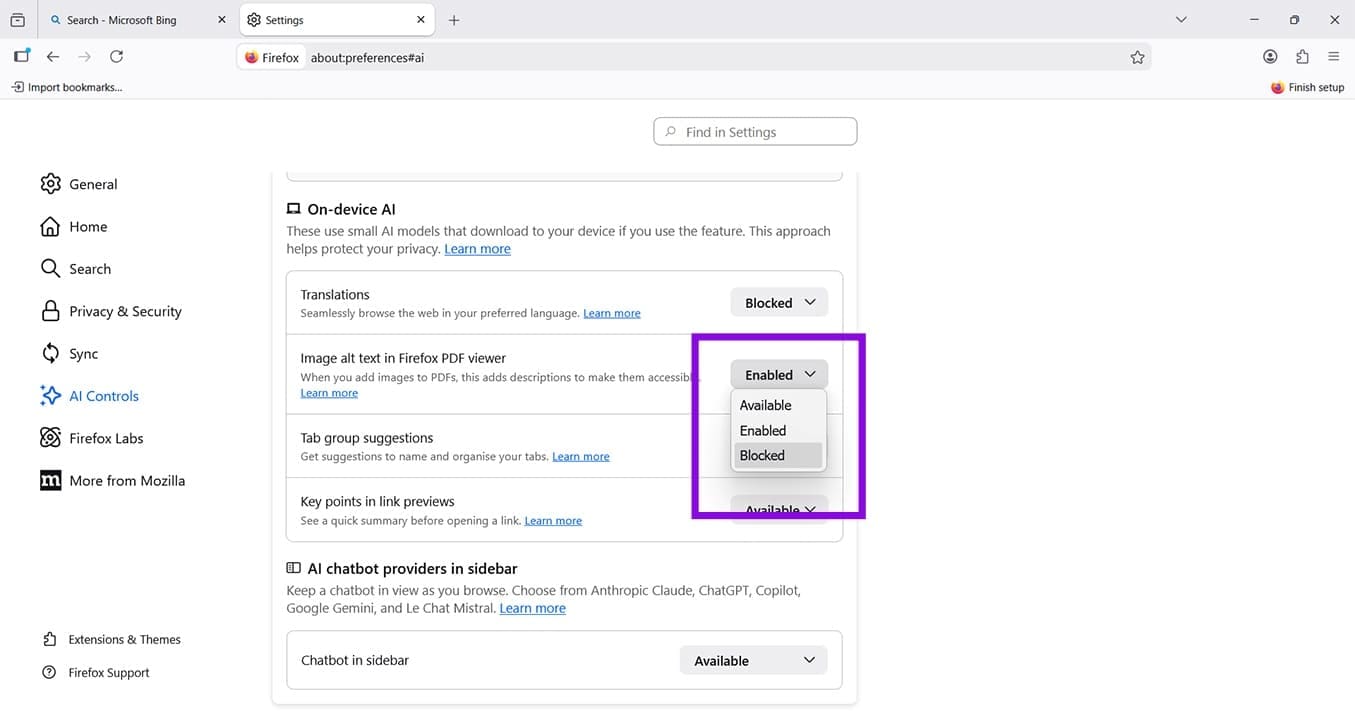
Step 7. To disable AI Firefox features altogether, scroll back up until you see “Block AI enhancements.” The toggle should be gray.
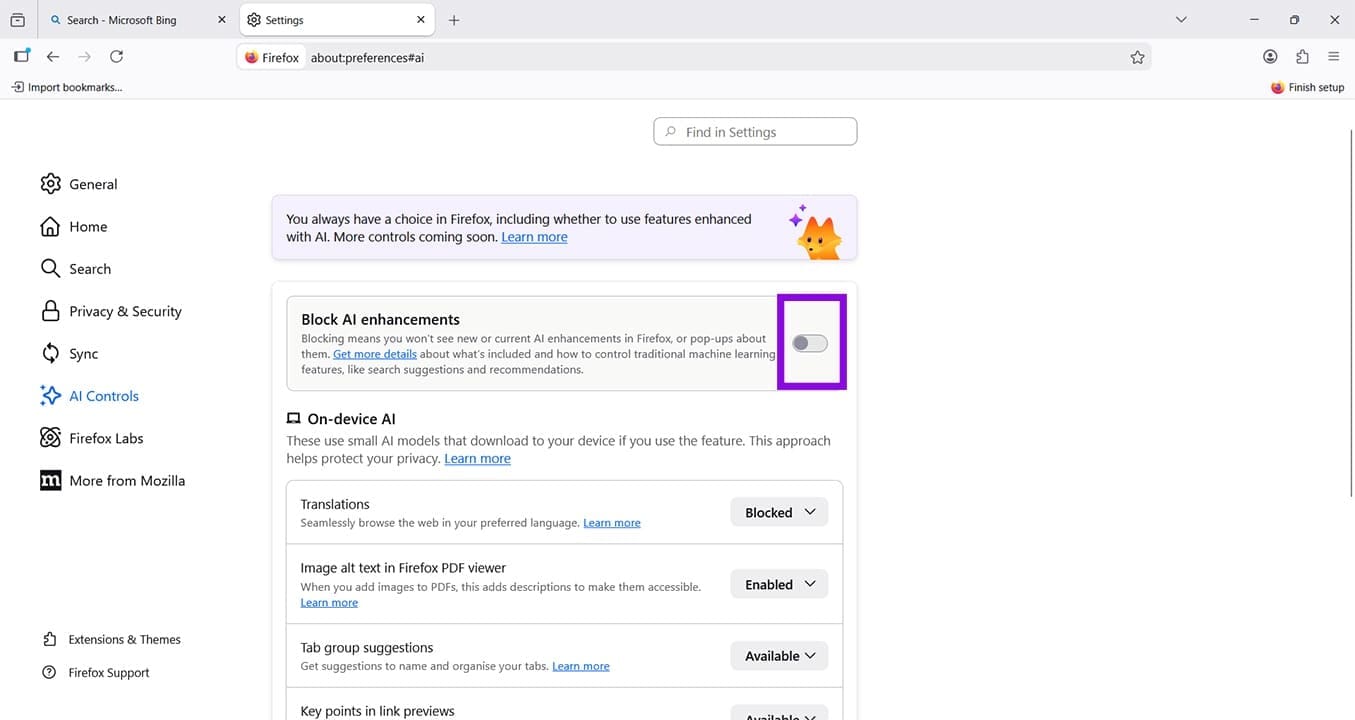
Step 8. Click the toggle, which is essentially your “Firefox disable AI” kill-switch. It will turn blue and a confirmation window will pop up explaining that this blocks all AI functionality, including any future features.
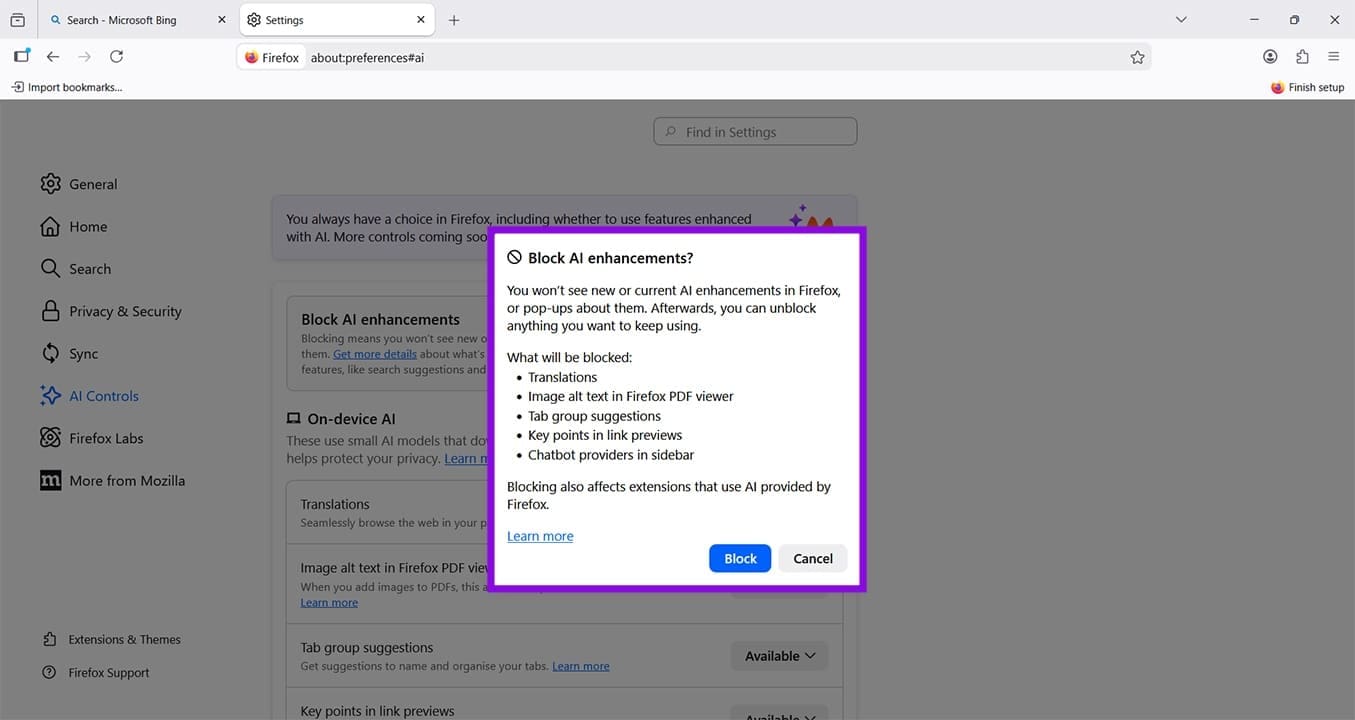
Step 9. Click the blue “Block” button to confirm you want to do this. You now have an AI-free version of Firefox. From this point on, you won’t see AI summaries, chatbots, or any other AI-driven features. You’ll see a light blue information box confirming this setting is in place.
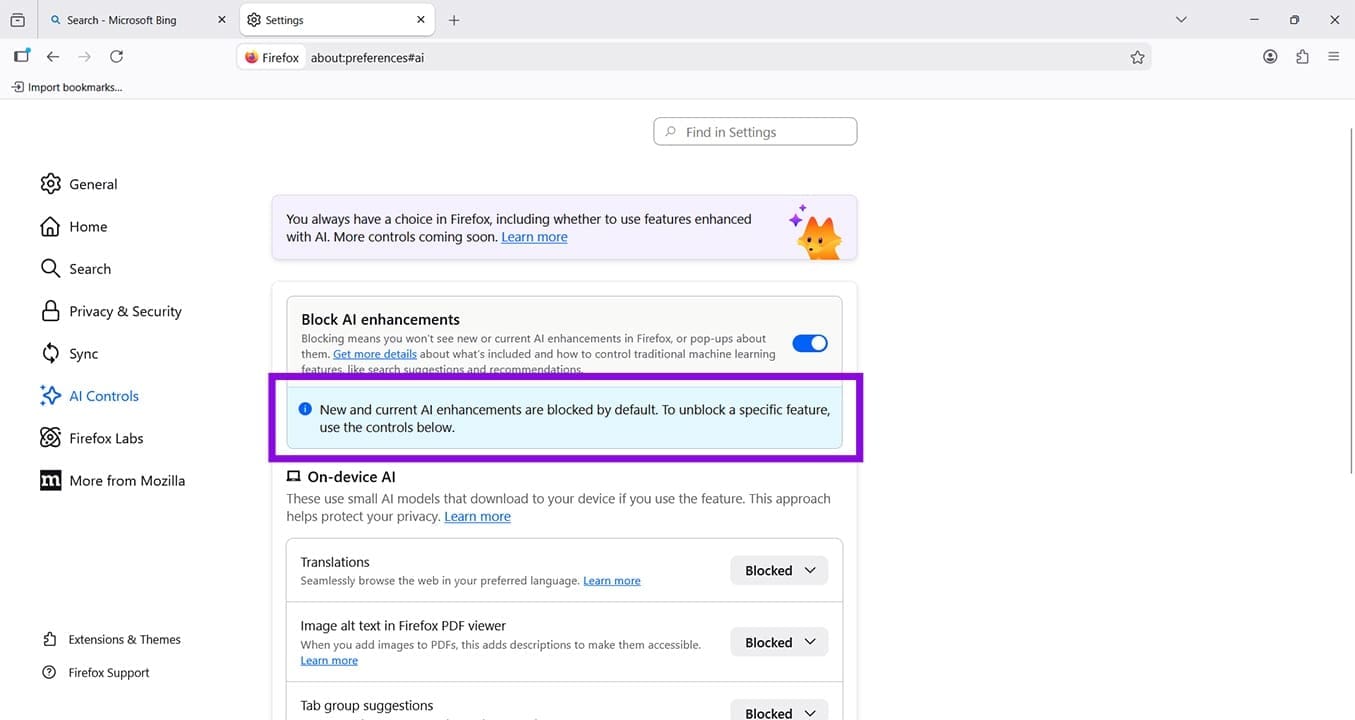
If you decide that you do want to explore the AI features, such as automatic translation or tab group suggestions, you can change these settings back at any time. Note: If you have extensions that utilize AI or AI-powered tools, blocking AI in Firefox will restrict Firefox’s native, built-in AI features (like on-device translation, and the native sidebar chatbot panel).
Was this helpful?
Last updated on 07 May, 2026
Read Next
 Firefox vs Firefox Focus: Should You Switch
Firefox Focus is a strange name for a browser, and the fact that it’s developed by none other Mozilla is even weirder.
Firefox vs Firefox Focus: Should You Switch
Firefox Focus is a strange name for a browser, and the fact that it’s developed by none other Mozilla is even weirder.
 What Is Caret Browsing in Chrome, Firefox, and Edge and How to Use It
You can highlight and copy text from browser pages using several ways besides using your mouse or trackpad.
What Is Caret Browsing in Chrome, Firefox, and Edge and How to Use It
You can highlight and copy text from browser pages using several ways besides using your mouse or trackpad.
 5 Fixes When Videos Are Not Playing on Firefox
Basic Fixes: Try Incognito mode: Open the website you're trying to access in an incognito window.
5 Fixes When Videos Are Not Playing on Firefox
Basic Fixes: Try Incognito mode: Open the website you're trying to access in an incognito window.
 6 Ways to Fix reCAPTCHA Not Working in Chrome, Firefox, and Other Browsers
Before you begin, ensure there are no problems with the network connection on your device.
6 Ways to Fix reCAPTCHA Not Working in Chrome, Firefox, and Other Browsers
Before you begin, ensure there are no problems with the network connection on your device.
 6 Ways to Fix Firefox Using a Lot of Memory on Windows Device
Basic Fixes: Restart your Windows PC: Restarting the system can help fix several issues as it helps to close all system services and start them afresh.
6 Ways to Fix Firefox Using a Lot of Memory on Windows Device
Basic Fixes: Restart your Windows PC: Restarting the system can help fix several issues as it helps to close all system services and start them afresh.
 How to Change or Fake Location in Chrome, Edge, and Firefox
Method 1: Use a VPN to Fake Your Location in Chrome, Edge, and Firefox VPN makes your private network truly private when you connect to its servers.
How to Change or Fake Location in Chrome, Edge, and Firefox
Method 1: Use a VPN to Fake Your Location in Chrome, Edge, and Firefox VPN makes your private network truly private when you connect to its servers.
 6 Ways to Fix YouTube Lagging on Chrome, Firefox, and Other Browsers
https://youtu.be/YyRuUvT3-ho Basic Fixes Use a reliable Wi-Fi network: It goes without saying that you need a fast and reliable network connection to play YouTube videos.
6 Ways to Fix YouTube Lagging on Chrome, Firefox, and Other Browsers
https://youtu.be/YyRuUvT3-ho Basic Fixes Use a reliable Wi-Fi network: It goes without saying that you need a fast and reliable network connection to play YouTube videos.
 Firefox Has Enabled Ad Tracking for All Users (Here’s What to Do About It)
What Does Mozilla Mean by Privacy-Preserving Ad Measurement?
Firefox Has Enabled Ad Tracking for All Users (Here’s What to Do About It)
What Does Mozilla Mean by Privacy-Preserving Ad Measurement?
The article above may contain affiliate links which help support Guiding Tech. The content remains unbiased and authentic and will never affect our editorial integrity.

