When you’re logged into it, Copilot keeps a history of your chats for up to 18 months to give you a record of your activity or to just let you return to previous topics. If you want to declutter or just want some history gone, then this article will show you how to delete Copilot chat history.
How to Delete Copilot Chat History
Depending on how and where you use it, there will be different ways to access Copilot, delete all chat history, and start fresh. If you’re not signed in, then any chat with Copilot is treated as temporary and deleted once the session is done or the app is closed. But what is consistent is that your problems will be solved in the Copilot sidebar.
We’ve broken these areas up into sections for easy reference.
The Copilot App
If using the Copilot app, deleting your chat history is straightforward. Here’s what you need to do:
Step 1. Open the Copilot app.

Step 2. Click the sidebar icon in the top left corner.
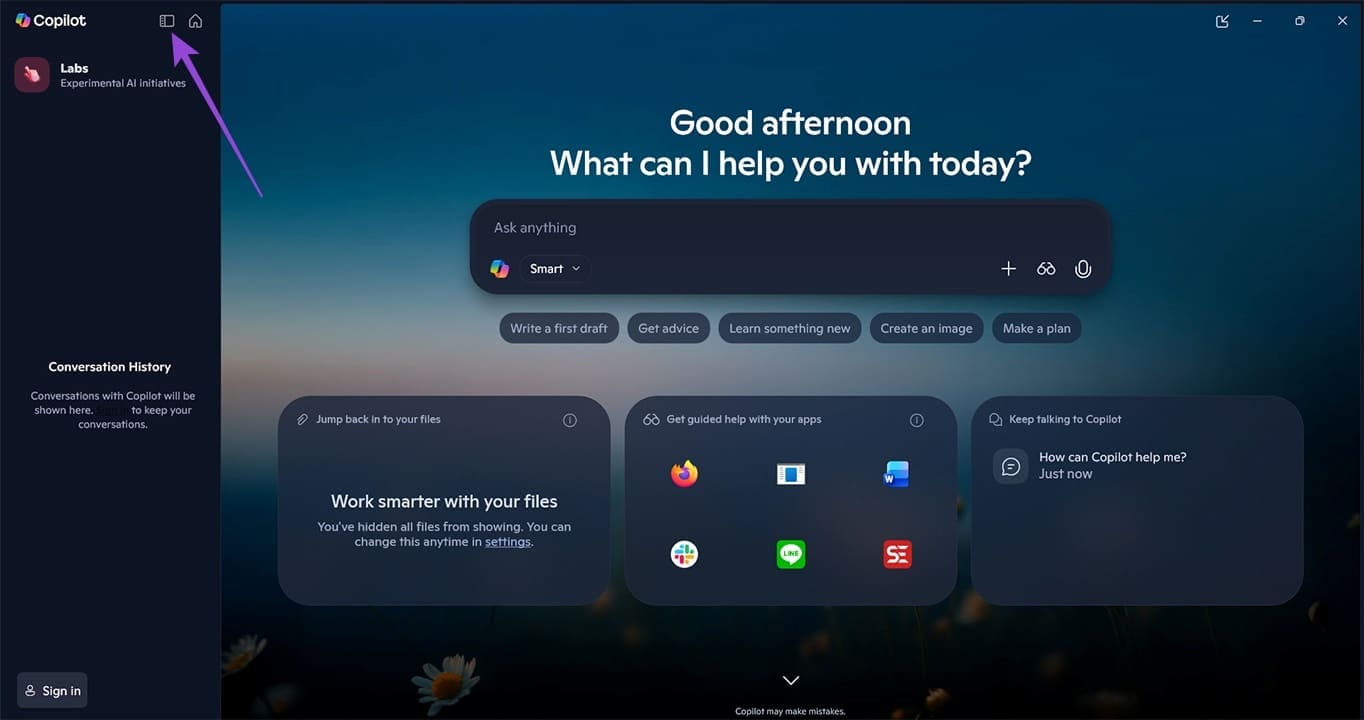
Step 3. Click your profile icon near the bottom left of the screen.
Step 4. Select “Settings” from the pop-up.
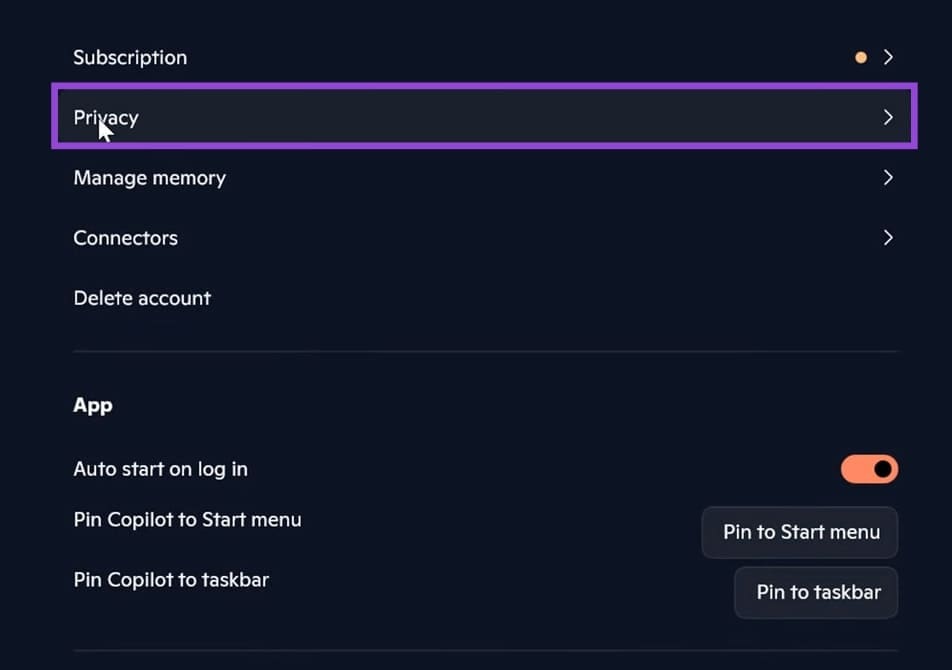
Step 5. Under your account profile, select “Privacy.”
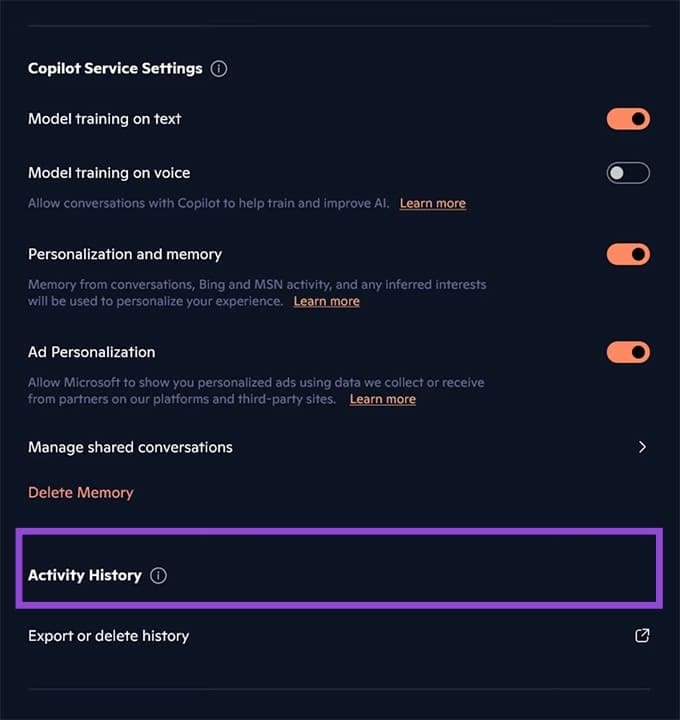
Step 6. Navigate down to the “Activity History” subsection and click “Export or delete history.”
Step 7. You’ll be taken to your Microsoft account on your default browser. Log in if you need to.
Step 8. In the “Copilot apps” tab, click the link that says “Delete all activity history.”
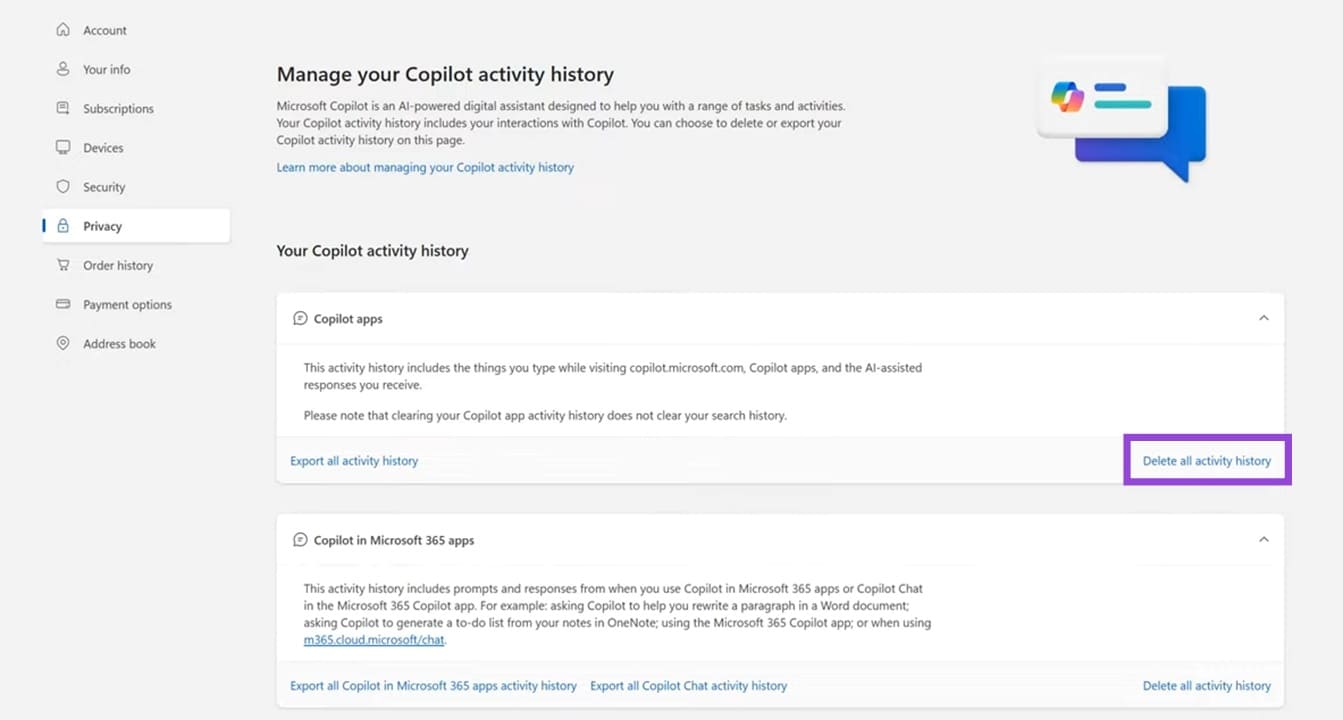
Step 9. Confirm your choice by clicking the “Clear” button.
Step 10. Your Copilot chat history should be deleted.
Copilot on Your Browser
If you’re using Copilot on Edge or another browser, here’s how to clear things:
Step 1. Open Copilot in a new tab on your browser.

Step 2. Click the profile pic in the bottom-left corner and click “Settings” from the menu that appears.
Step 3. In the new window, click “Privacy” in the sidebar.

Step 4. Click “Clear history” at the bottom in red.
Step 5. In the warning pop-up, click “Clear history” to confirm your choice.
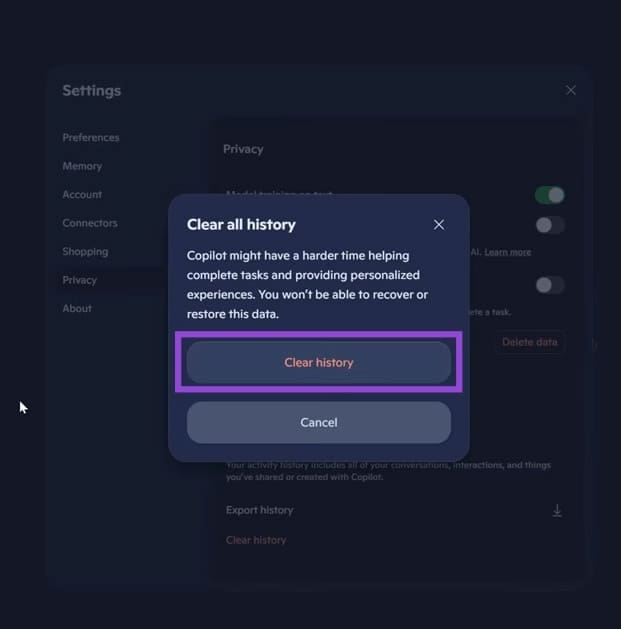
Step 6. Everything should then be cleared.
Deleting Past Conversations
Say you don’t want to delete your entire Copilot history, but rather certain conversations that are just cluttering things up. Here’s what you can do:
Step 1. Open the sidebar if necessary in the app or web browser.
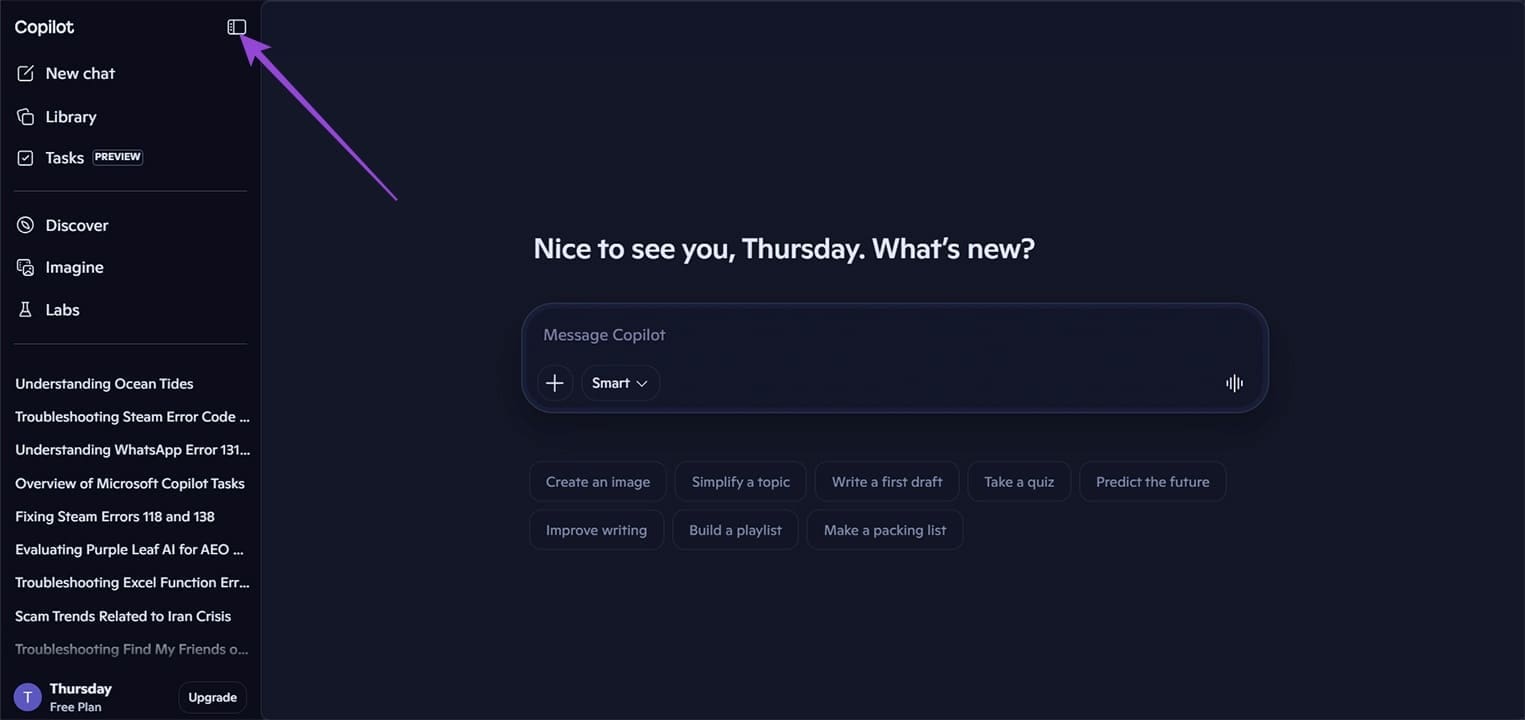
Step 2. Click the three dots next to the conversation you want to delete.

Step 3. Select “Delete” from the dropdown menu that appears.
Step 4. Confirm your deletion in the pop-up warning by clicking the “Delete” button.
Step 5. The conversation will be removed from your chat history while keeping the others intact.
Was this helpful?
Last updated on 26 March, 2026
Read Next
 How to View, Export, and Delete Bing Chat History
How to Find Bing Chat History On PC Step 1: Open Bing Chat by clicking the Chat button from the Bing Home screen.
How to View, Export, and Delete Bing Chat History
How to Find Bing Chat History On PC Step 1: Open Bing Chat by clicking the Chat button from the Bing Home screen.
 6 Ways to Export Microsoft Teams Chat History
Microsoft Teams has become integral to modern workplace communication, facilitating information sharing and collaboration.
6 Ways to Export Microsoft Teams Chat History
Microsoft Teams has become integral to modern workplace communication, facilitating information sharing and collaboration.
 How to Remove Copilot From Microsoft Edge
Method 1.
How to Remove Copilot From Microsoft Edge
Method 1.
 How to Use Copilot to Transcribe Meetings
Microsoft’s Copilot is showing up in all of its major apps, including Teams.
How to Use Copilot to Transcribe Meetings
Microsoft’s Copilot is showing up in all of its major apps, including Teams.
 Three Ways You Can Get More Accurate Responses From Microsoft Copilot
We love Microsoft Copilot but there’s also an uncomfortable truth you’ve probably seen yourself – it doesn’t always give the best results to prompts.
Three Ways You Can Get More Accurate Responses From Microsoft Copilot
We love Microsoft Copilot but there’s also an uncomfortable truth you’ve probably seen yourself – it doesn’t always give the best results to prompts.
 How to Use Copilot to Set Reminders and Calendar Events
Whether you're planning meetings or keeping track of personal to-dos, Copilot simplifies scheduling with natural language commands.
How to Use Copilot to Set Reminders and Calendar Events
Whether you're planning meetings or keeping track of personal to-dos, Copilot simplifies scheduling with natural language commands.
 How to Use Copilot in OneDrive
If you’ve ever spent too much time searching through files, Copilot in OneDrive can help.
How to Use Copilot in OneDrive
If you’ve ever spent too much time searching through files, Copilot in OneDrive can help.
 Insights From Copilot Have Stopped Working
Microsoft’s Copilot can be highly effective when it comes to analyzing data and delivering insights, but it doesn’t always work as intended.
Insights From Copilot Have Stopped Working
Microsoft’s Copilot can be highly effective when it comes to analyzing data and delivering insights, but it doesn’t always work as intended.
The article above may contain affiliate links which help support Guiding Tech. The content remains unbiased and authentic and will never affect our editorial integrity.