Method 1: Using a Web Browser
The easiest way to copy any text on Instagram is to use Instagram on a web browser. This will allow you to simply select the text using the cursor and copy it as you like. Follow the below steps to do it.
Step 1: Open Instagram on any web browser and go to the relevant post.

Step 2: Use the cursor to select the text, right-click on it, and click on Copy.
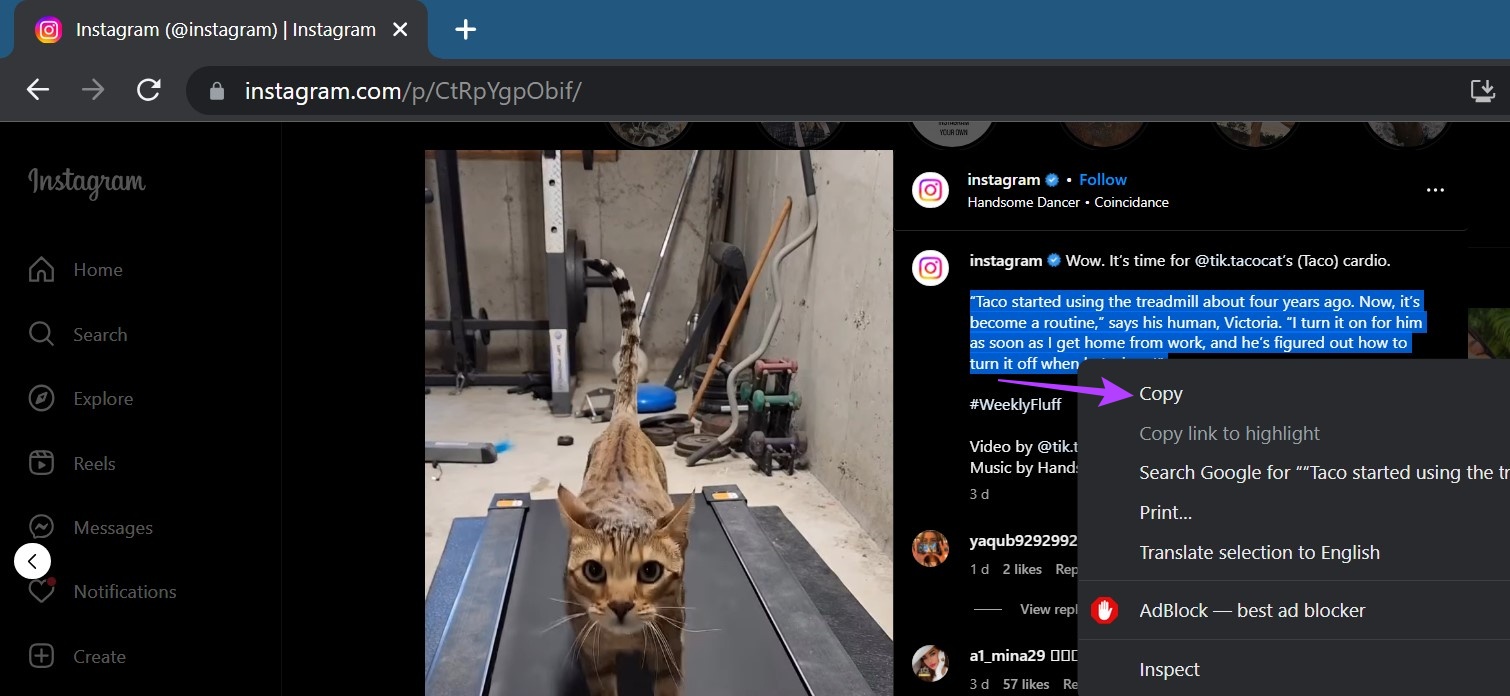
You can also repeat the above steps to copy Instagram comments and captions respectively. Then, copy and paste text on Instagram or any other place, as required.
Method 2: Using Instagram App
While there’s no straightforward way to copy Instagram text when using its mobile app, you can get around this by first copying the post link and then opening it separately in a browser. Here’s how to do it.
Step 1: Open the Instagram app and go to the relevant post. Tap the Share icon and tap on Copy link.

Step 2: Once the link has been copied, open any web browser and, in the address bar, paste the previously copied link.
Step 3: Go to the text you wish to copy and select it using your finger. Tap on Copy.

This will allow you to copy any text on Instagram on your mobile device. Paste it as required to save it for future use.
Method 3: Use Google Lens to Copy Text on Instagram
An AI-powered app, Google Lens can easily pick up on text from any image, including screenshots, and make it available as normal text. Before using the app, however, you will need a screenshot of the relevant page on Instagram. Follow the below steps to use Google Lens to copy Instagram text on your phone.
Tip: Check out our article if you’re having trouble taking screenshots on your Android or iOS device.
On Android
Step 1: Open Instagram and go to the relevant post or profile. Take a screenshot of the relevant section.
Step 2: Now, open the Google Lens app and tap on Text. Tap on the Gallery icon and tap on the screenshot.
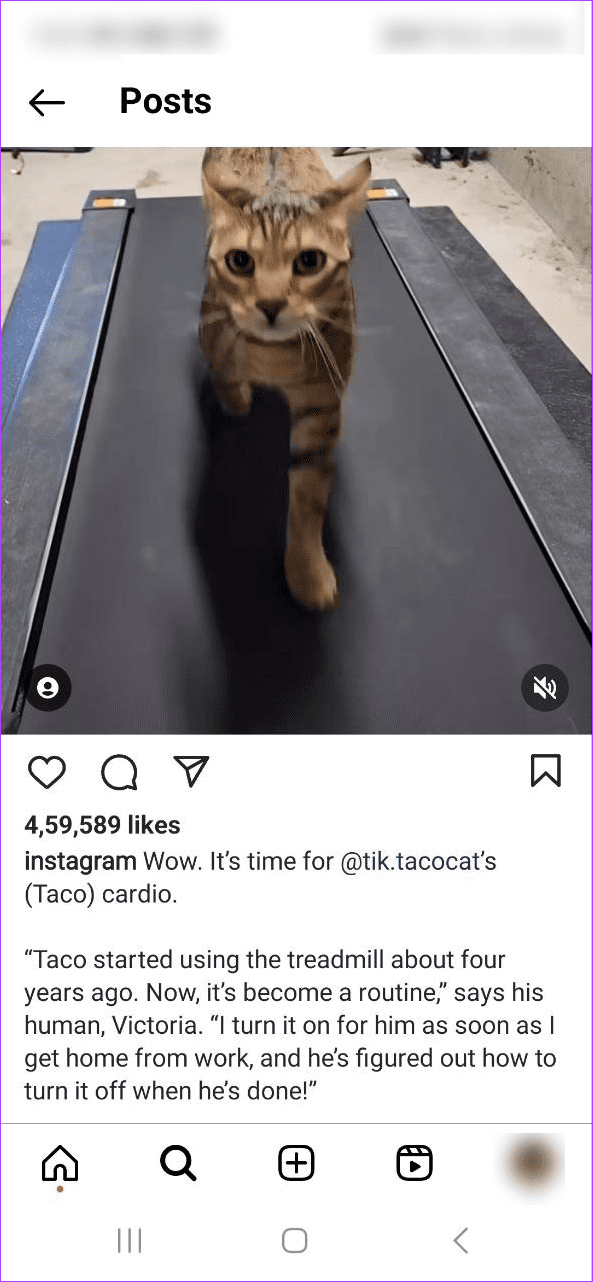


Step 3: Tap on Select all to copy all the text currently visible on the page.
Step 4: If not, use your fingers to select the relevant text and tap on Copy text.

On iPhone
Step 1: Open Instagram and take a screenshot of the relevant page. Then, open the Google Photos app and tap on the screenshot.
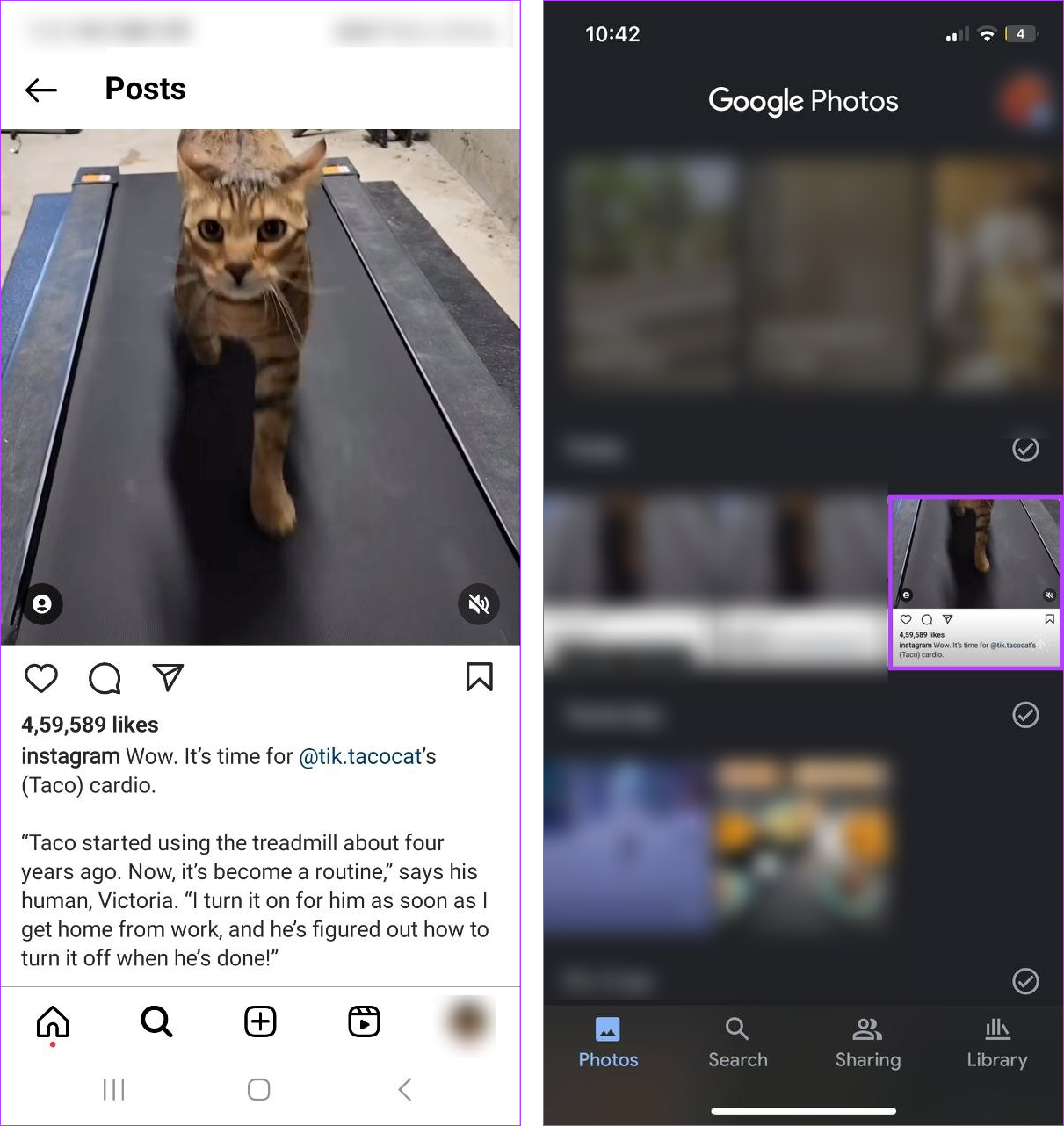
Step 2: Tap on Copy text. Or tap the Google Lens icon. Go to the menu options and tap on Text.
Step 3: Either select the relevant text or tap on Select all and tap on Copy text.

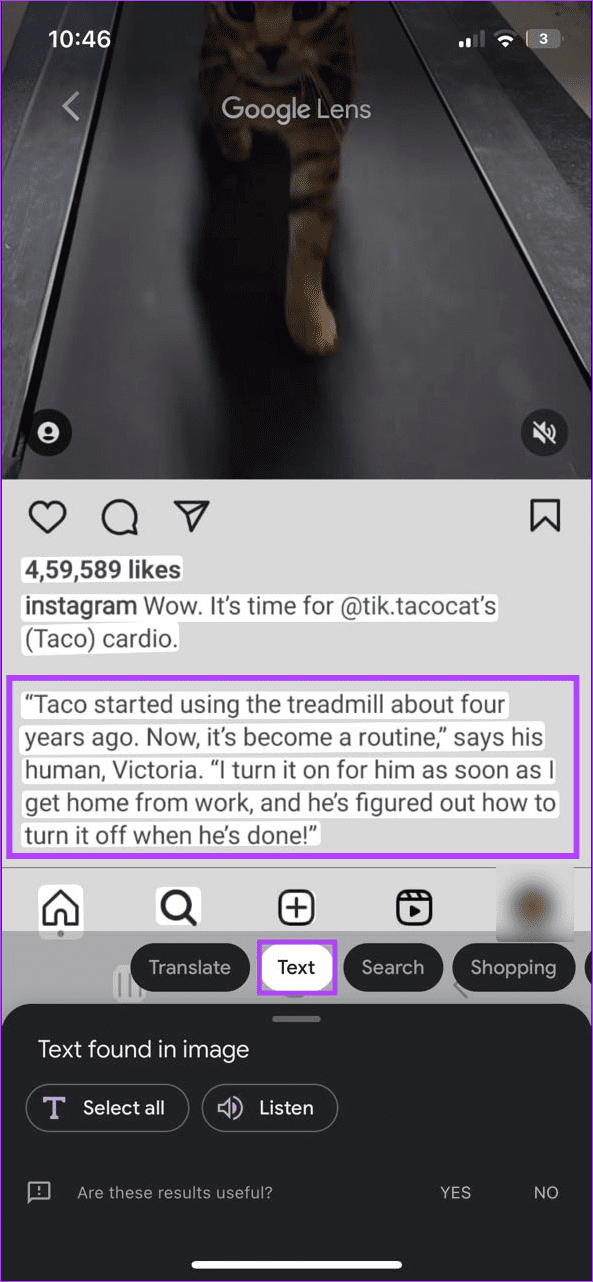

This will allow you to easily copy Instagram captions, comments, bio, etc. using the Google Lens app on your iPhone.
Method 4: Using Live Text on iPhone
Apart from using third-party apps, you can also use the native Live Text feature on your iOS devices to copy text from an Instagram post. Similar to using Google Lens, you will first need to take a screenshot of the target page and use the Photos app to access your iPhone’s Live Text feature. Here’s how.
Step 1: Open Instagram on your iPhone and screenshot the relevant page. Open the Photos app and tap on the screenshot.

Step 2: Use your fingers to highlight the relevant text and tap on Copy.

This will copy the selected text to your iPhone’s clipboard. You can now open any other app to share or save this copied text.
Was this helpful?
Last updated on 27 August, 2024
Read Next
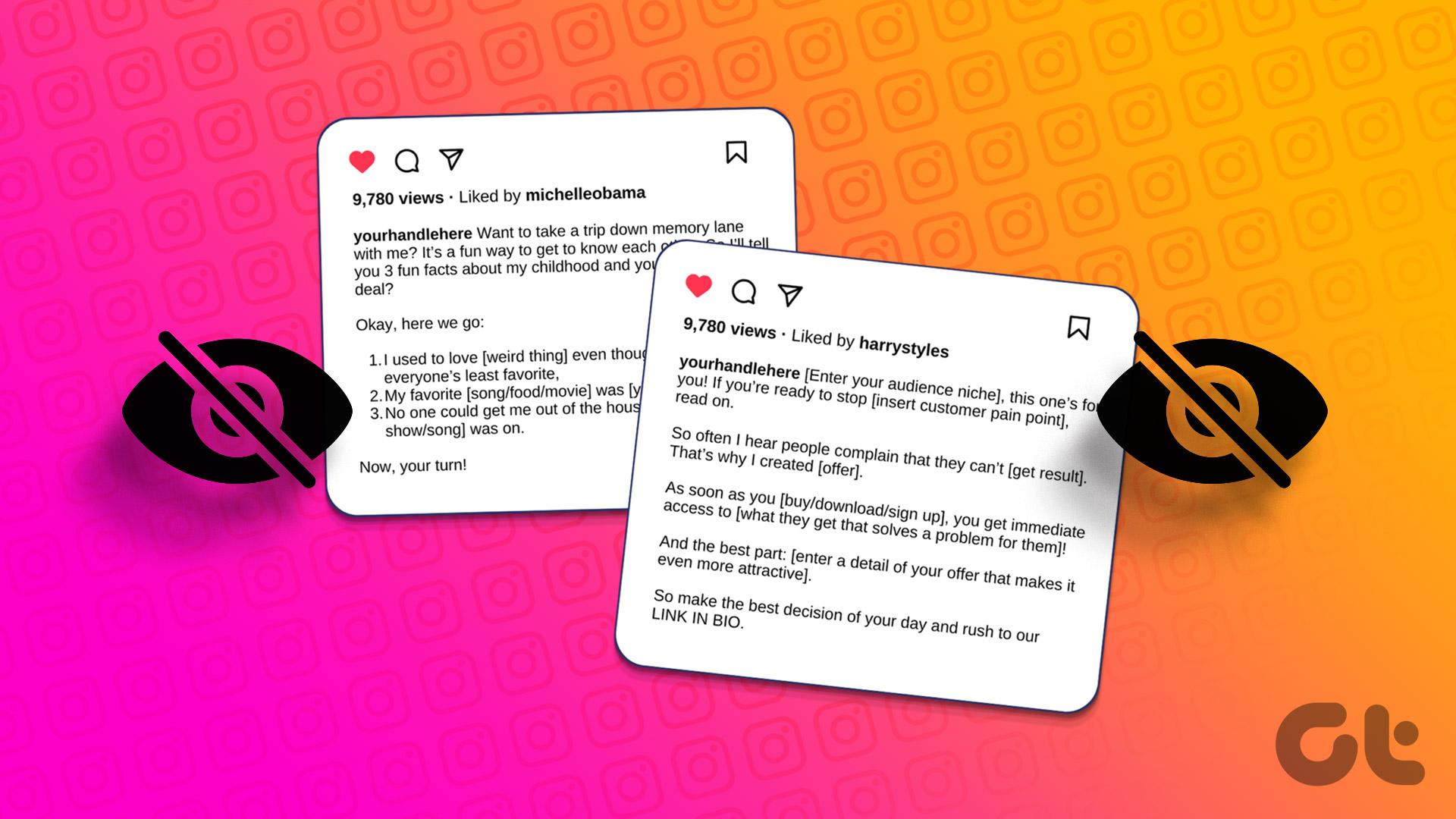 How to Fix Captions Not Showing Up on Instagram App
Why Do Captions Disappear on Instagram No, you might not have forgotten to add captions to Instagram, instead it was removed by the social media platform itself.
How to Fix Captions Not Showing Up on Instagram App
Why Do Captions Disappear on Instagram No, you might not have forgotten to add captions to Instagram, instead it was removed by the social media platform itself.
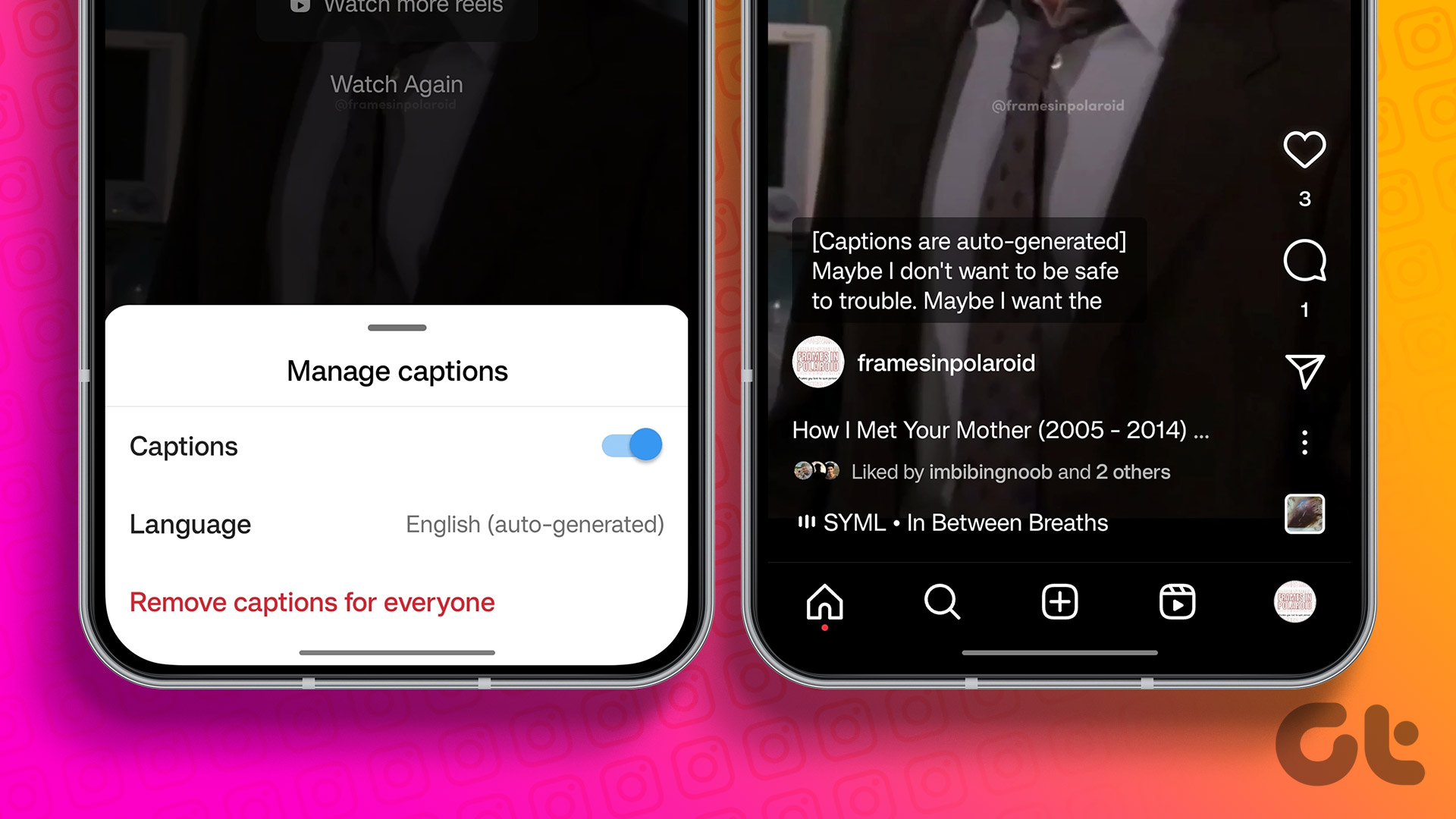 How to Add Captions (Subtitles) to Instagram Reels and Stories
Enable Auto-Generated Captions to any Reels This is similar to YouTube subtitles.
How to Add Captions (Subtitles) to Instagram Reels and Stories
Enable Auto-Generated Captions to any Reels This is similar to YouTube subtitles.
 4 Ways to Use Google Lens to Copy Text From an Image
Tip: You can also use the below methods to copy hand-written notes without typing.
4 Ways to Use Google Lens to Copy Text From an Image
Tip: You can also use the below methods to copy hand-written notes without typing.
 4 Ways to Add Captions to Images in Google Docs
Method 1: Use the Drawing Panel Using the Drawing panel is probably the most effective way of captioning images in Google Docs.
4 Ways to Add Captions to Images in Google Docs
Method 1: Use the Drawing Panel Using the Drawing panel is probably the most effective way of captioning images in Google Docs.
 4 Ways to Fix Can’t Post on Instagram Issue
Basic Fixes Check if Instagram is down: Check if Instagram is facing downtime.
4 Ways to Fix Can’t Post on Instagram Issue
Basic Fixes Check if Instagram is down: Check if Instagram is facing downtime.
 4 Ways to Fix the Couldn’t Post Comment Error on Instagram App
Basic Fixes Check network connection: Ensure there's no problem with your Wi-Fi or cellular network.
4 Ways to Fix the Couldn’t Post Comment Error on Instagram App
Basic Fixes Check network connection: Ensure there's no problem with your Wi-Fi or cellular network.
 8 Ways to Fix Add Music to Instagram Post Not Showing
Adding music enhances the vibe of an Instagram post.
8 Ways to Fix Add Music to Instagram Post Not Showing
Adding music enhances the vibe of an Instagram post.
 5 Ways to Copy and Paste Text on Android
Method 1: Copy and Paste General Text To copy and paste text on your Android device, follow these steps: Step 1: Long-press the text you want to copy.
5 Ways to Copy and Paste Text on Android
Method 1: Copy and Paste General Text To copy and paste text on your Android device, follow these steps: Step 1: Long-press the text you want to copy.
The article above may contain affiliate links which help support Guiding Tech. The content remains unbiased and authentic and will never affect our editorial integrity.