

The best way to convert a PDF to Word while maintaining formatting is using a PDF conversion tool like Adobe Acrobat. This will help maintain the original formatting and covert to an editable Microsoft Word Document.
A PDF stores how content sits on a page, while Word needs to rebuild it as editable paragraphs, tables, and images. You can often get a close result, but no converter can promise a perfect match for every file.
Here’s the approach I’d recommend you use to keep as much of the original formatting as possible.
Before you convert, check what kind of PDF you have
Try selecting a line of text in the PDF. If you can highlight individual words, it probably contains selectable text. If clicking selects the whole page like a picture, it’s probably a scan. Scanned documents need OCR, or optical character recognition, to turn the image of the words into editable text.
It also helps to decide what matters most. Do you want the Word file to look like the PDF, or do you want it to be easy to edit? It’s better to decide upfront to avoid issues. A layout-focused conversion may use lots of separate text boxes, while a more editable version may reflow text and shift page breaks.
Which PDF to Word Converter Best Preserves Formatting?
Not all PDF to Word converters will preserve the formatting to the same extent. The best tool is going to depend on the document. Below is a comparison to help you compare the main differences.
| Feature | Adobe Acrobat | Microsoft Word | Google Docs | Free Online Converters |
| Layout control | Retain Page Layout or Retain Flowing Text (desktop) | Automatic conversion | Automatic conversion | Automatic conversion; typically limited or no manual layout controls |
| Scanned PDFs (OCR) | Built-in OCR support | Text recognition may be limited; separate OCR may be needed | Built-in OCR; recommended file size of 2 MB or smaller | Available on some platforms; often restricted to paid plans |
| Tables and multi-column layouts | Designed to preserve complex layouts and tables | Complex formatting may require manual corrections | Tables and columns are unlikely to be retained | Results vary; complex formatting may require manual corrections |
| Font and image preservation | Designed to retain fonts, images and layout | Formatting and positioning may change | Basic text formatting may be retained | Varies by tool |
| Original PDF remains unchanged | Yes | Yes | Yes | Generally, yes |
| Platform | Desktop, web and mobile | Desktop and web (features vary) | Web | Web |
| Cost | Free online conversion with usage limits; paid plans for advanced features | Depends on version and licence | Free with a Google account | Free, often with usage restrictions |
| Best for | Complex layouts, scanned PDFs and professional workflows | Simple, text-heavy PDFs | Basic text extraction and editing | Occasional, non-sensitive documents |
Conversion results may vary depending on document complexity, software version and subscription.
For professional results convert with Adobe Acrobat
For a document with tables, columns, or a carefully arranged layout, I’d use Acrobat’s Export PDF tool. It provides settings for how the exported Word file should handle text and page layout.

- Open the PDF in Acrobat.
- Select Export PDF or choose Convert and then Microsoft Word.
- Choose Word Document or the DOCX.
- If you see export settings, choose Retain Page Layout when visual similarity matters most. Choose Retain Flowing Text if you plan to make larger edits and want the text to flow more naturally.
- If the document is scanned, enable text recognition or OCR. Check that the correct document language is selected.
- Export the file and save it as a DOCX.
The Retain Page Layout can keep the Word file closer to the original, but may split content into separate text box groups. Retain Flowing Text prioritizes text flow instead. Acrobat can also recognize scanned text during conversion.
(See Adobe’s export options and steps for exporting a PDF to Word.)
You can also convert in Acrobat on the web: choose Convert, then Export a PDF, select Microsoft Word and DOCX, and convert. Adobe’s current web instructions are here.
You can still try Microsoft Word for a simple document
If the PDF is mostly text and you already have Word, you can open it directly:
- In Word, choose File > Open.
- Browse to the PDF and open it.
- When Word says it will convert the file, select OK.
- Review the converted document, then save a copy as a DOCX.
Word leaves the original PDF unchanged. This is a convenient option for simple reports or letters, but Microsoft notes that the converted result may not match the PDF exactly. Tables with spacing, footnotes, page borders, and documents made mostly of graphics can be especially difficult to convert cleanly.
Bonus tip: If the PDF is a scan, run OCR first
A scan is essentially a photograph of a page. Word can’t edit words it can’t identify, so run OCR before or during conversion.
In Acrobat, open the scanned PDF and choose All tools > Scan & OCR, then select the page range and language and choose Recognize Text. You can then export the searchable PDF to Word.
After OCR, check names, dates, amounts, and other details carefully. A faint scan, skewed pages, handwriting, or unusual fonts can lead to recognition errors. Adobe recommends reviewing the recognised text and correcting mistakes when needed. (See Acrobat’s OCR instructions.)
Verdict
Choose Acrobat’s Export PDF when layout fidelity or scanned content matters, using Retain Page Layout for visual accuracy and Retain Flowing Text for extensive editing. You can test these features with Acrobat’s 7-day free trial.
For simple, text-heavy PDFs, you can open them directly in Microsoft Word. Whichever tool you choose, always review the output; no converter is perfect on every PDF.
FAQ
How do I convert a PDF to Word without losing formatting?
In Acrobat, choose Export PDF > Microsoft Word > Word Document, then select Retain Page Layout for the closest visual match. Export, save as DOCX, and review tables and images. Simple text-only PDFs may convert acceptably by opening them directly in Word.
Can I convert a scanned PDF to an editable Word document?
Yes, but it needs OCR. In Acrobat, open the file, choose All tools > Scan & OCR, pick the page range and language, and select Recognize Text. Export to DOCX, then proofread names, dates and amounts, since faint scans and handwriting cause recognition errors.
What’s the difference between Retain Page Layout and Retain Flowing Text?
Retain Page Layout keeps the Word file visually close to the PDF but may split content into separate text-box groups. Retain Flowing Text prioritizes natural paragraph flow, making larger edits easier, but page breaks and spacing may shift. Choose based on whether appearance or editability matters more.
Was this helpful?
Last updated on 27 November, 2026
Read Next
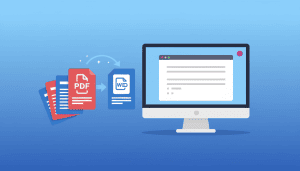 Best PDF to Word Converters in 2026: Tested for Formatting, Scans and Tables
Tested on October 29, 2026.
 Forgot iPhone Passcode: How to Reset iPhone Without Losing Data
Don't we all dread the sight of our phones not unlocking when we enter the password?
 How to Send Pictures From Android to iPhone (Without Losing Quality)
Method 1.
 How to Reinstall Windows 11 Without Losing Apps and Files
In some cases, your Windows 11 might get so corrupted by a virus or another issue that the only way forward is to reinstall the operating system.
 5 Ways to Convert Photo to PDF on iPhone or iPad (Without Third-Party Apps)
iOS offers multiple ways to convert pictures to PDF on iPhone quickly, efficiently, and without an app.
 4 Ways to Convert Word to PDF on iPhone or iPad (For Free)
Method 1.
 How to Convert Google Forms to PDF, Google Docs, or Word
How to Convert Google Forms to PDF Google Forms doesn’t have a native option to convert it into PDF.
 4 Ways to Clear All Text Formatting in Microsoft Word
Method 1: Using Keyboard Shortcuts With keyboard shortcuts, you can clear the text formatting within a Microsoft Word document.
The article above may contain affiliate links which help support Guiding Tech. The content remains unbiased and authentic and will never affect our editorial integrity.