

Tested on October 29, 2026. This article contains affiliate links in partnership with Adobe Acrobat.
Converting a PDF to Word sounds simple until the file opens with scrambled tables, odd line breaks, or text you can’t edit.
Different tools handle these challenges in different ways, and there isn’t one converter that will keep every PDF looking perfect. The best choice depends on what’s in your file: selectable text, scanned pages, tables, columns, or a carefully designed layout.
Here’s how I’d choose the best PDF to Word Converters in 2026.
PDF to Word Converters Compared at a Glance
| Converter | Best for | Scanned PDFs / OCR | Main limitation |
|---|---|---|---|
| Adobe Acrobat | Complex layouts and important documents | Yes, built-in OCR | Paid plan for ongoing use |
| Microsoft Word | Simple, text-heavy PDFs | No dedicated PDF OCR workflow | Formatting may shift |
| Nitro PDF Pro | Batch conversions and layout control | Yes, built-in OCR | Desktop features require paid software |
| Smallpdf | Quick browser-based conversions | OCR available on paid plans | Free usage limits |
| iLovePDF | Simple online conversions | OCR requires Premium | Limited advanced features on free tier |
Adobe Acrobat: Best for Complex Documents (Export a PDF + Recognize Text)

Acrobat is a useful choice when you need to turn a PDF into an editable Word document, especially if the file has more than plain paragraphs. Choose the feature to match the job:
- Contracts: Use Export a PDF to convert the file to Word. It can carry over fonts and formatting where the source PDF allows, though you may need to tidy the result.
- Reports with tables: Export to Word when you need to edit the whole report. Acrobat can reconstruct tables and columns, but check the converted file carefully: complex layouts may need cleanup. If you mainly need the data in a spreadsheet, export to Excel instead.
- Scanned documents: Run Recognize Text first under All tools > Scan & OCR > Recognize text, then export the searchable, recognized text to Word. The scan’s quality and text language can affect recognition.
- Revised documents: Use Compare Files in Acrobat Pro to compare two PDF versions. Acrobat creates a report highlighting changes, which can help with revision checks.
In my test on October 29, 2026, Acrobat recognized the text in a two-page staff contract. Results can vary with scan quality and document layout. See Adobe’s PDF-to-Word guide.
As of November 19, 2026, Acrobat Standard starts at US$14.99 per month with an annual, billed-monthly plan. Adobe’s online PDF-to-Word converter is free to use which is handy if you don’t want to install software, but daily conversion limits apply. Compare Acrobat plans here.
Best for: Professionals who regularly convert important or complex PDFs and need broader PDF editing tools. This includes consultants handling client documents, legal and finance teams working with contracts, reports, and scanned files, and enterprises that prefer a desktop workflow to avoid uploading sensitive documents to third-party web converters.
Microsoft Word: Best if You Already Have Office
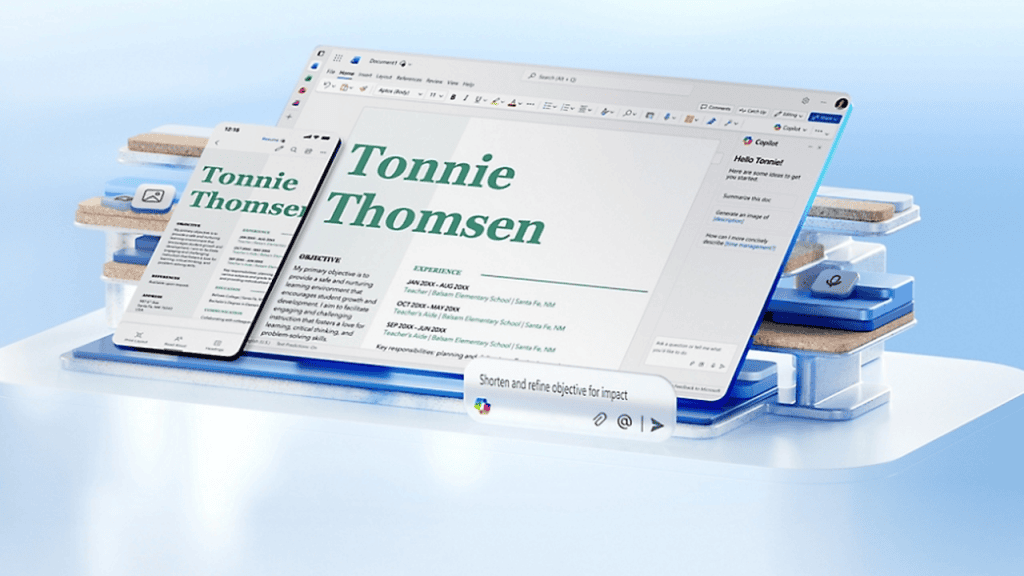
Word can open a PDF and make a copy as an editable document. For a mostly text-based file, such as a simple report or letter, that may be all you need, so it’s a convenient first try if you already use Microsoft 365 (Office) or Word.
The trade-off is that Word has to interpret the page and rebuild it using Word elements. Microsoft states openly that the result may not look exactly like the PDF, and that tables with cell spacing, footnotes, and pages dominated by graphics can be problematic. Microsoft explains what to expect when opening PDFs in Word.
Best for: Straightforward PDFs with selectable text, especially when you already have Word.
Nitro PDF: Best for Desktop Batch Conversions
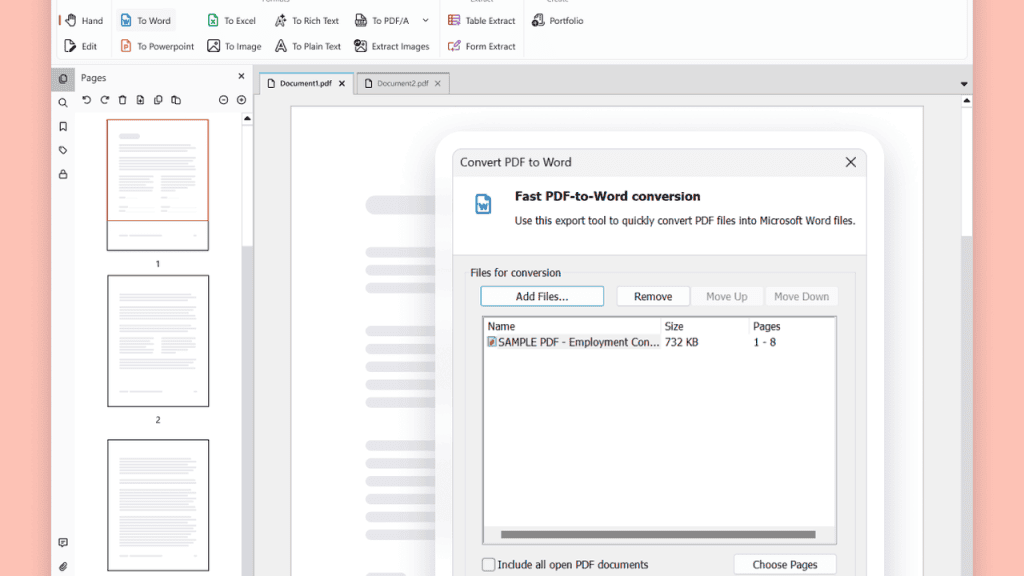
Nitro PDF Pro is worth considering if you have several documents to convert or want more control over the output. Its desktop software supports batch conversion and OCR for scanned PDFs. Nitro also provides layout settings that let you choose between an output that’s easier to edit and one that more closely matches the original page. See Nitro’s conversion guide.
That flexibility is useful because those two goals can pull in different directions. A Word file that looks very close to the PDF may rely on text boxes and be awkward to revise. A simpler, single-column version may be easier to edit but won’t look as much like the original.
Nitro also has a free online converter for occasional jobs. For repeated work, the paid desktop product offers more options.
Best for: Professionals handling multiple PDFs or choosing between close visual matching and easier editing.
Smallpdf: Best for a Quick Browser-Based Job

Smallpdf offers a straightforward way to convert a PDF in a browser. It’s convenient for a quick task when you don’t need to install an app, and the service includes other common PDF tools. Its free plan has limits, while paid plans provide broader access to tools such as text editing and OCR.
As with any web converter, consider the document before uploading it. A public brochure is different from a confidential contract or a file containing personal information. Check the service’s current privacy terms and your organization’s rules before using an online tool for sensitive files. Compare Smallpdf’s plans.
Best for: Occasional conversions where convenience matters more than advanced layout controls.
iLovePDF: Another Handy Online Option
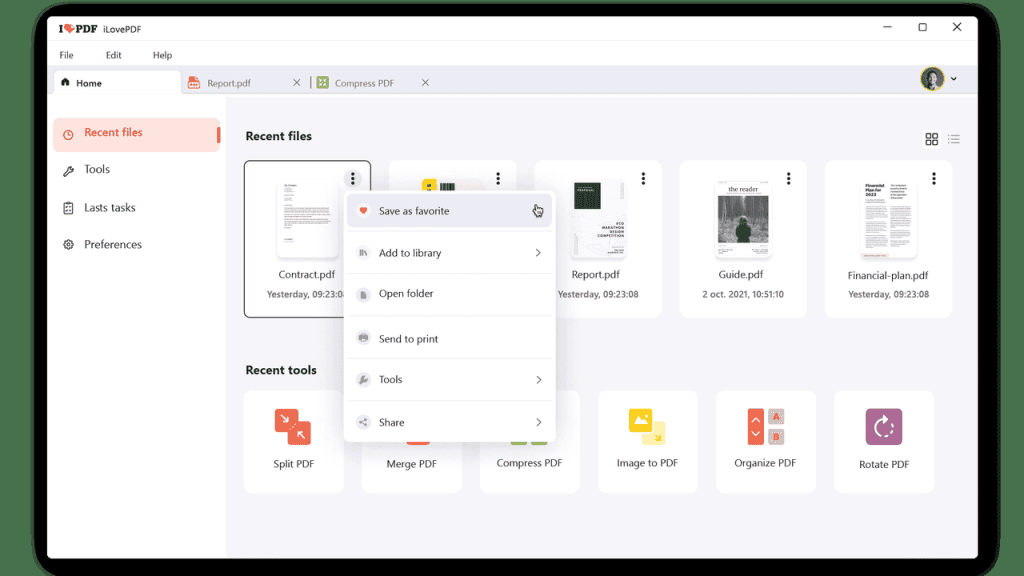
iLovePDF is another browser-based choice for simple conversions. It distinguishes between PDFs with selectable text and scanned files: OCR is needed to turn scanned text into editable Word content, and its OCR conversion is a premium feature. See iLovePDF’s PDF-to-Word tool.
That’s a useful detail to check before starting. If you upload a scan and the output contains only a picture of the page, the conversion hasn’t made the text editable. You’ll need OCR, and the quality will depend in part on how clear and straight the original scan is.
Best for: Basic online conversions, especially when the PDF already contains selectable text.
What Affects PDF to Word Formatting?
PDFs are designed to preserve how a page looks. They don’t always store the paragraphs, columns, and table structure Word needs to recreate the document as an editable file. That’s why even a good PDF to Word converter can struggle with complex layouts.
To get the best results, follow these three steps:
- Try selecting text. If you can highlight individual words in the PDF, it likely contains digital text that can be converted directly.
- If you can’t select text, run OCR. Scanned pages typically need optical character recognition (OCR) to turn images of text into editable words. In Adobe Acrobat, use the Recognize Text tool.
- Choose between editability and visual accuracy. Tables, columns, unusual fonts, headers, footnotes, and graphics can all complicate conversion. Some converters let you prioritise a Word file that’s easy to edit or one that looks as close as possible to the original PDF.
Even with the right settings, you may need to fix shifted line breaks, table formatting, or image placement after conversion.
Verdict: Which PDF to Word Converter Should You Pick?
Acrobat is the most comprehensive option here for scanned, table-heavy or confidential documents. Its Export a PDF and Recognize Text tools cover Word conversion and OCR in one workflow, making it particularly useful for professionals handling these files regularly. You can also try Adobe Acrobat free for seven days to see how it handles your documents.
For simple, text-heavy PDFs, Microsoft Word may be all you need. Nitro PDF Pro is worth considering for batch conversions and greater control over layout, while Smallpdf and iLovePDF are convenient for quick, occasional conversions of non-sensitive files.